
SilverStone SST-ST1300-TIv20
SilverStone SST-ST1300-TI v 2.0 Strider Titanium 1300W ATX Power Supply
User Manual
1. Introduction
This manual provides detailed instructions for the installation, operation, maintenance, and troubleshooting of your SilverStone SST-ST1300-TI v 2.0 Strider Titanium 1300W ATX Power Supply. This fully modular power supply is designed for high-performance personal computers, offering exceptional efficiency and stable power delivery.

Figure 1: SilverStone SST-ST1300-TI v 2.0 Power Supply and Retail Box.

Figure 2: Side view of the SilverStone SST-ST1300-TI v 2.0 Power Supply.
Key Features:
- High-level efficiency with 80 PLUS Titanium certification.
- Japanese electrolytic capacitors for enhanced reliability.
- 100% modular cabling for clean builds and improved airflow.
- Continuous power output at 50℃ operating temperature.
- Single high-end +12V rail for robust power delivery.
- Strict voltage regulation of ±3% and low ripple & noise.
- Double EPS 8-pin with support for multiple PCI-E 8/6-pin connectors.
- Ultra-silent 135mm fan with intelligent semi-fanless operation.
2. Setup and Installation
Before beginning installation, ensure your computer system is powered off and unplugged from the wall outlet. It is recommended to wear an anti-static wrist strap to prevent damage to components from static discharge.
2.1 Physical Installation
- Prepare your PC case: Remove the side panel of your computer case to access the PSU mounting area.
- Mount the PSU: Carefully slide the SilverStone SST-ST1300-TI into the designated power supply bay in your PC case. Ensure the fan is oriented correctly (typically facing downwards if there's a bottom vent, or upwards if the case has no bottom vent and the PSU is top-mounted).
- Secure the PSU: Use the provided screws to secure the power supply to the back of your PC case.

Figure 3: Rear view of the power supply showing modular cable connections and product label.
2.2 Cable Management (Modular Design)
The SST-ST1300-TI features a 100% modular design, allowing you to connect only the cables necessary for your system, reducing clutter and improving airflow.
- Identify necessary cables: Determine which cables your motherboard, graphics card(s), storage drives, and other peripherals require. Common cables include:
- 24-pin ATX Motherboard Power
- 8-pin (4+4) EPS/CPU Power
- PCI-E (6+2 pin) for Graphics Cards
- SATA Power for SSDs/HDDs
- Molex Power for older peripherals or fan hubs
- Connect cables to PSU: Firmly plug the required modular cables into the corresponding ports on the power supply. Ensure they click into place.
- Connect cables to components: Route the cables neatly through your case and connect them to your motherboard, graphics card(s), and other components. Ensure all connections are secure.
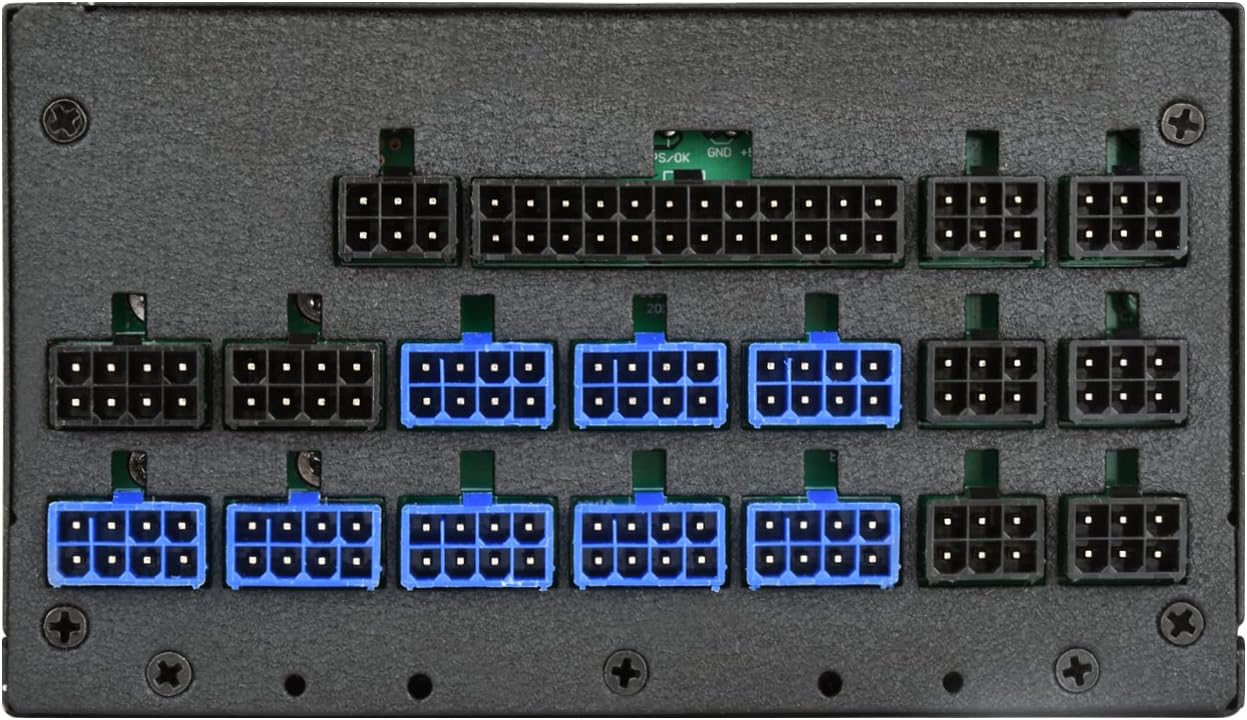
Figure 4: Detailed view of the modular cable connection ports.
2.3 Initial Power-Up
- Connect AC power: Plug the AC power cord into the power supply's AC inlet and then into a wall outlet or surge protector.
- Flip the switch: Ensure the power switch on the back of the PSU is in the "ON" (I) position.
- Power on PC: Press the power button on your computer case.
3. Operation
The SilverStone SST-ST1300-TI is designed for reliable and efficient operation. Once installed, its operation is largely automatic.
3.1 Fan Operation
This power supply features an ultra-silent 135mm fan with intelligent semi-fanless operation. This means the fan may not spin at lower loads to minimize noise. As the power supply's internal temperature or load increases, the fan will automatically activate and adjust its speed to maintain optimal cooling.

Figure 5: Top view showing the 135mm cooling fan.
3.2 Power Management
The power supply will automatically provide stable power to your components. Modern operating systems and motherboards manage power states (e.g., sleep mode, shutdown) which the PSU will respond to accordingly.
4. Maintenance
Proper maintenance ensures the longevity and optimal performance of your power supply.
4.1 Cleaning
- Dust Removal: Periodically clean dust from the power supply's fan grill and vents using compressed air. Ensure the PC is powered off and unplugged before cleaning.
- Exterior Cleaning: Wipe the exterior of the PSU with a soft, dry cloth. Do not use liquid cleaners directly on the unit.
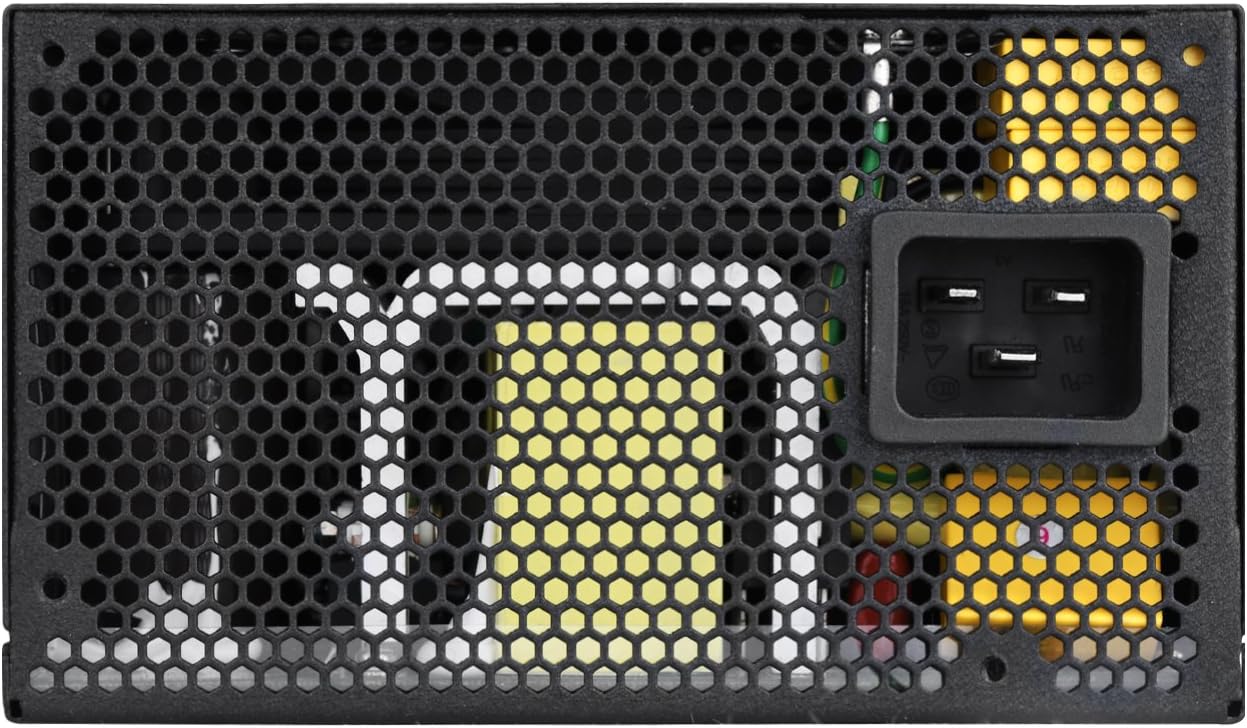
Figure 6: Rear view of the power supply with AC input and exhaust grill.
4.2 Safety Precautions
- Do Not Open: Under no circumstances should the power supply casing be opened. This unit contains high voltage components that can cause severe injury or death. There are no user-serviceable parts inside.
- Ventilation: Ensure adequate ventilation around the power supply. Do not block the fan or vents.
- Environment: Operate the PSU in a dry, well-ventilated environment, away from excessive heat, humidity, or dust.
5. Troubleshooting
If you encounter issues with your SilverStone SST-ST1300-TI power supply, refer to the following common troubleshooting steps.
5.1 No Power / System Not Turning On
- Check AC Power: Ensure the AC power cord is securely plugged into both the PSU and the wall outlet/surge protector.
- PSU Switch: Verify that the power switch on the back of the PSU is in the "ON" (I) position.
- Internal Connections: Double-check all modular cables are firmly connected to both the PSU and your computer components (motherboard, CPU, GPU, etc.).
- Wall Outlet: Test the wall outlet with another device to ensure it is providing power.
5.2 Unusual Noises (e.g., Buzzing)
- Coil Whine: Some power supplies may exhibit a phenomenon known as "coil whine" under certain loads. While often harmless, if it is excessively loud or new, ensure all components are properly seated and receiving stable power.
- Fan Noise: Check if the fan is obstructed by cables or dust. Clean the fan and vents as described in the Maintenance section. If the noise persists and is abnormal, it may indicate a fan issue.
- Contact Support: If a persistent and abnormal buzzing or grinding noise occurs, especially if it develops after initial use, it may indicate a manufacturing issue. In such cases, contact SilverStone support for assistance.
5.3 System Instability / Random Shutdowns
- Overload: Ensure your system's power requirements do not exceed the PSU's 1300W capacity. Use a power supply calculator if unsure.
- Connections: Re-verify all power connections to components. Loose connections can cause instability.
- Temperature: Ensure adequate airflow within your PC case to prevent the PSU or other components from overheating.
6. Specifications
Below are the detailed specifications for the SilverStone SST-ST1300-TI v 2.0 Power Supply.

Figure 7: Top view showing the product specifications label.
| Feature | Specification |
|---|---|
| Model Number | SST-ST1300-TIv20 |
| Form Factor | ATX |
| Max. DC Output | 1300W |
| 80 PLUS Efficiency | Titanium |
| Operating Temperature | 0°C ~ 50°C |
| Fan Size | 135mm |
| Cooling Method | Air (Semi-fanless operation) |
| Modular Cables | 100% Modular |
| Dimensions (L x W x H) | 60 x 60 x 85 centimeters |
| Weight | 2 Kilograms |
| Input Voltage | 100-240V |
| Compatible Devices | Personal Computer |
Note: Specifications are subject to change without notice. Please refer to the official SilverStone website for the most up-to-date information.
7. Warranty and Support
For warranty information and technical support, please refer to the official SilverStone Technology website or contact their customer service directly.
- Official Website: www.silverstonetek.com
- Support: Check the website for regional support contacts, FAQs, and driver downloads.
Keep your purchase receipt as proof of purchase for warranty claims.
Related documentsSST-ST1300-TIv20


Ask a question about this manual
Ask about setup, troubleshooting, compatibility, parts, safety, or missing instructions. Manuals+ will review the question and use this page’s manual context to help answer it.