
1. Introduction
This manual provides essential information for setting up, operating, maintaining, and troubleshooting your TECLAST F15S 15.6-inch laptop. Please read this manual thoroughly before using your device to ensure proper function and longevity.
2. Product Overview
2.1. Physical Characteristics
The TECLAST F15S is designed for portability and efficiency, featuring a thin metal body and a 15.6-inch Full HD display.
- Display: 15.6-inch IPS Full HD (1920x1080) with a narrow bezel.
- Design: Metal chassis, 7mm thin, and approximately 1.8 kg in weight.


2.2. Key Components and Performance
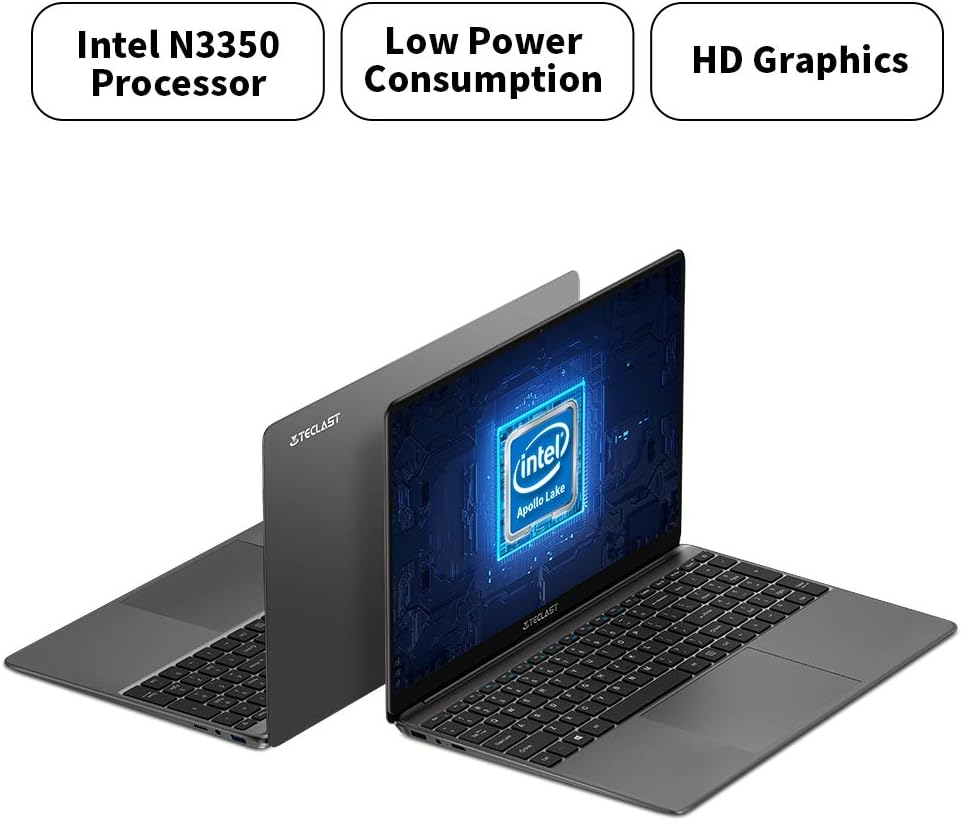
The F15S is equipped with an Intel Celeron N3350 processor, 8GB RAM, and 128GB eMMC storage, running on Windows 10.
- Processor: Intel Celeron N3350 Dual-Core (up to 2.4 GHz).
- Graphics: Intel HD Graphics 500.
- Memory: 8GB DDR3 RAM.
- Storage: 128GB eMMC, expandable via TF card (up to 128GB) or SSD upgrade.
- Operating System: Windows 10.

2.3. Ports and Connectivity
The laptop offers various ports for connectivity and expansion.
- USB Ports: 2 x USB 3.0.
- Video Output: 1 x Mini HDMI.
- Audio: 1 x Earphone Jack.
- Storage Expansion: 1 x TF-Card Slot.
- Wireless: Dual-band Wi-Fi (2.4G/5G), Bluetooth 4.2.

3. Setup
3.1. Initial Charging
Before first use, connect the laptop to the power adapter and charge it fully. The battery capacity is 38000mWh, providing approximately 7 hours of usage on a full charge.
3.2. First Power-On and Windows 10 Configuration
- Press the power button to turn on the laptop.
- During the initial Windows 10 setup, it is recommended NOT to connect to Wi-Fi immediately. If you connect to Wi-Fi, you might encounter issues with account authentication, potentially leading to a frozen setup process.
- On the Wi-Fi connection screen, look for an option like "I don't have internet" or "Skip for now" (exact wording may vary) in the bottom right corner. Select this option.
- Proceed with the setup, creating a local user account.
- Once the setup is complete and you are on the desktop, you can then connect to your Wi-Fi network and sign in with your Microsoft account if desired. The temporary local account can be removed later.
3.3. Connecting Peripherals
Use the available USB 3.0 ports to connect external devices such as a mouse, keyboard, or external storage. The Mini HDMI port allows connection to external displays.
4. Operating Instructions
4.1. Keyboard and Touchpad
The laptop features a full-size keyboard with an independent numeric keypad for efficient typing. The large 140mm x 95mm touchpad supports multi-touch gestures for convenient control.
4.2. Wireless Connectivity
- Wi-Fi: Access network settings in Windows 10 to connect to available 2.4GHz or 5GHz Wi-Fi networks.
- Bluetooth: Enable Bluetooth in Windows settings to pair with compatible devices such as headphones, speakers, or other peripherals.
4.3. External Display Connection
Connect an external monitor or projector using a Mini HDMI to HDMI cable. Once connected, you can configure display settings (duplicate, extend, or second screen only) through Windows display settings.
4.4. Storage Expansion
The TECLAST F15S supports storage expansion:
- TF Card: Insert a TF (Micro SD) card into the dedicated slot for additional storage, supporting up to 128GB.
- SSD Upgrade: The laptop supports upgrades with solid-state drives (SSD) for increased storage capacity and performance. Refer to the manufacturer's guidelines for compatible SSD types and installation procedures.
5. Maintenance
5.1. Cleaning
- Screen: Use a soft, lint-free cloth slightly dampened with water or a screen cleaner. Avoid harsh chemicals.
- Body: Wipe the laptop's exterior with a soft, dry cloth.
- Ports: Keep ports free of dust and debris. Use compressed air if necessary, ensuring the laptop is powered off.
5.2. Battery Care
- Avoid fully discharging the battery frequently.
- Do not expose the laptop to extreme temperatures.
- If storing the laptop for an extended period, ensure the battery is charged to around 50-70%.
5.3. Software Updates
Regularly check for and install Windows updates to ensure system stability, security, and optimal performance.
6. Troubleshooting
6.1. Common Issues and Solutions
- Laptop does not power on: Ensure the power adapter is securely connected and the battery has sufficient charge. Try a different power outlet.
- Slow performance: Close unnecessary applications, check for background processes, and ensure sufficient free storage space. Consider performing a disk cleanup.
- Wi-Fi connectivity issues: Ensure Wi-Fi is enabled. Restart your router and the laptop. Check network drivers in Device Manager.
- Screen remains black on startup (pointer visible): This can sometimes occur during updates or system initialization. If it persists, try a hard reset (hold power button until off, then restart). If the issue is related to the initial Windows setup, refer to section 3.2.
- Battery drains quickly: Adjust power settings, reduce screen brightness, close power-intensive applications, and ensure no background processes are consuming excessive power.
6.2. Contacting Support
If you encounter issues that cannot be resolved using this guide, please contact TECLAST customer support or your retailer for further assistance.
7. Specifications
| Feature | Specification |
|---|---|
| Model Name | F15S |
| Display Size | 15.6 inches |
| Display Resolution | 1920 x 1080 pixels (Full HD) |
| Display Technology | IPS LCD |
| Processor | Intel Celeron N3350 (Dual-Core, up to 2.4 GHz) |
| Graphics | Intel HD Graphics 500 |
| RAM | 8GB DDR3 |
| Internal Storage | 128GB eMMC |
| Storage Expansion | TF Card Slot (up to 128GB), SSD upgrade support |
| Operating System | Windows 10 |
| Wi-Fi | Dual-band (2.4G / 5G) |
| Bluetooth | Bluetooth 4.2 |
| USB Ports | 2 x USB 3.0 |
| Video Output | 1 x Mini HDMI |
| Audio Port | 1 x Earphone Jack |
| Front Camera | 2.0MP |
| Battery | 38000mWh (approx. 7 hours usage) |
| Weight | 1.88 kg |
| Dimensions (Thickness) | 7 mm |
8. Warranty and Support
8.1. Warranty Information
For specific warranty terms and conditions, please refer to the documentation provided with your purchase or contact the retailer/manufacturer directly. Warranty coverage typically includes defects in materials and workmanship under normal use.
8.2. Customer Support
If you require technical assistance, have questions about your product, or need to report an issue, please contact TECLAST customer support through their official website or the contact information provided by your seller.