
Introduction
This manual provides detailed instructions for the setup, operation, maintenance, and troubleshooting of your Tera Pro Series 6900 1D Laser Barcode Scanner. Please read this manual thoroughly before using the device to ensure proper functionality and to prevent damage.
Safety Information
- Do not look directly into the scanning light beam.
- Keep the device away from water and other liquids.
- Avoid dropping the scanner or subjecting it to strong impacts.
- Do not attempt to disassemble or repair the scanner yourself. Contact support if service is required.
Package Contents
Verify that all items are present in your package:
- Tera Pro Series 6900 1D Laser Barcode Scanner
- USB Cable
- Smart Stand (for automatic scanning mode)
- User Manual (this document)
Setup
1. Connecting the Scanner
The Tera Pro Series 6900 scanner is a Plug & Play device, requiring no driver installation.
- Connect the USB cable to the scanner.
- Plug the other end of the USB cable into an available USB 2.0 port on your computer.
- The scanner will automatically install necessary drivers and be ready for use.

Image: The Tera 6900 Barcode Scanner connected to a laptop via USB, highlighting its Plug & Play feature and support for multiple keyboard languages.
2. System Compatibility
The scanner is compatible with various operating systems and devices:
- Operating Systems: Windows, Mac OS, Linux.
- Compatible Devices: Desktop Computers, Laptops.
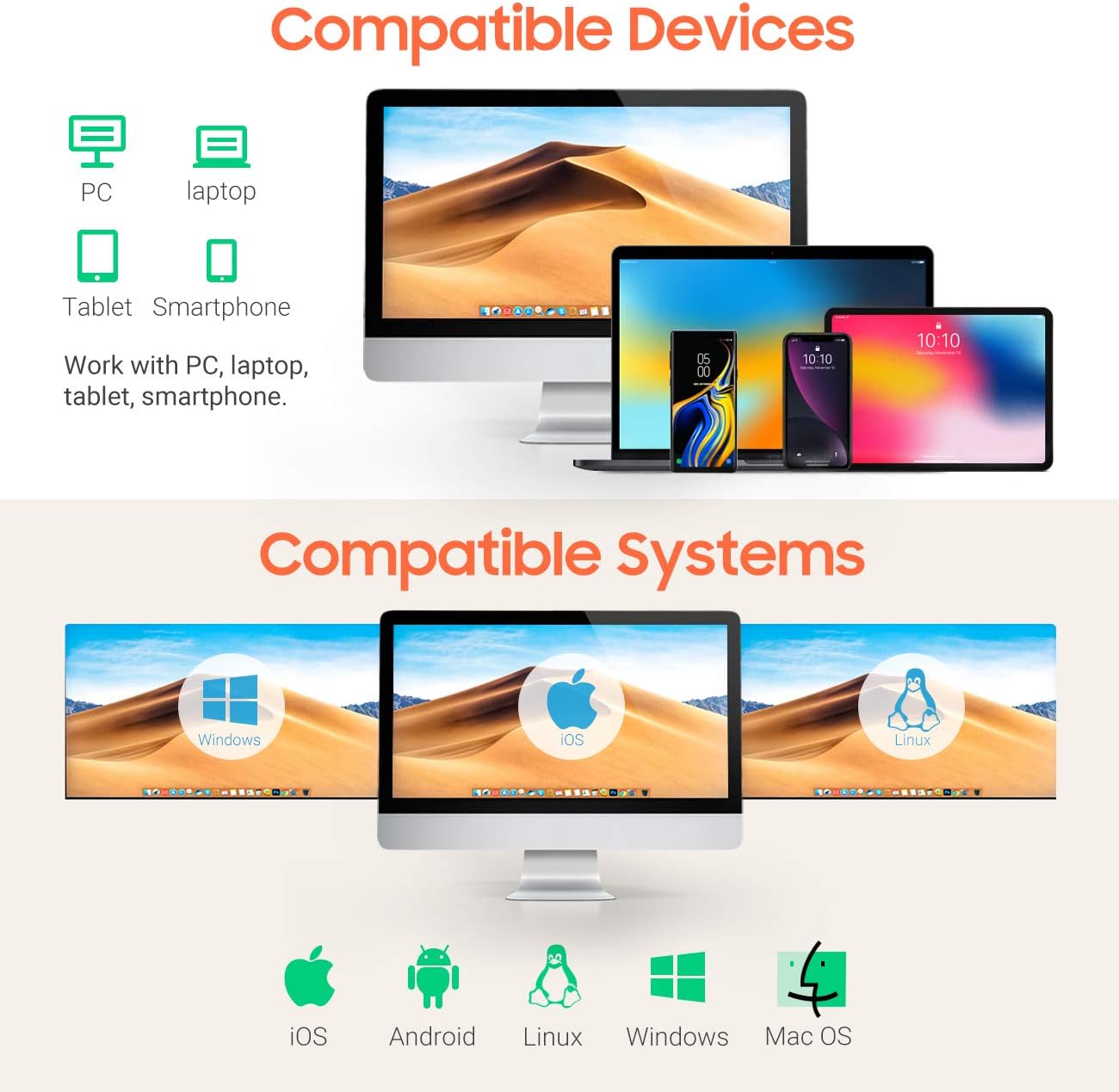
Image: Visual representation of the scanner's broad compatibility with different devices and operating systems.
Operating Instructions
1. Scanning Modes
The Tera 6900 scanner supports three primary scanning modes:
- Sensor Activated Mode: The scanner automatically detects a barcode and activates the laser.
- Key Trigger Mode: Press the trigger button to activate the laser and scan a barcode.
- Continuous Mode: The laser remains continuously active, scanning any barcode that passes through its field.
2. Automatic Scanning with Smart Stand
When the scanner is placed on its intelligent Smart Stand, it automatically switches to sensor-activated mode. The laser will turn on when a barcode is detected, offering hands-free operation. Removing the scanner from the stand will revert it to key trigger mode within seconds.

Image: The scanner positioned on its Smart Stand, ready for automatic, hands-free scanning.
3. Scanning Angle
For optimal scanning performance, position the scanner within the recommended angles:
- Angle of Deflection: ±40°
- Angle of Elevation: ±40°

Image: Visual guide for positioning the scanner to achieve the best scanning results.
4. Decoding Capacity
The Tera 6900 scanner offers super decoding capabilities for various 1D barcode conditions, including:
- Damaged barcodes
- Blurred barcodes
- Scratched barcodes
- Dislocated barcodes
- Colorful barcodes
- Fuzzy barcodes
- Ultra-long and small 1D barcodes (down to 5mm)

Image: Demonstrates the scanner's ability to read difficult-to-scan 1D barcodes.
5. Supported 1D Barcode Types
The scanner supports a wide range of 1D barcode symbologies:
- CODE39, CODE39 Full ASCII, CODE128, CODE 32, CODEBAR, CODE93, EAN13, CODE11, EAN-128, EAN-8, EAN-13, UPC-A, UPC-E, MSI, ISBN, ISBN 13, Industrial 2/5, ITF14, Interleaved 2/5, Standard 2/5, Matrix 2/5, GS1.
6. Output Programmable Features
Customize the scanner's output with various programmable settings:
- Add Prefix/Suffix: Add custom characters before or after scanned data.
- Hide Prefix/Suffix: Remove existing prefixes or suffixes from scanned data.
- Insert Digits: Insert specific digits at a desired position within the scanned data.
- Volume Control: Adjust the beep sound volume.
- Terminator: Configure the end-of-line character (e.g., Enter, Tab).
- Case Conversion: Convert scanned data to uppercase or lowercase.

Image: Visual guide to customizing barcode output with prefixes, suffixes, and digit insertion.
7. Keyboard Language Support
The scanner supports multiple keyboard languages to ensure correct data input:
- English
- Spanish
- German
- Japanese
- French
- Italian
- And more.
Maintenance
To ensure the longevity and optimal performance of your scanner, follow these maintenance guidelines:
- Cleaning: Use a soft, dry cloth to clean the scanner's exterior. For the scanning window, use a lint-free cloth lightly dampened with a mild, non-abrasive cleaner. Do not spray cleaner directly onto the device.
- Storage: Store the scanner in a cool, dry place away from direct sunlight and extreme temperatures.
- Cable Care: Avoid bending or twisting the USB cable excessively.
Troubleshooting
| Problem | Possible Cause | Solution |
|---|---|---|
| Scanner does not connect to computer. | Loose USB connection, faulty USB port, or system incompatibility. | Ensure the USB cable is securely connected to both the scanner and the computer. Try a different USB port or a different computer to rule out port issues. Verify your operating system is supported (Windows, Mac, Linux). |
| Scanner does not read barcodes. | Barcode is damaged/unreadable, incorrect scanning angle, or scanner is in the wrong mode. | Ensure the barcode is clear and undamaged. Adjust the scanning angle. Check if the scanner is in the correct operating mode (e.g., Key Trigger, Sensor Activated). Refer to the "Operating Instructions" section. |
| Incorrect characters appear after scanning (e.g., special characters instead of letters). | Incorrect keyboard language setting. | Configure the scanner's keyboard language to match your computer's keyboard layout. Refer to the scanner's programming guide (usually a separate barcode sheet) for language setting barcodes. |
| Scanner beeps but no data is transmitted. | Application not in focus, or data format issue. | Ensure the cursor is in a text field of an active application (e.g., Notepad, Word, Excel). Check programmable output settings for any unintended prefixes, suffixes, or terminators. |
Specifications
| Brand | Tera |
| Model Number | 6900 |
| Color | Orange |
| Connectivity Technology | USB |
| Compatible Devices | Computer, Laptop |
| Scan Rate | 100 images per second |
| Barcode Types Supported | 1D (CODE39, CODE128, EAN, UPC, etc.) |
| UPC | 787803926279 |
Warranty
The Tera Pro Series 6900 1D Laser Barcode Scanner comes with a 1-year manufacturer's warranty from the date of purchase. This warranty covers defects in materials and workmanship under normal use. It does not cover damage caused by misuse, accidents, unauthorized modifications, or improper installation.
Please retain your proof of purchase for warranty claims.
Support
For technical assistance, troubleshooting not covered in this manual, or warranty inquiries, please contact Tera customer support through the official website or your retailer.
For more information, visit the Tera Brand Store.


