
1. Introduction
Welcome to the user manual for your new T-Dagger TGK315 Mechanical Gaming Keyboard. This keyboard is designed to provide a superior gaming and typing experience with its responsive mechanical switches, vibrant RGB backlighting, and durable construction. Please read this manual carefully to ensure proper setup, operation, and maintenance of your device.
Key features include:
- 7-Color Rainbow RGB Backlight with multiple modes
- Advanced Multi-key Rollover (Anti-ghosting)
- Durable mechanical switches with long lifespan
- Ergonomic design with foldable stands and integrated wrist rest
- Spill-resistant construction
2. Package Contents
Before you begin, please ensure all items are present in your package:
- T-Dagger TGK315 Mechanical Gaming Keyboard
- USB Cable (integrated)
- User Manual (this document)
3. Setup Guide
3.1 Connecting Your Keyboard
The T-Dagger TGK315 keyboard is a plug-and-play device, requiring no special driver installation for basic functionality.
- Locate an available USB port on your computer (PC or Mac).
- Plug the USB connector of the keyboard into the USB port.
- Your operating system will automatically detect and install the necessary drivers. The keyboard is ready for use once detected.
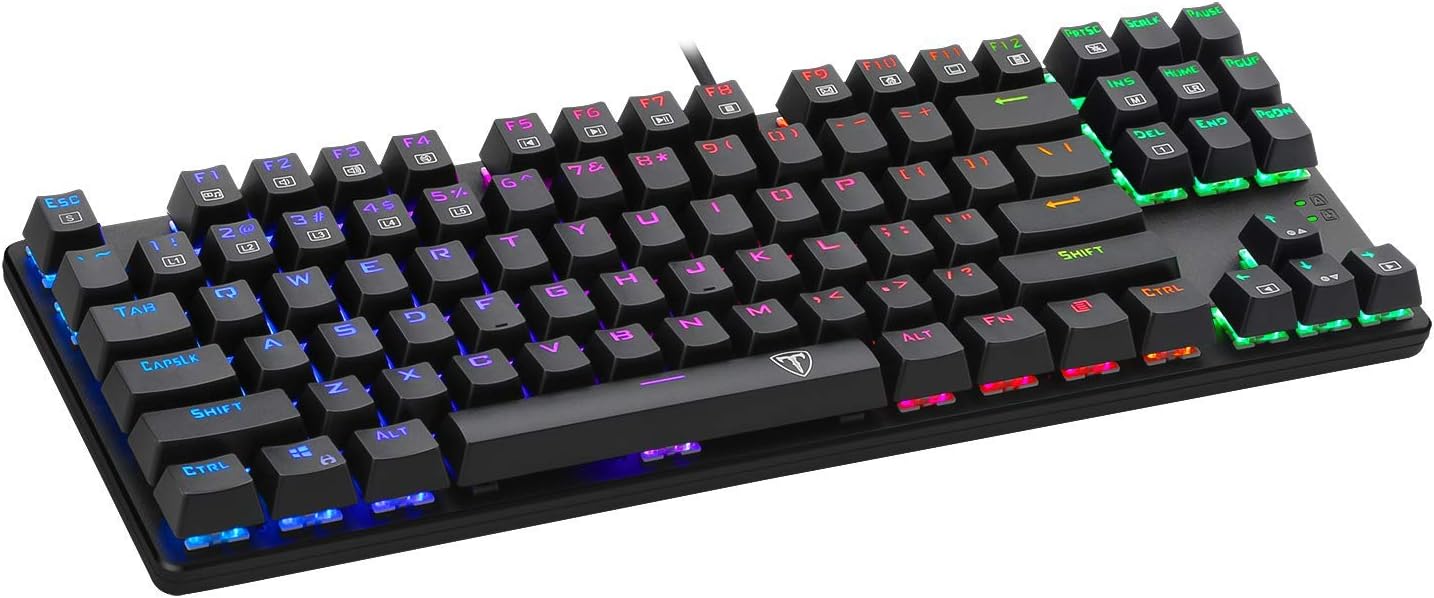
Image: The T-Dagger TGK315 Mechanical Gaming Keyboard, showcasing its wired USB connection and vibrant RGB backlighting.
3.2 Ergonomic Adjustment
For optimal comfort during long periods of use, you can adjust the keyboard's angle:
- Flip out the two foldable stands located on the underside of the keyboard. This will elevate the back of the keyboard, creating a 6-degree angle that aligns with natural wrist posture.

Image: Side view of the T-Dagger TGK315 keyboard, illustrating the foldable stands extended to provide an ergonomic typing angle.
4. Operating Instructions
4.1 Basic Key Functions
The keyboard features a standard 87-key layout. All keys function as labeled for typical typing and command inputs.

Image: A clear top-down view of the T-Dagger TGK315 keyboard, showing the full 87-key layout and the illuminated keys.
4.2 Backlight Control
The TGK315 keyboard features dynamic RGB backlighting with multiple modes and adjustable brightness.
- Changing Backlight Modes: The keyboard offers 7 distinct backlight modes. Use the dedicated backlight control keys (often indicated by a lightbulb icon or specific FN key combinations) to cycle through these modes.
- Adjusting Brightness: The lighting effect is adjustable up to 4 levels of brightness. Look for FN key combinations (e.g., FN + Up/Down arrow keys) to increase or decrease the backlight intensity.
- Turning Off Backlight: To turn off the backlight, especially during night use or work to avoid disturbance, press the FN + Page Down keys simultaneously.

Image: The T-Dagger TGK315 keyboard displaying its vibrant RGB backlighting, illuminating both the keycaps and the spaces between them.
4.3 Advanced Features
- Multi-key Rollover (Anti-Ghosting): The keyboard is equipped with advanced multi-key rollover technology, allowing all keys to register simultaneously. This ensures rapid and accurate input during intense gaming sessions, preventing missed key presses.
- Win Lock Function: To prevent accidental interruptions during gameplay, you can lock the Windows key function. Press the FN + Win key simultaneously to toggle the Win Lock feature on or off. This disables the Windows key, preventing you from accidentally minimizing your game.
- Shortcut Keys: For enhanced convenience in entertainment or gaming, the keyboard utilizes specific key combinations. For example, the arrow keys (↑ ← ↓ →) and WASD keys are optimized for quick access and comfort, improving efficiency in daily use.
5. Maintenance
5.1 Cleaning Your Keyboard
Regular cleaning helps maintain the performance and appearance of your keyboard. The keycaps can be detached for easier cleaning.
- Disconnect the keyboard from your computer before cleaning.
- To clean the surface, use a soft, slightly damp cloth. Avoid using harsh chemicals or abrasive materials.
- For deeper cleaning, you can carefully remove the keycaps. Gently pull each keycap upwards until it detaches from the switch.
- Once keycaps are removed, you can use compressed air to blow out dust and debris from underneath.
- Clean the keycaps with a mild soap solution and water, then dry them thoroughly before reattaching.
- Align the keycap with its switch and press down firmly until it clicks into place.

Image: A close-up view of the T-Dagger TGK315 keyboard, showing the mechanical switches with some keycaps removed, illustrating the internal structure and ease of cleaning.
Note: While the keyboard is spill-resistant, it is not waterproof. Avoid submerging the keyboard in liquids.
6. Troubleshooting
6.1 Common Issues and Solutions
| Problem | Possible Solution |
|---|---|
| Keyboard is not responding. |
|
| Backlight is not working or is dim. |
|
| Certain keys are not working. |
|
| Windows key is disabled. |
|
7. Specifications
7.1 Technical Details
| Feature | Detail |
|---|---|
| Brand | T-Dagger |
| Model Number | TGK315 |
| Connectivity Technology | USB Wired |
| Number of Keys | 87 |
| Keyboard Type | Mechanical Gaming Keyboard |
| Backlight | RGB (7-color rainbow, adjustable brightness/modes) |
| Anti-Ghosting | Multi-key Rollover |
| Compatible Operating Systems | Windows 95/98/XP/2000/ME/VISTA/7/8/10, Mac OS |
| Dimensions (L x W x H) | Approx. 5 x 16.8 x 5 cm |
| Weight | Approx. 350 grams |
| Special Features | Backlit, Comfortable Design, Foldable Stands, Spill-resistant |
8. Warranty and Support
8.1 Warranty Information
T-Dagger is committed to providing high-quality products. This keyboard is designed for strong durability and has undergone extensive testing to ensure a long lifespan. Please refer to your purchase receipt or retailer for specific warranty terms and conditions.
8.2 Customer Support
Should you encounter any problems or have questions regarding your T-Dagger TGK315 Mechanical Gaming Keyboard, please do not hesitate to contact T-Dagger customer service. We are dedicated to providing the best service and will respond to your inquiries within 24 hours to assist you.
No official product videos are available for this product based on the provided information.

