
Explore Scientific RDC1008CM3000
Explore Scientific RDC1008 Radio-Controlled Travel Clock User Manual
Model: RDC1008CM3000
1. Introduction
Thank you for purchasing the Explore Scientific RDC1008 Radio-Controlled Travel Clock. This compact and versatile device offers precise timekeeping, dual alarms, a clear backlit display, and internal temperature readings, making it an ideal companion for travel or home use. This manual provides detailed instructions for setup, operation, and maintenance to ensure optimal performance.
2. Package Contents
- Explore Scientific RDC1008 Radio-Controlled Travel Clock
- 2 x AAA Batteries
- AC Adapter (if included with your model)
- User Manual (this document)
3. Product Overview
Familiarize yourself with the clock's components and display elements.
3.1 Front View and Display

Figure 1: Front view of the Explore Scientific RDC1008 Radio-Controlled Travel Clock. The display shows the current time (12:30 PM), date (28/12), day (Saturday), and indoor temperature (25.8°C). Icons for radio control signal, snooze, and dual alarms are also visible.

Figure 2: Detailed diagram of the LCD display and top button. Key display areas are numbered: 1. Snooze and Backlight button, 2. Clock/Alarm display, 3. Date and Month, 4. Day of the week, 5. Internal Temperature. Indicators for RCC signal, snooze, and alarm are also shown.
3.2 Buttons and Controls
- SNZ/LIGHT Button (Top): Activates backlight, snoozes alarm.
- SET Button (Rear): Enters/exits setting mode.
- UP/DOWN Buttons (Rear): Adjusts values in setting mode, toggles temperature units.
- ALARM Button (Rear): Enters alarm setting mode, activates/deactivates alarms.
- RCC Button (Rear): Manually initiates radio control signal search.
4. Setup
4.1 Battery Installation
- Open the battery compartment cover on the back of the unit.
- Insert 2 new AAA batteries, observing the correct polarity (+ and - markings).
- Close the battery compartment cover securely.
- The clock will power on and begin searching for the radio control signal.
Note: An AC adapter may be used for continuous power, if included. The battery indicator will show low battery when replacement is needed.
4.2 Initial Radio Control Synchronization
The clock is designed to automatically synchronize its time with a radio signal (DCF77 in Europe). This process may take several minutes to a few hours, especially during the first setup.
- Place the clock near a window, away from electronic devices that may cause interference.
- The radio control icon () will flash during signal search.
- Once synchronized, the icon will become solid, and the time will be automatically set.
- To manually initiate a signal search, press the RCC button on the rear.
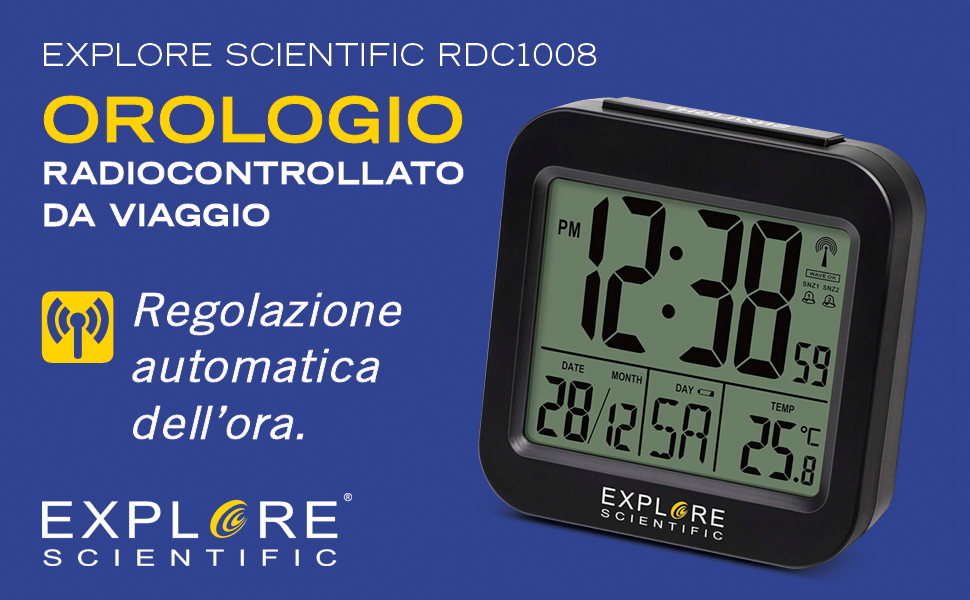
Figure 3: The clock features automatic time adjustment via radio control, ensuring precise timekeeping without manual intervention.
5. Operating Instructions
5.1 Manual Time and Date Setting
If the radio control signal is unavailable or you prefer manual setting:
- Press and hold the SET button until the year starts flashing.
- Use the UP/DOWN buttons to adjust the year, then press SET to confirm and move to the next setting.
- Repeat for Month, Day, Time Zone (TZ, set to 00 for standard time), 12/24-hour format, Hour, and Minute.
- Press SET again to exit setting mode.
5.2 Setting Alarms (Alarm 1 & Alarm 2)
The clock features two independent alarms.
- Press the ALARM button once to display Alarm 1 time. Press again for Alarm 2.
- While an alarm time is displayed, press and hold the ALARM button until the hour starts flashing.
- Use the UP/DOWN buttons to adjust the hour, then press ALARM to confirm.
- Repeat for minutes.
- Press ALARM again to exit alarm setting mode.
Activating/Deactivating Alarms:
- Press the ALARM button repeatedly to cycle through: Alarm 1 ON, Alarm 2 ON, Alarm 1 & 2 ON, All Alarms OFF.
- The alarm icon () will appear on the display when an alarm is active.

Figure 4: The clock's compact dimensions make it ideal for travel. It features a convenient Snooze function and supports dual alarms, allowing for two separate wake-up times.
5.3 Snooze Function and Backlight
- When an alarm sounds, press the SNZ/LIGHT button (top) to activate the snooze function. The alarm will pause for approximately 5 minutes and then sound again.
- To stop the alarm completely, press any other button on the rear of the clock.
- Press the SNZ/LIGHT button at any time to activate the blue backlight for a few seconds, allowing easy viewing in low light conditions.

Figure 5: The clock features a clear backlit display, making it easy to read the time even in dark environments. It also displays internal temperature, day of the week in seven languages, and a low battery indicator.

Figure 6: The Explore Scientific RDC1008 clock positioned on a bedside table, demonstrating its compact size and suitability for bedroom use, especially with its blue backlight for night viewing.
5.4 Temperature Display
- The clock displays the indoor temperature.
- To switch between Celsius (°C) and Fahrenheit (°F), press the DOWN button on the rear.
6. Maintenance
6.1 Cleaning
- Wipe the clock with a soft, dry cloth.
- Do not use abrasive cleaners or solvents, as they may damage the display or casing.
6.2 Battery Replacement
- When the low battery indicator appears on the display, replace the batteries promptly.
- Follow the steps in Section 4.1 for battery installation.
- Dispose of used batteries responsibly according to local regulations.
7. Troubleshooting
| Problem | Possible Cause | Solution |
|---|---|---|
| Clock does not power on. | Batteries are inserted incorrectly or are depleted. | Check battery polarity. Replace with new AAA batteries. |
| Time is incorrect or not setting automatically. | Poor radio signal reception; interference. | Move the clock to a location with better signal (near a window, away from electronics). Manually initiate RCC search (press RCC button). Set time manually if signal remains poor. |
| Display is dim or unreadable. | Low battery; viewing angle issue. | Replace batteries. Adjust viewing angle for optimal clarity, especially with backlight. |
| Alarm does not sound. | Alarm is not activated. | Ensure the alarm icon is visible on the display (refer to Section 5.2). |
8. Specifications
- Model: RDC1008CM3000
- Dimensions: 7.8 x 8 x 3 cm (L x W x H)
- Weight: 85 grams
- Power Source: 2 x AAA batteries (included), AC Adapter (optional/model dependent)
- Display Type: Digital LCD with Blue Backlight
- Time Format: 12/24 hour selectable
- Alarm: Dual Alarms with Snooze function
- Temperature Range: Internal temperature display (°C/°F selectable)
- Special Features: Radio-controlled time (DCF77), Calendar (Day, Month, Year, Day of Week), Low Battery Indicator
- Material: Plastic
9. Warranty and Support
Explore Scientific products are designed for quality and reliability. For warranty information, technical support, or service inquiries, please refer to the warranty card included with your purchase or visit the official Explore Scientific website. Keep your purchase receipt as proof of purchase.
For further assistance, you may contact Explore Scientific customer service through their official channels. Please have your model number (RDC1008CM3000) and purchase date ready.
Related documentsRDC1008CM3000


Ask a question about this manual
Ask about setup, troubleshooting, compatibility, parts, safety, or missing instructions. Manuals+ will review the question and use this page’s manual context to help answer it.