
1. Product Overview
The EVGA GeForce RTX 3070 FTW3 Ultra Gaming is a high-performance graphics card designed for advanced gaming and creative applications. It features 8GB of GDDR6 memory and is built with NVIDIA's Ampere architecture, offering real-time ray tracing and AI-powered DLSS for enhanced visual fidelity and performance.
This model incorporates EVGA's iCX3 Technology for superior cooling and quieter operation, along with an adjustable ARGB LED lighting system and a durable metal backplate.
Key Features
- Real Boost Clock: 1815 MHz; Memory Detail: 8192 MB GDDR6.
- Real-time ray tracing in games for cutting-edge, hyper-realistic graphics.
- Triple HDB Fans with iCX3 Technology offer higher performance cooling and much quieter acoustic noise.
- All-metal backplate & adjustable ARGB.

Figure 1: EVGA GeForce RTX 3070 FTW3 Ultra Gaming Graphics Card and its retail packaging.

Figure 2: The included EVGA GeForce GTX/RTX Installation Guide.
2. Setup and Installation
This section provides instructions for physically installing your EVGA GeForce RTX 3070 FTW3 Ultra Gaming graphics card and installing the necessary drivers.
2.1 System Requirements
- PCI Express-compliant motherboard with one dual-width x16 graphics slot.
- Minimum 650W or greater power supply with two 8-pin PCIe power connectors.
- Minimum 8GB system memory (16GB recommended).
- Microsoft Windows 10 64-bit (April 2018 Update or later) or Linux 64-bit.
- Internet connection for driver installation and updates.
2.2 Physical Installation
Follow these steps to install your graphics card:
- Step 1: Prepare Your System
Turn off your computer and disconnect the power cable. Open your computer case. It is recommended to ground yourself to prevent electrostatic discharge (ESD) damage. - Step 2: Install the Graphics Card
Locate an available PCI Express x16 slot on your motherboard. Remove any expansion slot covers that obstruct the installation. Carefully align the graphics card with the PCIe slot and press down firmly until it is securely seated. Ensure the retention clip on the PCIe slot locks into place. - Step 3: Connect Power
Connect two 8-pin PCIe power cables from your power supply to the corresponding power connectors on the top edge of the graphics card. Ensure a secure connection.

Figure 3: Front view of the graphics card, showcasing the triple fan design.
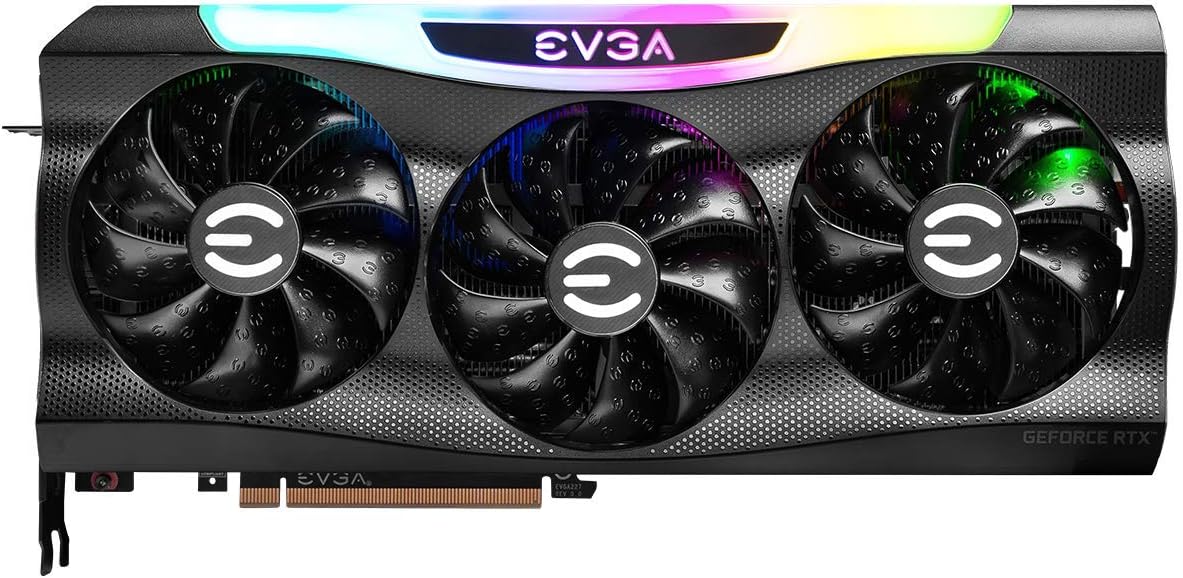
Figure 4: Front view with the customizable ARGB lighting illuminated.

Figure 5: Angled view highlighting the card's profile and cooling fins.

Figure 6: Angled view with the ARGB lighting active, showing the illuminated EVGA logo.
2.3 Driver Installation
After physical installation, close your computer case, reconnect the power cable, and turn on your computer. You will need to install the latest NVIDIA drivers for optimal performance.
- Step 1: Download Drivers
Visit the official NVIDIA website (www.nvidia.com/drivers) or the EVGA support page (www.evga.com/support/download/). Select your product (GeForce RTX 3070) and operating system to download the latest Game Ready Driver. - Step 2: Install Drivers
Run the downloaded driver installer and follow the on-screen prompts. A custom installation is recommended to ensure all necessary components are installed. Restart your computer when prompted to complete the installation.
3. Operating Your Graphics Card
Once installed and drivers are up-to-date, your EVGA GeForce RTX 3070 FTW3 Ultra Gaming graphics card is ready for use. It is optimized for high-resolution gaming and demanding creative workloads.
3.1 iCX3 Technology
The iCX3 Technology features multiple thermal sensors and asynchronous fans to deliver precise cooling where it's needed most. This intelligent cooling system helps maintain optimal temperatures and reduces fan noise during operation.
3.2 ARGB LED Customization
The adjustable ARGB LED lighting on your graphics card can be customized using EVGA's Precision X1 software. This software allows you to control lighting effects, colors, and synchronize them with other compatible components in your system. Download Precision X1 from the EVGA website.
4. Maintenance and Care
Proper maintenance ensures the longevity and optimal performance of your graphics card.
4.1 Cleaning
- Regularly clean dust from the fans and heatsink using compressed air. Ensure the computer is powered off and unplugged before cleaning.
- Hold the fan blades gently to prevent them from spinning rapidly during cleaning, which can damage the bearings.
- Avoid using liquid cleaners directly on the card.
4.2 Driver Updates
Keep your graphics drivers updated to benefit from performance improvements, bug fixes, and compatibility with new games and applications. Check the NVIDIA website regularly for the latest driver releases.
5. Troubleshooting
This section addresses common issues you might encounter.
5.1 No Display Output
- Ensure the monitor cable is securely connected to the graphics card and the monitor.
- Verify that the graphics card is fully seated in the PCIe slot.
- Check that all PCIe power connectors are securely attached to the graphics card.
- Test with a different display cable or monitor if possible.
5.2 Poor Performance in Games/Applications
- Ensure you have the latest NVIDIA Game Ready Drivers installed.
- Check in-game graphics settings; reduce settings if performance is unsatisfactory.
- Monitor GPU temperature to ensure it's not overheating, which can lead to throttling.
- Verify that your power supply meets the minimum wattage requirement for the card.
5.3 Overheating
- Ensure adequate airflow within your computer case.
- Clean dust from the graphics card fans and heatsink.
- Verify that the fans on the graphics card are spinning correctly.
6. Technical Specifications
| Feature | Specification |
|---|---|
| Model Number | 08G-P5-3767-KR |
| Graphics Coprocessor | NVIDIA GeForce RTX 3070 |
| Memory Size | 8 GB GDDR6 |
| Memory Speed | 14000 MHz |
| Boost Clock | 1815 MHz |
| Max Screen Resolution | 7680x4320 |
| Video Output Interface | DisplayPort (x3), HDMI (x1) |
| Item Weight | 3.96 pounds |
| Product Dimensions (LxWxH) | 11.81 x 2.19 x 5.48 inches |
| PCI Express | Gen 4 |
| DirectX Support | DirectX 12 Ultimate |

Figure 7: Rear view of the graphics card, showing the metal backplate.

Figure 8: Display output ports, including three DisplayPort and one HDMI connector.
7. Warranty and Support
7.1 Warranty Information
EVGA products are covered by a limited warranty. The specific terms and duration of your warranty may vary based on your region and the product purchase date. Please retain your proof of purchase for warranty claims.
7.2 Contact Support
For technical assistance, warranty claims, or product inquiries, please visit the official EVGA support website or contact their customer service:
- EVGA Support Website: www.evga.com/support/
- Driver Downloads: www.evga.com/support/download/


