
Introduction
This manual provides essential instructions for the setup, operation, maintenance, and troubleshooting of your Redragon K551W-RGB Mechanical Keyboard. Designed for both gaming and intensive typing, this full-size keyboard features Redragon MK.II DIY Blue mechanical switches, vibrant RGB lighting, and durable double-shot ABS keycaps. Please read this manual thoroughly to ensure optimal performance and longevity of your device.
Setup
1. Package Contents
- Redragon K551W-RGB Mechanical Keyboard
- User Manual
- Keycap Puller (for maintenance)
2. Connecting the Keyboard
- Locate an available USB port on your computer.
- Plug the USB connector of the Redragon K551W-RGB keyboard into the USB port.
- Your operating system should automatically detect and install the necessary drivers.
3. Software Installation (Optional)
For advanced customization of RGB lighting and macro creation, download the official Redragon software from the Redragon website. Follow the on-screen instructions for installation.
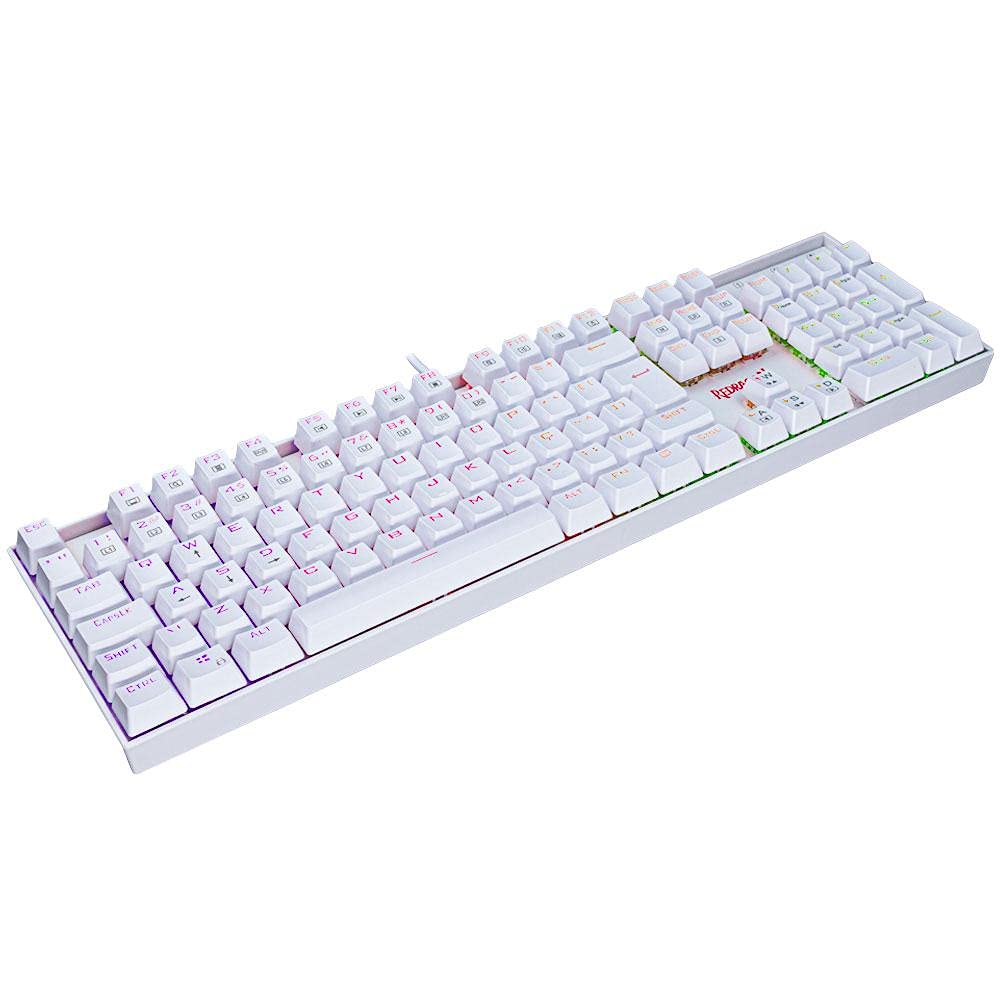
Image: Top-down view of the Redragon K551W-RGB Mechanical Keyboard, showcasing its full-size layout and white finish.
Operating Instructions
1. Basic Keyboard Functions
- Full-Size Layout: The keyboard features a complete layout including a numeric keypad, essential for various applications and gaming.
- N-Key Rollover: Ensures that every key press is registered accurately, even when multiple keys are pressed simultaneously.
- Adjustable Height: Utilize the foldable feet on the underside of the keyboard to adjust its typing angle for ergonomic comfort.
2. RGB Lighting Control
The Redragon K551W-RGB features Redragon Chroma Mk.II RGB lighting with individual per-key illumination. Lighting modes and colors can typically be adjusted using specific function key combinations or through the dedicated Redragon software.
- Function Key Combinations: Refer to the keyboard's keycap legends for specific Fn (Function) key combinations to cycle through lighting effects, adjust brightness, or change colors.
- Software Control: The Redragon software provides a comprehensive interface for customizing lighting patterns, colors, and effects to your preference.
3. Macro Creation
The keyboard supports macro creation, allowing you to program complex sequences of key presses and commands into a single key. This feature is managed through the Redragon software, where you can record, edit, and assign macros to specific keys.
Maintenance
1. Cleaning the Keyboard
Regular cleaning helps maintain the appearance and functionality of your keyboard, especially for the Lunar White finish.
- Surface Cleaning: Use a soft, damp cloth with a mild cleaning solution to wipe down the keycaps and casing. Avoid harsh chemicals.
- Dust Removal: Use compressed air to remove dust and debris from between the keycaps.
2. Keycap and Switch Maintenance
The K551W-RGB features durable double-shot ABS keycaps and hot-swappable mechanical switches.
- Keycap Removal: Use the provided keycap puller to carefully remove keycaps for cleaning or replacement. Gently pull straight up to avoid damaging the switch.
- Switch Replacement: As the keyboard is hot-swappable, individual switches can be replaced without soldering. Use a switch puller (not included, but often comes with replacement switches) to carefully remove and insert new compatible mechanical switches.

Image: Close-up view of the Redragon MK.II DIY Blue mechanical switches and double-shot ABS keycaps.
Troubleshooting
If you encounter issues with your Redragon K551W-RGB keyboard, try the following steps:
- Keyboard Not Responding:
- Ensure the USB cable is securely connected to both the keyboard and the computer.
- Try plugging the keyboard into a different USB port.
- Restart your computer.
- RGB Lighting Not Working:
- Check if the lighting is turned off or set to minimum brightness via function keys.
- Ensure the Redragon software is running correctly if you are using it for customization.
- Reinstall the Redragon software.
- Keys Not Registering:
- Remove the keycap and inspect the switch for any visible damage or obstruction.
- If the switch is hot-swappable, try reseating it or replacing it with a spare switch.
- Software Issues:
- Ensure your operating system and the Redragon software are up to date.
- Temporarily disable any antivirus or firewall software that might be interfering with the keyboard software.
If problems persist after attempting these steps, please contact Redragon customer support for further assistance.
Specifications
| Model Number | K551W-RGB |
| Brand | Redragon |
| Switches | Redragon MK.II DIY Blue Mechanical |
| Layout | Full Size (ABNT2) |
| Connectivity | USB |
| Lighting | RGB Redragon Chroma Mk.II (Per-key) |
| Key Rollover | N-Key Rollover |
| Keycaps | ABS Doubleshot |
| Case Material | ABS Plastic |
| Color | Lunar White |
| Cable Length | 5.9 ft (1.8 meters) |
| Product Dimensions | 47 x 6 x 18 cm |
| Item Weight | 1.3 kg |
| Compatible Devices | PC |
Warranty and Support
For warranty information, technical support, or any product-related inquiries, please visit the official Redragon website or contact their customer service department. Keep your purchase receipt as proof of purchase for warranty claims.
Redragon Official Website: www.redragonusa.com


