
Introduction
Thank you for choosing the UBOTIE Portable Bluetooth Keyboard. This manual provides detailed instructions for setting up, operating, and maintaining your new keyboard. Please read this manual carefully before use to ensure optimal performance and longevity of your device.
Package Contents
- 1 x UBOTIE 84-Key Portable Bluetooth Keyboard
- 1 x USB Cable (for charging, if applicable, or for wired connection if supported)
- User Manual
Setup
1. Battery Installation
The keyboard requires 2 AAA batteries for operation. To install the batteries:
- Locate the battery compartment on the underside of the keyboard.
- Gently slide open the battery cover.
- Insert 2 AAA batteries, ensuring correct polarity (+/-).
- Close the battery cover securely.

Image: Battery compartment with cover removed, showing AAA battery slots.
2. Power On/Off
Locate the On/Off switch on the top right side of the keyboard. Slide the switch to the "ON" position to power on the keyboard. Slide it to "OFF" when not in use to conserve battery life.
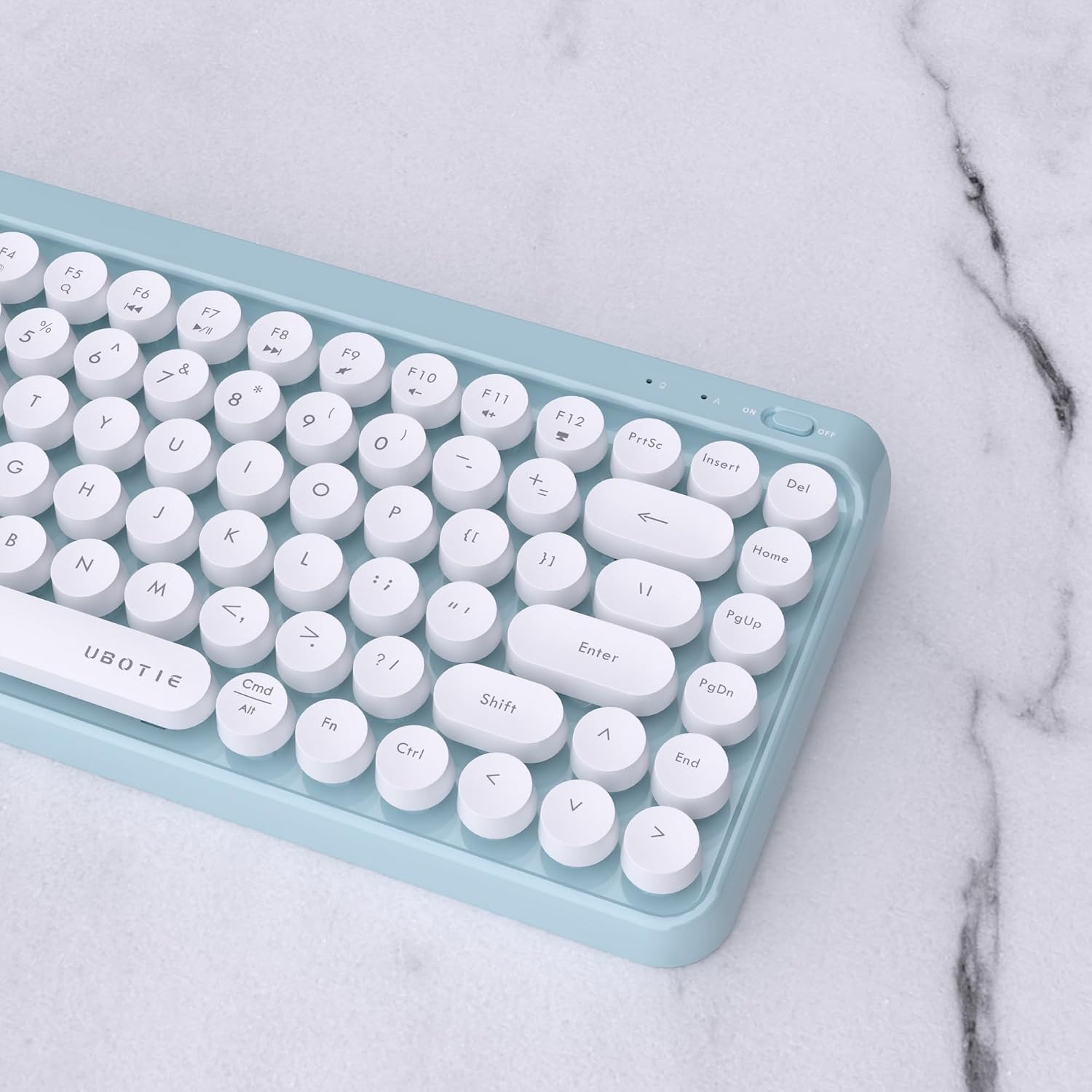
Image: Close-up of the keyboard's power switch and indicator lights.
3. Bluetooth Pairing
The UBOTIE keyboard supports multi-device Bluetooth connections (BT1, BT2, BT3). Follow these steps to pair your keyboard with a device:
- Ensure the keyboard is powered on.
- Press and hold the Fn key along with one of the Bluetooth channel keys (BT1, BT2, or BT3) for 2-3 seconds. The battery indicator light will blink, indicating pairing mode.
- On your device (PC, laptop, tablet, or smartphone), go to Bluetooth settings and search for available devices.
- Select "UBOTIE Keyboard" from the list of found devices to connect.
- Once connected, the indicator light will stop blinking.
To switch between operating systems for optimal key mapping, press Fn + Q for Android, Fn + W for Windows, or Fn + E for iOS/macOS.

Image: Bluetooth pairing instructions and OS switching key combinations.
4. Multi-Device Connection
This keyboard allows connection to up to three devices simultaneously. Use Fn + BT1, Fn + BT2, or Fn + BT3 to pair with each device. To switch between connected devices, simply press the corresponding Fn + BT key combination (e.g., Fn + BT1 to switch to device 1).
Operating Instructions
1. Basic Typing
The keyboard features a standard QWERTY layout with 84 keys. Simply begin typing after successful pairing. The round keycaps are designed for a comfortable typing experience.

Image: UBOTIE keyboard connected to a tablet.
2. Function Keys (Fn Combinations)
The keyboard includes multimedia and system function keys accessible via the Fn key. Press and hold Fn, then press the desired function key (F1-F12) to activate its secondary function (e.g., volume control, media playback).
3. Auto-Sleep Feature
To conserve battery, the keyboard will automatically enter sleep mode after a period of inactivity. To wake it up, simply press any key. It will quickly reconnect to the last paired device.
Maintenance
1. Cleaning the Keyboard
To clean your keyboard:
- Power off the keyboard and remove the batteries.
- Gently pull up on the keycaps to remove them. The design allows for easy removal and reinstallation.
- Use a soft, damp cloth to wipe the keycaps and the keyboard base. For stubborn dirt, a small amount of mild soap can be used. Ensure the keyboard is completely dry before reassembling.
- Reattach the keycaps by pressing them firmly into place.

Image: Keycaps removed for cleaning.
2. Battery Replacement
When the keyboard's performance degrades or the indicator light signals low battery, replace the 2 AAA batteries following the installation steps described in the "Setup" section.
Troubleshooting
- Keyboard not connecting/disconnecting frequently:
- Ensure the keyboard is powered on and batteries are fresh.
- Verify Bluetooth is enabled on your device.
- Re-initiate the pairing process (Fn + BT1/BT2/BT3).
- Check for interference from other wireless devices.
- Ensure your device's operating system is correctly selected (Fn + Q/W/E).
- Keys not responding or lagging:
- Check battery level and replace if necessary.
- Ensure the keyboard is within the 10m Bluetooth range of your device.
- Restart both the keyboard and your connected device.
- Battery drains quickly:
- Ensure the keyboard is switched "OFF" when not in use.
- Use high-quality AAA batteries.
- Keycap letters fading:
- This can occur with regular use. While not a functional issue, consider using keycap stickers if legibility becomes a concern.
Specifications
| Feature | Description |
|---|---|
| Brand | UBOTIE |
| Model | 84-Key Bluetooth Keyboard |
| Connectivity Technology | Bluetooth |
| Compatible Devices | Laptop, PC, Tablet (Windows, MacOS, iOS, Android) |
| Number of Keys | 84 |
| Keyboard Layout | QWERTY |
| Switch Type | Membrane |
| Power Source | Battery Powered (2 x AAA) |
| Product Dimensions | 12.6"L x 5.51"W x 0.98"H |
| Material | Plastic |
Official Product Videos
Video: Overview of the UBOTIE Portable Bluetooth Keyboard, demonstrating its features and design.
Video: Detailed look at the UBOTIE Keyboard, highlighting its retro design and functionality.
Video: Demonstrating the quality and feel of the UBOTIE Bluetooth keyboard.
Video: A brief demonstration of the portable Bluetooth keyboard with backlight features.
Video: Showcasing the keyboard's portability and ease of transport.
Video: A quick look at the retro design and aesthetic appeal of the keyboard.
Video: An ASMR-style demonstration of the keyboard's typing sound and portability.
Video: Experience the typewriter-like feel of the UBOTIE Bluetooth keyboard.
Warranty and Support
This UBOTIE product comes with a 1-year warranty from the date of purchase. If you encounter any issues or require assistance, please contact our 24-hour customer service. We are committed to providing a satisfactory solution for you.
For support, please refer to the contact information provided with your purchase or visit the official UBOTIE website.