
Fujitsu FMVD21001
Fujitsu ESPRIMO D586/M Desktop PC User Manual
Model: FMVD21001
Introduction
This manual provides essential information for setting up, operating, maintaining, and troubleshooting your Fujitsu ESPRIMO D586/M desktop personal computer. Please read this manual thoroughly before using the product to ensure proper and safe operation.
1. Setup Guide
1.1 Unpacking and Inspection
Carefully remove all components from the packaging. Verify that all listed accessories are present. Inspect the desktop PC and accessories for any signs of physical damage. If any damage is found, contact your vendor immediately.
- Fujitsu ESPRIMO D586/M Desktop PC
- Power Cable
- Stand (for vertical orientation)
- DisplayPort to Analog VGA (D-SUB) Conversion Cable
1.2 Connecting Peripherals
Before powering on the system, connect all necessary peripherals such as the monitor, keyboard, and mouse.
- Connect the Monitor: Use the DisplayPort or DVI-D output on the back of the PC to connect your monitor. If your monitor only supports VGA, use the provided DisplayPort to Analog VGA (D-SUB) conversion cable.
- Connect Keyboard and Mouse: Connect your USB keyboard and mouse to any available USB ports (USB 3.0 on front/back, USB 2.0 on back). PS/2 ports are also available for compatible keyboards and mice.
- Connect to Network: Connect an Ethernet cable to the RJ-45 LAN port on the back for wired network access.
- Connect Audio Devices: Use the audio input/output jacks on the back for speakers, headphones, or a microphone.

Figure 1: Front view of the Fujitsu ESPRIMO D586/M Desktop PC. Shows the power button, optical drive, and front USB ports.

Figure 2: Rear view of the Fujitsu ESPRIMO D586/M Desktop PC. Displays various ports including power, video outputs (DisplayPort, DVI-D), USB ports, LAN, and audio jacks.
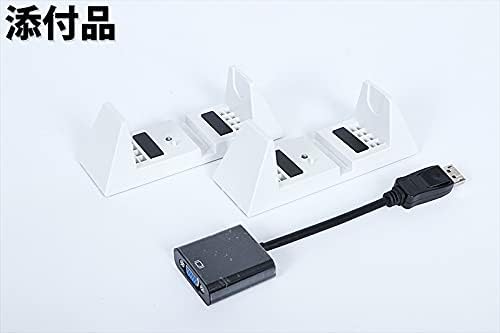
Figure 3: Included accessories: Two white stands for vertical placement of the PC, and a black DisplayPort to Analog VGA (D-SUB) conversion cable.

Figure 4: Included power cable. Note: The actual color and shape of the power cable may vary.
1.3 Powering On
Once all peripherals are connected, plug the power cable into the PC's power input and then into a wall outlet. Press the power button located on the front of the PC to turn it on. The system will boot into Windows 10 Pro 64-bit.
2. Operating Instructions
2.1 Windows 10 Pro Operating System
Your Fujitsu ESPRIMO D586/M comes pre-installed with Windows 10 Pro 64-bit. This operating system provides a familiar and secure environment for your computing needs. For detailed information on using Windows 10, please refer to Microsoft's official documentation or support resources.
2.2 Optical Drive Usage
The desktop PC is equipped with a DVD Super Multi Drive. To use the optical drive:
- Press the eject button on the drive bezel to open the disc tray.
- Place a CD or DVD onto the tray with the label side facing up.
- Gently push the tray back into the drive until it clicks shut.
- The operating system will typically detect the disc and prompt you for action.
2.3 Shutting Down the PC
To properly shut down your PC, click the Start button in Windows, then select Power > Shut down. Avoid powering off the system directly by holding the power button, as this can lead to data loss or system corruption.
3. Maintenance
3.1 Cleaning
Regular cleaning helps maintain the performance and longevity of your PC. Use a soft, lint-free cloth to wipe down the exterior. For dust accumulation in vents, use compressed air. Ensure the PC is powered off and unplugged before cleaning.
3.2 Software Updates
Keep your Windows operating system and drivers updated to ensure optimal performance and security. Windows Update can be accessed via Settings > Update & Security > Windows Update.
3.3 Data Backup
Regularly back up your important data to an external drive or cloud storage to prevent data loss in case of system failure.
4. Troubleshooting
This section addresses common issues you might encounter. For more complex problems, please refer to the warranty and support information.
| Problem | Possible Cause | Solution |
|---|---|---|
| PC does not power on. | Power cable not connected, power outlet issue, faulty power supply. | Ensure power cable is securely connected. Try a different power outlet. |
| No display on monitor. | Monitor not connected, incorrect input selected on monitor, faulty cable. | Check monitor cable connections. Ensure monitor is on and set to correct input. Try a different cable. |
| Operating system does not load. | Corrupted OS files, hardware issue. | Restart the PC. If the issue persists, consider using the recovery options (recovery drive can be created from USB memory). |
| Slow performance. | Too many programs running, low disk space, outdated drivers. | Close unnecessary programs. Free up disk space. Update Windows and drivers. |
5. Specifications
Detailed technical specifications for the Fujitsu ESPRIMO D586/M (FMVD21001).

Figure 5: Table summarizing key product specifications.
| Feature | Detail |
|---|---|
| Brand | Fujitsu |
| Model Name | ESPRIMO D586/P (FMVD21001) |
| Operating System | Windows 10 Pro 64-bit |
| CPU Brand | Intel |
| CPU Type | Core i5-6500 |
| CPU Speed | 3.2 GHz (up to 3.6 GHz with Turbo Boost) |
| RAM Capacity | 8 GB (DIMM) |
| Max Memory Capacity | 32 GB |
| Storage Capacity | 500 GB HDD (Serial ATA) |
| Graphics Accelerator | Intel HD Graphics 530 (Shared VRAM) |
| Optical Drive Type | DVD Super Multi Drive |
| Product Dimensions (W x H x D) | Approx. 8.9 x 33.8 x 33.2 cm (3.5 x 13.3 x 13.1 inches) |
| Product Weight | Approx. 5.9 kg (13 lbs) |
| USB Ports | USB 3.0 (Front x2, Rear x4), USB 2.0 (Rear x2) |
| Video Output Ports | DisplayPort x1, DVI-D x1 |
| Audio Ports | Microphone x1, Headphone x1, Stereo Mini (Rear x2) |
| LAN | RJ-45 x1 |
| PS/2 Ports | Keyboard/Mouse x1 |
6. Warranty and Support
This product is a used item. The warranty period is subject to the terms provided by the selling store. Please refer to the specific warranty information provided at the time of purchase.
- Recovery of operating systems other than the one installed by the selling store is not guaranteed.
- A recovery drive can be created on a USB memory stick for Windows 10 Pro 64-bit.
- Office software and recovery media are not included with this product.
For technical support or warranty claims, please contact the seller directly. Their contact information should be available on your purchase receipt or order details.
Ask a question about this manual
Ask about setup, troubleshooting, compatibility, parts, safety, or missing instructions. Manuals+ will review the question and use this page’s manual context to help answer it.