
1. Introduction
Thank you for choosing the Popglory Smart Watch P22. This manual provides comprehensive instructions to help you set up, operate, and maintain your new smartwatch. The P22 is designed to be a versatile companion, offering health monitoring, fitness tracking, and smart notification features to enhance your daily life.
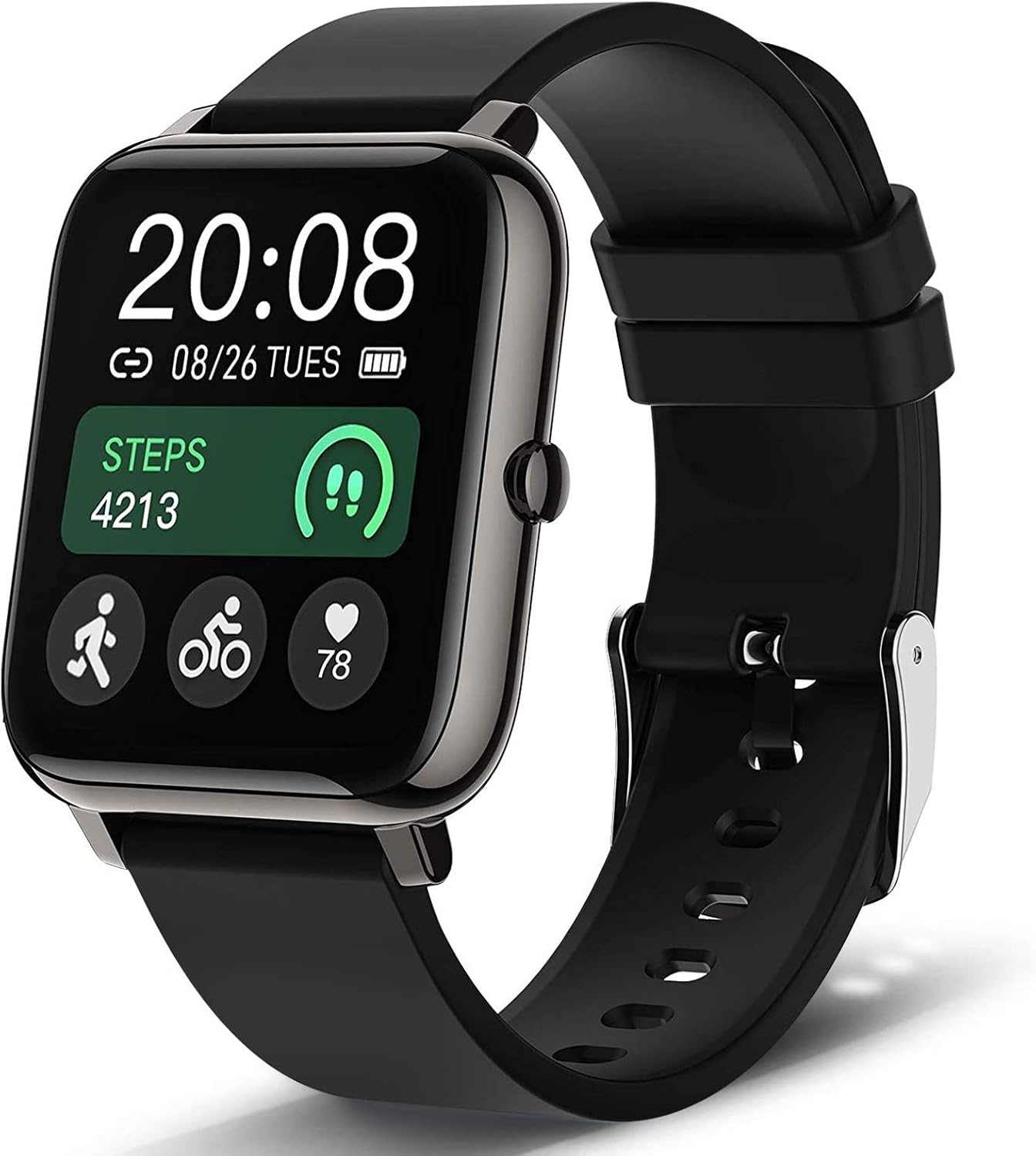
Figure 1: Popglory Smart Watch P22
This image shows the Popglory Smart Watch P22 with its black strap and square display, showing the time, date, steps, and heart rate. The watch has a sleek, modern design.
2. Setup
2.1. Attaching the Watch Band
The watch band is designed for easy attachment and removal. Locate the small spring bar on the back of each band piece. Align the spring bar with the holes on the watch lugs. Pull the small lever on the spring bar inwards to compress it, then slide the band into place between the lugs. Release the lever to secure the band. Gently tug on the band to ensure it is firmly attached.

Figure 2: Watch components and charging method
This image displays the watch from various angles, highlighting the strap, buckle, and the magnetic charging points on the back of the watch. It also illustrates how the magnetic charger connects to the watch and a USB port.
2.2. Charging the Device
Before first use, fully charge your smartwatch. The watch features magnetic charging for convenience.
- Connect the USB end of the charging cable to a power adapter (not included) or a computer's USB port.
- Align the magnetic end of the charging cable with the charging contacts on the back of the watch. The magnets will automatically snap into place.
- The watch screen will indicate charging status. A full charge typically takes approximately 2.5 hours.
A full charge provides up to 10 days of usage time and over 30 days of standby time.
2.3. App Installation and Pairing
To unlock the full potential of your smartwatch, install the companion app, HeroBandIII, on your smartphone.
- Scan the QR code provided in the watch's packaging or search for "HeroBandIII" in your smartphone's app store (iOS 9.0+ or Android 4.4+).
- Download and install the app.
- Open the HeroBandIII app and follow the on-screen instructions to create an account or log in.
- Enable Bluetooth on your smartphone.
- In the app, navigate to the device pairing section and select your Popglory P22 Smart Watch from the list of available devices.
- Confirm the pairing on both your phone and the watch if prompted.

Figure 3: Smart Notification setup and app compatibility
This image illustrates the smart notification feature, showing a hand interacting with the watch displaying an incoming call. Below, icons for various social media and communication apps (SNS, Call, Facebook, Line, Twitter, Skype, LinkedIn, Instagram) indicate compatibility. The image also shows the HeroBandIII app interface on a smartphone, confirming compatibility with iOS 9.0+ and Android 4.4+.
3. Operating the Smart Watch
3.1. Basic Navigation
- Touchscreen: Swipe left, right, up, or down to navigate through menus and features. Tap to select an option.
- Side Button: Press the side button to return to the home screen or wake the device.
3.2. Health Monitoring
The Popglory P22 Smart Watch is equipped with advanced sensors to monitor key health metrics.
- Heart Rate Monitoring: The watch continuously tracks your heart rate. View real-time data on the watch or detailed historical data in the HeroBandIII app.
- Blood Pressure Monitoring: Measure your blood pressure directly from the watch. Data is recorded in the HeroBandIII app for tracking body changes.
- Blood Oxygen (SpO2) Monitoring: Monitor your blood oxygen levels. Data is recorded in the HeroBandIII app.
- Sleep Tracking: The watch automatically monitors your sleep patterns, including deep sleep, light sleep, and waking time. Review your sleep quality in the app.

Figure 4: Blood Oxygen and Blood Pressure Monitoring
This image shows two panels: one for Blood Oxygen (SpO2) Monitor, displaying 98% SpO2 with a person running in the background. The other panel is for Blood Pressure Monitor, showing 146/64mmHg with an elderly couple smiling. Both panels include a digital representation of the watch screen showing the respective readings.

Figure 5: Heart Rate and Sleep Tracking
This image features two sections: one for 7/24 Heart Rate Monitor, showing 089Bpm with a person meditating. The other section is for Auto Sleep Tracker, illustrating deep sleep, light sleep, and awake times with a person waking up in bed. Both sections include a digital representation of the watch screen showing the respective data.
3.3. Fitness Tracking
The watch supports 7 sport modes to record your all-day activities:
- Walking
- Running
- Cycling
- Skipping
- Badminton
- Basketball
- Football
It tracks steps, distance, and calories burned. All activity data can be synchronized and viewed in detail within the HeroBandIII app.
3.4. Smart Features
- Notifications: Receive call, text, and app notifications directly on your watch when connected via Bluetooth.
- Weather Display: Get real-time weather forecasts on your wrist.
- Music Control: Control music playback on your smartphone (play, pause, skip tracks).
- Remote Camera Control: Use your watch as a remote shutter for your smartphone's camera.
- Convenient Tools: Access features like timer, stopwatch, alarm, sedentary reminder, and 'find phone' function.
- Do Not Disturb (DND) Mode: Silence notifications during specific times or activities.

Figure 6: Smart Features Overview
This image displays four watch faces showcasing different smart features: Weather Forecast (showing 20°C), Alarm (set for 08:00), Stopwatch (displaying 00:30.00), and Sedentary Alert (showing a 'MOVE' icon).
3.5. Customization
Personalize your watch with a variety of watch faces. You can choose from over 200 built-in wallpapers or customize the watch face with your own photos through the HeroBandIII app.

Figure 7: Watch Face Customization Options
This image shows the Popglory Smart Watch P22 with a large display featuring two smiling women. Below, five smaller watch faces demonstrate various digital and analog styles, including one with a rose background, highlighting the '200+ Wallpapers' and customization options.
4. Maintenance
4.1. Cleaning
Regularly clean your watch and band to prevent skin irritation and maintain device functionality. Use a soft, dry cloth to wipe the screen and body. For the silicone band, you can use a damp cloth with mild soap if necessary, then rinse and dry thoroughly.
4.2. Water Resistance
The Popglory P22 Smart Watch has an IP68 water resistance rating, meaning it is protected against immersion in water up to 1.5 meters for up to 30 minutes. It is suitable for daily use, such as hand washing or light rain. However, it is not recommended for swimming, showering with hot water, or diving, as steam and high water pressure can damage the device.
4.3. Battery Care
To prolong the battery life of your smartwatch:
- Avoid exposing the watch to extreme temperatures (very hot or very cold).
- Charge the watch regularly, but avoid leaving it fully charged or completely drained for extended periods.
- If you plan not to use the watch for a long time, charge it to about 50% before storing.
5. Troubleshooting
5.1. Connectivity Issues
- Watch not connecting to app: Ensure Bluetooth is enabled on your phone and the watch is within range. Restart both the watch and the phone. Try unpairing and re-pairing the device in the HeroBandIII app.
- Notifications not appearing: Check notification settings in the HeroBandIII app to ensure they are enabled for the desired applications. Also, verify your phone's notification permissions for the app.
5.2. Inaccurate Readings
- Heart Rate/Blood Pressure/Blood Oxygen: Ensure the watch is worn snugly on your wrist, about one finger's width from your wrist bone. Remain still during measurements. Note that these readings are for reference only and should not be used for medical diagnosis.
- Step Count: Ensure the watch is worn correctly. Arm movements not associated with walking (e.g., typing) may sometimes be counted as steps.
5.3. Battery Life Issues
- Short Battery Life: High screen brightness, frequent notifications, and continuous health monitoring can drain the battery faster. Adjust settings in the watch or app to optimize battery life.
- Watch not charging: Ensure the charging cable is properly connected to both the watch and the power source. Check for any debris on the charging contacts.
6. Specifications
| Feature | Detail |
|---|---|
| Model Number | P22 |
| Package Dimensions | 10.79 x 3.5 x 0.67 inches |
| Item Weight | 1.55 ounces (0.1 Pounds) |
| Batteries | 1 Lithium Polymer batteries required (included) |
| Screen Size | 49 Millimeters |
| Memory Storage Capacity | 512 MB |
| Operating System | Android, iOS |
| Special Features | Activity Tracker, Weather Forecast |
| Wireless Communication Standard | Bluetooth |
| Color | Dark |
7. Warranty & Support
7.1. Warranty Information
Popglory offers a 1-Year Replacement for Damage warranty. Please retain your proof of purchase for warranty claims.
7.2. Customer Support
For any questions, concerns, or technical assistance, Popglory provides 24-hour Online Customer Service. You can contact support through the following methods:
- Via Amazon: Go to Your Amazon account > Your Order > Find related order number > Click "Contact Seller".
- Via Product Page: Go to the product details page > Click "Seller Name" > Click the button "Ask a question" > Enter "Seller messaging assistant" to contact seller.
Please note: No official seller videos are available for embedding as per the provided product data.


