
1. Introduction
This manual provides essential information for the safe and efficient operation of your XTRONS CM179A 17.3 Inch Android Car Overhead Monitor. Please read it thoroughly before installation and use to ensure proper functionality and to prevent damage.
2. Safety Information
Always prioritize safety during installation and operation. Improper installation can lead to vehicle damage or personal injury. Consult a professional if you are unsure about any steps. Ensure the vehicle's power is disconnected before beginning installation.
- Do not operate the monitor in a way that distracts the driver.
- Ensure all wiring is properly insulated and secured to prevent short circuits or interference.
- Mount the unit securely to avoid it becoming a projectile during sudden stops or accidents.
- Keep the unit away from water and excessive heat.
3. Package Contents
Verify that all items are present in the package:
- XTRONS CM179A 17.3 Inch Android Car Overhead Monitor
- Power Cable
- Remote Control
- Mounting Bracket
- Screws and Nuts
- User Manual

Image: The package contents of the XTRONS CM179A, showing the main monitor unit, a remote control, a power cable, a set of screws and nuts, and the user manual.
4. Product Features
The XTRONS CM179A is an advanced Android-based car overhead monitor designed to provide comprehensive in-car entertainment.
- 17.3 Inch Full HD IPS Screen: Delivers a vibrant 1920x1080 resolution with HDR10+ technology for an immersive viewing experience.
- Android 9.0 Operating System: Equipped with an Octa-Core CPU, 2GB RAM, and 32GB ROM, allowing for app downloads and smooth operation.
- 8K Video Support: Capable of playing 8K, 4K, 2K, and 1080P video formats smoothly.
- Connectivity: Features HDMI, USB, AV In, and built-in Wi-Fi for versatile media input and internet access.
- Screen Mirroring: Supports wireless screen mirroring from compatible iOS and Android devices.
- Audio: Built-in stereo speakers, Bluetooth audio transmission, and IR headphone support.
- Ambient Lighting: Multi-color aura lighting with automatic lighting control.
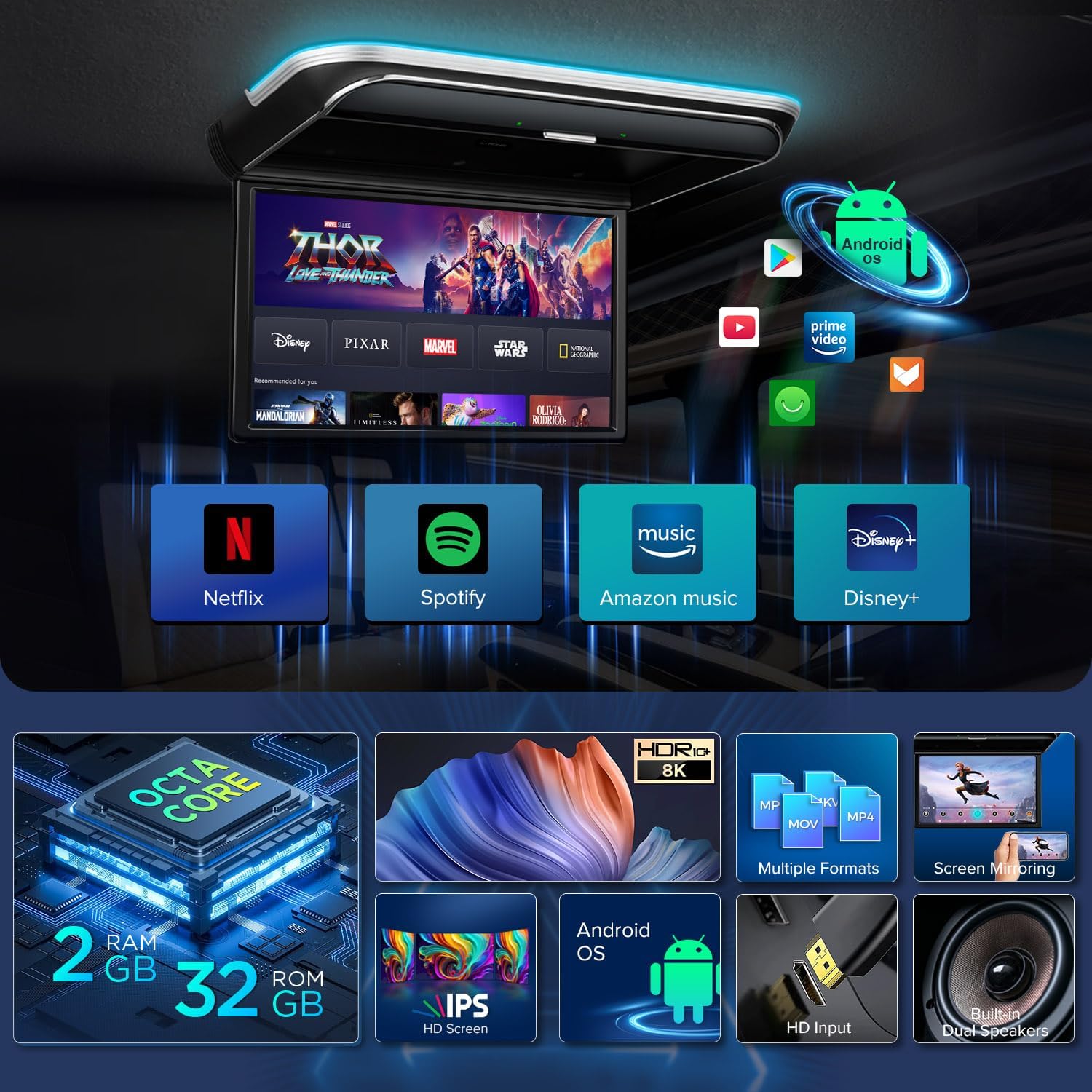
Image: A visual representation of the XTRONS CM179A's key features, including its Android operating system with popular streaming apps, Octa-Core processor, IPS HD screen, and various input options.
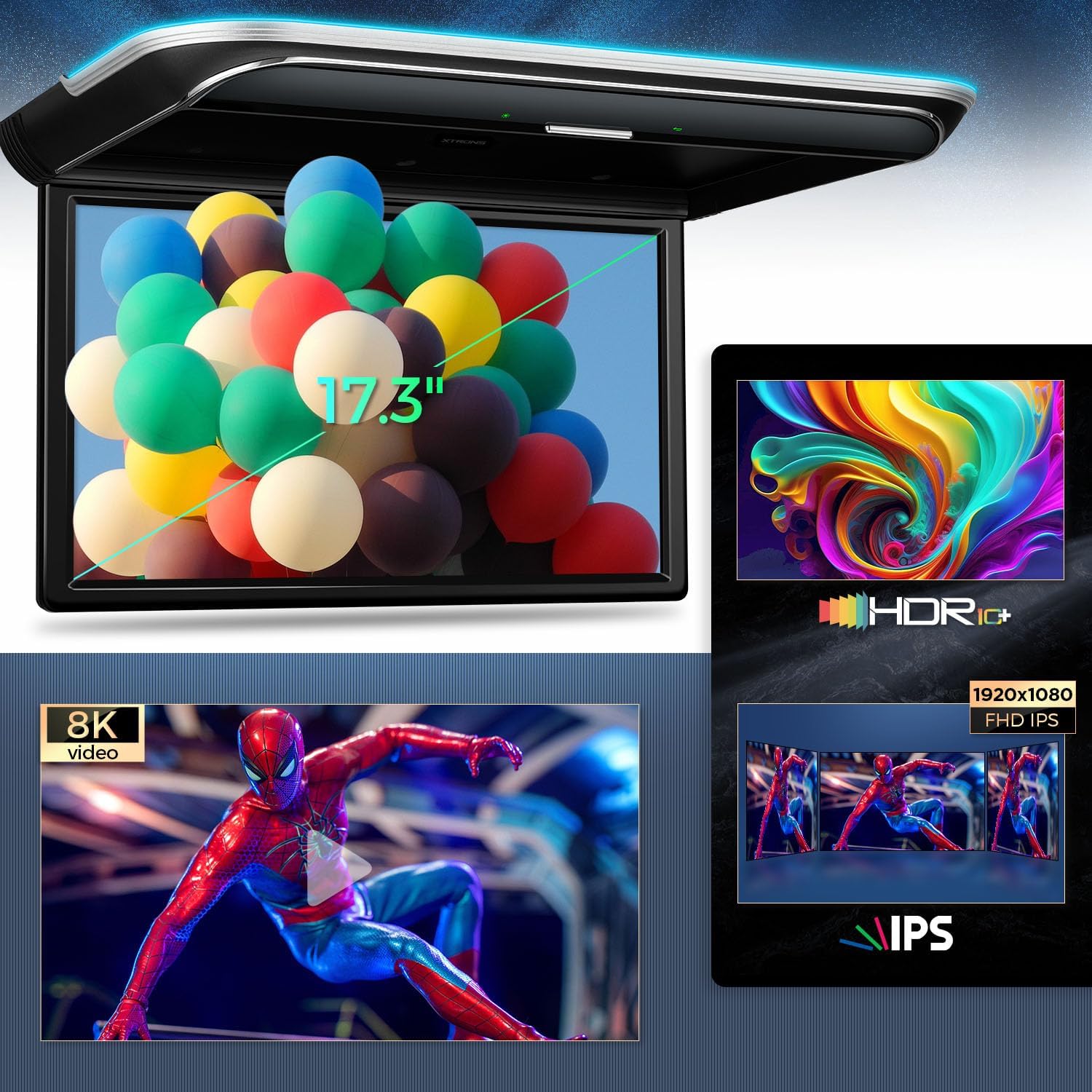
Image: Close-up of the XTRONS CM179A screen, emphasizing its 17.3-inch size, HDR10+ support, 8K video capability, and Full HD IPS display.
5. Setup
Before permanent installation, it is recommended to test the unit's functionality. Connect the power cable to a 12V power source (vehicle battery) to ensure the unit powers on and functions correctly.
6. Installation
Installation involves mounting the unit to the vehicle's roof or an overhead cabinet and connecting the necessary wiring. Professional installation is recommended.
6.1 Mounting the Bracket
- Carefully determine the optimal mounting location on the vehicle's roof or overhead cabinet. Ensure there is sufficient clearance for the screen to flip down and for wiring.
- Use the provided mounting bracket as a template to mark the screw holes.
- Drill pilot holes for the screws.
- Securely attach the mounting bracket using the provided screws.
6.2 Wiring Connections
The main power loom includes connections for permanent live (B+), accessory power (ACC), and ground (GND). Additional wires may be present for door control (positive/negative triggers) to automatically control the unit's lights based on door status.
- Connect the B+ wire to a permanent 12V power source.
- Connect the ACC wire to a 12V accessory power source that turns on/off with the ignition.
- Connect the GND wire to a suitable vehicle ground point.
- If desired, connect the door trigger wires according to your vehicle's wiring diagram for automatic light control.
6.3 Attaching the Monitor
- Carefully route all necessary cables through the mounting bracket and into the vehicle's headliner or cabinet.
- Align the monitor with the installed mounting bracket.
- Secure the monitor to the bracket using the remaining screws.
Video: An installation guide for the XTRONS 17.3 Inch Motorized Car Overhead Player, demonstrating the steps for mounting the bracket, connecting wiring, and attaching the monitor to the vehicle's ceiling.

Image: Detailed diagram illustrating the three main installation steps: securing the mounting bracket to the car roof, attaching the monitor to the bracket with screws, and connecting the power cable.
7. Operating Instructions
7.1 Power On/Off
Press the power button on the unit or the remote control to turn the monitor on or off. The screen will automatically flip down/up when powered on/off.
7.2 Navigation
Use the remote control or the soft-touch buttons on the unit to navigate through the Android interface. The remote control may feature an 'air mouse' function for easier navigation.
7.3 Screen Angle Adjustment
The monitor features a 170° rotatable angle. Use the remote control to adjust the screen to your preferred viewing angle for optimal comfort.
8. Connectivity
The CM179A offers multiple ways to connect external devices and access media.
8.1 HDMI Input
Connect HDMI-compatible devices such as game consoles, digital TV receivers (e.g., XTRONS Freeview), or other media players using an HDMI cable.
8.2 USB & AV Input
Insert a USB flash drive into the USB port to play local media files. Connect external devices like cameras or video recorders via the AV input using RCA cables.

Image: A detailed view of the expanded interfaces on the XTRONS CM179A, highlighting the USB port, HDMI input, AV input (RCA connections), and FM-TX for audio output.
8.3 Wi-Fi & Internet
Connect the unit to a Wi-Fi hotspot (from your phone or an in-car router) to access online streaming services like Netflix, YouTube, Prime Video, and Hulu, or download apps from the Play Store.
8.4 Screen Mirroring
Wirelessly mirror the screen of your compatible iOS (iOS 9.0 and above) or Android (Android 8.0 and above) mobile phone directly to the monitor. This allows sharing photos, videos, and games without downloading additional apps.

Image: The XTRONS CM179A displaying content mirrored wirelessly from a smartphone, illustrating its compatibility with both iOS and Android devices.
9. Audio Output Options
The CM179A provides flexible audio output solutions:
- Built-in Stereo Speakers: Enjoy direct audio playback through the integrated speakers.
- Bluetooth Audio Transmission: Connect Bluetooth headphones for private listening.
- IR Headphone Support: Use IR headphones (e.g., XTRONS DWH005/DWH006) for wireless audio.
- FM Transmitter: Transmit audio to your car's FM radio for playback through the vehicle's sound system.
10. Maintenance
To ensure the longevity and optimal performance of your monitor:
- Clean the screen with a soft, lint-free cloth. Avoid abrasive cleaners.
- Keep the unit free from dust and debris.
- Ensure proper ventilation around the unit to prevent overheating.
11. Troubleshooting
If you encounter issues with your XTRONS CM179A, refer to the following common solutions:
| Problem | Possible Cause | Solution |
|---|---|---|
| No power/display | Loose power connection, blown fuse | Check all power connections (B+, ACC, GND). Inspect and replace any blown fuses. |
| No sound from speakers | Volume too low, incorrect audio output selected | Increase volume. Check audio settings and ensure built-in speakers are selected or FM transmitter is correctly configured. |
| Choppy or lagging video | Incompatible video format, low Wi-Fi signal | Ensure video format is supported (MP4, AVI, MKV, WMV, MPG, MPEG, MOV, RM, RMVB, DAT, FLV). Check Wi-Fi signal strength or try playing from USB. |
| Screen mirroring issues | Incompatible device, poor Wi-Fi connection | Verify phone OS compatibility (iOS 9.0+, Android 8.0+). Ensure both devices are on the same Wi-Fi network and have a strong signal. |
12. Specifications
- Screen Size: 17.3 Inches
- Display Type: IPS LCD
- Native Resolution: 1920x1080 (Full HD)
- Operating System: Android 9.0 Pie
- CPU: Octa-Core
- RAM: 2GB
- ROM: 32GB
- Video Support: Up to 8K format
- Connectivity: Bluetooth, IR, USB, Wi-Fi, HDMI, AV In
- Audio: Built-in Stereo Speakers, Bluetooth Audio, IR Headphone Support, FM Transmitter
13. Warranty and Support
For warranty information and technical support, please refer to the official XTRONS website or contact your authorized dealer. Keep your purchase receipt as proof of purchase for warranty claims.
You can also visit the XTRONS Store on Amazon for additional product information and support.