
1. Important Safety Information
Please read all safety instructions carefully before using your MEDION Smart TV. Keep this manual for future reference.
- Power Supply: Ensure the TV is connected to a power source with the correct voltage as indicated on the product label.
- Ventilation: Do not block ventilation openings. Allow adequate space around the TV for proper airflow.
- Water and Moisture: Do not expose the TV to rain or moisture. Do not place objects filled with liquids, such as vases, on the TV.
- Cleaning: Unplug the TV before cleaning. Use a soft, dry cloth. Do not use liquid cleaners or aerosol cleaners.
- Mounting: If wall-mounting, ensure proper installation using a compatible VESA mount (100 x 100 mm) and follow the instructions provided with the mount.
- Children: Supervise children to ensure they do not climb on or play with the TV.
2. Package Contents
Verify that all items are present in the packaging:
- MEDION 43-inch 4K Smart TV (MD 843400 / X8432502)
- TV Stand with screws
- Remote Control (requires 2x AAA batteries, included)
- User Manual (this document)

Image: The MEDION 43-inch 4K Smart TV, showcasing its sleek design and key features like Ultra HD resolution, HDR, Dolby Vision-Atmos, and DTS audio technologies, along with integrated streaming services like Netflix and Prime Video.
3. Setup
3.1 Physical Setup
- Attach the Stand: Carefully place the TV screen-down on a soft, clean surface. Attach the provided stand to the bottom of the TV using the included screws. Ensure it is securely fastened.
- Position the TV: Place the TV on a stable, flat surface or mount it on a wall using a VESA compatible bracket (100 x 100 mm). Ensure adequate ventilation space around the TV.
- Connect Power: Plug the power cord into the TV's power input, then into a wall outlet.
- Insert Remote Batteries: Open the battery compartment on the back of the remote control and insert the 2 AAA batteries, observing the correct polarity.
3.2 Initial Setup
Upon first power-on, the TV will guide you through the initial setup process:
- Language Selection: Select your preferred language for the TV menu.
- Network Connection: Connect the TV to your home network via Wi-Fi or Ethernet (LAN RJ-45). This is essential for Smart TV features and Google TV.
- Google Account Setup: Sign in with your Google account to access Google TV features, download apps, and personalize your experience.
- Channel Scan: The TV will prompt you to scan for available channels (DVB-T2 HD, DVB-C, DVB-S2).
- Time Zone and Date: Set the correct time zone and date.
4. Operating the TV
4.1 Smart TV Features with Google TV
Your MEDION Smart TV is powered by Google TV, offering a personalized entertainment experience.
- Content Aggregation: Google TV organizes movies, shows, and more from all your apps and subscriptions in one place.
- Voice Remote: Use the voice remote to search for content, control playback, and manage settings with simple voice commands.
- App Access: Download and install a wide range of applications from the Google Play Store, including streaming services like Netflix, Prime Video, and YouTube.
- Chromecast Built-in: Easily cast content from your smartphone, tablet, or computer directly to the TV.
- HbbTV: Access interactive services and additional content from broadcasters.
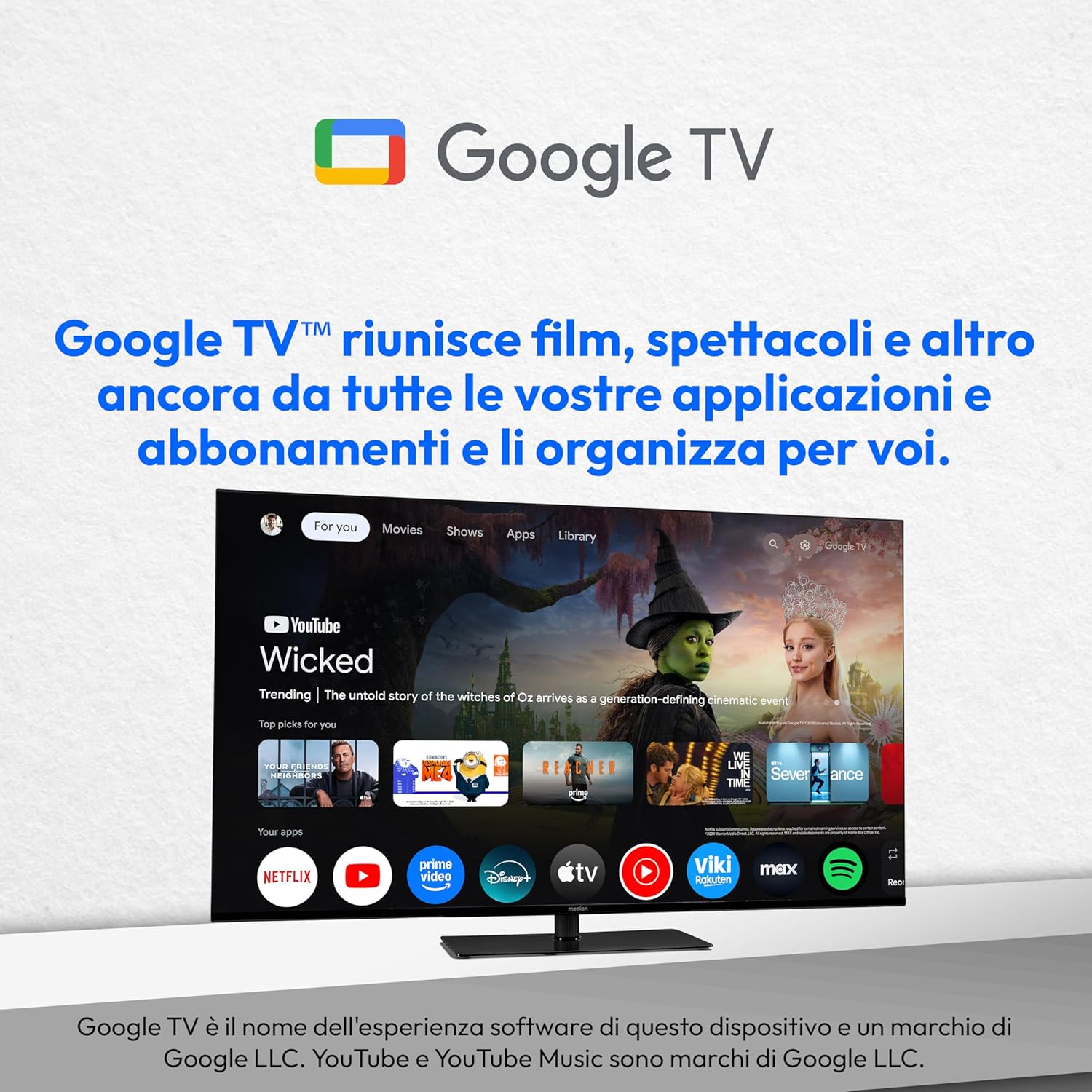
Image: A screenshot of the Google TV interface, demonstrating how it aggregates content from various streaming applications and subscriptions for easy access.
4.2 Audio and Video Features
- 4K UHD Resolution: Experience stunning clarity with 3840 x 2160 pixels, offering four times the detail of Full HD.
- HDR10 & Dolby Vision: Enjoy enhanced contrast, brightness, and a wider color gamut for a more lifelike viewing experience.
- Dolby Atmos & DTS X: Immerse yourself in rich, multi-dimensional audio that flows around you.
- MEMC (Motion Estimation, Motion Compensation): Reduces motion blur and judder for smoother fast-paced scenes.
- PVR Ready: Record live TV programs to an external USB storage device.
- Media Player: Play multimedia files (photos, music, videos) from USB storage devices.

Image: A visual comparison highlighting the enhanced image quality provided by Dolby Vision, showcasing improved colors and contrast in a scenic landscape.

Image: A visual representation illustrating the superior detail and clarity of 4K UHD resolution compared to Full HD (FHD) and HD, using a waterfall image as an example.
4.3 Connectivity
The TV offers various ports for connecting external devices:
- HDMI 2.1 (x3): For connecting high-definition devices like Blu-ray players, game consoles, and soundbars.
- USB (x2): For connecting USB storage devices for media playback or PVR functionality.
- LAN RJ-45 (x1): For a wired internet connection.
- Antenna Connection: For connecting a terrestrial antenna (DVB-T2 HD).
- Satellite Connection: For connecting a satellite dish (DVB-S2).
- Headphone Output: For connecting headphones.
- Digital Audio Output: For connecting to external audio systems.
- Bluetooth: For wireless connection to compatible audio devices like headphones or soundbars.

Image: A detailed view of the TV's input and output ports, illustrating the various connectivity options available for external devices.
5. Maintenance
- Screen Cleaning: Gently wipe the screen with a soft, lint-free cloth. For stubborn marks, slightly dampen the cloth with water or a specialized screen cleaner (do not spray directly on the screen).
- Cabinet Cleaning: Use a soft, dry cloth to clean the TV cabinet.
- Dust Removal: Regularly dust the ventilation openings to prevent overheating.
- Software Updates: Ensure your TV's software is up to date for optimal performance and security. The TV will usually prompt you for updates when connected to the internet.
6. Troubleshooting
If you encounter issues with your TV, refer to the following common solutions:
| Problem | Possible Cause / Solution |
|---|---|
| No power / TV does not turn on |
|
| No picture / Black screen |
|
| No sound |
|
| Remote control not working |
|
| Cannot connect to Wi-Fi |
|
If the problem persists, please contact MEDION customer support.
7. Specifications
| Feature | Detail |
|---|---|
| Brand | MEDION |
| Model Name | MD 843400 |
| Model Number | X8432502 |
| Screen Size | 43 inches (108 cm) |
| Display Technology | LED LCD |
| Resolution | 3840 x 2160 (4K UHD) |
| Refresh Rate | 60 Hz |
| Aspect Ratio | 1.77:1 |
| HDR Support | HDR10, Dolby Vision |
| Audio Technologies | Dolby Atmos, DTS X, DTS Virtual X |
| Integrated Speakers | 2 x 10 W RMS |
| Operating System | Google TV |
| Connectivity | Wi-Fi, Bluetooth, 3x HDMI 2.1, 2x USB, 1x LAN RJ-45, Antenna, Satellite, Headphone Out, Digital Audio Out |
| Special Features | MEMC, CI+ Slot, PVR Ready, Media Player, HbbTV, Chromecast built-in, Voice Remote |
| Supported Internet Services | Netflix, Prime Video, YouTube (and others via Google Play Store) |
| Product Dimensions (W x H x D) | 95.7 cm x 61.5 cm x 22.0 cm (approximate, with stand) |
| Weight | 10.3 kg |
| VESA Mounting Standard | 100 x 100 mm |
| Batteries for Remote | 2x AAA (included) |
| Country of Origin | Turkey |
8. Warranty and Support
MEDION products are designed for reliability and performance. In the unlikely event that you experience an issue, please refer to the following information:
- Return Policy: If you wish to return a product within 30 days of receipt because you have changed your mind, please consult the Amazon return policy page.
- Defective or Damaged Products: If you have received a defective or damaged product, please consult the Amazon help page regarding defective or damaged products.
- Marketplace Purchases: For specific information on purchases made through the Marketplace, please consult the relevant Amazon help page.
- Customer Service: For further assistance, technical support, or warranty claims, please visit the official MEDION support website or contact their customer service directly. You can often find contact details on the MEDION brand store page on Amazon or their official website.
For the most up-to-date support information, please visit the MEDION Brand Store on Amazon.


