
MEDION MD 819000
MEDION 19-inch HD TV (MD 819000) User Manual
Model: MD 819000 / E8192500
1. Introduction
This manual provides essential instructions for the safe and efficient operation of your MEDION 19-inch HD TV, model MD 819000. Please read this manual thoroughly before initial use and retain it for future reference. Adherence to these instructions will ensure proper functionality and longevity of your device.

Image 1.1: Front view of the MEDION 19-inch HD TV, model MD 819000.
2. Package Contents
Carefully unpack all items and ensure the following components are present and undamaged. If any item is missing or damaged, contact customer support.
- MEDION 19-inch HD TV (MD 819000)
- Remote control with AAA batteries
- External power adapter
- 12V car adapter
- DVB-T antenna
- YUV adapter
- AV adapter
- TV stand including screws
- User Manual (this document)
3. Product Overview
3.1 Key Features
- 19-inch (47 cm) HD display with 1366x768 resolution
- Integrated HD Triple Tuner for DVB-T2 HD, cable (DVB-C), and satellite (DVB-S2) reception
- 12V DC car adapter for mobile use in vehicles (camping, camper, truck)
- Integrated media player for playback of photos, videos, and music via USB
- Multiple connectivity options including HDMI and USB
- Electronic Program Guide (EPG) and parental control functions

Image 3.1: The TV displaying content in HD quality (1366x768 resolution).
3.2 Mobile Use and Power Options
The MEDION MD 819000 is designed for versatile use, including mobile applications, thanks to its 12V DC power input.

Image 3.2: The TV is suitable for mobile environments such as campers, caravans, and trucks.
3.3 Connectivity Ports
The MEDION MD 819000 TV offers various ports for connecting external devices.

Image 3.3: Rear view of the TV highlighting various input and output ports.
- HDMI: For connecting high-definition devices like Blu-ray players, game consoles, or set-top boxes.
- USB: For connecting USB storage devices to use the integrated media player.
- SCART: For connecting older analog devices.
- VGA D-Sub: For connecting a PC or laptop.
- AV In: Composite video and stereo audio input.
- YPbPr In (YUV): Component video input.
- PC Audio In: Audio input for VGA connection.
- Headphone Jack: For private listening.
- Digital Audio Out (Coaxial): For connecting to an external audio system.
- Antenna Input (RF): For DVB-T2 HD reception.
- Satellite Input (LNB): For DVB-S2 reception.
- CI+ Slot: For conditional access modules (CAM) to decrypt encrypted channels.
- 12V DC Power Input: For connecting the external power adapter or 12V car adapter.
4. Setup
4.1 Unpacking and Stand Assembly
- Carefully remove the TV and all accessories from the packaging.
- Place the TV screen-down on a soft, clean surface to prevent scratches.
- Attach the TV stand to the bottom of the TV using the provided screws. Ensure it is securely fastened.
- Place the TV on a stable, level surface.
4.2 Power Connection
The TV can be powered via a standard AC outlet or a 12V DC source.
- For Home Use (AC Power): Connect the external power adapter to the 12V DC input on the TV, then plug the adapter into a standard wall outlet (230V AC).
- For Mobile Use (12V DC Power): Connect the 12V car adapter to the 12V DC input on the TV, then plug the car adapter into your vehicle's 12V DC socket.

Image 4.1: The TV operating in a mobile environment, demonstrating 12V power usage.
4.3 Antenna and Cable Connection
Connect the appropriate antenna or cable based on your reception method.
- DVB-T2 HD: Connect the DVB-T antenna to the RF input.
- Cable (DVB-C): Connect your cable TV coaxial cable to the RF input.
- Satellite (DVB-S2): Connect your satellite dish cable to the LNB input.

Image 4.2: Examples of antenna and satellite dish setups for TV signal reception.
4.4 Connecting External Devices
- HDMI Devices: Connect an HDMI cable from your external device (e.g., DVD player, game console) to an HDMI port on the TV.
- USB Devices: Insert a USB flash drive or external hard drive into the USB port for media playback.
- CI+ Module: If you subscribe to encrypted channels, insert your CI+ module and smart card into the CI+ slot.

Image 4.3: Connecting an HDMI cable.

Image 4.4: Inserting a USB device.
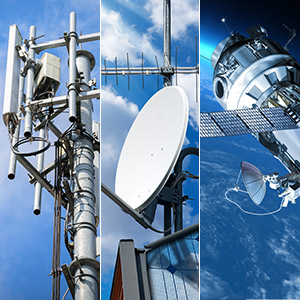
Image 4.5: Inserting a CI+ module.
5. Operating Instructions
5.1 Basic Operation with Remote Control
Insert the provided AAA batteries into the remote control. Point the remote control towards the TV's IR sensor.
- Power Button: Turns the TV on or off (standby mode).
- Channel Buttons (CH+/-): Changes channels.
- Volume Buttons (VOL+/-): Adjusts the volume level.
- Mute Button: Mutes or unmutes the sound.
- Source Button: Selects input sources (HDMI, AV, USB, TV).
- Menu Button: Opens the main menu for settings.
- Navigation Buttons (Arrows): Navigates through menus and options.
- OK Button: Confirms selections.
- Exit Button: Exits the current menu.
5.2 Initial Channel Scan
- After connecting the antenna/cable and powering on the TV for the first time, the initial setup wizard will appear.
- Follow the on-screen prompts to select your language, country, and reception type (DVB-T2, DVB-C, or DVB-S2).
- Initiate the automatic channel scan. This process may take several minutes.
- Once the scan is complete, your TV will be ready to display channels.
5.3 Using the Media Player (USB)
The integrated media player allows you to view photos, play music, and watch videos from a USB storage device.
- Insert your USB storage device into the TV's USB port.
- Press the "Source" button on the remote control and select "USB".
- The media player interface will appear, allowing you to browse your files.
- Navigate to the desired file (photo, music, or video) and press "OK" to play.

Image 5.1: USB port on the TV, illustrating media playback capability.
6. Maintenance
6.1 Cleaning
- Always unplug the TV from the power source before cleaning.
- Use a soft, dry, lint-free cloth to wipe the screen and cabinet.
- For stubborn marks, slightly dampen the cloth with water or a mild, non-abrasive screen cleaner. Do not spray liquid directly onto the TV.
- Avoid using harsh chemicals, abrasive cleaners, or solvents as they can damage the surface.
6.2 Storage
If storing the TV for an extended period, ensure it is kept in a cool, dry place, away from direct sunlight and extreme temperatures. It is recommended to use the original packaging for protection.
7. Troubleshooting
Before contacting customer support, please refer to the following common issues and solutions.
| Problem | Possible Cause / Solution |
|---|---|
| No power / TV does not turn on. |
|
| No picture or sound. |
|
| Poor picture quality. |
|
| Remote control not working. |
|
| USB media not playing. |
|
8. Technical Specifications
| Feature | Detail |
|---|---|
| Brand | MEDION |
| Model Name | MD 819000 |
| Model Number | E8192500 |
| Screen Size | 19 inches (47 cm) |
| Display Technology | LED LCD |
| Resolution | 1366 x 768 (HD Ready) |
| Aspect Ratio | 16:9 (1.77:1) |
| Refresh Rate | 60 Hz |
| Brightness | 240 cd/m² |
| Contrast Ratio | 2000:1 |
| Tuner Technology | DVB-T2, DVB-C, DVB-S2 (Triple Tuner) |
| Hardware Interface | HDMI, USB |
| Number of USB Ports | 1 |
| Audio Input | AV In, HDMI, TV Antenna, VGA D-Sub |
| Special Features | EPG, Integrated Media Player, Headphone Jack, Remote Control Included, Parental Control |
| Voltage | 230 Volt (AC via adapter), 12 Volt (DC) |
| Batteries Required | 2 AAA (included for remote) |
| Mounting Type | VESA MIS-D 100 (100 x 100 mm) |
| Product Dimensions (W x H x D) | Approx. 440 mm x 310 mm x 160 mm (with stand) |
| Product Weight | 2.35 kg |
9. Warranty and Support
For warranty information, technical support, or service inquiries, please refer to the warranty card included with your product or visit the official MEDION website. Keep your proof of purchase for warranty claims.
You can find more information and contact details on the MEDION website: www.medion.com
Related documentsMD 819000


Ask a question about this manual
Ask about setup, troubleshooting, compatibility, parts, safety, or missing instructions. Manuals+ will review the question and use this page’s manual context to help answer it.