
Merece SL299-EU
Merece 4-in-1 Laminator User Manual
Model: SL299-EU
Brand: Merece
Introduction
This manual provides comprehensive instructions for the Merece 4-in-1 Laminator, Model SL299-EU. This versatile device is designed for home, school, and office use, offering both hot and cold lamination, along with essential accessories for a complete document protection solution.
Key Features:
- 4-in-1 Deluxe Lamination Set: Includes laminator, corner rounder, paper cutter, and 30 laminating pouches (10 x A4, 10 x A5, 10 x A6).
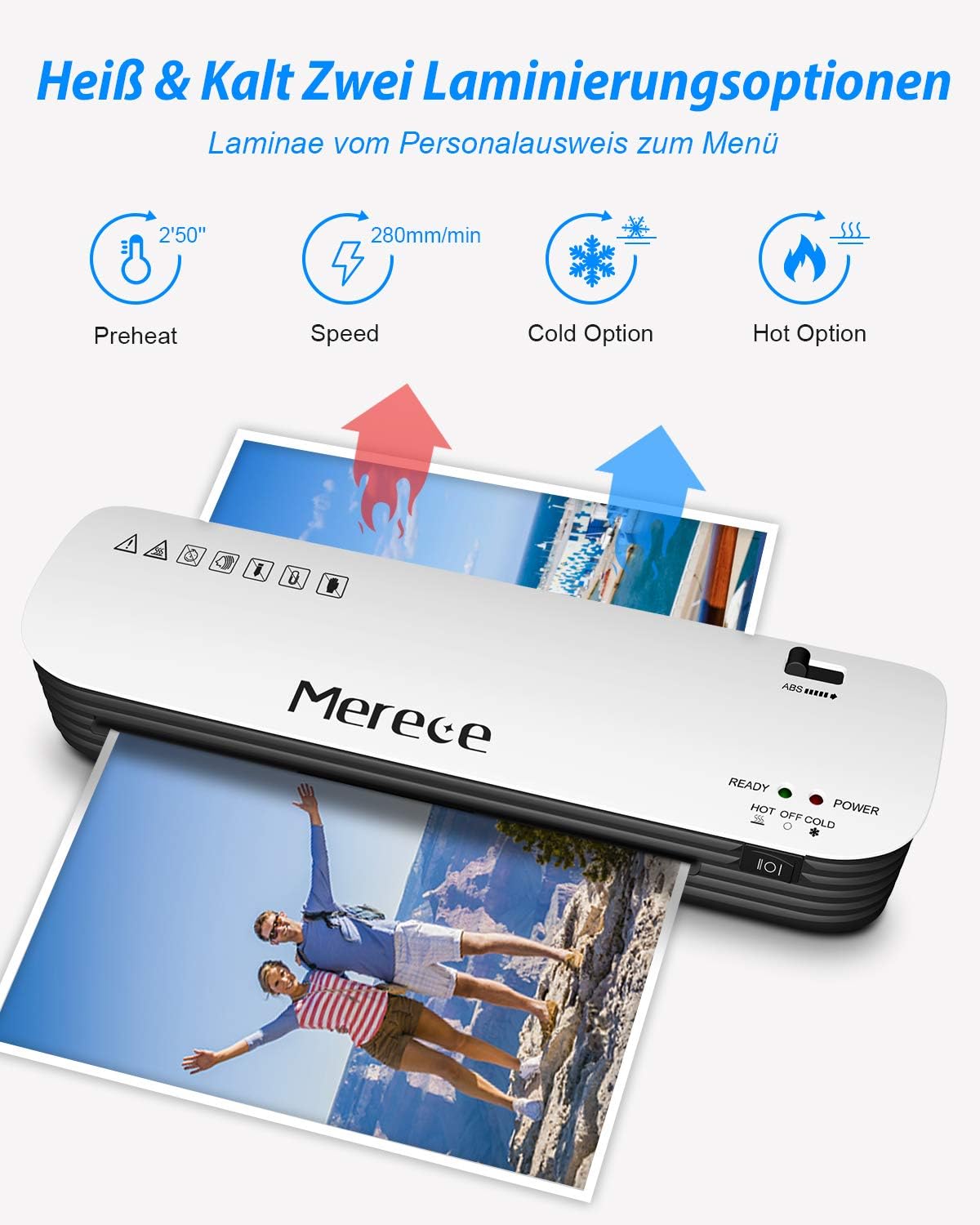
- Fast and Smooth Lamination: Features a rapid 3-minute warm-up time and a lamination speed of 280 mm/min. The two-roller system ensures smooth results, preventing wrinkles, bubbles, and curling.
- Hot and Cold Lamination Modes: Offers both thermal and cold lamination options. For cold lamination, use self-adhesive pouches (not included).
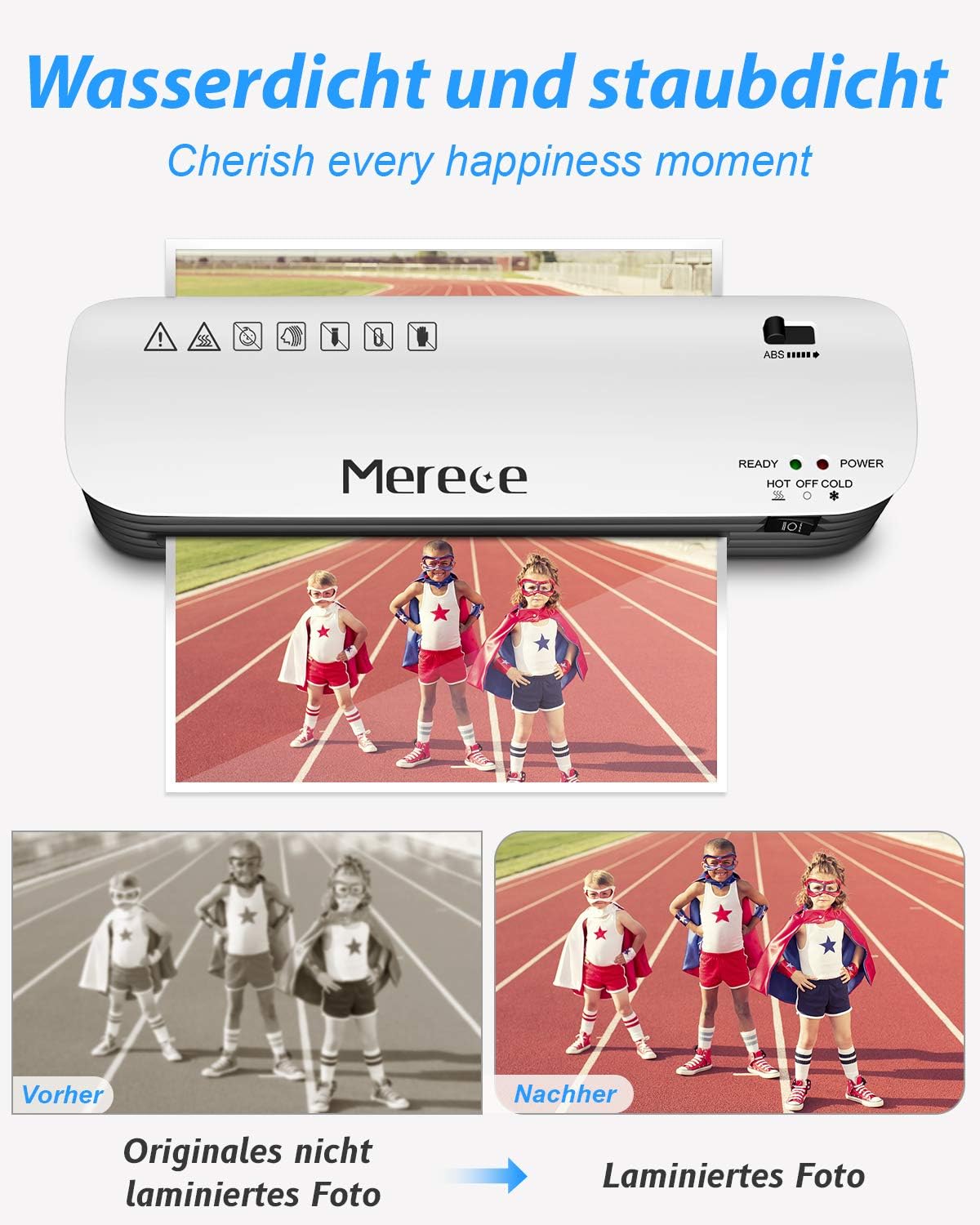
- Compact Design & Wide Applications: With a 230mm (A4 size) throat entry, this laminator is ideal for photos, postcards, letters, legal documents, menus, and business cards.
- Built-in ABS Release Button: Allows for easy clearing of document jams, protecting your important documents.
Product Overview

Setup
- Unpack the laminator and all accessories from the packaging.
- Place the laminator on a stable, flat surface with adequate ventilation.
- Ensure the power switch is in the "OFF" position.
- Plug the power cord into a suitable electrical outlet.
Operating Instructions
1. Preparing for Lamination
Before laminating, ensure your documents or photos are clean and free of dust. If necessary, use the included paper cutter or corner rounder to prepare your items.


2. Hot Lamination
- Turn on the laminator by selecting the "HOT" mode. The "POWER" indicator light will illuminate red.
- Allow approximately 3 minutes for the machine to warm up. The "READY" indicator light will turn green when the laminator is ready for use.
- Place your document or photo inside a laminating pouch, ensuring it is centered and there is an even border around the item.
- Insert the sealed edge of the laminating pouch into the laminator's entrance slot. The machine will automatically feed the pouch through.
- Once the lamination process is complete, carefully remove the laminated item from the exit slot. Allow it to cool on a flat surface before handling.
3. Cold Lamination
- For cold lamination, use self-adhesive laminating pouches (not included).
- Turn on the laminator by selecting the "COLD" mode. The "POWER" indicator light will illuminate red. No warm-up time is required for cold lamination.
- Place your document or photo inside the self-adhesive cold laminating pouch.
- Insert the sealed edge of the pouch into the laminator's entrance slot. The machine will feed the pouch through.
- Remove the laminated item once it exits the machine.

Maintenance
To ensure optimal performance and longevity of your Merece laminator, follow these simple maintenance guidelines:
- Always unplug the laminator from the power outlet before cleaning.
- Allow the machine to cool down completely if it was used for hot lamination.
- Wipe the exterior of the laminator with a soft, dry cloth. Do not use abrasive cleaners or solvents.
- Regularly check the entrance and exit slots for any debris or adhesive residue. If necessary, use a dry, lint-free cloth to gently clean the rollers.
- Store the laminator in a dry, dust-free environment when not in use.
Troubleshooting
Document Jam
If a laminating pouch becomes jammed during operation:
- Immediately press and hold the ABS Release Button located on the side of the laminator. This will disengage the rollers.
- Gently pull the jammed pouch out of the entrance or exit slot. Do not force it, as this may damage the machine or the document.
- Once the jam is cleared, release the ABS button.
- Inspect the pouch and document for damage. If the pouch is creased or damaged, discard it and use a new one.
- Ensure the pouch is inserted straight and centered for subsequent laminations.

Lamination Quality Issues (Bubbles, Wrinkles)
- Ensure the laminator has fully warmed up (green "READY" light).
- Use laminating pouches of the correct thickness (150 to 250 microns total, or 2x75 to 2x125).
- Make sure the document is centered within the pouch and the pouch is inserted straight into the machine.
- Avoid overfilling the pouch.
Specifications
| Feature | Detail |
|---|---|
| Model Number | SL299-EU |
| Brand | Merece |
| Warm-up Time | Approx. 3 minutes |
| Lamination Speed | 280 mm/min |
| Lamination Width | 230 mm (A4 Max) |
| Pouch Thickness | 150 (2x75) to 250 (2x125) microns |
| Lamination Modes | Hot & Cold |
| Item Weight | 1.42 Kilograms |
| Dimensions (Packaging) | 38.9 x 13.5 x 13.2 cm |
Warranty and Support
Warranty Information
Merece offers a 24-month quality assurance for this laminator. Please retain your proof of purchase for warranty claims.
Customer Support
For any questions, technical assistance, or warranty inquiries, please contact Merece customer support through the retailer's platform or the official Merece website.
We are committed to providing the best shopping experience for every customer.
Ask a question about this manual
Ask about setup, troubleshooting, compatibility, parts, safety, or missing instructions. Manuals+ will review the question and use this page’s manual context to help answer it.