
MEDION E12421 (MD 20113)
MEDION E12421 (MD 20113) 24-inch Full HD Television User Manual
Model: E12421 (MD 20113) | Brand: MEDION
1. Introduction
This user manual provides essential information for the safe and efficient operation of your MEDION E12421 (MD 20113) 24-inch Full HD Television. Please read this manual thoroughly before using the device and keep it for future reference. This television is designed for versatile use, including home, camping, RVs, and trucks, thanks to its integrated triple tuner and 12V car adapter compatibility.

Figure 1.1: Front view of the MEDION E12421 (MD 20113) 24-inch Full HD Television.
2. Safety Information
Always observe the following safety precautions to prevent electric shock, fire, or damage to the device.
- Do not expose the television to rain or moisture.
- Do not block ventilation openings. Ensure adequate space around the television for proper airflow.
- Use only the power adapter supplied with the television.
- Do not place the television on an unstable cart, stand, tripod, bracket, or table.
- Unplug the television during lightning storms or when unused for long periods.
- Refer all servicing to qualified service personnel.
3. Package Contents
Verify that all items are present and in good condition upon unpacking:
- MEDION LIFE E12421 MD20113 LCD TV
- Remote control
- YUV adapter
- AV adapter
- Power adapter
- 12V car adapter
- DVB-T antenna
- Feet with screws
- User manual
4. Setup
4.1 Physical Setup
Attach the included feet to the bottom of the television using the provided screws. Ensure the television is placed on a stable, flat surface or mounted securely to a wall (VESA 100 x 100 mm compatible, mounting hardware not included).

Figure 4.1: Television dimensions and VESA mounting points.
The compact design makes it suitable for various environments, including bedrooms, kitchens, or even mobile setups like RVs and trucks.

Figure 4.2: The television is ideal for use in mobile environments such as campers or trucks.
4.2 Connections
Connect your devices to the television using the available ports on the rear panel.

Figure 4.3: Overview of the television's rear connection panel.
- Antenna Connection: Connect your terrestrial antenna (DVB-T/T2) or cable TV signal.
- Satellite Connection: Connect your satellite dish for DVB-S/S2 reception.
- HDMI: Connect external devices like Blu-ray players, game consoles, or set-top boxes. The television features HDMI connectivity for high-definition audio and video.
- USB: For media playback from USB storage devices.
- SCART: For older analog devices.
- VGA: Connect a computer.
- AV In: Composite video and stereo audio input.
- YPbPr In (YUV): Component video input.
- PC Audio In: Audio input for VGA connection.
- Headphone Output: For connecting headphones.
- Digital Audio Out: For connecting to an external audio system.
- 12V DC Power Input: Use the included 12V car adapter for mobile power.

Figure 4.4: Example of an HDMI connection.
4.3 Initial Power On
After connecting all necessary cables, plug the power adapter into an electrical outlet or use the 12V car adapter. Press the power button on the remote control or the television to turn it on. Follow the on-screen instructions for initial setup, including language selection and channel scanning.
5. Operating Instructions
5.1 Basic Functions
Use the remote control to navigate the television's functions:
- Power Button: Turns the TV on or off.
- Channel Buttons: Changes channels up or down.
- Volume Buttons: Adjusts the volume level.
- Source/Input Button: Selects the input source (HDMI, AV, USB, etc.).
- Menu Button: Accesses the main menu for settings.
- Navigation Buttons (Arrow Keys): Moves through menu options.
- OK/Enter Button: Confirms selections.
5.2 Triple Tuner Operation
The MEDION E12421 features an integrated triple tuner, allowing reception of digital television signals via cable (DVB-C), satellite (DVB-S2), and terrestrial antenna (DVB-T2 HD) without an external receiver.
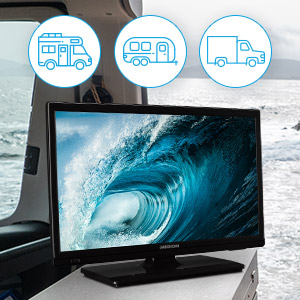
Figure 5.1: The triple tuner supports DVB-T2 HD, cable, and satellite reception.
To scan for channels:
- Press the Menu button on the remote.
- Navigate to the Channel or Installation menu.
- Select your desired reception type (Antenna, Cable, or Satellite).
- Initiate an automatic channel scan.
5.3 Media Player Functionality
The integrated media player allows you to enjoy photos, videos, and music directly from a USB storage device. Simply insert your USB drive into the USB port on the television's rear panel.

Figure 5.2: Easy playback of media files via USB.
To access media files:
- Insert a USB drive into the USB port.
- Press the Source/Input button and select USB.
- Navigate through the folders to select your desired media file (photo, video, or music).
The television supports Full HD resolution (1920 x 1080 pixels) for crisp and clear visuals when playing compatible content.

Figure 5.3: Experience superior image quality with Full HD.
5.4 CI+ Module (Common Interface Plus)
For encrypted digital channels, you may need a CI+ module and a corresponding smart card from your service provider. Insert the CI+ module into the CI+ slot on the side or rear of the television.

Figure 5.4: CI+ module slot for encrypted channels.
6. Maintenance
To ensure the longevity and optimal performance of your television, follow these maintenance guidelines:
- Cleaning the Screen: Gently wipe the screen with a soft, lint-free cloth. For stubborn marks, dampen the cloth slightly with water or a screen-cleaning solution specifically designed for electronics. Do not spray liquid directly onto the screen.
- Cleaning the Cabinet: Use a soft, dry cloth to wipe the television cabinet. Avoid using abrasive cleaners or solvents.
- Ventilation: Ensure that the ventilation openings on the back of the television are not blocked by dust or debris. Periodically clean them with a soft brush or vacuum cleaner.
- Power Cord: Regularly check the power cord for any signs of damage. If damaged, replace it immediately with an approved replacement.
7. Troubleshooting
Before contacting customer support, try the following solutions for common issues:
| Problem | Possible Cause / Solution |
|---|---|
| No power | Check if the power cord is securely plugged into the TV and the outlet. Ensure the outlet has power. Try a different outlet. |
| No picture, but sound is present | Check the input source selection. Ensure the external device is turned on and connected correctly. |
| No sound, but picture is present | Check the volume level. Ensure Mute is not activated. Check audio cable connections for external devices. |
| Poor picture quality | Check antenna/cable connection. Adjust picture settings (brightness, contrast, sharpness). If using an external device, check its output resolution. |
| Remote control not working | Replace the batteries (2 AAA batteries required). Ensure there are no obstructions between the remote and the TV's IR sensor. |
| Cannot find channels | Ensure the correct reception type (Antenna, Cable, Satellite) is selected in the channel scan menu. Check antenna/cable/satellite dish connection. |
8. Specifications
Key technical specifications for the MEDION E12421 (MD 20113) television:
| Feature | Specification |
|---|---|
| Model Number | E12421 (MD 20113) |
| Screen Size | 23.6 inches (59.9 cm) |
| Display Technology | LED LCD |
| Resolution | 1080p (1920 x 1080 pixels) Full HD |
| Refresh Rate | 60 Hz |
| Aspect Ratio | 1.77:1 |
| Connectivity | HDMI, USB, SCART, VGA, AV In, YPbPr In, PC Audio In, Headphone Out, Digital Audio Out |
| USB Ports | 1 |
| Special Features | Integrated Triple Tuner (DVB-T2 HD, DVB-C, DVB-S2), Media Player, 12V Car Adapter compatibility, CI+ |
| Power Consumption (SDR) | 17.7 W |
| Energy Efficiency Class (SDR) | E |
| Product Dimensions (D x W x H) | 14.3 x 5.5 x 37 cm (approximate, without stand) |
| VESA Compatibility | 100 x 100 mm |
| Remote Control Batteries | 2 AAA (required) |
For detailed energy information, refer to the official product data sheet and energy label:

Figure 8.1: EU Energy Label.
Further details can be found on the EPREL database: https://eprel.ec.europa.eu/qr/1593924
9. Warranty and Support
MEDION provides a minimum guaranteed product support duration of 10 years and a minimum guaranteed warranty period of 2 years from the date of market placement. Software updates are guaranteed for up to 8 years from the date of market placement, and spare parts availability is guaranteed for up to 7 years from the date of market placement.
For technical support or warranty claims, please contact MEDION customer service. Refer to the contact information provided in your product packaging or visit the official MEDION website.

Figure 9.1: MEDION customer service representative.
Related documentsE12421 (MD 20113)


Ask a question about this manual
Ask about setup, troubleshooting, compatibility, parts, safety, or missing instructions. Manuals+ will review the question and use this page’s manual context to help answer it.