
Typhoon TI022
Typhoon TI022 Wired Gaming Keyboard User Manual
Model: TI022
1. Introduction
This manual provides instructions for the proper setup, operation, and maintenance of your Typhoon TI022 Wired Gaming Keyboard. Please read this manual thoroughly before using the product to ensure optimal performance and longevity.
2. Product Overview
The Typhoon TI022 is a wired membrane gaming keyboard designed for a responsive typing and gaming experience. It features a robust metallic surface and customizable rainbow LED backlighting.
Key Features:
- Wired membrane gaming keyboard
- Rainbow LED backlighting
- Two distinct lighting modes
- Adjustable brightness levels
- Removable keys for easy cleaning and maintenance
- Durable metallic surface
- USB connectivity
- Compatible with Windows, Mac OS, and Linux operating systems
Components:
- Typhoon TI022 Gaming Keyboard
- Integrated USB Cable

Figure 2.1: Overview of the Typhoon TI022 Gaming Keyboard, showing the full layout and attached USB cable.

Figure 2.2: Top-down view of the keyboard, highlighting the full 104-key layout and rainbow backlighting.
3. Setup
- Unpack the Keyboard: Carefully remove the keyboard from its packaging.
- Connect to Computer: Insert the USB connector of the keyboard into an available USB port on your computer.

Figure 3.1: Close-up view of the USB connector for the keyboard.
- Driver Installation: The keyboard is plug-and-play. Your operating system (Windows, Mac OS, or Linux) will automatically detect and install the necessary drivers. No additional software installation is required.
- Placement: Place the keyboard on a stable, flat surface.
4. Operating Instructions
4.1 Backlight Control
The Typhoon TI022 keyboard features rainbow LED backlighting with adjustable settings.
- Toggle Backlight Modes: The keyboard supports two distinct backlight modes. Refer to the keyboard layout for the specific key combination (often Fn + a designated key, or a dedicated light key) to cycle through these modes.
- Adjust Brightness: Brightness levels can be adjusted to suit your preference. Look for key combinations (e.g., Fn + Up/Down arrow keys, or dedicated brightness keys) to increase or decrease the backlight intensity.
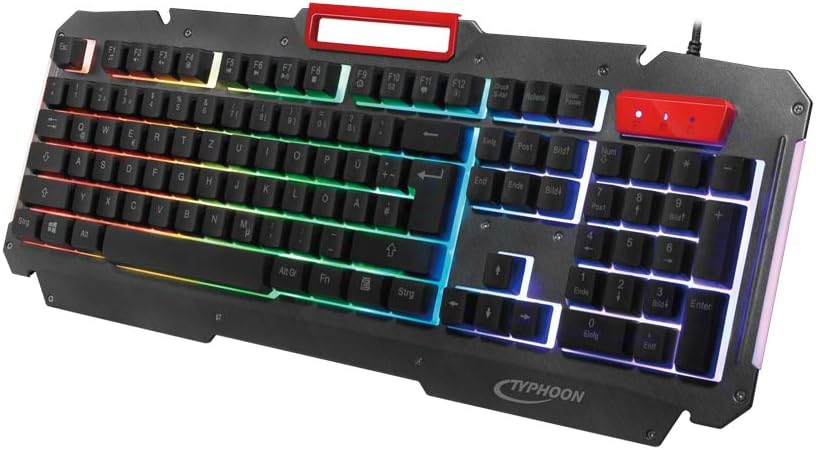
Figure 4.1: Angled view of the keyboard demonstrating the rainbow LED backlighting in operation.
4.2 General Usage
The keyboard functions as a standard 104-key layout. All keys perform their standard operating system functions. Some keyboards may include a dedicated slot for mobile devices.

Figure 4.2: The keyboard featuring an integrated stand, shown here holding a smartphone.
5. Maintenance
5.1 Cleaning the Keyboard
Regular cleaning helps maintain the keyboard's performance and appearance.
- Disconnect: Always disconnect the keyboard from your computer before cleaning.
- Remove Keys: The floating keys of the Typhoon TI022 can be easily removed for thorough cleaning. Gently pull each keycap upwards to detach it.

Figure 5.1: Side view illustrating the elevated design of the keys, facilitating their removal for cleaning.
- Clean Keycaps: Clean the removed keycaps with a soft, damp cloth and mild soap if necessary. Ensure they are completely dry before reattaching.
- Clean Keyboard Base: Use compressed air to remove dust and debris from under the keycaps. Wipe the keyboard base with a soft, slightly damp cloth. Avoid excessive moisture.
- Reattach Keys: Carefully align each keycap with its switch and press down firmly until it clicks into place.
Caution: Do not immerse the keyboard in water or any cleaning solutions. Avoid using harsh chemicals or abrasive materials.
6. Troubleshooting
- Keyboard Not Responding:
- Ensure the USB cable is securely connected to both the keyboard and the computer.
- Try connecting the keyboard to a different USB port on your computer.
- Restart your computer.
- Test the keyboard on another computer to rule out a system-specific issue.
- Backlight Not Working:
- Check if the backlight is turned off. Use the designated key combination (e.g., Fn + light key) to cycle through modes or turn it on.
- Adjust the brightness settings using the appropriate key combinations.
- Keys Not Registering:
- Ensure no debris is lodged under the keycap. Refer to the cleaning section for instructions on removing and cleaning keys.
- If specific keys are consistently failing, the keyboard may require service.
7. Specifications
| Brand | Typhoon |
| Model Name | TI022 |
| Connectivity Technology | USB |
| Keyboard Description | Gaming (Membrane) |
| Special Feature | Backlit (Rainbow LED) |
| Compatible Devices | PC (Windows, Mac OS, Linux) |
| Color | Black |
| Cable Length | 1.5 meters |
| Included Components | USB Cable |
8. Warranty and Support
For warranty information or technical support, please refer to the documentation provided with your purchase or contact your retailer. Keep your proof of purchase for warranty claims.
Related documentsTI022


Ask a question about this manual
Ask about setup, troubleshooting, compatibility, parts, safety, or missing instructions. Manuals+ will review the question and use this page’s manual context to help answer it.