
1. Introduction
Welcome to the user manual for your new MEDION E11916 (MD 20058) 19-inch HD TV. This manual provides essential information for setting up, operating, and maintaining your television. Please read it thoroughly before using the device to ensure proper functionality and safety.
2. Product Overview
The MEDION E11916 (MD 20058) is a versatile 19-inch HD television designed for both home and mobile use, featuring a triple tuner and integrated media player.
Key Features:
- 19-inch HD display with 720p resolution.
- Integrated triple tuner for DVB-T2 HD, cable, and satellite reception.
- Includes a 12V car adapter for mobile use in vehicles like camper vans, trucks, or for outdoor settings.
- Built-in media player for convenient playback of photos and videos from USB devices.
- CI+ slot for encrypted channels.
What's in the Box:
- MEDION LCD-TV (MD20010)
- Remote control (AAA batteries not included)
- External power adapter
- 12V car adapter
- DVB-T antenna
- YUV adapter
- AV adapter
- Stand with screws
- User manual

Figure 2.1: Front view of the MEDION E11916 HD TV.
3. Setup
3.1 Attaching the Stand
Carefully place the TV screen-down on a soft, clean surface. Align the stand with the mounting holes on the bottom of the TV. Secure the stand using the provided screws. Ensure the stand is firmly attached before placing the TV upright.
3.2 Connecting Power
For standard home use, connect the external power adapter to the TV's DC input and then to a wall outlet. For mobile use, connect the provided 12V car adapter to the TV's DC input and then to your vehicle's 12V DC socket.

Figure 3.1: The TV can be powered by a 12V car adapter for mobile use.
3.3 Connecting Antenna/Cable/Satellite
Connect your DVB-T antenna, cable, or satellite dish to the corresponding input on the back of the TV. For DVB-T reception, use the included DVB-T antenna. After connecting, perform an automatic channel scan through the TV's menu to find available channels.
4. Operating Instructions
4.1 Basic TV Functions
- Power On/Off: Press the power button on the remote control or on the TV.
- Channel Selection: Use the CH+/- buttons or number pad on the remote.
- Volume Control: Use the VOL+/- buttons on the remote.
- Source Selection: Press the SOURCE button to switch between inputs (TV, HDMI, USB, etc.).
4.2 Using the Triple Tuner
Your TV is equipped with a triple tuner, allowing reception of digital terrestrial (DVB-T2 HD), cable (DVB-C), and satellite (DVB-S2) signals without an external receiver. Select the desired tuner mode in the TV's setup menu and perform a channel scan to find available broadcasts.

Figure 4.1: Enjoy your content in HD quality (1366 x 768 pixels).
4.3 Integrated Media Player
The built-in media player allows you to view photos and play videos directly from a USB storage device. Insert your USB drive into the USB port on the TV. Select the USB source from the input menu. Navigate through your files using the remote control to select and play media.
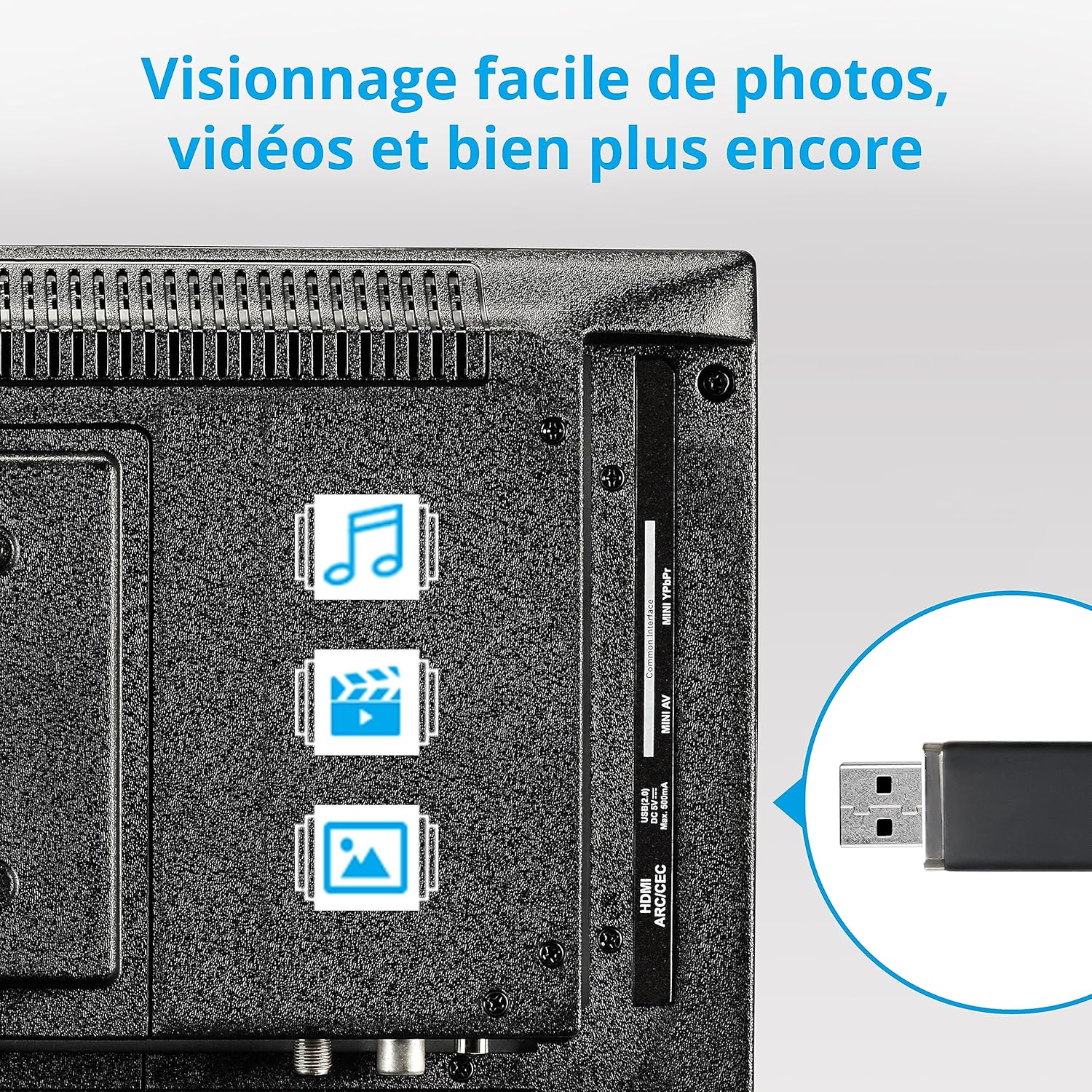
Figure 4.2: Easily view photos and videos using the integrated media player via USB.
5. Connections
The MEDION E11916 TV offers a variety of connection options for your external devices:
- HDMI: For connecting high-definition devices such as Blu-ray players, game consoles, or set-top boxes.
- USB: For connecting USB storage devices to use the integrated media player.
- SCART: For connecting older devices like VCRs or DVD players.
- VGA: For connecting a computer as a monitor.
- AV In: Composite video and stereo audio input for standard definition devices.
- YPbPr In (YUV): Component video input for higher quality analog video signals.
- PC Audio In: Audio input for VGA connection.
- Headphone Out: 3.5mm jack for connecting headphones.
- Digital Audio Out: For connecting to an external audio system or soundbar.
- Antenna/Satellite Input: For connecting terrestrial, cable, or satellite signals.

Figure 5.1: Rear panel connections of the MEDION E11916 TV.
6. Specifications
| Feature | Specification |
|---|---|
| Brand | MEDION |
| Model Number | E11916 |
| Screen Size (Diagonal) | 19 inches / 47 cm |
| Display Technology | LED LCD |
| Resolution | 720p (1366 x 768) |
| Refresh Rate | 60 Hz |
| Aspect Ratio | 1.77:1 |
| Color | Black |
| Connections | HDMI, USB, SCART, VGA, AV In, YPbPr In, PC Audio In, Headphone Out, Digital Audio Out |
| Total USB Ports | 1 |
| Product Dimensions (W x H x D) | 44 cm x 31 cm x 16 cm (with stand) |
| VESA Compatibility | 100 x 100 mm |

Figure 6.1: Dimensions of the MEDION E11916 TV.
7. Maintenance
To ensure the longevity and optimal performance of your MEDION TV, follow these maintenance guidelines:
- Cleaning the Screen: Use a soft, lint-free cloth specifically designed for electronics. Do not use abrasive cleaners, waxes, or solvents. Lightly dampen the cloth with water if necessary, and gently wipe the screen.
- Cleaning the Cabinet: Wipe the TV cabinet with a soft, dry cloth. Avoid using harsh chemicals.
- Ventilation: Ensure that the ventilation openings on the TV are not blocked. Adequate airflow is crucial to prevent overheating.
- Power Cord: Regularly check the power cord for any damage. If damaged, discontinue use and contact customer support.
- Storage: If storing the TV for an extended period, disconnect it from power and store it in a cool, dry place, away from direct sunlight and extreme temperatures.
8. Troubleshooting
If you encounter issues with your TV, refer to the following common problems and their solutions:
| Problem | Possible Cause / Solution |
|---|---|
| No Power | Check if the power cord is securely connected to the TV and the power outlet. Ensure the outlet is functional. Try a different power source. |
| No Picture / Black Screen | Verify the correct input source is selected (e.g., HDMI 1, TV). Check all cable connections. Ensure the TV is powered on. |
| No Sound | Check the volume level and ensure mute is not activated. Verify audio cable connections for external devices. If using internal speakers, check TV audio settings. |
| Remote Control Not Working | Check and replace batteries. Ensure there are no obstructions between the remote and the TV's IR sensor. |
| Poor Antenna Reception | Adjust the position of your antenna. If using the included DVB-T antenna, consider purchasing a more powerful antenna for better signal strength, especially in areas with weak reception. Perform a new channel scan. |
| Media Player Not Recognizing USB | Ensure the USB drive is formatted to a compatible file system (e.g., FAT32). Check that the media files are in supported formats. Try a different USB drive. |
9. Warranty and Support
Your MEDION E11916 (MD 20058) TV comes with a 24-month manufacturer's warranty. This warranty covers defects in materials and workmanship under normal use.
For warranty claims, technical assistance, or any other inquiries, please contact MEDION customer support. Refer to the contact information provided in your product packaging or visit the official MEDION website for support details.
Please retain your proof of purchase for warranty purposes.


