
MEDION X21 SW+
MEDION X21 SW Robot Vacuum Cleaner and Mop with Self-Emptying Station
Model: X21 SW+
1. Introduction
Thank you for choosing the MEDION X21 SW Robot Vacuum Cleaner and Mop. This intelligent device is designed to provide efficient and thorough cleaning of your home, combining powerful vacuuming with effective mopping capabilities. Featuring advanced laser navigation and a convenient self-emptying station, the X21 SW offers a hands-free cleaning experience. This manual provides essential information for the safe operation, setup, maintenance, and troubleshooting of your new robot vacuum cleaner.

Image: The MEDION X21 SW robot vacuum cleaner, its self-emptying station, a detachable mopping pad, and a smartphone displaying the control application interface. This illustrates the main components and smart control feature of the product.
2. Important Safety Information
Please read all safety instructions carefully before using the appliance. Keep this manual for future reference.
- This appliance can be used by children aged 8 years and above and persons with reduced physical, sensory or mental capabilities or lack of experience and knowledge if they have been given supervision or instruction concerning use of the appliance in a safe way and understand the hazards involved.
- Children shall not play with the appliance. Cleaning and user maintenance shall not be made by children without supervision.
- Use only the original power adapter and charging station provided by the manufacturer.
- Do not use the robot in environments with open flames, flammable liquids, or explosive materials.
- Ensure the charging station is placed on a flat, stable surface against a wall, with sufficient clear space around it.
- Do not immerse the robot or its components in water or other liquids.
- Regularly check the power cord for damage. If damaged, it must be replaced by the manufacturer, its service agent, or similarly qualified persons to avoid a hazard.
- Before cleaning or performing maintenance, always switch off the robot and disconnect it from the charging station.
- Do not use the robot to pick up large debris, sharp objects, or liquids.
- Keep hair, loose clothing, fingers, and all parts of the body away from openings and moving parts.
3. Package Contents
Verify that all items listed below are present and in good condition upon unboxing.
- MEDION X21 SW Robot Vacuum Cleaner
- Self-Emptying Station
- Power Adapter
- Dust Bin (pre-installed in robot)
- Water Tank with Mopping Pad (pre-installed or separate)
- Side Brushes (2 pairs)
- Main Brush
- High-Efficiency Filter (pre-installed + spare)
- Cleaning Tool
- User Manual

Image: An overhead view of the MEDION X21 SW robot vacuum cleaner, its self-emptying station, and various accessories including side brushes, a main roller brush, spare filters, and mopping pads. This image displays all the components included with the product.
4. Setup Guide
4.1 Unboxing and Initial Preparation
- Carefully remove all components from the packaging.
- Remove all protective films and stickers from the robot and charging station.
- Attach the side brushes by pressing them onto the corresponding posts until they click into place.
4.2 Charging Station Placement
Proper placement of the self-emptying station is crucial for optimal robot performance.
- Place the charging station against a wall on a hard, level surface.
- Ensure there is at least 0.5 meters (1.6 feet) of clear space on both sides of the station and 1.5 meters (4.9 feet) in front of it.
- Avoid placing the station near stairs or obstacles that could block the robot's return path.
- Connect the power adapter to the charging station and plug it into a wall outlet.
4.3 Initial Charging
Before first use, fully charge the robot.
- Place the robot onto the charging station, ensuring the charging contacts align.
- The indicator light on the robot will show charging status. Allow approximately 4-6 hours for a full charge.
4.4 App Installation and Pairing
For full control and smart features, download the MEDION Smart Home app.
- Scan the QR code in the manual or search for "MEDION Smart Home" in your app store (iOS/Android).
- Create an account and log in.
- Ensure your phone is connected to a 2.4GHz Wi-Fi network.
- Follow the in-app instructions to add your MEDION X21 SW robot. This typically involves pressing and holding a button on the robot to enter pairing mode.
5. Operating Instructions
5.1 Starting and Pausing Cleaning
- From Robot: Press the power button once to start auto cleaning. Press again to pause.
- From App: Open the app, select your robot, and tap "Start" or "Pause".

Image: The MEDION X21 SW robot vacuum cleaner operating on a polished wooden floor, demonstrating its compact design and ability to navigate home environments. The image highlights the robot's low profile, allowing it to clean under furniture.
5.2 Cleaning Modes
The robot offers various cleaning modes accessible via the app:
- Auto Cleaning: The robot intelligently maps your home and cleans systematically.
- Spot Cleaning: Cleans a specific area intensively. Place the robot in the center of the dirty area and select this mode.
- Edge Cleaning: The robot cleans along walls and furniture edges.
- Zone Cleaning: Define specific areas on the map in the app for the robot to clean.
- No-Go Zones/Virtual Walls: Set virtual boundaries in the app to prevent the robot from entering certain areas.
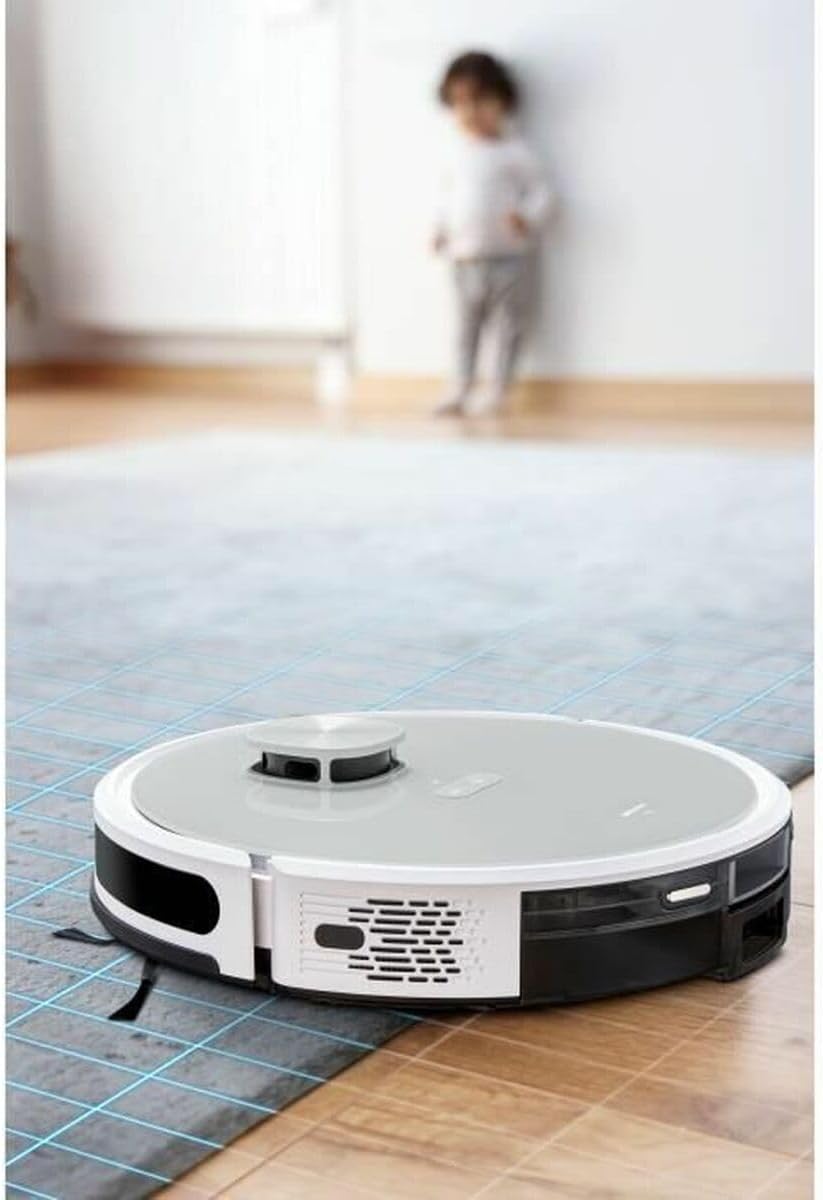
Image: The MEDION X21 SW robot vacuum cleaner on a floor with a blue grid overlay, symbolizing its laser navigation system. A blurred child is visible in the background, indicating the robot's ability to operate in active home environments. This image emphasizes the robot's intelligent mapping and navigation capabilities.
5.3 Mopping Function
To use the mopping function:
- Fill the water tank with clean water. Do not use detergents or harsh chemicals.
- Attach the mopping pad securely to the water tank.
- Insert the filled water tank into the robot.
- Select a mopping mode in the app. The robot will automatically adjust its cleaning pattern for mopping.
- Remove the water tank and empty any remaining water after each mopping session. Clean the mopping pad.
5.4 Scheduling Cleanings
Use the app to set up cleaning schedules for automated cleaning sessions.
- Navigate to the "Schedule" section in the app.
- Set desired cleaning times and days.
- The robot will automatically start cleaning at the scheduled times and return to the charging station upon completion.
6. Maintenance
Regular maintenance ensures optimal performance and extends the lifespan of your robot vacuum cleaner.
6.1 Dust Bin and Filter
- Emptying: Empty the robot's dust bin after each cleaning session. The self-emptying station will automatically empty the robot's dust bin into its larger bag, but the robot's internal bin should still be checked.
- Cleaning: Rinse the dust bin with water (ensure it's completely dry before re-inserting).
- Filter: Tap the high-efficiency filter to remove dust. Do not wash the HEPA filter with water. Replace the filter every 3-6 months, or more frequently depending on usage.
6.2 Main Brush and Side Brushes
- Main Brush: Remove the main brush cover and lift out the brush. Use the provided cleaning tool to remove hair and debris tangled around the brush and its bearings. Clean weekly.
- Side Brushes: Check side brushes for tangled hair or debris. If damaged or worn, replace them. Clean monthly.
6.3 Water Tank and Mopping Pad
- Water Tank: Empty any remaining water after each mopping session. Rinse the tank with clean water.
- Mopping Pad: Remove the mopping pad and wash it thoroughly after each use. It can be hand-washed or machine-washed (follow fabric care instructions). Allow to air dry completely.
6.4 Sensors and Charging Contacts
- Wipe all sensors (cliff sensors, wall sensor, anti-collision sensor) and charging contacts on both the robot and the charging station with a clean, dry cloth. Clean monthly.
6.5 Self-Emptying Station
- Dust Bag: Replace the dust bag in the self-emptying station when the indicator light signals it's full, or approximately every 1-2 months depending on usage.
- Dust Channel: Periodically check the dust channel on the station for blockages and clear any debris.
7. Troubleshooting
If you encounter issues with your robot, refer to the following common problems and solutions.
| Problem | Possible Cause | Solution |
|---|---|---|
| Robot does not turn on. | Low battery; power switch off. | Charge the robot fully; ensure the main power switch is ON. |
| Robot cannot return to charging station. | Charging station blocked; robot too far; dirty charging contacts. | Clear obstacles around the station; place robot closer; clean charging contacts. |
| Poor cleaning performance. | Full dust bin; clogged filter; tangled brushes. | Empty dust bin; clean/replace filter; clean main and side brushes. |
| Robot gets stuck frequently. | Obstacles (cables, rugs); dirty sensors. | Clear floor of obstacles; clean all sensors. |
| Mopping function not working. | Empty water tank; improperly installed mopping pad. | Fill water tank; ensure mopping pad is correctly attached. |
| App connection issues. | Incorrect Wi-Fi (not 2.4GHz); robot offline; app outdated. | Ensure 2.4GHz Wi-Fi; restart robot and router; update app. |
8. Specifications
| Feature | Detail |
|---|---|
| Model Number | X21 SW+ |
| Brand | MEDION |
| Dimensions (L x W x H) | 32 x 32 x 9.3 cm (12.6 x 12.6 x 3.7 inches) |
| Weight | 3 Kilograms (6.6 lbs) |
| Noise Level | 68 dB |
| Special Feature | Wireless, Laser Navigation, Self-Emptying Station |
| Control Method | Application (Smartphone App) |
| Battery Type | Lithium-ion (1 included) |
| Suction Power | 3000 Pa (as per product title) |

Image: The MEDION X21 SW robot vacuum cleaner on a floor, with "3000Pa" text prominently displayed in front of it, indicating its powerful suction capability. This image highlights a key performance specification of the robot.
9. Warranty and Support
MEDION products are designed for reliability and performance. For specific warranty terms and conditions, please refer to the warranty card included in your product packaging or visit the official MEDION website.
If you require technical support, have questions about product operation, or need to arrange a repair, please contact MEDION customer service. Contact details can typically be found on the MEDION website or in your product documentation.
- Online Support: Visit the official MEDION support page for FAQs, troubleshooting guides, and software updates.
- Customer Service: Refer to your regional MEDION website for phone numbers or email contact options.

Image: The MEDION X21 SW robot vacuum cleaner positioned in the foreground of a comfortable living room, with a person interacting with a cat on a rug in the background. This image conveys the robot's seamless integration into a typical home environment and its quiet operation, allowing for other activities to continue undisturbed.
Related documentsX21 SW+


Ask a question about this manual
Ask about setup, troubleshooting, compatibility, parts, safety, or missing instructions. Manuals+ will review the question and use this page’s manual context to help answer it.