
Introduction
Thank you for choosing the MEDION E11909 (MD 20059) 19-inch HD TV. This television features an integrated DVD player, a 12V car adapter for mobile use, and a triple tuner for receiving cable, satellite, or DVB-T2 HD signals. This manual provides essential information for the safe and efficient use of your new device. Please read it thoroughly before operation and keep it for future reference.
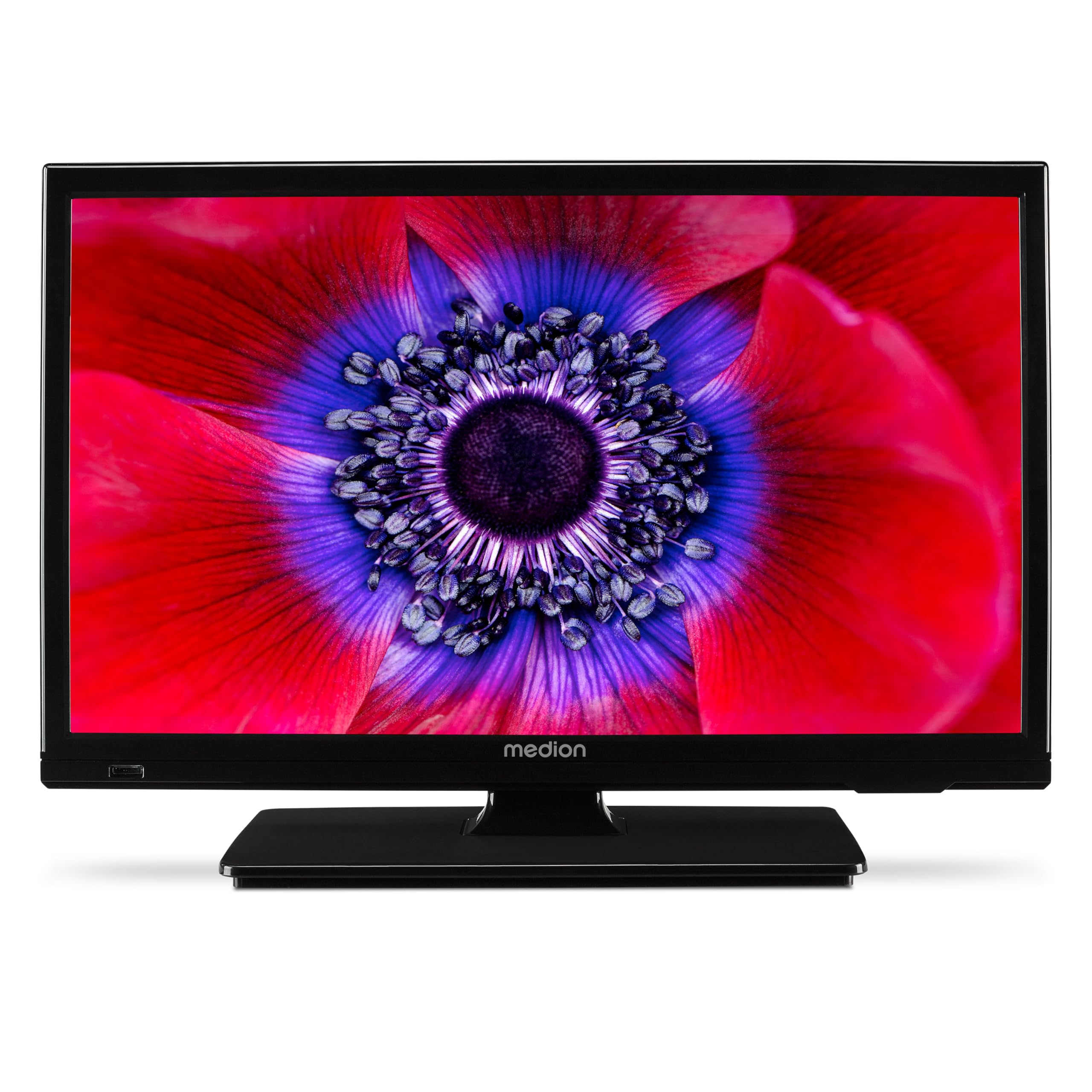
Figure 1: MEDION E11909 19-inch HD TV. This image shows the front view of the television, highlighting its compact design suitable for various environments.
Safety Information
Please observe the following safety instructions to prevent damage to the device or injury to yourself:
- Do not expose the TV to rain or moisture.
- Ensure proper ventilation; do not block ventilation openings.
- Only use the power adapter supplied with the device.
- Do not open the TV casing; refer all servicing to qualified personnel.
- Keep the TV away from heat sources and direct sunlight.
- When using the 12V car adapter, ensure the vehicle's power outlet is clean and provides stable power.
Package Contents
Please check that all items are present in the package:
- MEDION E11909 MD20059 LCD TV
- Remote control with batteries (AAA)
- External power adapter
- Car adapter (12V)
- DVB-T antenna
- AV adapter
- Stand with screws
- User manual
- Warranty booklet
Setup
1. Attaching the Stand
- Carefully place the TV screen-down on a soft, clean surface.
- Align the stand with the mounting holes on the bottom of the TV.
- Secure the stand using the provided screws.
2. Connecting Power
- For Home Use: Connect the external power adapter to the TV's DC IN port and then plug it into a standard wall outlet.
- For Mobile Use (Car/Caravan): Connect the 12V car adapter to the TV's DC IN port and then plug it into your vehicle's 12V DC power socket.
3. Connecting Antennas and External Devices
Refer to the connection diagram below for port locations.

Figure 2: Rear panel connections. This image illustrates the various input and output ports on the back of the television, including HDMI, USB, SCART, VGA, AV In, YPbPr, PC Audio In, Headphone Jack, Digital Audio Out, and the 12V DC power input.
- Antenna/Cable: Connect your DVB-T antenna (included), cable, or satellite dish to the appropriate RF IN port.
- HDMI Devices: Connect devices like Blu-ray players or game consoles to the HDMI ports.
- USB Devices: Insert USB drives for media playback into the USB port.
- Older Devices: Use the SCART, VGA, or AV IN ports for older equipment.
4. Initial Setup
After connecting power and turning on the TV for the first time, an initial setup wizard will guide you through language selection, country, and channel scanning. Follow the on-screen instructions.
Operating
1. Power On/Off
Press the POWER button on the remote control or on the TV to turn the unit on or off.
2. Remote Control Functions
The remote control allows you to navigate menus, change channels, adjust volume, and select input sources. Refer to the remote control diagram in your separate warranty booklet for specific button functions.
3. Channel Selection and Volume
- Use the CH+/- buttons to change channels.
- Use the VOL+/- buttons to adjust the volume.
4. Input Source Selection
Press the SOURCE button on the remote control to cycle through available input sources (TV, HDMI1, HDMI2, AV, USB, DVD).
5. Using the Integrated DVD Player
- Insert a DVD disc into the disc slot on the side of the TV.
- The TV should automatically switch to DVD mode. If not, press the SOURCE button and select DVD.
- Use the remote control's playback buttons (PLAY, PAUSE, STOP, FF, REW) to control DVD playback.

Figure 3: TV with integrated DVD player. This image shows the television screen displaying high-definition content, with a DVD disc partially visible, indicating the integrated DVD player functionality.
6. Using the Media Player (USB)
- Insert a USB storage device into the USB port.
- Press the SOURCE button and select USB.
- Navigate through your files (photos, music, videos) using the remote control and press OK to play.

Figure 4: Easy playback of photos, videos, and more. This image highlights the USB port on the TV's side and icons representing music, photos, and video files, indicating the TV's multimedia playback capabilities.
Maintenance
1. Cleaning the Screen
Gently wipe the screen with a soft, lint-free cloth. For stubborn marks, slightly dampen the cloth with water or a specialized screen cleaner. Do not spray liquid directly onto the screen.
2. Cleaning the Unit
Wipe the TV casing with a soft, dry cloth. Avoid using abrasive cleaners or solvents.
3. Storage
If storing the TV for an extended period, disconnect it from power, remove batteries from the remote, and store it in a cool, dry place, preferably in its original packaging.
Troubleshooting
If you encounter problems with your TV, please refer to the following common issues and solutions:
- No Power:
- Check if the power adapter is securely connected to both the TV and the power outlet.
- Ensure the power outlet is functional. - No Picture/Sound:
- Verify that the correct input source is selected (e.g., HDMI1, TV, DVD).
- Check all cable connections (antenna, HDMI, AV).
- Perform a channel scan if using TV mode. - DVD Not Playing:
- Ensure the disc is inserted correctly with the label facing up.
- Check if the disc is clean and free from scratches.
- Try a different DVD to rule out disc issues. - Remote Control Not Working:
- Replace the batteries (AAA).
- Ensure there are no obstructions between the remote and the TV's IR sensor.
If the problem persists after trying these solutions, please contact customer support.
Specifications
- Brand: MEDION
- Model: E11909 (MD 20059)
- Screen Size: 18.5 Inches (47 cm)
- Display Technology: LED LCD
- Resolution: 768p (HD)
- Refresh Rate: 60 Hz
- Aspect Ratio: 1.77:1
- Connectivity Technology: HDMI, USB
- Special Features: Built-in DVD player, 12V Car Adapter, Triple Tuner for HD reception (Cable, Satellite, DVB-T2)
- Included Components: LCD TV (MD 20059)
- Product Dimensions: 16D x 44W x 31H cm
- Audio Output: 2 x 3 W RMS Stereo Speakers
Warranty and Support
Your MEDION E11909 (MD 20059) TV comes with a manufacturer's warranty. Please refer to the included warranty booklet for detailed terms and conditions, including the warranty period and coverage.
For technical support, service, or further inquiries, please visit the official MEDION website or contact their customer service department. Contact information can typically be found in your warranty booklet or on the MEDION support page.


