
EszkozTA RS-001
Wireless Remote Shutter User Manual
Model: RS-001
Brand: EszkozTA
Introduction
This manual provides instructions for the EszkozTA Wireless Remote Shutter, designed for use with cellphones and tablets. This device enables remote control of your device's camera for taking photos and videos, enhancing convenience for selfies, group shots, and stable tripod photography.
Package Contents
- 3 x Wireless Remote Shutter units
- 3 x Adjustable Wrist Straps
- 1 x 12-month warranty information

Image: Three black wireless remote shutters, each equipped with a wrist strap, as included in the package.
Setup: Pairing Instructions
Follow these steps to pair your Wireless Remote Shutter with your mobile device:
- Insert Battery and Power On: Ensure the battery is correctly inserted and turn the remote's switch to the "ON" position. The battery may already be installed.
- Activate Bluetooth: On your mobile device, navigate to Settings > Bluetooth and turn Bluetooth "ON".
- Connect to Remote: While still in your device's Bluetooth screen, locate and select "AB Shutter 3" from the list of available devices to pair. The device name may temporarily appear as "keyboard".
- Confirmation: Once successfully paired, your device will display "Connected" next to "AB Shutter 3" in the Bluetooth devices list.
- Open Camera App: Open your device's built-in camera application.
Note for Android Users: Do not rename the "AB Shutter 3" device, as this may void the warranty and prevent the remote from functioning. Also, ensure text input options related to the remote are not enabled.

Image: Visual guide demonstrating the pairing process, showing a smartphone's Bluetooth menu with 'AB Shutter 3' selected and the remote's power switch.
Operating Instructions
After successful pairing, use the remote to control your camera:
- Taking Photos/Videos: Press the appropriate button on the remote. One button is marked for iOS devices (and Camera 360 App), and the other is for Android devices.
- Wrist Strap Usage: Attach the adjustable wrist strap to the remote for secure handling and to prevent accidental drops.

Image: Detailed diagram of the remote shutter, highlighting the LED indicator, iOS button, Android button, On/off switch, and battery slot.
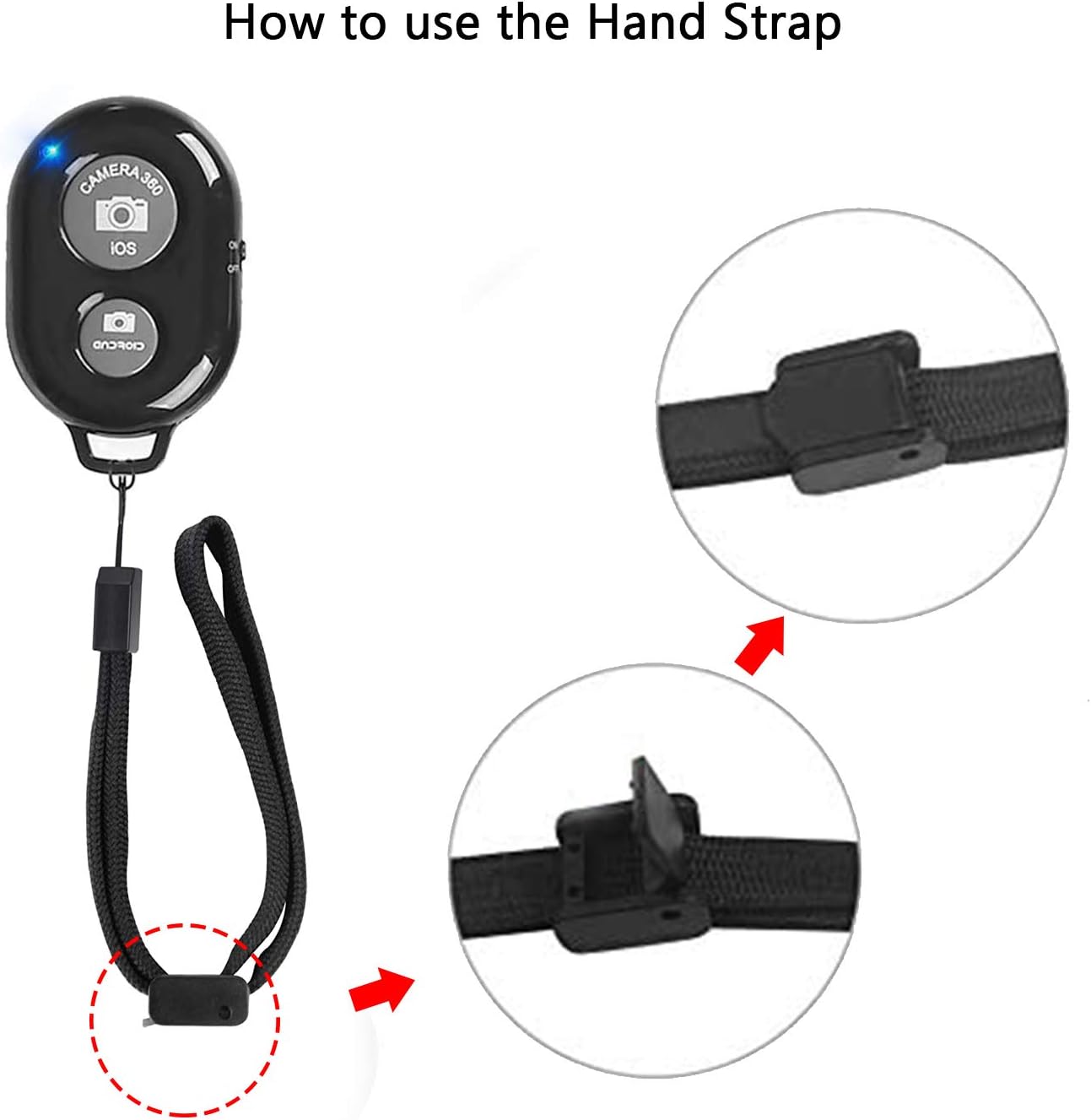
Image: Step-by-step visual guide demonstrating the correct method for attaching the wrist strap to the remote shutter.
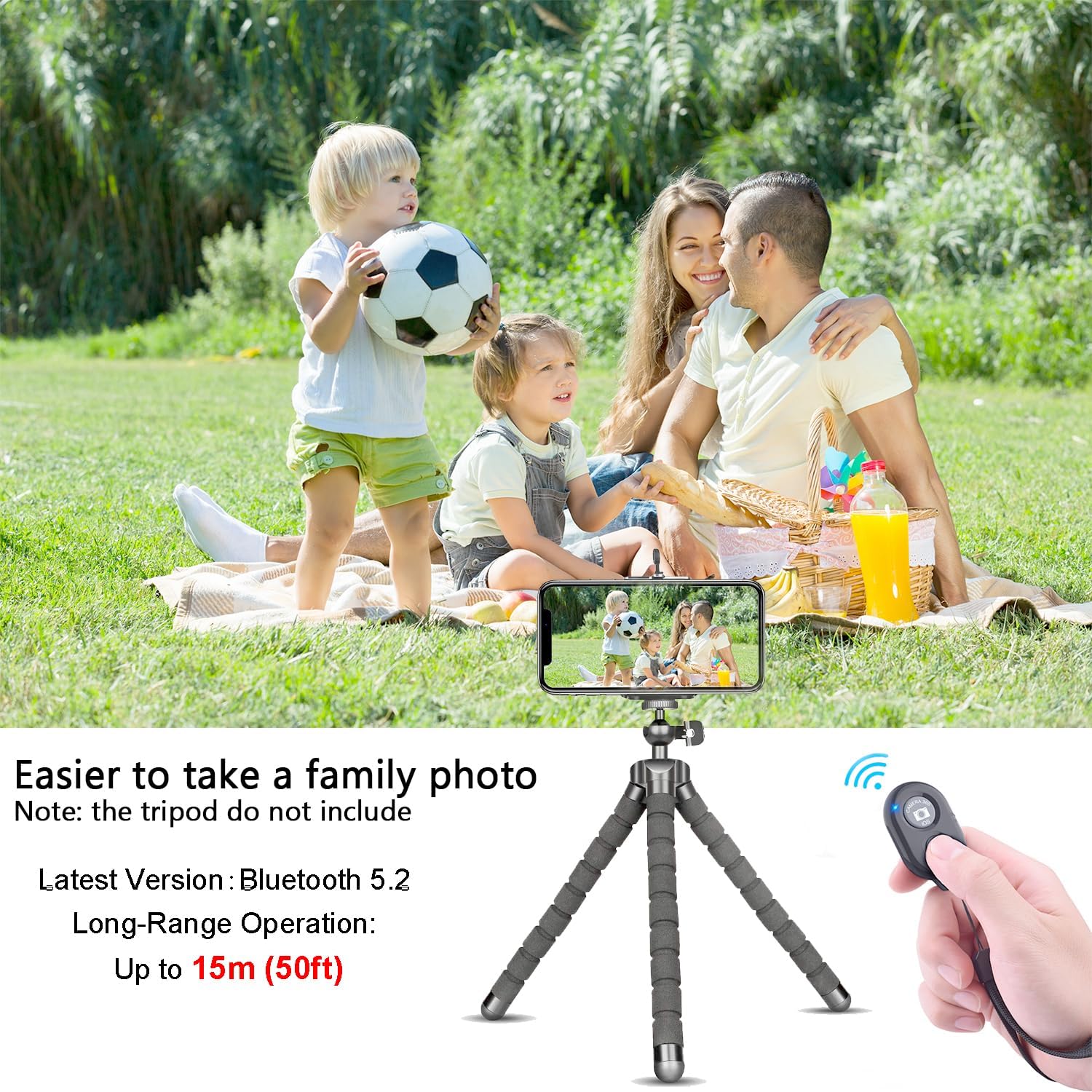
Image: An illustration of the remote shutter in practical use, showing a family posing for a photo taken remotely with a smartphone mounted on a tripod.
Compatibility
The Wireless Remote Shutter is compatible with a wide range of mobile devices:
- Operating Systems: Android 4.2.2 OS and up, Apple iOS 6.0 and up.
- Smartphones: Compatible with iPhone 16, 15, 14, 13 series (including Pro, Pro Max, Mini), iPhone 12 series, iPhone 11 series, Xs, Xs Max, XR, X, 8, 8 Plus, 7, 7 Plus, 6, 6 Plus. Also compatible with Samsung Galaxy Note 20, S20, S10, S10+, Note 10, Note 10 Plus, S9+, S9, S8, S7, S7 Edge, S6, S6 Edge, and other Android devices.
- Tablets: Compatible with iPad 2, 3, 4, iPad Mini, iPad Air, iPad Pro.
Users have the option to use their device's in-built camera app or third-party applications like Camera 360.

Image: A visual representation of the remote shutter's broad compatibility, featuring logos of major smartphone and tablet manufacturers.
Troubleshooting
- Cannot Take Pictures with Built-in Camera App: If your device's native camera app does not respond, consider downloading alternative compatible applications such as "Camera 360" from the Apple App Store or Google Play Store.
- Android Video Recording Issues: If you can take pictures but experience difficulty starting or stopping video recording on an Android device, download "A Better Camera" from the Google Play Store and use it for video functions.
- Remote Adjusts Volume Only: If the remote only adjusts your phone's volume after connection, locate the setting within your phone's camera application that allows taking photos using the volume buttons. Enable this setting.
Specifications
| Feature | Detail |
|---|---|
| Item Model Number | RS-001 |
| Brand | EszkozTA |
| Manufacturer | AOQIYUE |
| Package Dimensions | 6.54 x 2.17 x 0.55 inches |
| Item Weight | 1.44 ounces |
| Batteries | 1 CR2 battery required (included) |
| Special Feature | Universal compatibility |
| Color | 3-black |
| Max Number of Supported Devices | 1 (per remote) |
| Compatible Devices | iOS, Android, iPad, iPhone |
| Operational Range | Up to 50 feet (15m) |
Warranty and Support
This product includes a 12-month warranty.
For any issues or questions regarding the use of this product, please contact the manufacturer or seller for assistance.
Related documentsRS-001


Ask a question about this manual
Ask about setup, troubleshooting, compatibility, parts, safety, or missing instructions. Manuals+ will review the question and use this page’s manual context to help answer it.