
ANFIER W06
ANFIER W06 Smart Language Translator Device User Manual
Model: W06
1. Introduction
This manual provides essential information for the safe and effective operation of your ANFIER W06 Smart Language Translator Device. Please read this manual thoroughly before using the device and retain it for future reference.

Image 1.1: The ANFIER W06 Smart Language Translator Device.
2. Safety Information
- Do not expose the device to extreme temperatures, direct sunlight, or high humidity.
- Avoid dropping or subjecting the device to strong impacts.
- Keep the device away from water and other liquids.
- Use only the provided charging cable and adapter to prevent damage.
- Do not attempt to disassemble or repair the device yourself. Contact customer support for assistance.
- Dispose of the device and its battery according to local regulations.
3. Package Contents
Verify that all items are present in the package:
- ANFIER W06 Smart Language Translator Device
- Charging Cable (USB-C)
- User Manual (this document)
- Note: The product data mentions "1 x Remote Control" but this is likely an error for a language translator. Standard accessories are assumed.
4. Device Overview
Familiarize yourself with the physical components of your ANFIER W06 device.

Image 4.1: Front View. Features a 3.1-inch touchscreen and two main translation buttons (A and B).
Image 4.2: Back View. Includes an 8MP camera for image translation and a powerful speaker.
Key Components:
- 3.1-inch Touchscreen: For navigation and displaying translations.
- 8MP Camera: Used for image translation (OCR).
- Microphone: Captures voice input for translation.
- Speaker: Outputs translated audio.
- Buttons A & B: Dedicated buttons for two-way voice translation.
- Power Button: Turns the device on/off and locks/unlocks the screen.
- USB-C Port: For charging the device.
- SIM Card Slot: For 4G connectivity (if applicable).
5. Setup
5.1 Initial Charging
Before first use, fully charge the device. Connect the USB-C cable to the device's charging port and the other end to a compatible USB power adapter (not included) or computer USB port. The charging indicator will show the charging status.
5.2 Power On/Off
- To Power On: Press and hold the Power button until the screen lights up.
- To Power Off: Press and hold the Power button, then select "Power Off" on the screen.
- To Lock/Unlock Screen: Briefly press the Power button.
5.3 Network Connection
The ANFIER W06 requires an internet connection for most translation functions. You have three options:

Image 5.1: Connectivity options: Wi-Fi, Hotspot, and SIM Card.
- Wi-Fi: Go to Settings > Wi-Fi, select your network, and enter the password.
- Mobile Hotspot: Connect to a mobile hotspot from your smartphone.
- 4G/SIM Card: Insert a compatible 4G SIM card into the device's SIM card slot. Ensure the SIM card has an active data plan.
6. Operating Instructions
6.1 Voice Translation (Two-Way)
The device supports real-time two-way voice translation for 126 languages.
- Select Languages: On the main screen, tap on the language displayed for "A" (your language) and "B" (the target language) to select from the list.
- Speak:
- To speak in Language A, press and hold Button A while speaking. Release the button when finished.
- To speak in Language B, press and hold Button B while speaking. Release the button when finished.
- The device will display the text translation on the screen and play the audio translation through the speaker.

Image 6.1: Language selection interface on the device.

Image 6.2: Demonstrating real-time translation in a conversation.
6.2 Image Translation (Camera OCR)
The 8MP camera allows for translation of text from images, such as menus or signs.
- Access Image Translation: Navigate to the Image Translation function from the main menu.
- Position Device: Hold the device steady, ensuring the text you wish to translate is clearly visible within the camera's frame.
- Capture Image: Tap the capture button on the screen.
- The device will process the image and display the translated text.

Image 6.3: Example of image translation from a book.
6.3 Settings
Access the Settings menu to customize your device:
- Wi-Fi/4G: Manage network connections.
- Display: Adjust brightness, screen timeout.
- Sound: Adjust volume for speaker and microphone.
- System: Check device information, update software, reset device.
7. Maintenance
- Cleaning: Use a soft, dry cloth to clean the device. Do not use liquid cleaners or aerosols.
- Storage: Store the device in a cool, dry place when not in use. Avoid extreme temperatures.
- Battery Care: To prolong battery life, avoid fully discharging the battery frequently. Charge the device regularly.
8. Troubleshooting
| Problem | Possible Cause | Solution |
|---|---|---|
| Device does not power on. | Low battery. | Charge the device for at least 30 minutes. |
| No translation or "Network Error". | No internet connection. | Check Wi-Fi or 4G connection in Settings. Ensure SIM card has data. |
| Poor translation accuracy. | Unclear speech, background noise, or incorrect language selection. | Speak clearly and at a moderate pace. Reduce background noise. Verify correct source and target languages. |
| Image translation not working. | Poor lighting, blurry image, or text not recognized. | Ensure good lighting and hold the device steady. Text should be clear and well-defined. |
| Device freezes or is unresponsive. | Software glitch. | Press and hold the Power button for 10-15 seconds to force a restart. |
9. Specifications
| Feature | Detail |
|---|---|
| Model | W06 |
| Screen Size | 3.1 inches |
| Screen Resolution | 480x800 |
| Rear Camera | 8 MP |
| Operating System | Android |
| Memory Storage Capacity | 16 GB |
| Processor Brand | ARM |
| Wireless Type | 802.11g (Wi-Fi) + 4G |
| Battery | 2000 mAh Lithium Polymer (included) |
| Item Weight | 3.81 ounces |
| Package Dimensions | 6.3 x 3.6 x 1.5 inches |
Battery Information:
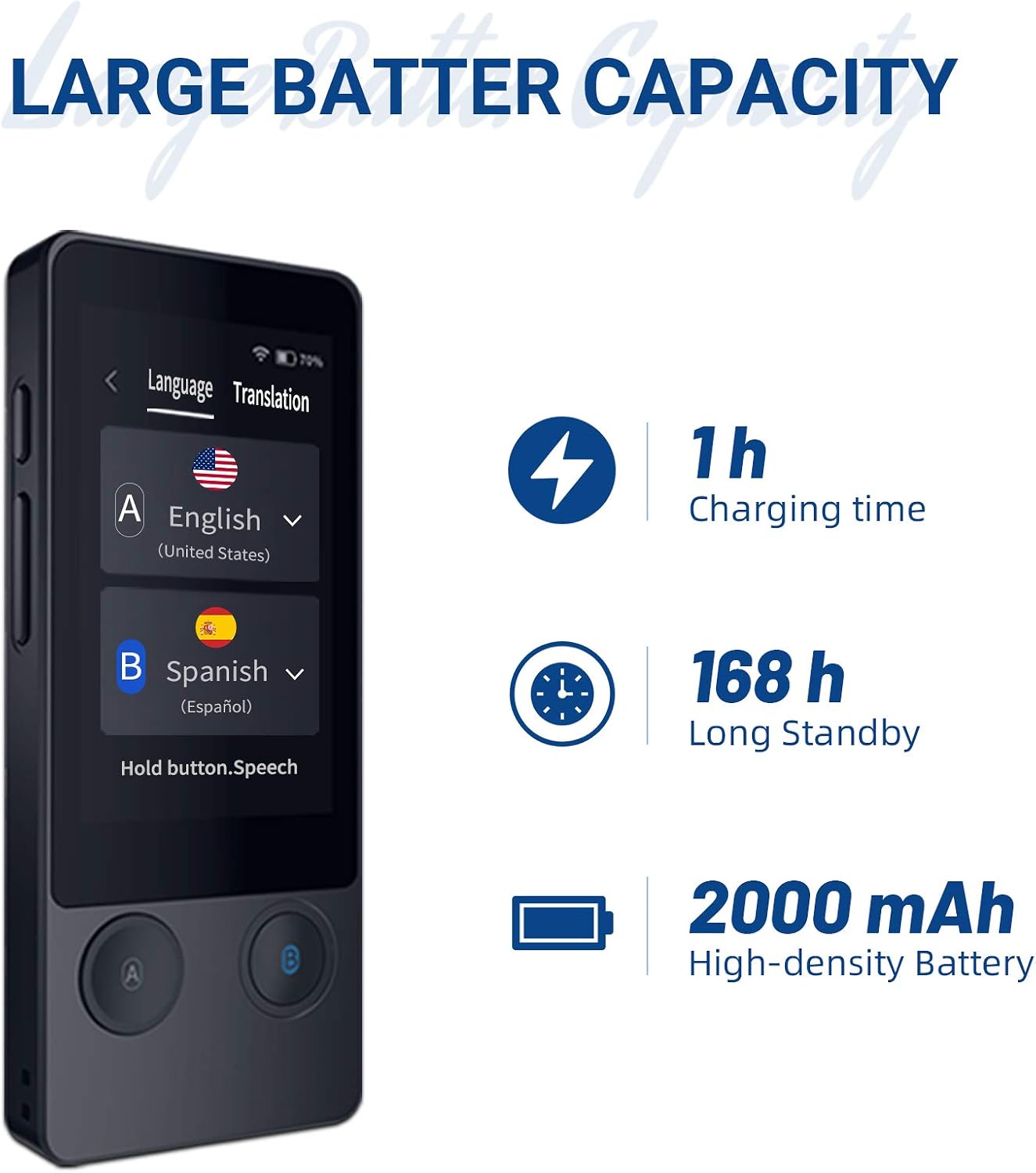
Image 9.1: Battery details for the ANFIER W06.
- Charging Time: Approximately 1 hour
- Standby Time: Up to 168 hours
- Battery Capacity: 2000 mAh High-density Battery
10. Official Product Video
Watch the official product video for a visual guide on using the ANFIER W06 translator.
Video 10.1: ANFIER AI Translator Device Smart Language Translator 2020. This video demonstrates the device's real-time voice translation, image translation, and highlights its features like multiple language support and independent use.
11. Warranty and Support
For warranty information, technical support, or service inquiries, please refer to the warranty card included with your product or visit the official ANFIER website. Keep your purchase receipt as proof of purchase.
ANFIER is committed to providing reliable products and customer satisfaction. If you encounter any issues, please do not hesitate to contact our support team.
Related documentsW06


Ask a question about this manual
Ask about setup, troubleshooting, compatibility, parts, safety, or missing instructions. Manuals+ will review the question and use this page’s manual context to help answer it.