
1. Introduction
Thank you for choosing the GEOYEAO EVP-102 Blu Ray DVD Player. This manual provides essential information for setting up, operating, and maintaining your device to ensure optimal performance and longevity. Please read this manual thoroughly before using the player.

Front view of the GEOYEAO EVP-102 Blu Ray DVD Player, showcasing its sleek design and front panel controls.
2. Setup Guide
2.1 Unpacking and Initial Placement
Carefully remove all components from the packaging. Ensure all accessories, including the remote control, HDMI cable, and AV cable, are present. Place the player on a stable, flat surface with adequate ventilation to prevent overheating.
2.2 Connecting to Your TV
The EVP-102 offers multiple connection options for compatibility with various televisions.
HDMI Connection (Recommended for 1080p Quality)
For the best picture and sound quality, connect the player to your TV using the supplied HDMI cable.
- Insert one end of the HDMI cable into the HDMI OUT port on the back of the Blu Ray DVD Player.
- Insert the other end of the HDMI cable into an available HDMI IN port on your television.
- Select the corresponding HDMI input on your TV using its remote control.
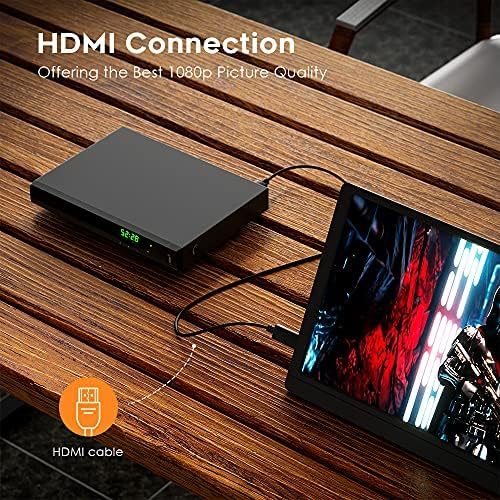
Illustration of connecting the Blu Ray DVD Player to a display via HDMI for optimal 1080p picture quality.
AV Connection (for Older TVs)
If your TV does not have an HDMI port, you can use the composite video (AV) connection.
- Connect the yellow, white, and red plugs of the AV cable to the corresponding color-coded AV OUT ports on the back of the player.
- Connect the other end of the AV cable to the matching AV IN ports on your television.
- Select the corresponding AV input on your TV.

Demonstration of connecting the Blu Ray DVD Player to an older television using the included AV cable.
2.3 Power Connection
After connecting to your TV, plug the player's power cord into a standard electrical outlet.
3. Operating Instructions
3.1 Basic Disc Playback
The EVP-102 supports Blu-ray discs (Region A/1), DVDs (Region Free), and CDs.
- Press the OPEN/CLOSE button on the player or remote control to open the disc tray.
- Place a disc gently onto the tray with the label side facing up.
- Press the OPEN/CLOSE button again to close the tray. The player will automatically begin loading the disc.
- Use the PLAY/PAUSE, STOP, FAST FORWARD, and REWIND buttons on the remote for playback control.

The LED display screen shows the current viewing time and player status, offering a modern aesthetic.
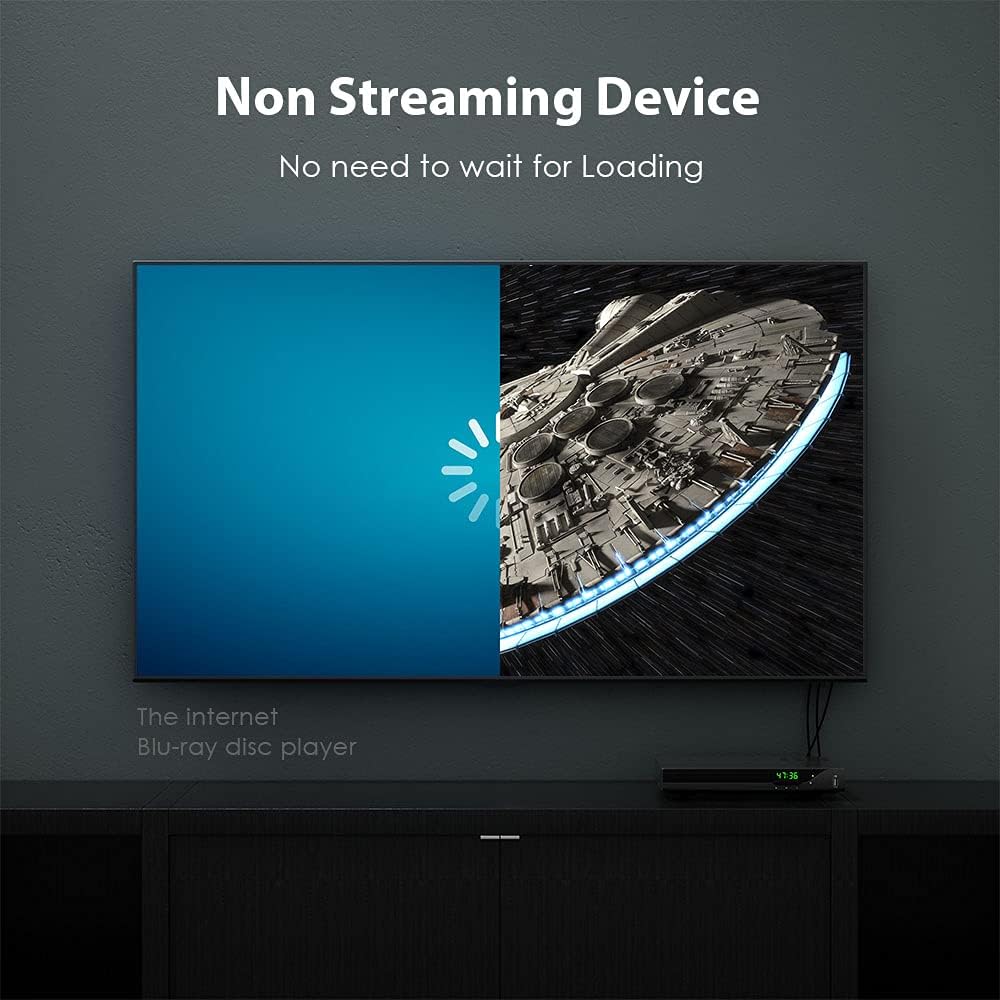
The player supports Region A/1 Blu-ray discs and Region Free DVDs, allowing playback of a wide range of content.
3.2 USB Playback
The front-mounted USB port supports playback of various media formats from USB flash drives (up to 128GB) and external hard drives.
- Insert your USB flash drive or external hard drive into the USB port on the front of the player.
- The player will detect the device and display a menu for selecting media types (Movie, Picture, MP3).
- Navigate through your files using the remote control and press ENTER to select and play.
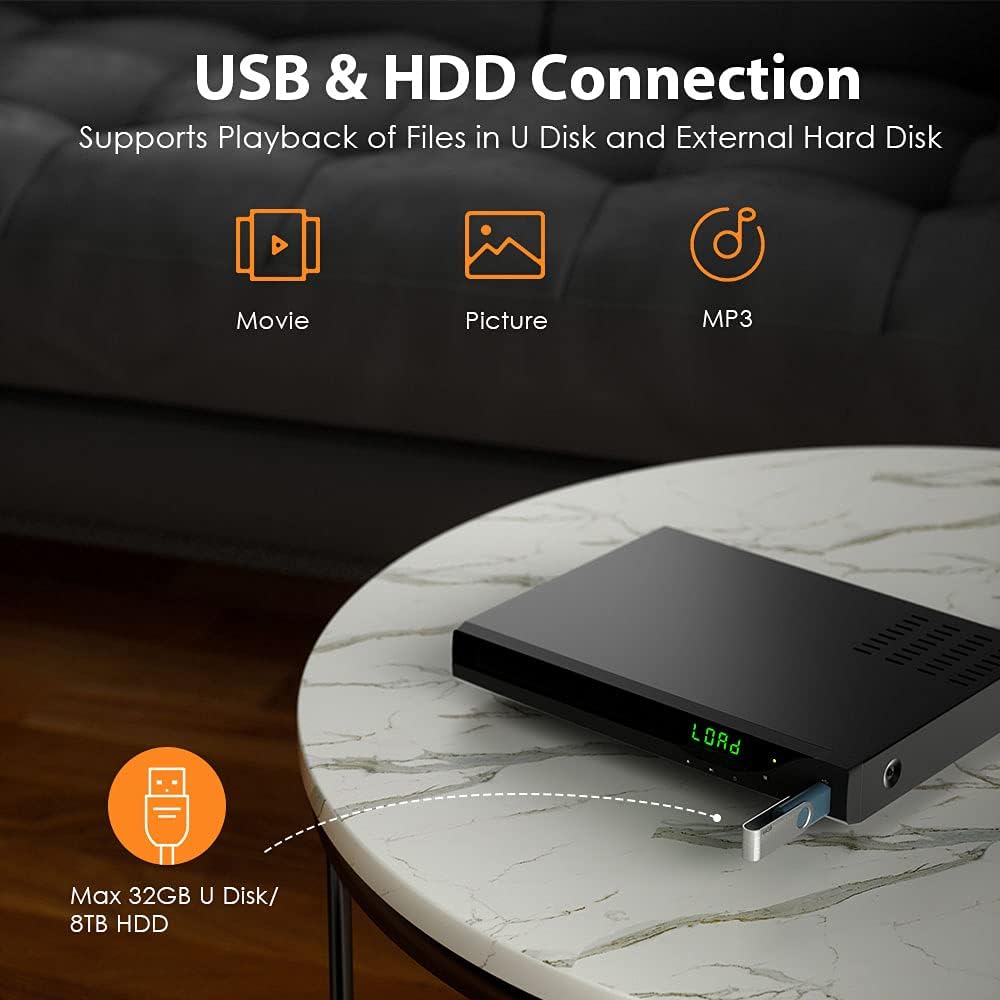
The player features a USB port for convenient playback of movies, pictures, and MP3 files from USB drives and external hard drives.
3.3 Audio Features
Experience immersive sound with built-in audio decoding for Blu-ray Dolby Digital, Dolby Digital+, Dolby TrueHD, and DTS formats.

The player supports Dolby Digital and DTS audio formats, providing high-quality sound for an enhanced viewing experience.
4. Maintenance
Proper maintenance ensures the longevity and performance of your Blu Ray DVD Player.
4.1 Cleaning the Player
- Wipe the exterior of the player with a soft, dry cloth. Do not use liquid cleaners or abrasive materials.
- To clean the disc tray, gently wipe it with a soft, lint-free cloth. Avoid touching the internal components.
4.2 Disc Care
- Handle discs by their edges to avoid fingerprints and scratches.
- Store discs in their cases when not in use.
- Clean dirty discs with a soft, lint-free cloth, wiping from the center outwards.
5. Troubleshooting
If you encounter issues with your player, refer to the following common problems and solutions.
| Problem | Possible Cause | Solution |
|---|---|---|
| No power | Power cord disconnected; power outlet issue. | Ensure power cord is securely plugged in. Try a different outlet. |
| No picture/sound | Incorrect input selected on TV; loose HDMI/AV cables. | Select the correct HDMI/AV input on your TV. Check cable connections. |
| Disc not playing/loading | Disc is dirty or scratched; incorrect disc region; disc inserted incorrectly. | Clean the disc. Ensure it's a supported region (Region A/1 Blu-ray, Region Free DVD). Insert disc label-side up. |
| Remote control not working | Batteries are dead or inserted incorrectly; obstruction between remote and player. | Replace batteries. Ensure clear line of sight to the player's sensor. |
| TV detects player as always on (persistent signal) | HDMI signal behavior. | If using an HDMI splitter, consider one with an active switch to manually select inputs. |
6. Specifications
| Feature | Detail |
|---|---|
| Brand | GEOYEAO |
| Model Name | EVP-102 |
| Product Dimensions | 7.01 x 6.85 x 0.98 inches |
| Item Weight | 1.41 Grams |
| Special Features | Surround Sound, Upscaling |
| Media Type | Blu-Ray Disc, DVD |
| Resolution | 1920x1080 (1080p) |
| Connector Type | RCA |
| Connectivity Technology | HDMI, USB |
| Audio Output Mode | DTS, Dolby |
| Supported File Formats | JPEG, MP3, WMA |
7. Warranty and Support
7.1 Warranty Information
The GEOYEAO EVP-102 Blu Ray DVD Player comes with an 18-month warranty upon online registration. Please retain your proof of purchase for warranty claims.
7.2 Customer Support
For technical assistance, troubleshooting, or warranty inquiries, please visit the official GEOYEAO website or contact their customer support. Refer to the product packaging or the manufacturer's website for the most current contact information.