
iClever GK03
iClever GK03 Wireless Keyboard and Mouse Combo
User Manual
Introduction
Thank you for choosing the iClever GK03 2.4G Wireless Keyboard and Mouse Combo. This manual provides detailed instructions for setting up, operating, and maintaining your new device. Please read this manual thoroughly before use to ensure optimal performance and longevity of your product.
Package Contents
- 1 x iClever GK03 Wireless Keyboard
- 1 x Wireless Mouse
- 1 x 2.4G USB Receiver
- 1 x USB-C Charging Cable (for keyboard)
- 1 x User Manual
Product Overview
The iClever GK03 combo features a slim, full-size QWERTZ keyboard and a comfortable wireless mouse, designed for efficiency and quiet operation. The keyboard is made from aluminum and high-quality ABS, offering a premium feel and portability. The mouse features adjustable DPI settings for precise control.

Image: The iClever GK03 wireless keyboard and mouse, along with the compact USB receiver.

Image: The iClever GK03 keyboard and mouse combo in a typical desktop setup, demonstrating its compact and sleek design.
Setup
1. Charging the Keyboard
Before first use, ensure the keyboard is fully charged. Connect the provided USB-C charging cable to the keyboard's charging port and the other end to a USB power source (e.g., computer USB port, USB wall adapter).
- Battery Capacity: 280 mAh
- Charging Time: Approximately 2 hours
- Standby Time: Up to 90 days

Image: The iClever GK03 keyboard being charged via its USB-C port.
2. Installing Mouse Batteries
The mouse requires 2 AAA batteries (not included). Open the battery compartment on the underside of the mouse, insert the batteries according to the polarity indicators, and close the compartment.
3. Connecting the 2.4G USB Receiver
Locate the 2.4G USB receiver. Plug the receiver into an available USB-A port on your computer (desktop, laptop, etc.). The system should automatically detect and install the necessary drivers.

Image: The compact 2.4G USB receiver, which connects both the keyboard and mouse to your device.

Image: Compatibility diagram showing various devices (Windows laptops, MacBooks, iMacs, Windows PCs) that support the USB-A connection.
4. Powering On
Turn on the keyboard and mouse using their respective power switches. The devices should automatically connect to the receiver. No pairing is required.
Operating Instructions
Keyboard Functions
The keyboard features a full 99-key QWERTZ layout, including a numeric keypad for efficient data entry. It is designed for quiet typing with its unique scissor-switch mechanism.
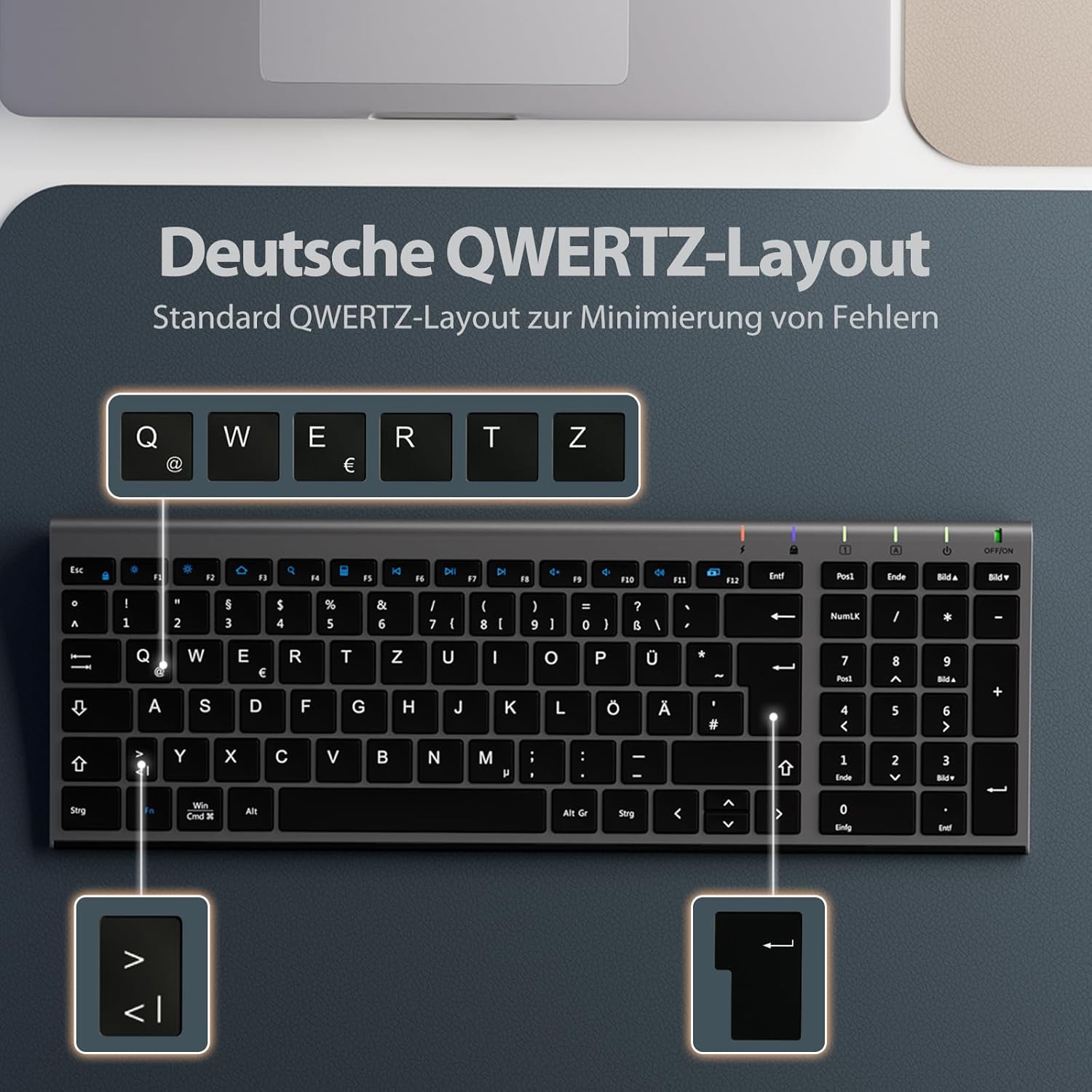
Image: The keyboard features a standard German QWERTZ layout for familiar and efficient typing.
Operating System Compatibility: The keyboard supports both Windows and macOS. Use the dedicated "Win | Cmd" and "Alt | Option" keys to switch between operating system layouts as needed.

Image: The keyboard's "Win | Cmd" and "Alt | Option" keys allow seamless switching between Windows and macOS functions.
Mouse DPI Adjustment
The mouse offers 3 adjustable DPI levels (1000-1200-1600) to suit your preference for cursor sensitivity and precision. Press the DPI button on the mouse to cycle through the settings.

Image: The mouse features quiet clicks and adjustable DPI settings for customized sensitivity.
Power Saving Feature
To conserve battery life, the wireless keyboard and mouse will enter sleep mode after 10 minutes of inactivity. To wake them up, simply press any key on the keyboard or click a mouse button and wait for approximately 3 seconds for reconnection.
Maintenance
- Cleaning: Use a soft, dry cloth to clean the surfaces of the keyboard and mouse. For stubborn dirt, a slightly damp cloth with mild soap can be used, ensuring no liquid enters the device.
- Storage: Store the devices in a cool, dry place away from direct sunlight and extreme temperatures.
- Battery Care: For the mouse, remove batteries if the device will not be used for an extended period. For the keyboard, recharge regularly to maintain battery health.
Troubleshooting
| Problem | Solution |
|---|---|
| Keyboard/Mouse not responding |
|
| Lag or intermittent connection |
|
| Mouse cursor erratic or not moving smoothly |
|
Specifications
| Feature | Detail |
|---|---|
| Brand | iClever |
| Model Number | GK03 |
| Connectivity Technology | 2.4 GHz Wireless (USB Receiver) |
| Keyboard Layout | QWERTZ (German) |
| Number of Keys (Keyboard) | 99 |
| Keyboard Battery | 280 mAh Rechargeable (USB-C) |
| Mouse Battery | 2 x AAA (not included) |
| Mouse DPI Levels | 1000-1200-1600 |
| Operating System Compatibility | Android, Windows (8/10/11), macOS, Chrome OS |
| Compatible Devices | Personal Computer, Laptop, Smartphone, Tablet |
| Wireless Range | Up to 10 meters (33 feet) |
| Color | Grey |
| Special Features | Programmable Button (mouse), Ergonomic, Lightweight, Rechargeable (keyboard) |

Image: Dimensions of the iClever GK03 keyboard and mouse for reference.
Warranty and Support
iClever products come with a standard manufacturer's warranty. For specific warranty details, technical support, or any inquiries regarding your iClever GK03 Wireless Keyboard and Mouse Combo, please refer to the warranty card included in your package or visit the official iClever website. Contact information for customer support is typically available on the product packaging or the brand's official online channels.
Related documentsGK03


Ask a question about this manual
Ask about setup, troubleshooting, compatibility, parts, safety, or missing instructions. Manuals+ will review the question and use this page’s manual context to help answer it.