
ORIA WA58
ORIA Touchscreen Indoor/Outdoor Temperature and Humidity Monitor (Model WA58) User Manual
Model: WA58
1. Introduction
Thank you for choosing the ORIA Touchscreen Indoor/Outdoor Temperature and Humidity Monitor. This device provides accurate, real-time temperature and humidity readings for both indoor and outdoor environments. With its large LCD display and multiple wireless sensors, you can easily monitor conditions in various locations within your home, office, greenhouse, or warehouse.
This manual will guide you through the setup, operation, and maintenance of your new monitor to ensure optimal performance.

Image: The ORIA monitor displayed in an office, bedroom, greenhouse, and warehouse, illustrating its versatile applications.
2. Package Contents
Please check the package contents to ensure all items are present:
- 1 x Main Display Unit (Touchscreen Monitor)
- 3 x Wireless Remote Sensors
- Mounting Screws and Anchors (for sensors)
- 1 x User Manual

Image: The main display unit, three wireless sensors, mounting hardware, and the user manual as they appear in the product packaging.
3. Product Features
- Main Display Unit:
- 4-inch Large Color LCD Touchscreen with Backlight
- Displays indoor temperature and humidity
- Displays outdoor temperature and humidity from up to 3 remote sensors
- Temperature units: Celsius (°C) or Fahrenheit (°F) switchable
- Min/Max record for temperature and humidity (all time or 24 hours)
- Temperature and humidity trend indicators
- Low battery indicator
- Multiple mounting options: Tabletop stand, magnetic back
- Wireless Remote Sensors:
- Waterproof design for outdoor use
- Maximum transmission distance: 197ft / 60m (in open air)
- Supports up to 3 channels
- Multiple mounting options: Hang, upright, wall mount

Image: A visual representation of the main display unit and a remote sensor, highlighting their dimensions and key features such as °C/°F switcher, trend indicator, MAX/MIN record, backlight, and low battery indicator.
4. Setup
4.1 Battery Installation
The main display unit and each remote sensor require 2x AAA batteries (not included). Ensure correct polarity when inserting batteries.
- For Remote Sensors: Open the battery compartment cover on the back of each sensor. Insert 2x AAA batteries. Close the cover securely.
- For Main Display Unit: Open the battery compartment cover on the back of the main unit. Insert 2x AAA batteries. Close the cover securely.

Image: Detailed view of the battery compartments for both the main display unit and a remote sensor, indicating where to insert 2x AAA batteries.
4.2 Channel Selection and Synchronization
Each remote sensor has a channel switch (1, 2, or 3) inside its battery compartment. Before closing the battery cover, select a unique channel for each sensor. The main display unit will automatically cycle through or allow manual selection of these channels.
- Set each remote sensor to a different channel (CH1, CH2, CH3) using the switch inside the battery compartment.
- After installing batteries in both the main unit and sensors, the main unit should automatically begin receiving data. If not, press the "CH SYNC" button on the main unit to initiate synchronization.
- Ensure the main unit and sensors are within the effective transmission range (up to 197ft/60m in open air).

Image: A diagram showing the main display unit and three remote sensors, with arrows indicating how to match the channel switch on each sensor (CH1, CH2, CH3) with the corresponding channel displayed on the main unit via the "CH SYNC" button.
4.3 Placement and Mounting
Consider the following for optimal placement:
- Main Display Unit: Place indoors in a central location, away from direct sunlight, heat sources, or drafts that could affect readings. Use the integrated tabletop stand or the magnetic back for mounting on metallic surfaces.
- Remote Sensors:
- For outdoor use, place the sensor in a shaded area, protected from direct rain and sunlight, to ensure accurate readings and prolong battery life. Although waterproof, extreme conditions can impact performance.
- Mount using the integrated hanging hole, the upright stand, or the provided screws for wall mounting.
- Ensure sensors are within range of the main unit. Walls and obstacles can reduce transmission distance.

Image: A collage demonstrating different mounting options for the main display unit (tabletop stand, magnet) and remote sensors (hang, upright, wall mount).
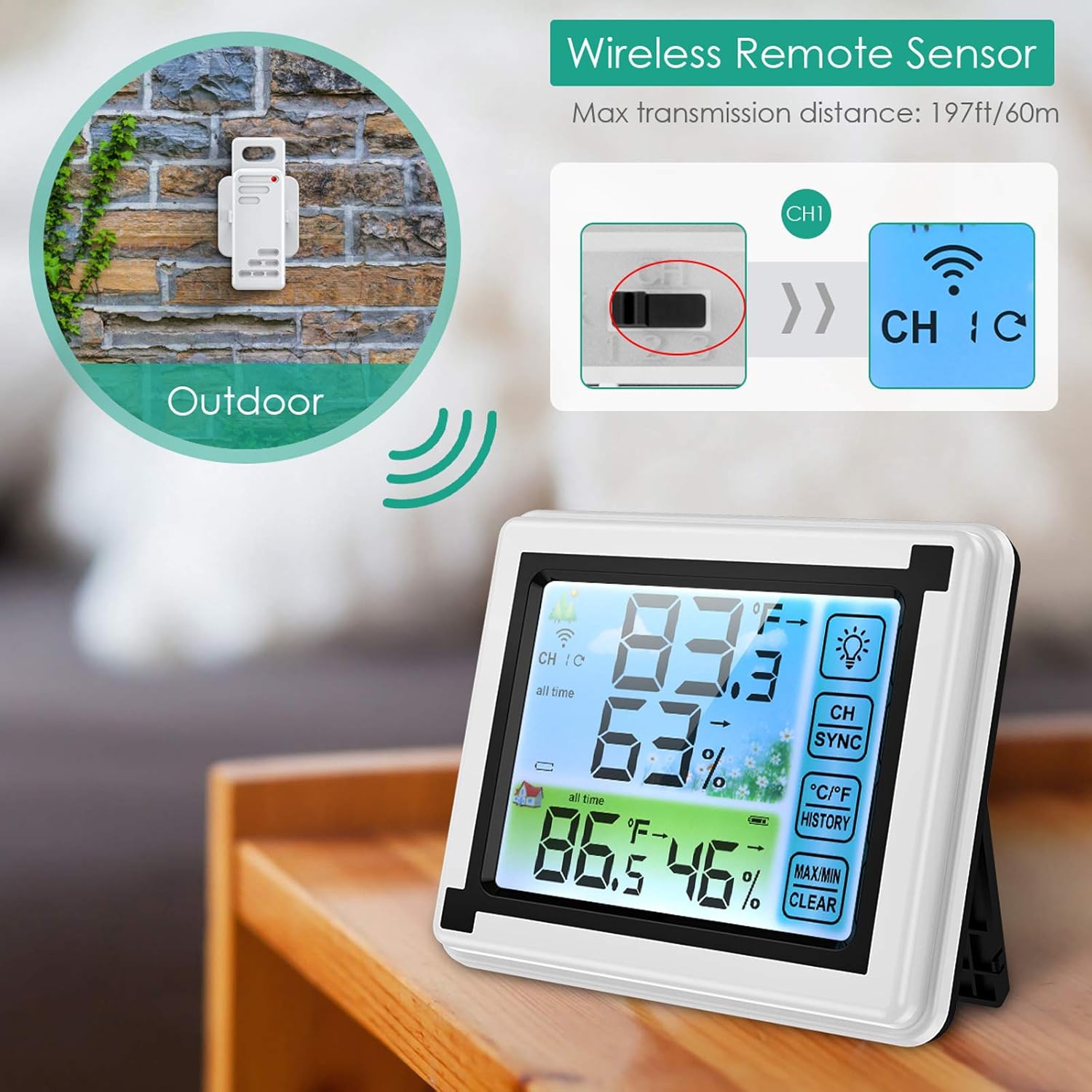
Image: A remote sensor mounted outdoors on a wall, illustrating its wireless capability and placement for external temperature and humidity monitoring.
5. Operating Instructions
5.1 Display Overview
The main display unit shows indoor readings at the top and cycles through the remote sensor readings at the bottom. Key indicators include:
- CH 1/2/3: Indicates which remote sensor's data is currently displayed.
- Temperature (°C/°F): Current temperature.
- Humidity (%): Current relative humidity.
- Trend Arrows: Indicates if temperature/humidity is rising, falling, or stable.
- Battery Icon: Shows battery status for the main unit and active sensor.

Image: The main display unit showing indoor and outdoor temperature/humidity readings, along with three remote sensors. The display clearly shows channel indicators, temperature, humidity, and function buttons.
5.2 Touchscreen Functions
The main unit features several touch-sensitive buttons on the right side of the display:
- Light Bulb Icon: Activates the backlight for approximately 10 seconds.
- CH SYNC: Press to manually cycle through remote sensor channels (CH1, CH2, CH3) or to re-sync sensors.
- °C/°F: Toggles the temperature display between Celsius and Fahrenheit.
- HISTORY: Displays the maximum and minimum recorded temperature and humidity values.
- MAX/MIN CLEAR: When viewing HISTORY, press and hold this button to clear the recorded maximum and minimum values.

Image: The ORIA monitor's display with its backlight activated, demonstrating improved readability in low-light conditions. The touch-sensitive buttons are visible on the right side.
5.3 Viewing Min/Max Records
To view the highest and lowest temperature and humidity recorded:
- Press the HISTORY button once to display the maximum values.
- Press the HISTORY button again to display the minimum values.
- Press a third time to return to current readings.
- To clear the recorded Min/Max values, press and hold the MAX/MIN CLEAR button while viewing the history.
6. Maintenance
- Cleaning: Wipe the main unit and sensors with a soft, damp cloth. Do not use abrasive cleaners or solvents.
- Battery Replacement: Replace batteries in both the main unit and sensors when the low battery indicator appears on the display. Ensure to use fresh AAA batteries.
- Sensor Placement: Periodically check the outdoor sensor's placement to ensure it remains protected from direct weather elements for accurate readings and longevity.
7. Troubleshooting
| Problem | Possible Cause | Solution |
|---|---|---|
| No outdoor readings or "---" displayed. |
|
|
| Inaccurate readings. |
|
|
| Display is dim or blank. |
|
|
8. Specifications
| Model | WA58 |
| Display Type | LCD Touchscreen with Backlight |
| Power Source (Main Unit) | 2 x AAA Batteries (not included) |
| Power Source (Sensors) | 2 x AAA Batteries per sensor (not included) |
| Wireless Range | Up to 197ft / 60m (open air) |
| Number of Sensors Supported | 3 |
| Response Time | 3 seconds |
| Special Feature | Waterproof (sensors) |
| Product Dimensions (Main Unit) | Approx. 4.5 inches (width) x 3.7 inches (height) |
| Product Dimensions (Sensor) | Approx. 1.4 inches (width) x 3.9 inches (height) |
9. Warranty and Support
For warranty information or technical support, please refer to the contact details provided with your purchase or visit the official ORIA website. Keep your purchase receipt as proof of purchase.
Manufacturer: ORIA
Place of Business: Shenzhen, Guangdong 518000, CN
Ask a question about this manual
Ask about setup, troubleshooting, compatibility, parts, safety, or missing instructions. Manuals+ will review the question and use this page’s manual context to help answer it.