
Introduction
Thank you for choosing the BENGOO KM-1 Wireless Gaming Mouse. This manual provides detailed instructions on how to set up, operate, and maintain your mouse to ensure optimal performance and longevity. The KM-1 mouse features a lightweight honeycomb shell, 2.4G wireless technology, adjustable DPI settings, and customizable RGB lighting, designed for a comfortable and responsive gaming experience.
Package Contents
- BENGOO KM-1 Wireless Gaming Mouse
- USB Receiver
- USB Charging Cable
Setup
1. Connecting the Mouse
- Locate the USB receiver, typically stored in a compartment on the underside of the mouse.
- Plug the USB receiver into an available USB port on your computer (PC, Laptop, Mac).
- Turn on the mouse using the ON/OFF switch located on the underside. The mouse will automatically connect to the receiver.
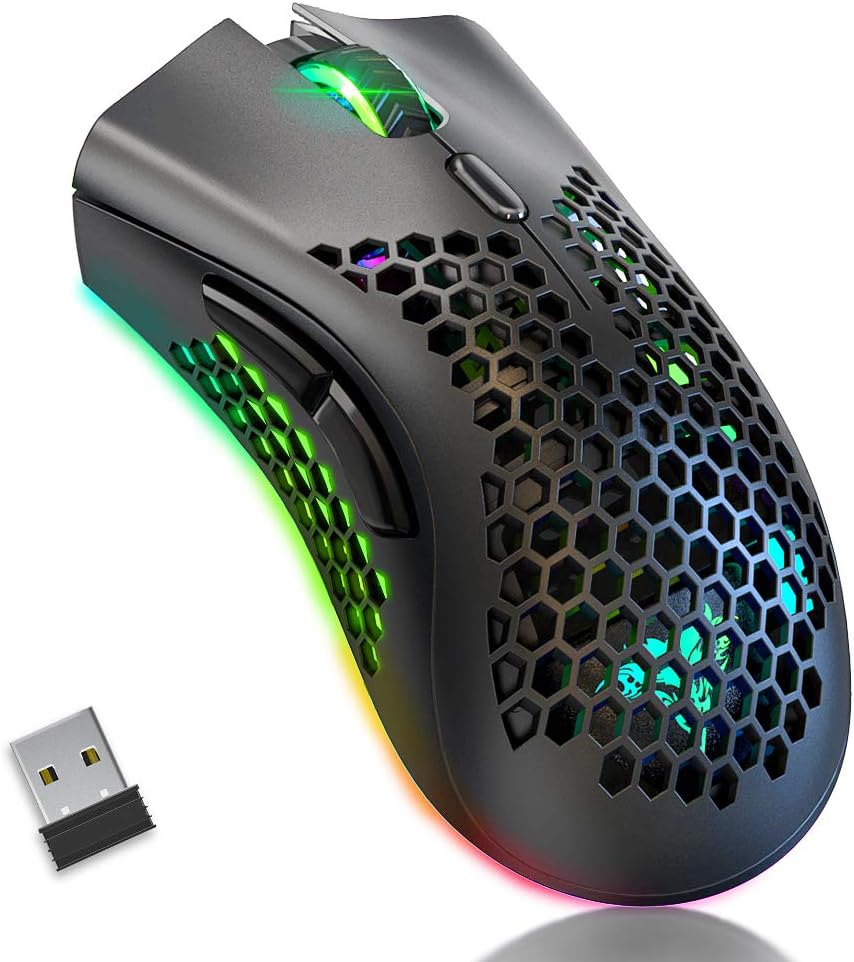
Image: The BENGOO KM-1 Wireless Gaming Mouse shown alongside its compact USB receiver, ready for connection.
The 2.4G wireless technology provides a stable connection with a range of up to 10 meters, ensuring no delays or interference during use.
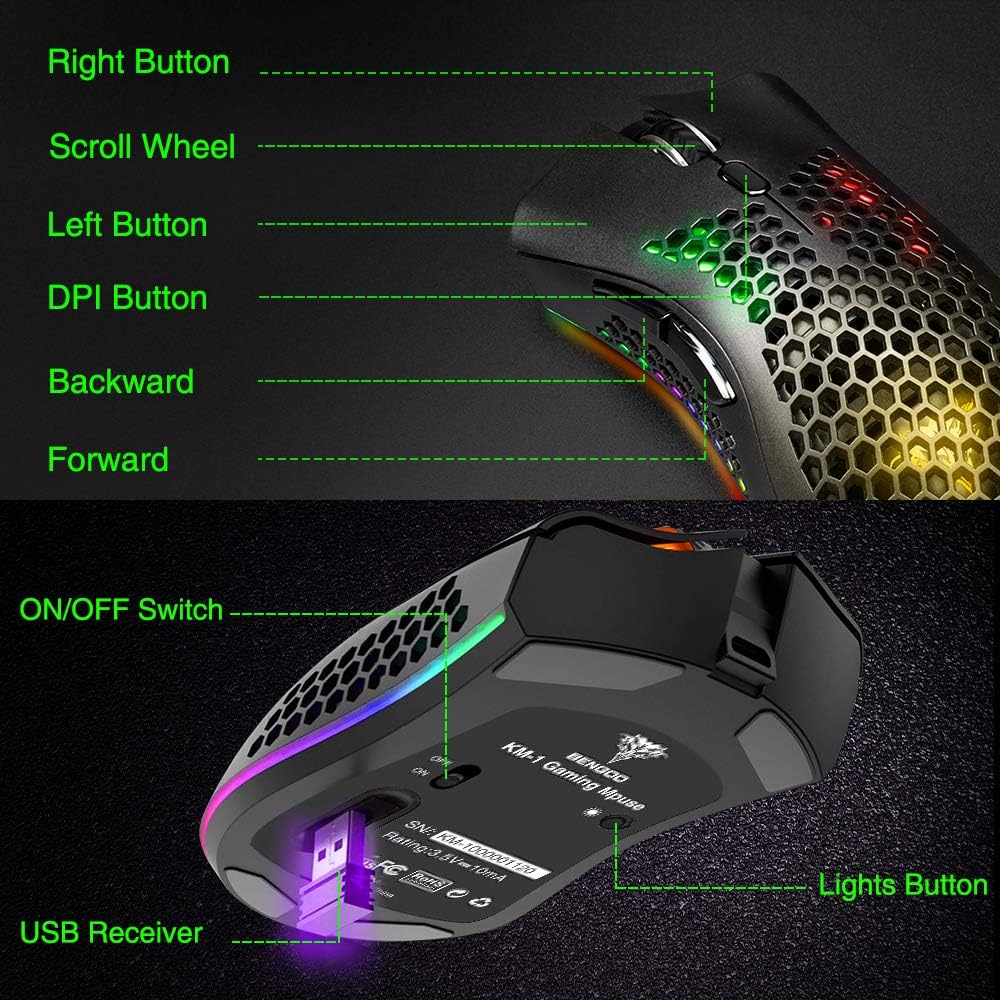
Image: A visual representation illustrating the 10-meter wireless operating range of the mouse from a computer.
2. Charging the Mouse
The KM-1 mouse is rechargeable. When the battery is low, the mouse cursor may move slowly, unstably, or stop moving. Connect the included USB charging cable to the mouse and a USB power source to charge. The mouse can be used while charging.
Image: The BENGOO KM-1 mouse connected to a USB cable, indicating its rechargeable capability.
Operating Instructions
1. Button Functions
The KM-1 mouse is equipped with six programmable buttons for enhanced control:
- Left Button: Standard left-click function.
- Right Button: Standard right-click function.
- Scroll Wheel: Scrolls pages up and down; can also be pressed for middle-click functionality.
- DPI Button: Adjusts the mouse sensitivity (DPI).
- Forward Button: Navigates forward in web browsers or file explorers.
- Back Button: Navigates backward in web browsers or file explorers.

Image: A detailed diagram highlighting and labeling each of the six buttons on the BENGOO KM-1 Wireless Gaming Mouse.
2. DPI Adjustment
The mouse features 3 adjustable DPI (Dots Per Inch) settings for precise control. Press the DPI button to cycle through the following sensitivities:
- 800 DPI
- 1600 DPI
- 3200 DPI

Image: A visual demonstrating the adjustable DPI settings (800-1600-3200) for the BENGOO KM-1 mouse, allowing users to customize cursor speed.
3. RGB Lighting Control
The KM-1 mouse features Chroma RGB lighting. To activate the lights, ensure the mouse is turned on. Press the LED button (located on the underside near the ON/OFF switch) repeatedly to cycle through different lighting effects:
- Rainbow Mode
- Stream Mode
- Breathing Mode
- Pure Mode (Solid Color)
- Lights Off

Image: A display of the various RGB lighting modes available on the BENGOO KM-1 mouse, including Rainbow, Stream, Breathing, and Pure modes.
4. Ergonomic Design
The mouse features a lightweight honeycomb shell design, which provides a comfortable grip and promotes airflow, keeping the palm cool during extended use. This design contributes to a soft feeling and excellent gaming experience.

Image: A close-up view of the BENGOO KM-1 mouse, emphasizing its unique lightweight honeycomb shell design.
Maintenance
Cleaning
To clean your mouse, use a soft, dry cloth. For stubborn dirt, slightly dampen the cloth with water. Avoid using harsh chemicals or abrasive materials, as these can damage the mouse's surface or internal components. Ensure no liquid enters the honeycomb perforations.
Battery Care
To prolong battery life, avoid fully discharging the mouse frequently. Charge the mouse when the low battery indicator appears or when performance degrades. Store the mouse in a cool, dry place when not in use for extended periods.
Troubleshooting
- Mouse not responding:
- Ensure the USB receiver is securely plugged into a working USB port.
- Check if the mouse is turned on using the ON/OFF switch.
- Charge the mouse if the battery is low.
- Ensure the mouse is within the 10-meter wireless range of the receiver.
- Cursor moves slowly or erratically:
- This often indicates a low battery. Charge the mouse fully.
- Ensure the mouse sensor is clean and free of debris.
- Try adjusting the DPI setting.
- RGB lights not working:
- Ensure the mouse is turned on.
- Press the LED button to cycle through the lighting modes.
- Check battery level.
- Compatibility issues:
- The mouse is compatible with Windows (98/2000/ME/NT/XP/VISTA/7/8/10/11) and macOS. No specific drivers are required.
If you encounter issues not listed here, please refer to the manufacturer's support resources.
Specifications
| Feature | Detail |
|---|---|
| Brand | BENGOO |
| Model | KM-1 |
| Connectivity Technology | 2.4G Wireless, USB (for charging) |
| Movement Detection | Optical |
| Adjustable DPI | 800 / 1600 / 3200 |
| Buttons | 6 (Left, Right, Scroll Wheel, DPI, Forward, Back) |
| Special Features | Lightweight Honeycomb Shell, RGB LED Lights, Rechargeable, Ergonomic Design |
| Compatibility | Windows, macOS |
| Item Weight | 12.3 ounces |
| Product Dimensions | 13.78 x 13.78 x 7.87 inches |
| Power Source | Battery Powered |
Warranty and Support
For warranty information and customer support, please refer to the documentation included with your product or visit the official BENGOO website. Keep your purchase receipt for warranty claims.
Official Product Videos
No relevant official product videos with 'creator_type':'Seller' were found in the provided data to embed in this manual.