
Elmo Cast
Elmo Cast 4K Wireless Streaming Receiver User Manual
Model: Cast | Brand: Elmo
Product Overview
The Elmo Cast 4K Wireless Streaming Receiver is designed to enhance wireless presentation capabilities, allowing for effortless streaming of multimedia content. It supports up to 4K Ultra HD resolution and features a 5GHz 802.11ac Wi-Fi radio with a high sensitivity 2T2R MIMO antenna for optimal bandwidth. Its efficient System on Chip (SoC) design and 1GB DDR3 memory ensure low latency and minimal lag, making it ideal for various presentation environments.
Key Features
- 4K Ultra HD Multimedia Streaming: Stream presentations from any mobile device or ELMO STEM-CAM in up to 4K Ultra HD resolution.
- Present From Any Mobile Device: Effortlessly present from laptops, tablets, or smartphones.
- Perfect For STEM-CAM Integration: An ideal add-on for MA-1 and MO-2 STEM-CAM Visual Presenters, enabling wireless presentation of 3D objects or student work.
- Wide OS Compatibility: Supports Windows 8.1/10 (32-bit/64-bit), Mac OS 10.11+, Android 4.4+, iOS 10+, and all Chrome OS devices.
- Flexible Resolution Support: Compatible with 1280x720 (50/60P), 1920x1080 (24/50/60P), 3840x2160 (24/25/30P), and 4096x2160 (24P) resolutions. Progressive 60Hz is supported for 720p and 1080p.
Setup Guide
Follow these steps for the initial setup of your Elmo Cast receiver:
- Connect to Display: Insert the HDMI connector of the Elmo Cast receiver into an available HDMI port on your display device (TV, projector, monitor).
- Power On: Connect the power cable to the micro USB port on the receiver and then to a power source (e.g., USB port on your display or a USB power adapter). The device will power on automatically.
- Initial Screen: Once powered on, the display will show the Elmo Cast welcome screen, which includes instructions for connecting your device.
- Connect to Wi-Fi (if applicable): Some setups may require connecting the Elmo Cast to your local Wi-Fi network for internet access or specific features. Follow the on-screen prompts for network configuration.
- Pair Your Device: On your mobile device (laptop, tablet, smartphone), enable screen mirroring or casting functionality (e.g., Miracast, AirPlay, Google Cast). Select the Elmo Cast receiver from the list of available devices.

Image: The Elmo Cast 4K Wireless Streaming Receiver, a compact black device with an HDMI connector on one end and a textured surface on the other.
Operating Instructions
Once the Elmo Cast receiver is set up and connected to your display, you can begin streaming content from your compatible devices.
Streaming from a Mobile Device (Smartphone/Tablet)
- Ensure your mobile device is connected to the same Wi-Fi network as the Elmo Cast, or directly to the Elmo Cast's Wi-Fi hotspot if available.
- Open the content you wish to stream (e.g., a video, presentation, or photo gallery).
- Look for the screen mirroring, cast, or share icon (often a rectangle with a Wi-Fi symbol or an arrow).
- Select "Elmo Cast" from the list of available devices. Your device's screen will now be mirrored on the connected display.
Streaming from a Laptop (Windows/Mac/Chrome OS)
- Windows: Press Windows key + K to open the Connect sidebar. Select "Elmo Cast" from the list.
- Mac: Use AirPlay (if supported) or third-party casting applications.
- Chrome OS: Use the built-in Cast feature from the Chrome browser or system settings.
- Your laptop screen will be mirrored or extended to the display.
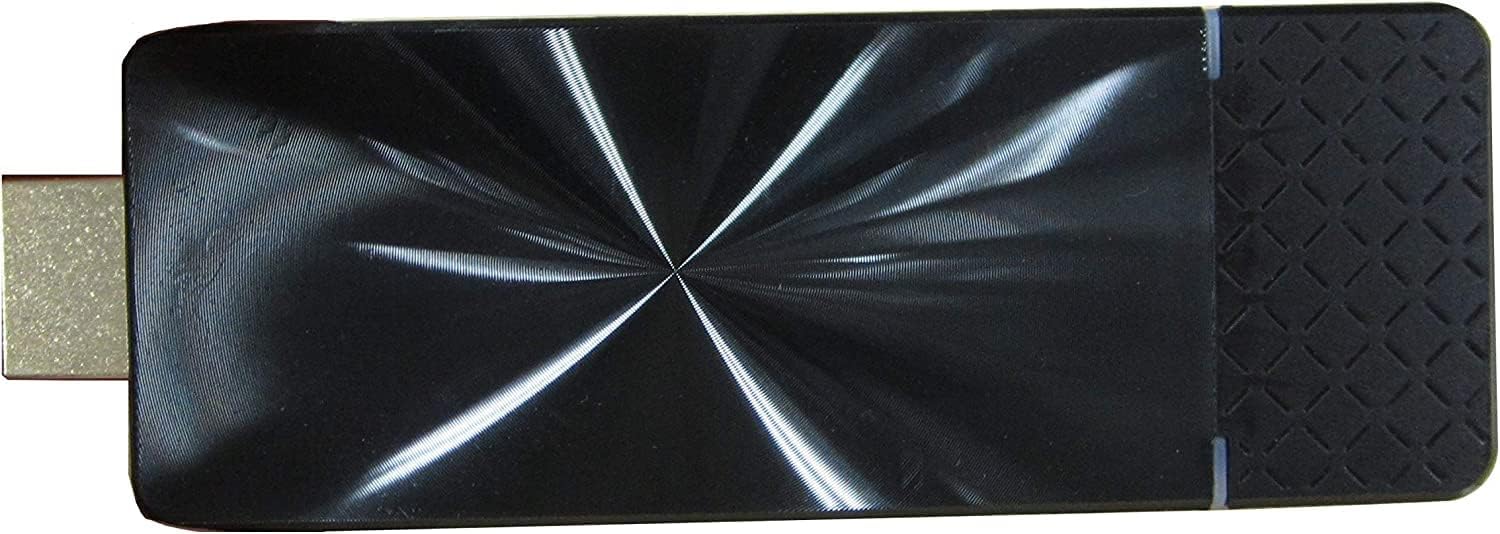
Image: A top-down view of the Elmo Cast receiver, highlighting its sleek, reflective black surface and compact design.
Maintenance
To ensure the longevity and optimal performance of your Elmo Cast receiver, follow these simple maintenance guidelines:
- Cleaning: Gently wipe the device with a soft, dry, lint-free cloth. Do not use liquid cleaners, aerosols, or solvents.
- Storage: When not in use for extended periods, store the device in a cool, dry place away from direct sunlight and extreme temperatures.
- Ventilation: Ensure the device has adequate ventilation during operation. Do not cover the ventilation holes.
- Handling: Handle the device with care. Avoid dropping it or subjecting it to strong impacts.
Troubleshooting
If you encounter issues with your Elmo Cast receiver, refer to the following common problems and solutions:
- No Display/Black Screen:
- Ensure the Elmo Cast is properly connected to the HDMI port and receiving power.
- Verify that your display is set to the correct HDMI input source.
- Try connecting the Elmo Cast to a different HDMI port or display.
- Cannot Connect/Device Not Found:
- Ensure both the Elmo Cast and your source device are powered on and within range (approx. 98 feet / 30m).
- Confirm that your source device's Wi-Fi is enabled and connected to the correct network (if applicable).
- Restart both the Elmo Cast (by unplugging and re-plugging power) and your source device.
- Check if your source device's operating system is compatible (Windows 8.1/10, Mac OS 10.11+, Android 4.4+, iOS 10+, Chrome OS).
- Lagging or Choppy Video/Audio:
- Reduce the distance between the Elmo Cast and your source device.
- Minimize interference from other wireless devices.
- Ensure your Wi-Fi network (if used) has sufficient bandwidth and signal strength.
- Lower the resolution of the content being streamed if possible.

Image: The Elmo Cast receiver being held in a hand, illustrating its compact and portable size.
Specifications
| Feature | Detail |
|---|---|
| Brand Name | Elmo |
| Item Model Number | Cast |
| Resolution Support | 1280x720 (50/60P), 1920x1080 (24/50/60P), 3840x2160 (24/25/30P), 4096x2160 (24P); Progressive 60Hz supported for 720p/1080p |
| Image Output Terminal | HDMI 1.4 |
| Protocol | TCP / IP, SNMP |
| IP Address Setting | DHCP (Auto) / Manual IP address configuration |
| Wireless Band Used | 5GHz: W52 (36,40,44,48ch); 2.4 GHz |
| Communication Range | Approx. 98 feet (30 m) |
| Power Consumption | 5V/1.5A |
| Compatible OS | Windows 8.1/10 (32-bit/64-bit), Mac OS 10.11+, Android 4.4~, iOS 10~, All Chrome OS |
| Operating Temperature | 0 to 40°C (32 to 104°F) |
| Dimensions | 3.82" x 1.26" x 0.43" |
| Weight | 4.23 oz (0.26 lbs) |
| RAM Memory Installed Size | 1 GB |
| Connectivity Technology | HDMI |
| Connector Type | HDMI |
| Controller Type | App Control |
| Form Factor | TV Stick |
| Color | Chrome |
Warranty and Support
For warranty information and technical support, please refer to the official Elmo website or contact their customer service. Keep your purchase receipt as proof of purchase for any warranty claims.
Online Support: Visit the Elmo Official Website for FAQs, software downloads, and support resources.
Customer Service: Refer to your product packaging or the official website for contact details for customer service inquiries.
Related documentsCast


Ask a question about this manual
Ask about setup, troubleshooting, compatibility, parts, safety, or missing instructions. Manuals+ will review the question and use this page’s manual context to help answer it.