
1. Introduction
This manual provides detailed instructions for the setup, operation, and maintenance of your Epson PowerLite 982W LCD Projector. Designed for classroom and educational environments, this projector delivers bright, clear images and offers versatile connectivity options. Please read this manual thoroughly before using the projector to ensure optimal performance and safety.
2. What's in the Box
Verify that all items listed below are included in your package:
- PowerLite 982W 3LCD WXGA Classroom Projector with Dual HDMI
- Power Cord
- VGA Cable
- Projector Remote Control
- Battery
- Software CD
- User Manual (this document)
- Warranty Card
3. Product Overview
Familiarize yourself with the physical components and controls of your Epson PowerLite 982W projector.

Figure 3.1: Front View. This image displays the front of the projector, highlighting the main projection lens and the large ventilation grille on the left side. The Epson logo is prominently featured above the lens.
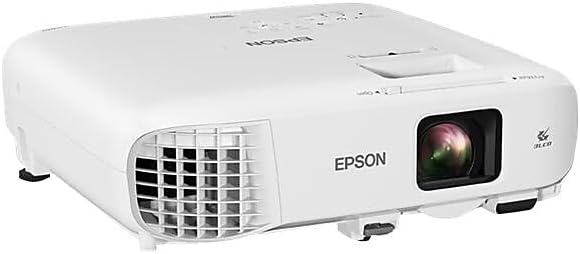
Figure 3.2: Angled View. An angled perspective of the projector, providing a view of both the top panel and the front lens area. This view helps in understanding the overall compact design.

Figure 3.3: Top Control Panel. This image shows the top surface of the projector, featuring the control panel with various buttons for navigation, source selection, menu access, and power. The focus and zoom rings are also visible near the lens opening.

Figure 3.4: Rear Connectivity Panel. The rear panel of the projector is shown, detailing the comprehensive array of input and output ports, including HDMI, VGA, USB, Audio In/Out, Video, and LAN connections.
4. Setup Instructions
Proper setup ensures optimal projection quality and longevity of your device.
4.1 Placement and Mounting
The PowerLite 982W is designed for versatile placement, including ceiling mounting, as commonly seen in classroom installations. Ensure the projector is securely mounted and positioned to project onto your screen or wall without obstruction.
4.2 Connecting Your Devices
The projector offers multiple connectivity options:
- HDMI: Connect devices like laptops, Blu-ray players, or streaming devices using an HDMI cable to either HDMI1 or HDMI2 port.
- VGA (Computer): Use a VGA cable to connect to a computer's VGA output. There are two VGA input ports (Computer1, Computer2) and one VGA output port (Monitor Out).
- USB: Connect USB devices for display or control.
- LAN: For network connectivity and control.
- Audio: Separate audio input (Audio1, Audio2, Mic) and output ports are available for external audio systems.
Ensure all cables are securely connected to prevent signal loss.
4.3 Powering On
- Connect the power cord to the projector and a power outlet.
- Press the power button on the projector's control panel or the remote control. The projector will emit a beeping sound and begin its warm-up sequence.
- Wait for the projector to fully warm up and display the input source.
Video 4.1: Projector Installation and Basic Operation. This video demonstrates the Epson PowerLite 982W projector mounted in a classroom setting. It shows the physical controls on the projector, the various input ports, and the use of the remote control to power on the device and select input sources. The video also illustrates the projection quality on a screen with ambient lighting.
5. Operating Instructions
Learn how to effectively use your projector for presentations and media display.
5.1 Source Selection
To switch between input sources:
- Press the 'Source Search' button on the remote control or the 'Source' button on the projector's control panel.
- Use the arrow keys to navigate through the available sources (HDMI1, HDMI2, Computer1, Computer2, Video, USB Display, LAN).
- Press 'Enter' to select the desired source. The projector will search for a signal from the selected input.
5.2 Image Adjustment
- Focus: Rotate the focus ring around the lens to sharpen the image.
- Zoom: Adjust the zoom ring to enlarge or reduce the image size.
- Keystone Correction: Use the keystone correction buttons on the control panel or remote to correct trapezoidal distortion if the projector is not perfectly perpendicular to the screen.
- Color Mode: Select different color modes (e.g., Dynamic, Presentation, Cinema) from the menu to optimize image quality for various content types and ambient lighting conditions.
5.3 Advanced Features
- Moderator Function: Connects up to 50 devices, allowing multiple users to share content from laptops or mobile devices.
- Split Screen Capability: Display content from two different sources side-by-side simultaneously.
- Wireless Projection: Project wirelessly from compatible laptops and mobile devices (PC, Mac, Chromebook, iOS, Android).
6. Key Features
The Epson PowerLite 982W projector is equipped with several features to enhance your viewing and presentation experience:
- Utilizes 3 LCD panels and 4,200 lumens of color and white brightness for vivid images.
- Provides WXGA resolution (1280 x 800) for a bright, wide-screen experience.
- Features a long lamp life of up to 17,000 hours in ECO mode.
- Includes optical zoom for clear, sharp images without digital distortion.
- Supports connectivity for up to 50 devices to display a variety of content or compare students' work side-by-side.
7. Maintenance
Regular maintenance helps ensure the longevity and optimal performance of your projector.
- Cleaning the Lens: Gently wipe the lens with a soft, lint-free cloth designed for optical surfaces. Do not use abrasive cleaners.
- Cleaning the Air Filter: Periodically clean or replace the air filter to prevent dust buildup, which can affect cooling and image quality. Refer to the full user manual for specific instructions on filter access.
- Lamp Replacement: The projector features a long-life lamp. When replacement is necessary, a notification will appear. Always use genuine Epson replacement lamps.
- Storage: When not in use for extended periods, store the projector in a cool, dry place, protected from dust and extreme temperatures.
8. Troubleshooting
If you encounter issues with your projector, refer to the following common solutions:
- No Image Displayed:
- Ensure the projector is powered on and the input source is correctly selected.
- Check all cable connections (HDMI, VGA) between the projector and the source device.
- Verify that the source device (e.g., laptop) is outputting a signal.
- Image is Blurry:
- Adjust the focus ring on the projector lens.
- Ensure the projection surface is flat and the projector is at an appropriate distance.
- Image is Distorted (Trapezoid Shape):
- Use the keystone correction function on the projector or remote control to adjust the image shape.
- No Sound:
- Check the volume settings on both the projector and the source device.
- Ensure audio cables are correctly connected if using separate audio inputs.
- Overheating Warning:
- Ensure the projector's ventilation vents are not blocked.
- Clean or replace the air filter if it is dirty.
For more complex issues, consult the full user manual or contact Epson support.
9. Specifications
| Feature | Detail |
|---|---|
| Product Dimensions | 11.1 x 12.1 x 3.5 inches |
| Item Weight | 6.83 pounds |
| Item Model Number | 982W |
| Manufacturer | Epson Corporation |
| Display Resolution | 1280 x 800 (WXGA) |
| Connectivity Technology | HDMI, USB, VGA, LAN |
| Recommended Uses | Class Room, Education |
| Special Feature | UHE (Ultra High Efficiency lamp) |
| Lamp Life (ECO Mode) | Up to 17,000 hours |
10. Warranty and Support
Your Epson PowerLite 982W projector comes with a warranty. Please refer to the included Warranty Card in your product package for specific terms and conditions. For technical support, service, or additional information, please visit the official Epson support website or contact their customer service department.


