
1. Introduction
The WD My Book Desktop External Hard Drive provides a substantial 18TB of storage capacity for your digital files. This device is designed for reliable data storage and backup, featuring USB 3.0 connectivity for fast data transfers and hardware encryption for enhanced security. This manual will guide you through the installation, operation, and maintenance of your My Book drive.
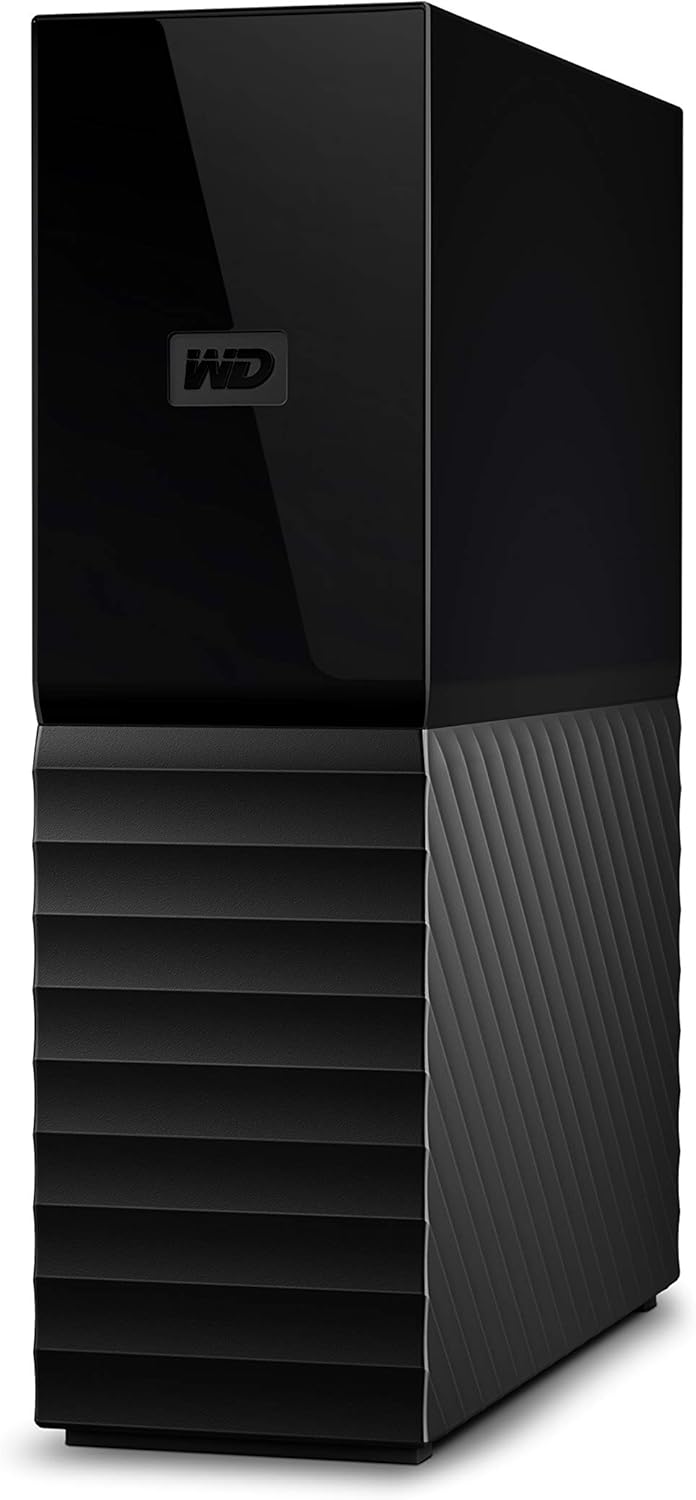
Figure 1: WD My Book 18TB Desktop External Hard Drive. This image shows the sleek black design of the external hard drive, highlighting its compact form factor suitable for desktop use.
2. What's in the Box
Upon unboxing your WD My Book Desktop External Hard Drive, ensure all the following components are present:
- My Book WDBBGB0180HBK-NESN Hard Drive
- USB 3.0 Cable
- AC Adapter
- WD Discovery Software (with WD Backup, WD Security, and WD Drive Utilities)
- Quick Start Guide
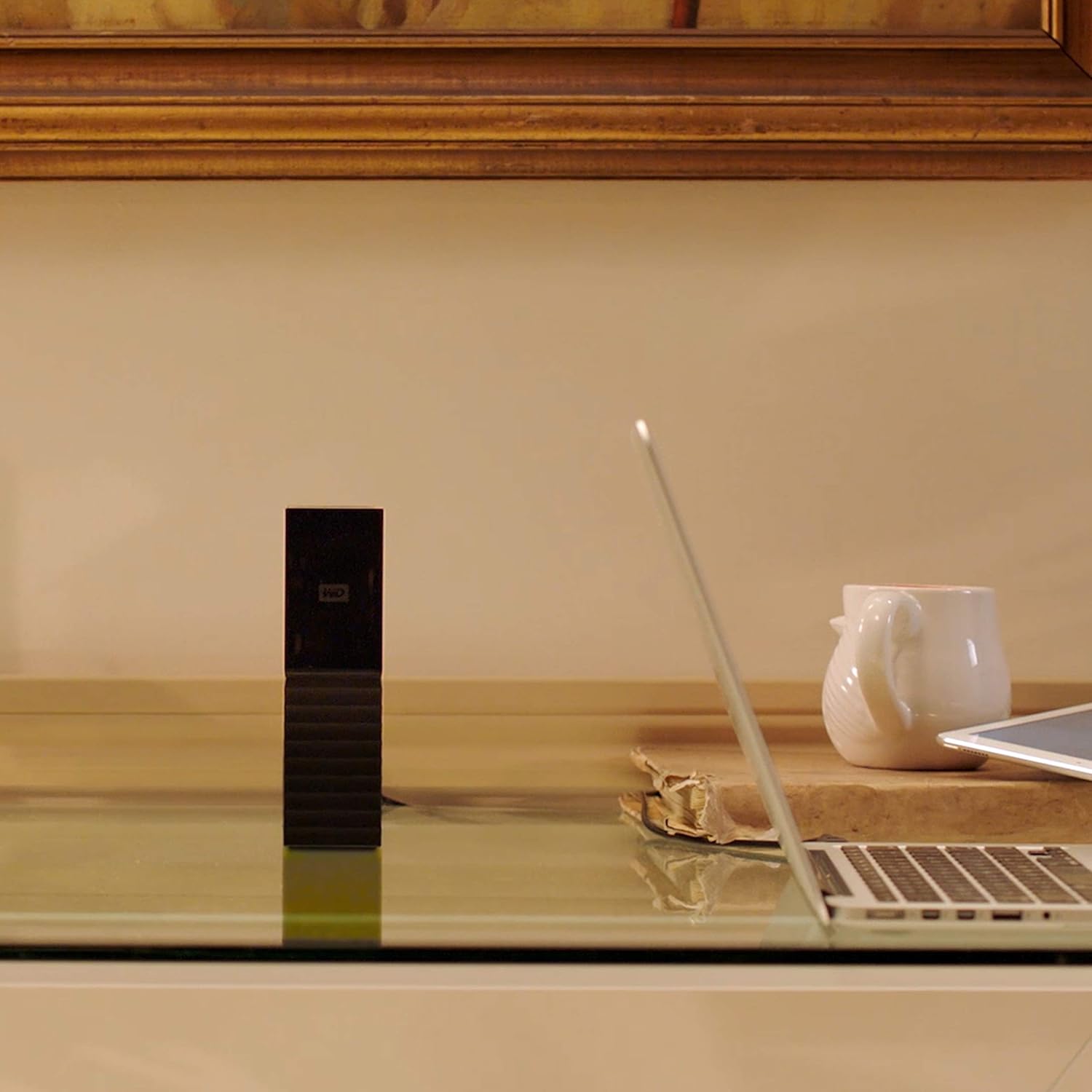
Figure 2: Components included with the WD My Book 18TB External Hard Drive. This image displays the hard drive unit, USB 3.0 cable, and AC power adapter, which are essential for operation.
3. Setup Instructions
Follow these steps to set up your WD My Book Desktop External Hard Drive:
- Connect the AC Adapter: Plug the AC adapter into the power port on the back of the My Book drive. Connect the other end of the adapter to a power outlet.
- Connect the USB Cable: Connect one end of the included USB 3.0 cable to the USB port on the back of the My Book drive. Connect the other end to an available USB 3.0 port on your computer. The drive is also compatible with USB 2.0 ports.
- Power On: The drive should power on automatically. If not, check the power connections.
- Install WD Discovery Software: The drive comes pre-loaded with WD Discovery software. Follow the on-screen prompts to install it. This software includes WD Backup, WD Security, and WD Drive Utilities.

Figure 3: Rear view of the WD My Book 18TB drive showing the SuperSpeed USB 3.0 port and the 12V power input. This illustrates where to connect the USB cable and AC adapter.
Video 1: My Book USB 3.0 Desktop Hard Drive Overview. This video provides a general overview of the WD My Book drive, including its features and basic connectivity.
4. Operating Instructions
4.1. Data Transfer
Once connected, your My Book drive will appear as an external drive on your computer. You can drag and drop files to and from the drive, or use the WD Backup software for automated backups.
4.2. Automatic Backup
The included WD Backup software allows you to schedule automatic backups of your important files. Follow the software's instructions to configure your backup plan. For Mac users, Time Machine™ is also supported.

Figure 4: A laptop screen displaying backup software, indicating the process of securing data to the external drive.
4.3. Password Protection and Hardware Encryption
Utilize the WD Security software to enable 256-bit AES hardware encryption and password protection for your drive. This ensures that your data remains private and secure from unauthorized access.
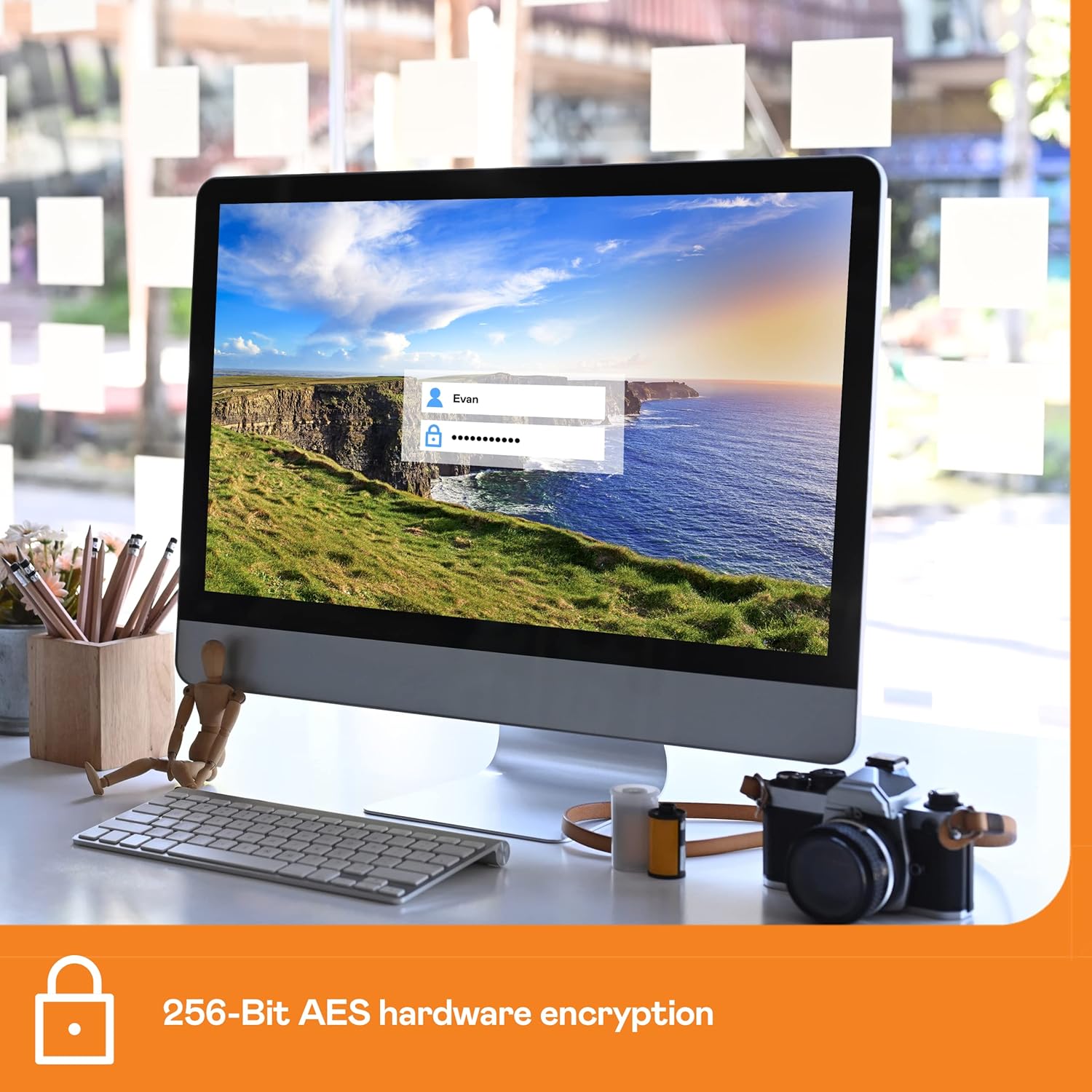
Figure 5: A computer monitor displaying a login prompt for drive encryption, emphasizing the 256-bit AES hardware encryption feature.
5. Maintenance
- Regular Backups: Ensure your backup schedule is active and performing regularly to protect your data.
- Physical Care: Keep the drive in a stable, well-ventilated area. Avoid exposing it to extreme temperatures, direct sunlight, or moisture.
- Software Updates: Periodically check for updates to the WD Discovery software to ensure optimal performance and security.
- Safe Ejection: Always safely eject the drive from your computer before disconnecting it to prevent data corruption.
6. Troubleshooting
6.1. Drive Not Detected
- Ensure the USB cable is securely connected to both the drive and your computer.
- Verify the AC adapter is properly connected and the drive is receiving power.
- Try connecting the drive to a different USB port on your computer.
- Restart your computer.
6.2. Slow Data Transfer Speeds
- Ensure you are connected to a USB 3.0 port on your computer for optimal speeds. USB 2.0 ports will result in slower transfers.
- Close any unnecessary applications running in the background that might be consuming system resources.
6.3. Forgotten Password
If you have forgotten your password for the WD Security software, you may need to use the WD Drive Utilities to erase the drive and reset the password. Warning: This will delete all data on the drive.
7. Specifications
| Feature | Detail |
|---|---|
| Brand | WD |
| Series | My Book |
| Model Number | WDBBGB0180HBK-NESN |
| Digital Storage Capacity | 18 TB (18000 GB) |
| Hard Disk Type | Mechanical Hard Disk |
| Hard Disk Form Factor | 3.5 Inches |
| Interface | USB 3.0 (SuperSpeed USB 5 Gbps), USB 2.0 compatible |
| Hardware Encryption | 256-bit AES |
| Compatible Devices | Desktop PC, Mac |
| Item Weight | 2.83 pounds |
| Product Dimensions (LxWxH) | 1.9 x 6.7 x 5.5 inches |
| Color | Black |
| Operating Temperature | 5°C to 35°C |
| Non-operating Temperature | –20°C to 65°C |
8. Warranty and Support
Your WD My Book Desktop External Hard Drive comes with a limited warranty. Please refer to the Quick Start Guide included in your package for specific warranty terms and conditions. For technical support, software downloads, and additional resources, visit the official WD support website:
- WD Support Website: support.wdc.com
For further assistance, you may also contact WD customer service directly through their website.


