
1. Introduction
The Dinstar SBC300-20 is a Session Border Controller designed to provide robust and secure SIP-based services for small to medium-sized telecommunication operators. This device supports 20 concurrent SIP sessions and 20 transcoding sessions, ensuring efficient and reliable communication.
Key functionalities include safe network access, enhanced security, system interworking, flexible session routing and policy management, Quality of Service (QoS), media transcoding, and media processing. Built with a distributed multi-core processor and an embedded Linux operating system, the SBC300-20 offers high performance with low power consumption.
It is capable of supporting up to 50 concurrent SIP sessions and transcoding up to 50 concurrent calls, with support for encrypted sessions via TLS and SRTP. The SBC300-20 handles various codecs including G.729, G.723, G.711, G.726, iLBC, AMR, and OPUS.
2. Product Overview
The Dinstar SBC300-20 is a compact and powerful device. Below is an image illustrating the product.
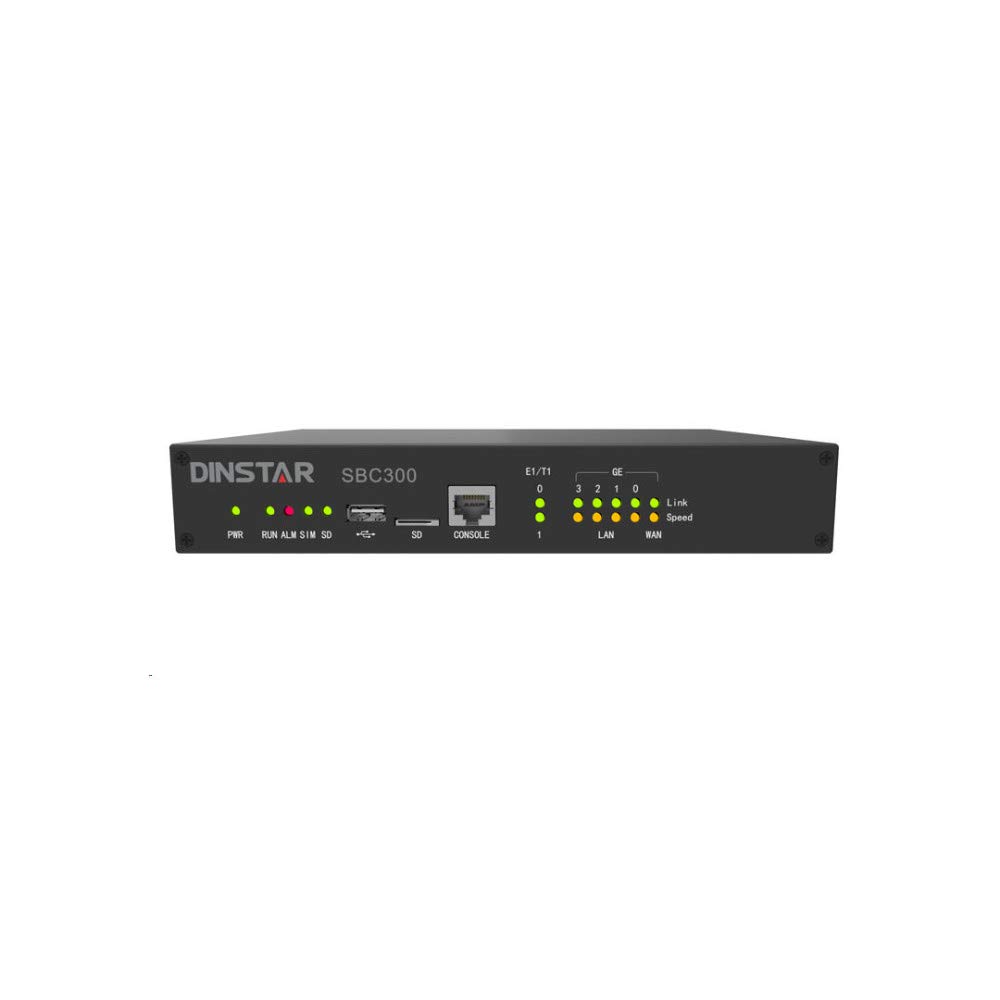
Figure 1: Front view of the Dinstar SBC300-20 Session Border Controller. This image shows the compact black metal casing of the device, designed for network integration.
3. Package Contents
Upon unpacking your Dinstar SBC300-20, please verify that all the following items are included:
- Dinstar SBC300-20 Session Border Controller unit
- Power Adapter (implied for electronic device operation)
- Ethernet Cable (implied for network connectivity)
- Steel Cable
- Quick Start Guide (implied for initial setup)
If any items are missing or damaged, please contact your vendor or Dinstar support immediately.
4. Setup Instructions
Follow these steps to set up your Dinstar SBC300-20:
- Physical Placement: Choose a stable, well-ventilated location for the SBC. Ensure it is away from direct sunlight, heat sources, and moisture. The device is designed for wall mounting, as indicated in specifications.
- Power Connection: Connect the power adapter to the SBC's power input port and then plug it into a standard electrical outlet.
- Network Connection: Connect the SBC to your network using standard Ethernet cables. The rear panel features non-blocking gigabit switching data network ports. Typically, one port connects to the internal network (LAN) and another to the external network (WAN/SIP Trunk provider).
- Initial Configuration Access:
- Refer to the Quick Start Guide for the default IP address and login credentials.
- Access the web-based management interface from a computer connected to the same network segment as the SBC.
- Log in using the default username and password. It is highly recommended to change these default credentials immediately for security purposes.
- Basic Network Configuration: Configure the network interfaces (IP addresses, subnet masks, gateways, DNS servers) according to your network topology.
- SIP Trunk and Routing Configuration: Set up your SIP trunks, routing rules, and security policies within the SBC's web interface. This includes defining inbound and outbound call routing, media transcoding profiles, and firewall rules.
5. Operating Instructions
Once the Dinstar SBC300-20 is set up and configured, its operation is largely automated. Here are key operational aspects:
- Session Management: The SBC automatically manages SIP sessions, including call setup, teardown, and mid-call signaling. It ensures proper routing and handles NAT traversal.
- Media Transcoding: The device performs real-time media transcoding between different codecs (e.g., G.729, G.711) as required by the connected endpoints or SIP trunks.
- Security: The SBC acts as a security gateway, protecting your internal network from external threats by inspecting SIP traffic, preventing denial-of-service (DoS) attacks, and enforcing security policies. It supports encrypted sessions via TLS and SRTP.
- Monitoring: Regularly access the web management interface to monitor system status, active sessions, resource utilization, and logs. This helps in identifying potential issues and ensuring optimal performance.
- Firmware Updates: Periodically check the Dinstar official website for firmware updates. Applying updates can improve performance, add new features, and address security vulnerabilities. Follow the provided instructions carefully when performing firmware upgrades.
6. Maintenance
Proper maintenance ensures the longevity and reliable performance of your Dinstar SBC300-20:
- Regular Monitoring: Continuously monitor the SBC's performance and logs through the web interface. Look for unusual activity, high resource usage, or error messages.
- Environmental Control: Ensure the operating environment remains within specified temperature and humidity ranges. Keep the device free from dust and obstructions to ventilation.
- Security Audits: Periodically review your security configurations, including firewall rules, access control lists, and user credentials, to ensure they remain robust against evolving threats.
- Backup Configuration: Regularly back up your SBC's configuration settings. This allows for quick restoration in case of a system failure or misconfiguration.
- Cable Management: Ensure all network and power cables are securely connected and neatly organized to prevent accidental disconnections or damage.
7. Troubleshooting
This section provides solutions to common issues you might encounter with your Dinstar SBC300-20.
7.1 No Power
- Check Power Cable: Ensure the power adapter is securely connected to both the SBC and the electrical outlet.
- Verify Outlet: Test the electrical outlet with another device to confirm it is functional.
- Power Adapter: If possible, test with a known good power adapter of the same specifications.
7.2 Cannot Access Web Interface
- Network Connection: Verify that your computer is connected to the same network as the SBC and that the Ethernet cables are properly connected.
- IP Address: Confirm the SBC's IP address. If unsure, you might need to reset the device to factory defaults (refer to the manual for specific instructions, if available, or contact support).
- Firewall: Ensure no local firewall on your computer or network is blocking access to the SBC's IP address or management port.
- Browser Cache: Clear your browser's cache and cookies, or try a different web browser.
7.3 Call Issues (No Audio, One-Way Audio, Call Drops)
- SIP Trunk Status: Check the status of your SIP trunks in the SBC's interface to ensure they are registered and active.
- Network Connectivity: Verify network connectivity between the SBC, your IP-PBX/endpoints, and the SIP service provider.
- Firewall/NAT: Ensure that all necessary ports are open on your network firewall and that NAT settings on the SBC are correctly configured.
- Codec Mismatch: Check if there's a codec mismatch. The SBC should transcode as configured, but verify the settings.
- Resource Utilization: Monitor the SBC's CPU and memory usage. High utilization might indicate an overload, especially if exceeding the 20 concurrent session recommendation.
- Logs: Review the SBC's system and call logs for error messages or indications of why calls are failing.
For persistent issues, consult the detailed Dinstar SBC300-20 technical documentation or contact Dinstar technical support.
8. Specifications
The following are the technical specifications for the Dinstar SBC300-20:
| Feature | Specification |
|---|---|
| Brand | Dinstar |
| Model Number | SBC300-20 |
| SIP Sessions | Supports 20 concurrent sessions (up to 50 concurrent sessions) |
| Transcoding Sessions | Supports 20 concurrent sessions (up to 50 concurrent calls) |
| Supported Codecs | G.729, G.723, G.711, G.726, iLBC, AMR, OPUS |
| Operating System | Embedded Linux |
| Processor | Distributed multi-core processor |
| Network Interface | Rear panel for non-blocking gigabit switching data network |
| Security Features | Safe network access, robust security, TLS and SRTP for encrypted sessions |
| Color | Black |
| Material | Metal |
| Mounting Type | Wall Mount |
| Included Components | Steel Cable (main unit and power adapter implied) |
| Item Weight | 3 Pounds (approx. 1.36 kg) |
| Water Resistance Level | Not Water Resistant |
| UPC | 687368409845 |
| Date First Available | October 29, 2020 |
9. Warranty and Support
Warranty Information: For detailed warranty terms and conditions, please refer to the warranty card included with your product or visit the official Dinstar website. Warranty coverage typically varies by region and reseller. Please retain your proof of purchase for warranty claims.
Technical Support: If you encounter issues that cannot be resolved using this manual's troubleshooting section, please contact Dinstar technical support. You can usually find contact information on the Dinstar official website or through your product reseller. When contacting support, please have your product model number (SBC300-20) and serial number ready.
Online Resources: Additional documentation, FAQs, and firmware updates may be available on the Dinstar official website.


