
1. Introduction
This manual provides detailed instructions for the installation, operation, and maintenance of your Fractal Design Pop Silent Black Solid ATX Silent PC Case. Designed for optimal noise reduction and efficient component housing, this case offers a clean aesthetic and practical features for building a high-performance, quiet computer system.

Figure 1.1: Front-side view of the Fractal Design Pop Silent Black Solid ATX PC Case.
2. Safety Information
Please read and understand all safety instructions before installing or operating your PC case. Failure to do so may result in personal injury or damage to your equipment.
- Always disconnect the power supply from the wall outlet before performing any installation, maintenance, or troubleshooting.
- Handle all components with care to prevent damage.
- Avoid exposing the case to moisture or extreme temperatures.
- Keep small parts and tools away from children.
- Ensure proper grounding to prevent electrostatic discharge (ESD) damage to sensitive components.
3. Package Contents
Verify that all items are present in your package. If any items are missing or damaged, please contact your retailer or Fractal Design support.
- Fractal Design Pop Silent Black Solid ATX PC Case
- Accessory box with screws, zip ties, and mounting hardware
- Three (3) pre-installed 120mm Aspect fans
- User Manual (this document)
4. Setup and Installation
Follow these steps to install your computer components into the Fractal Design Pop Silent case.
4.1. Preparing the Case
- Remove the side panels. For the solid side panel, unscrew the thumbscrews at the rear and slide the panel backward.
- Identify the accessory box containing all necessary screws and mounting hardware.

Figure 4.1: Internal view of the case with side panels removed, showing fan mounts and internal structure. (Image shows white variant for illustration)
4.2. Motherboard Installation
- The Pop Silent case accommodates ATX, mATX, and Mini ITX motherboards.
- Install the I/O shield (if not pre-attached to your motherboard).
- Align your motherboard with the pre-installed standoffs. Additional standoffs may be required for smaller form factors; install them as needed.
- Secure the motherboard using the appropriate screws from the accessory box.
4.3. Storage Device Installation
The case supports up to three 3.5" HDDs and six 2.5" SSDs (or two 3.5" HDDs and five 2.5" SSDs with one optical bay in use).
- 3.5" HDD Installation: Locate the HDD cage beneath the PSU shroud. Slide the HDDs into the trays and secure them with screws.
- 2.5" SSD Installation: Mount SSDs to the dedicated brackets behind the motherboard tray.
- 5.25" Optical Drive Bays: The case features two neatly concealed 5.25" bays. Remove the magnetic cover and storage drawer to access them.
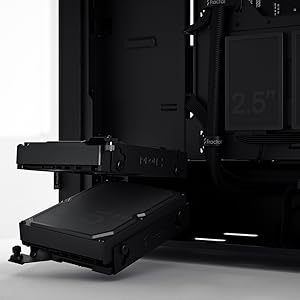
Figure 4.2: Illustrates the mounting points for 2.5" SSDs and 3.5" HDDs.

Figure 4.3: The accessible 5.25" bay with its removable storage drawer and magnetic cover.
4.4. Power Supply Unit (PSU) Installation
The PSU mounts from the rear of the case, at the bottom. Slide the PSU into its designated compartment and secure it with screws from the rear.
4.5. Fan Installation and Airflow
The Pop Silent case comes with three 120mm Aspect fans pre-installed for optimal silent operation. Additional fan mounts are available for customization.
- Ensure fans are oriented correctly for intake and exhaust to maintain positive airflow and minimize dust buildup.
- The "Silent" variant features a closed front and top panel design, along with bitumen side panels and sound-damping foam, to reduce noise output.

Figure 4.4: Internal view highlighting fan placement and component layout. (Image shows white variant for illustration)
4.6. Cable Management
Utilize the cable routing channels and tie-down points behind the motherboard tray to organize cables. This improves airflow and maintains a clean interior.

Figure 4.5: Dedicated channels and Velcro straps for efficient cable routing.
4.7. Front I/O Connections
Connect the front panel cables (power switch, reset switch, USB-A, audio jacks) to the corresponding headers on your motherboard. Note that the USB-C port is an optional accessory and not natively active on all models.
4.8. Closing the Case
Once all components are installed and cables are managed, reattach the side panels. Ensure they are securely fastened with the thumbscrews.
5. Operating Your PC Case
The Fractal Design Pop Silent case is designed for quiet operation. Its features contribute to a low-noise computing environment.
- Power On/Off: Use the power button on the top I/O panel to turn your system on or off.
- Noise Reduction: The solid front and top panels, combined with sound-damping materials on the side panels, effectively absorb internal noise.
- Airflow: While designed for silence, the case maintains adequate airflow through strategically placed vents and the pre-installed Aspect fans.

Figure 5.1: The Pop Silent case integrated into a typical desk environment. (Image shows white variant for illustration)
6. Maintenance
Regular maintenance helps ensure optimal performance and longevity of your PC components.
- Dust Filters: Periodically clean the removable dust filters located at the front, top, and bottom of the case. This prevents dust buildup inside the system, which can impede cooling.
- Exterior Cleaning: Wipe the exterior surfaces with a soft, damp cloth. Avoid abrasive cleaners or solvents.
- Interior Cleaning: With the system powered off and unplugged, use compressed air to remove dust from internal components and fan blades.
7. Troubleshooting
If you encounter issues with your PC case, refer to the following common solutions:
| Problem | Possible Cause | Solution |
|---|---|---|
| System does not power on. | Loose power connections, faulty PSU, incorrect front panel wiring. | Check all power cables (PSU to wall, PSU to motherboard/components). Verify front panel power switch connection to motherboard. Test PSU if possible. |
| Excessive noise from case fans. | Dust buildup, loose fan screws, fan speed settings. | Clean fan blades and dust filters. Ensure fans are securely mounted. Adjust fan curves in BIOS/UEFI or software. |
| Front panel USB ports not working. | Loose internal USB cable connection to motherboard. | Verify the USB header cable from the front panel is securely connected to the motherboard. |
For further assistance, please refer to the Fractal Design Support website.
8. Specifications
| Feature | Detail |
|---|---|
| Model Name | Pop Silent Black - Solid |
| Item Model Number | FD-C-POS1A-01 |
| Motherboard Compatibility | ATX, mATX, Mini ITX |
| Case Type | Mid Tower |
| Color | Black Solid |
| Material | Steel (Solid side panel) |
| Item Weight | 19.36 pounds (approx. 8.78 kg) |
| Product Dimensions (LxWxH) | 21.65 x 21.65 x 11.81 inches (approx. 550 x 550 x 300 mm) |
| Cooling Method | Air |
| Pre-installed Fans | 3x 120mm Aspect Fans |
| Drive Bays | Up to 3x 3.5" HDD, 6x 2.5" SSD (or 2x 3.5" HDD, 5x 2.5" SSD with 1x 5.25" ODD) |
| 5.25" Bays | 2 (concealed with storage drawer) |
| Front I/O | 2x USB 3.0, Audio In/Out, Power Button (Optional USB-C) |
9. Warranty and Support
Fractal Design products are covered by a limited warranty. For detailed warranty terms and conditions, please visit the official Fractal Design website.
For technical support, FAQs, and driver downloads, please visit:
www.fractal-design.com/support/
You can also contact Fractal Design customer service directly through their website for personalized assistance.