
MOES b38c87e2-a0bd-41a4-afc3-8affc48d249a
MOES WiFi RF433 Smart Touch Wall Switch User Manual
Model: b38c87e2-a0bd-41a4-afc3-8affc48d249a
1. Product Overview
The MOES WiFi RF433 Smart Touch Wall Switch is designed for convenient control of your lighting. This 2-gang switch operates without the need for neutral wiring, simplifying installation. It integrates with your smart home ecosystem through WiFi and RF433 frequency, offering control via the Smart Life/Tuya App, voice commands with Alexa and Google Home, and touch functionality. A 1A capacitance is required for operation and is included in the package.

Figure 1.1: MOES WiFi RF433 Smart Touch Wall Switch and its retail packaging. The packaging highlights compatibility with Amazon Alexa and Google Assistant, and features like Wi-Fi + RF, Remote Control, Voice Control, and Family Sharing.
2. Important Safety Information
- Always turn off power at the circuit breaker before installing, removing, or servicing the switch.
- Installation should be performed by a qualified electrician or in accordance with local electrical codes.
- This switch is designed for 1-way circuits only. Do not use as a 2-way switch.
- Ensure your Wi-Fi network is 2.4GHz. This device does not support 5GHz networks.
- Connect only to certified bulbs with a rated power of 5W or higher.
- A 1A capacitance is required for proper operation. This is included in the package. Note that capacitors may produce a faint humming sound during operation.
- Do not expose the device to excessive moisture or extreme temperatures.

Figure 2.1: Important considerations for the MOES Smart Switch. This image highlights that the switch only supports 2.4GHz Wi-Fi, requires certified bulbs with power ≥ 5W, cannot be used as a 2-way switch, and does not require a neutral wire. A note about potential humming from capacitors is also included.
3. Package Contents
- MOES WiFi RF433 Smart Touch Wall Switch (2 Gang)
- 1A Capacitance
- Mounting Screws
- User Manual (this document)
4. Specifications
| Feature | Detail |
|---|---|
| Model Number | b38c87e2-a0bd-41a4-afc3-8affc48d249a |
| Dimensions | 10.7 x 10.1 x 5 cm (Package); 86mm x 86mm x 25mm (Switch) |
| Weight | 200 g (Package) |
| Color | White |
| Material | Glass |
| Wattage | 5 watts (minimum bulb wattage) |
| Operation Mode | ON-OFF |
| Wireless Connectivity | Wi-Fi 2.4GHz (802.11 b/g/n), RF433MHz |
| Max. Load | 600W/Gang |
| Operate Voltage | 200-240VAC |
| Required Capacitor | 1A (included) |

Figure 4.1: Detailed dimensions of the MOES Smart Switch (86mm x 86mm x 25mm) and its internal components. The image also includes a wiring diagram showing the connection of the switch (L, L1, L2, L3, OUT, IN) to a light fixture and the required capacitance.
5. Installation and Setup
5.1. Wiring Instructions
- Turn off Power: Before starting, ensure the power to the circuit is completely off at the main circuit breaker.
- Identify Wires: This switch requires Live (L) and Load (L1, L2, L3 for each gang) wires. No neutral wire is needed.
- Connect Capacitance: The included 1A capacitance must be connected in parallel with the light fixture. Refer to Figure 4.1 for a visual guide.
- Wire the Switch: Connect the Live wire to the 'L' terminal on the switch. Connect the load wire(s) from your light fixture(s) to the corresponding 'L1', 'L2', or 'L3' terminals.
- Mount the Switch: Secure the switch into the wall box using the provided screws.
- Restore Power: Once installation is complete, turn the power back on at the circuit breaker.
5.2. Pairing Mode (App Connection)
The MOES Smart Switch features an updated pairing mode for quick and easy connection via the Smart Life/Tuya App.
- Download App: Download the "Smart Life" or "Tuya Smart" app from your smartphone's app store (available on iOS and Android).
- Register/Login: Open the app and register for a new account or log in if you already have one.
- Enter Pairing Mode: Power on the switch. The indicator light should blink rapidly. If not, press and hold one of the touch buttons for 5-10 seconds until it blinks rapidly.
- Add Device: In the app, tap the "+" icon to add a new device. The app should automatically discover the switch via Wi-Fi and Bluetooth.
- Confirm Connection: Follow the on-screen prompts to confirm the device and connect it to your 2.4GHz Wi-Fi network.
- Rename Device: Once connected, you can rename the switch for easier control (e.g., "Living Room Light").

Figure 5.1: Comparison of old vs. new pairing modes. The new mode (right side) demonstrates automatic identification and easy configuration via Wi-Fi and Bluetooth, simplifying the connection process within the Smart Life/Tuya app.
6. Operating Instructions
6.1. Control Methods
- Touch Control: Directly tap the touch panel on the switch to turn lights ON/OFF.
- App Control: Use the Smart Life/Tuya app on your smartphone to control the switch from anywhere.
- Voice Control: Integrate with Amazon Alexa or Google Home for hands-free voice commands (e.g., "Alexa, turn off the light").
- RF433 Remote Control: The switch supports RF433 frequency remote control (remote not included). This allows for an additional layer of control independent of Wi-Fi.

Figure 6.1: Depiction of various control methods for the MOES Smart Switch, including RF433 Remote Control, Hands-free Voice Control (Alexa), Smart Life/Tuya App Remote Control, and direct Touch Control on the switch panel.
6.2. App Features
- Relay Status: Configure the switch to remember its last ON/OFF status after a power outage. This setting can be found in the app under "relay status".
- Backlight Switch: Turn the LED backlight on the switch ON or OFF via the app. This is useful for preventing light disturbance during sleep.
- Timers & Schedules: Set up custom timers, schedules, and countdowns (e.g., 1/5/30 min, 1 hour) to automate your lighting.
- Device Sharing: Share control of the smart switch with family members or friends through the app.
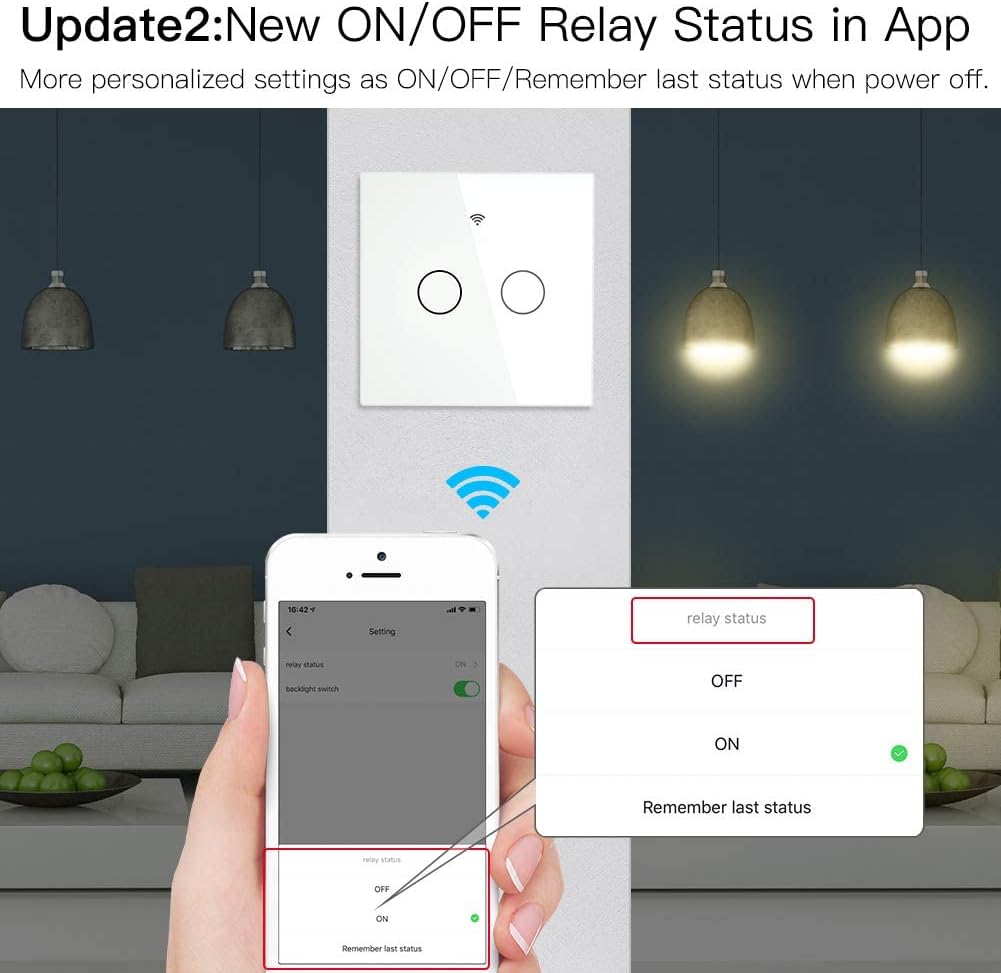
Figure 6.2: Screenshot from the Smart Life/Tuya app showing the 'relay status' setting. Users can choose to have the switch remember the last status (ON/OFF) when power is restored after an outage.
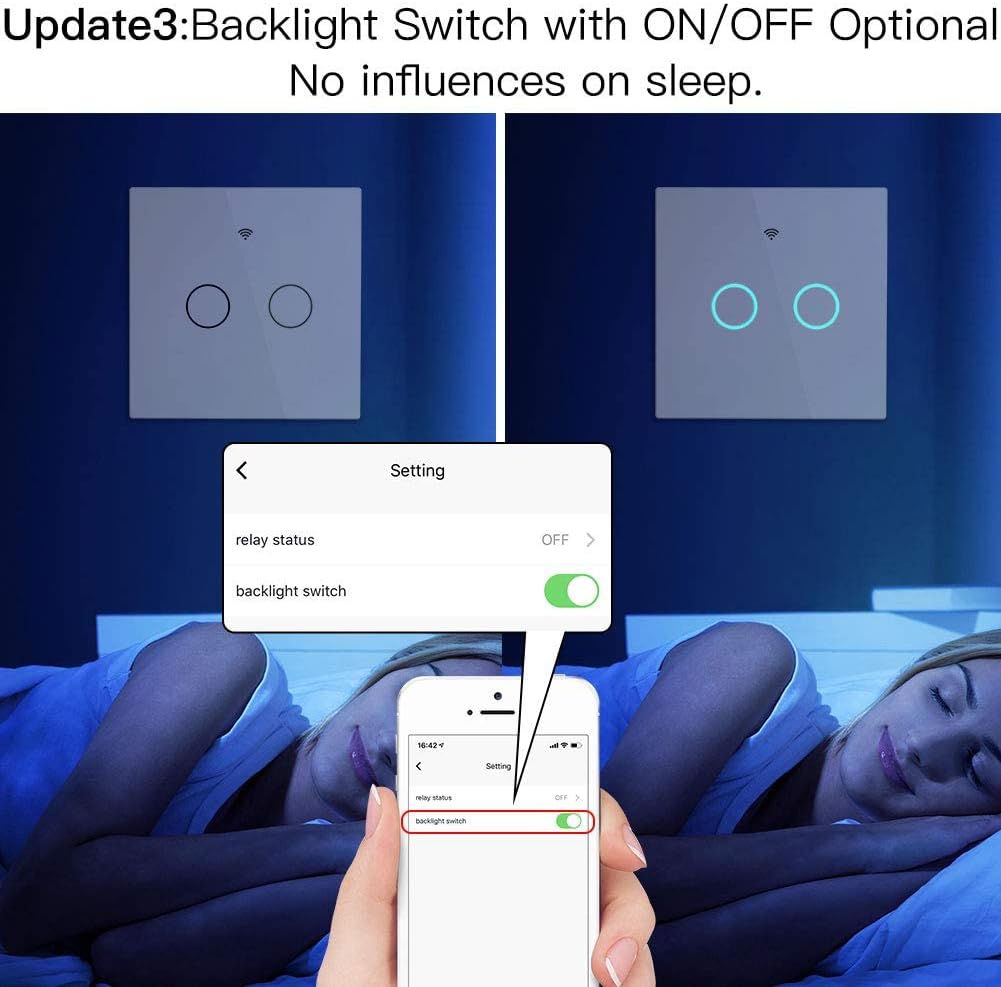
Figure 6.3: Screenshot from the Smart Life/Tuya app demonstrating the 'backlight switch' setting. This feature allows users to turn off the switch's LED backlight, which can be beneficial for undisturbed sleep.
7. Maintenance
- Clean the glass panel with a soft, dry cloth. Avoid abrasive cleaners or solvents.
- Ensure the switch is not exposed to direct water spray or excessive humidity.
- Periodically check for any loose wiring connections (with power off).
8. Troubleshooting
| Problem | Possible Cause | Solution |
|---|---|---|
| Switch not connecting to Wi-Fi/App. | Incorrect Wi-Fi frequency (5GHz), weak signal, incorrect pairing mode. | Ensure your Wi-Fi is 2.4GHz. Move the switch closer to the router. Re-enter pairing mode by holding a button until the indicator blinks rapidly. |
| Light flickers or does not turn off completely. | Capacitance not installed or incorrectly installed, bulb wattage too low. | Verify the 1A capacitance is correctly installed in parallel with the light fixture. Ensure bulbs are certified and have a wattage of 5W or higher. |
| Faint humming sound from the capacitor. | Normal operation characteristic. | This is a known characteristic of some capacitors and is generally not a fault. If the humming is excessively loud or accompanied by other issues, contact support. |
| Voice control not working. | Incorrect integration with Alexa/Google Home, device offline. | Ensure the switch is online in the Smart Life/Tuya app. Re-link the Smart Life/Tuya skill in your Alexa or Google Home app. Check voice commands. |
9. Warranty and Support
The MOES WiFi RF433 Smart Touch Wall Switch comes with a comprehensive 2-year warranty from the date of purchase, covering manufacturing defects and malfunctions under normal use. Additionally, a 60-day money-back guarantee is offered for your complete satisfaction.
For technical support, warranty claims, or any inquiries, please contact the seller "Moes House" or the manufacturer "WENZHOU NOVA NEW ENERGY CO.,LTD" through your purchase platform or their official contact channels.
Related Documents - b38c87e2-a0bd-41a4-afc3-8affc48d249a
 |
MOES WS-B-US-L WiFi Smart Switch: Instruction Manual This instruction manual details the installation, setup, and features of the MOES WS-B-US-L WiFi Smart Switch. Learn how to integrate it with your smart home system, including compatibility with Amazon Alexa, Google Assistant, and the Tuya platform, offering flexible wiring options for seamless control. |
 |
MOES Smart Switch Instruction Manual Comprehensive instruction manual for the MOES Smart Switch (Model WS-B-US), covering installation, setup, Wi-Fi pairing, multi-control association, voice control compatibility, troubleshooting, warranty, and compliance information. |
 |
MOES WS-SR-US-L Smart Switch Wi-Fi Single Pole Installation and User Manual Comprehensive user manual for the MOES WS-SR-US-L Wi-Fi Smart Switch. Includes installation instructions, setup guide, safety information, app integration with Alexa and Google Assistant, and troubleshooting tips. |
 |
MOES Smart Curtain Switch WS-Y-EUTC-N-MS-ED24 Instruction Manual Comprehensive instruction manual for the MOES Smart Curtain Switch (Model WS-Y-EUTC-N-MS-ED24), covering installation, setup, product parameters, warranty, and troubleshooting. Supports Wi-Fi connectivity and voice control via MOES App. |
 |
MOES Smart Switch Wi-Fi RF433 Glass Panel Installation and User Manual Comprehensive guide for MOES Wi-Fi + RF433MHz smart glass panel touch switch. Covers installation, wiring, Smart Life/Tuya app setup, multi-control association, voice control with Alexa and Google Home, safety, and warranty. |
 |
MOES Smart Switch Instruction Manual - WiFi and RF Control Comprehensive instruction manual for the MOES Smart Switch (WS-EU-RF / WS-US-RF) covering installation, setup with Smart Life app, RF pairing, and Alexa integration. Learn how to control your lights wirelessly. |
Ask a question about this manual
Ask about setup, troubleshooting, compatibility, parts, safety, or missing instructions. Manuals+ will review the question and use this page’s manual context to help answer it.