
HyperX CLOO3 600721CF
HyperX CloudX Gaming Headset User Manual
Model: CLOO3 600721CF
Introduction
The HyperX CloudX Gaming Headset is officially licensed for Xbox, designed to provide an exceptional audio experience for serious gamers. This manual will guide you through the features, setup, and care of your new headset, ensuring optimal performance and longevity. The CloudX headset combines signature HyperX comfort with robust durability and high-quality sound, making it an ideal choice for extended gaming sessions.
It features convenient in-line audio controls for quick adjustments without interrupting your game. The sturdy aluminum frame ensures long-lasting reliability, while 100% memory foam ear cushions and a leatherette-padded headband offer superior comfort. Equipped with 53mm drivers, the headset delivers crystal clear highs, mids, and lows with enhanced bass reproduction. The closed-cup design helps to immerse you in your game by muting external noise. The noise-cancelling microphone is detachable and can be positioned for clear communication. The CloudX is compatible with Xbox One, Xbox Series X|S, and mobile devices with CTIA standard connectors.
What's in the Box
- HyperX CloudX Gaming Headset
- Detachable Noise-Cancelling Microphone
- User Manual (this document)

Image: HyperX CloudX headset shown alongside its retail packaging, illustrating the product as it appears when unboxed.
Product Overview
Design and Comfort
The HyperX CloudX headset is engineered for comfort during long gaming sessions. It features a durable aluminum frame that provides stability and longevity. The ear cushions are made from 100% memory foam and covered with premium leatherette, conforming to your ears for a comfortable fit and excellent passive noise isolation.
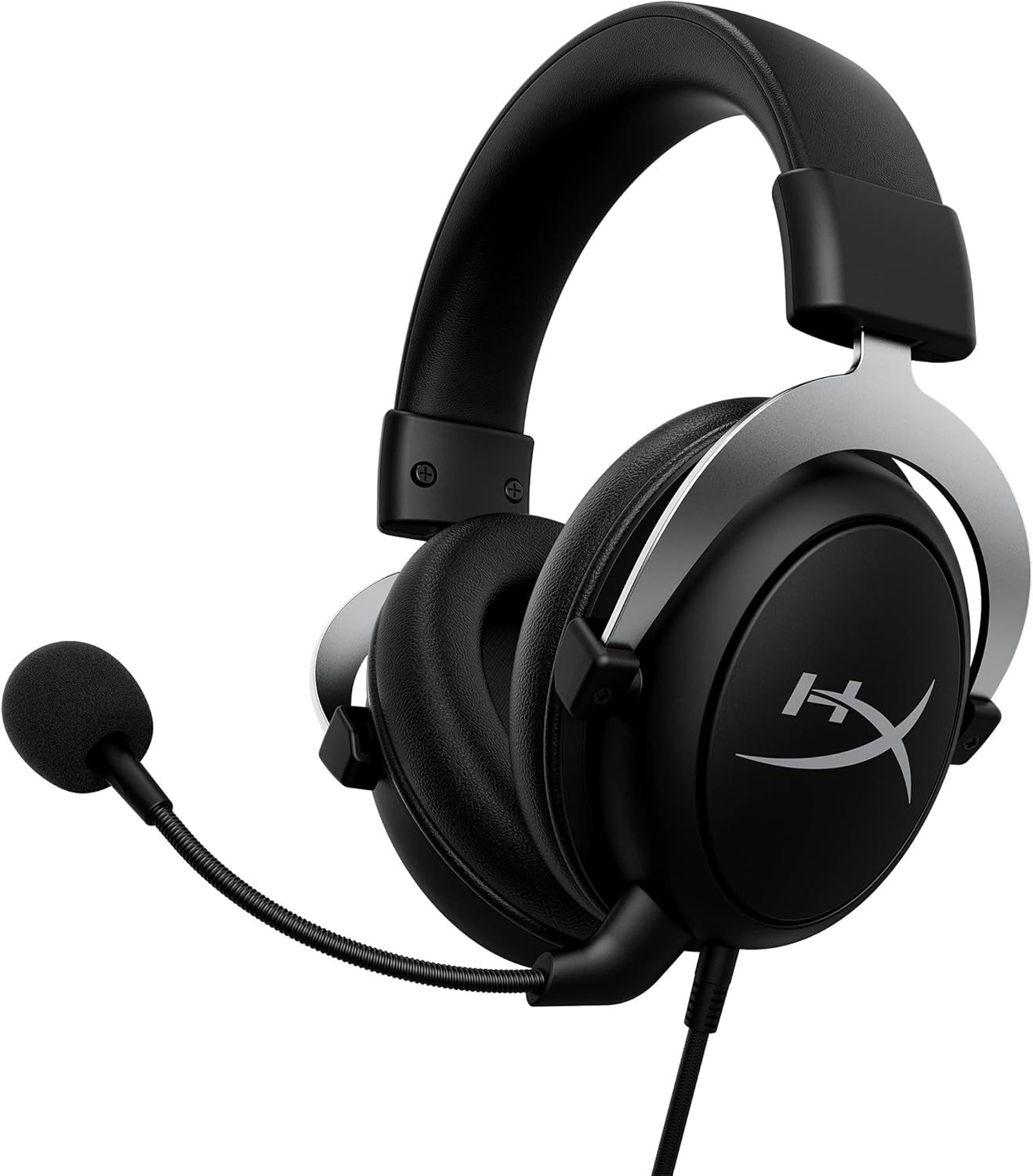
Image: The HyperX CloudX Gaming Headset, showcasing its black and silver design with the detachable microphone attached.
Audio Quality
Experience immersive in-game audio with the CloudX headset's 53mm dynamic drivers. These drivers deliver crystal clear highs, rich mids, and powerful lows, enhancing your gaming experience. The closed-cup design helps to block out external distractions, allowing you to focus entirely on your game's soundscape.
Detachable Noise-Cancelling Microphone
The flexible, noise-cancelling microphone ensures clear voice communication by reducing background noise. It can be easily positioned to your preference or detached when not needed, such as when listening to music or using the headset for single-player experiences.

Image: A detailed view of the HyperX CloudX headset, highlighting the detachable microphone and its connection point.
In-line Audio Controls
The headset features convenient in-line audio controls, allowing you to adjust volume and mute the microphone directly on the cable. This eliminates the need to navigate through console menus, providing quick and intuitive control over your audio settings.

Image: Close-up of the in-line audio control unit on the HyperX CloudX headset cable, showing the volume wheel and microphone mute switch.
Setup Guide
Connecting to Xbox One / Xbox Series X|S
- Ensure your Xbox controller has a 3.5mm headset jack. Most modern Xbox controllers include this.
- Plug the 3.5mm audio jack from the HyperX CloudX headset firmly into the headset jack on your Xbox controller.
- If prompted, update your controller's firmware via the Xbox settings.
- Adjust the volume using the in-line audio control on the headset cable or through your Xbox audio settings.
- Ensure the microphone mute switch on the in-line control is in the 'unmuted' position if you intend to use voice chat.

Image: A person wearing the HyperX CloudX headset while holding an Xbox controller, demonstrating typical usage.
Connecting to Mobile Devices
- The HyperX CloudX headset is compatible with mobile devices that have a CTIA standard 3.5mm audio jack.
- Plug the 3.5mm audio jack from the headset into your mobile device's audio port.
- For audio-only use, you may detach the microphone.
Operating Instructions
Adjusting Volume
Locate the volume wheel on the in-line audio control unit. Rotate the wheel upwards to increase volume and downwards to decrease volume.
Microphone Mute/Unmute
The in-line audio control unit features a switch to mute or unmute the microphone. Slide the switch to the position indicated for 'mute' (often with a red indicator) to turn off your microphone, and slide it to the 'unmute' position to enable it.
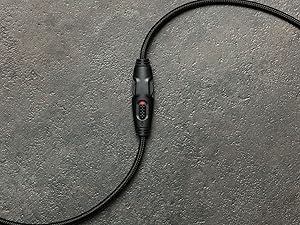
Image: A close-up view of the in-line audio controls, showing the volume dial and the microphone mute switch with a red indicator for the muted state.
Detaching the Microphone
To detach the microphone, gently pull it straight out from the headset's microphone port. To reattach, align the microphone's connector with the port and push it firmly until it clicks into place.
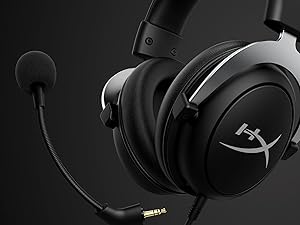
Image: The HyperX CloudX headset with its detachable microphone removed, illustrating the versatility of the design.
Maintenance and Care
- Cleaning Ear Cushions: Gently wipe the leatherette ear cushions with a soft, damp cloth. Avoid using harsh chemicals or abrasive cleaners.
- Cleaning Headband: Wipe the headband with a soft, dry cloth.
- Cleaning Microphone: If necessary, gently wipe the microphone foam with a dry cloth.
- Cable Care: Avoid sharp bends or excessive pulling on the cable to prevent damage.
- Storage: Store the headset in a cool, dry place away from direct sunlight and extreme temperatures.
Troubleshooting
No Audio from Headset
- Ensure the 3.5mm jack is fully inserted into the controller or device.
- Check the in-line volume wheel and ensure it is turned up.
- Verify the audio settings on your Xbox or mobile device.
- Test the headset with another device to rule out a device-specific issue.
Microphone Not Working
- Ensure the microphone is securely attached to the headset.
- Check the in-line microphone mute switch and ensure it is in the 'unmuted' position (no red indicator).
- Verify microphone settings on your Xbox or mobile device.
- Ensure your Xbox controller firmware is up to date.
- Test the microphone with another application or device if possible.
Specifications
| Feature | Detail |
|---|---|
| Model Name | CloudX |
| Connectivity Technology | Wired |
| Headphones Jack | 3.5 mm Jack |
| Audio Driver Size | 53 Millimeters |
| Frequency Range | 20 Hz - 20,000 Hz |
| Sensitivity | 95 dB |
| Impedance | 41 Ohm |
| Noise Control | Active Noise Cancellation (Microphone) |
| Compatible Devices | Xbox One, Xbox Series X|S, Mobile (CTIA standard) |
| Material | Aluminum (Frame) |
| Item Weight | 337 Grams (11.9 ounces) |
| Cable Length | 3 Feet |
| Color | Black, Silver |
Warranty Information
The HyperX CloudX Gaming Headset typically comes with a manufacturer's warranty. Please refer to the warranty card included with your product or visit the official HyperX website for detailed warranty terms and conditions. The standard return policy for new products purchased from Amazon is 30 days.
Support
For technical assistance, troubleshooting beyond this manual, or warranty claims, please contact HyperX customer support. You can find contact information and additional resources on the official HyperX website. For general product information, you may also visit the HyperX Store on Amazon.
Related documentsCLOO3 600721CF


Ask a question about this manual
Ask about setup, troubleshooting, compatibility, parts, safety, or missing instructions. Manuals+ will review the question and use this page’s manual context to help answer it.