
1. Introduction
This manual provides essential information for the installation, operation, and maintenance of your Cisco Catalyst IE3400 Rugged Series Industrial Ethernet Switch. Please read this manual thoroughly before operating the device to ensure proper usage and to prevent damage.
2. Product Overview
The Cisco Catalyst IE3400 Rugged Series is an industrial Ethernet switch designed for extended enterprise and industrial environments. It provides high-speed network connectivity, robust performance, and enhanced security features, making it suitable for deployments in harsh conditions. This model, the IE-3400-8T2S-E, features 8 RJ45 ports and 2 SFP ports for flexible connectivity options, ensuring reliable operation in demanding industrial settings.
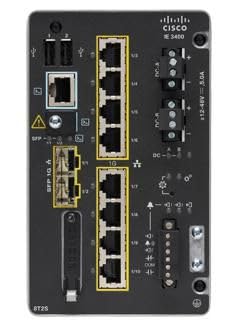
Figure 1: Front view of the Cisco Catalyst IE3400 Rugged Series Industrial Ethernet Switch. This image displays the compact, rugged design of the switch with its various ports and LED indicators.
3. Package Contents
Verify that your package contains the following items:
- Cisco Catalyst IE3400 Rugged Series Switch (Model IE-3400-8T2S-E)
4. Setup
4.1 Unpacking and Inspection
Carefully unpack the switch and inspect it for any signs of damage. Report any damage to your supplier immediately.
4.2 Mounting
The IE3400 series switches are designed for various mounting options, including DIN rail or wall mount. Ensure the mounting surface is stable and can support the weight of the switch and connected cables. Refer to the specific mounting kit instructions for detailed steps.
4.3 Power Connection
Connect the appropriate power supply to the switch's power input. Ensure the power source meets the switch's voltage and current requirements. Do not apply power until all network connections are made.
4.4 Network Connections
Connect your network devices (e.g., desktop computers, other switches, industrial equipment) to the RJ45 Ethernet ports using standard Ethernet cables. For fiber optic connections, insert compatible SFP modules into the SFP slots and connect fiber optic cables.
4.5 Initial Power On
Once all connections are secure, apply power to the switch. Observe the LED indicators for proper power-on and operational status.
5. Operating Instructions
5.1 Powering On/Off
To power on the switch, connect it to a power source. To power off, disconnect the power source. Always ensure proper shutdown procedures if applicable to avoid data corruption or network disruption.
5.2 LED Indicators
Monitor the LED indicators on the front panel to determine the switch's operational status, port link status, and activity. Refer to the product's technical documentation for a detailed explanation of each LED.
5.3 Network Configuration
Initial network configuration typically involves accessing the switch's management interface (e.g., web-based GUI, command-line interface via console port). Consult the Cisco IOS XE documentation for the IE3400 series for detailed configuration procedures, including IP address assignment, VLAN setup, and security settings.
6. Maintenance
6.1 Cleaning
Periodically clean the exterior of the switch with a soft, dry cloth. Do not use liquid or aerosol cleaners directly on the device. Ensure ventilation openings are free from dust and debris.
6.2 Firmware Updates
Regularly check the Cisco support website for firmware updates. Keeping the firmware up-to-date ensures optimal performance, security, and access to new features. Follow Cisco's recommended procedures for firmware upgrades.
6.3 Environmental Monitoring
Ensure the operating environment remains within the specified temperature and humidity ranges to prevent overheating and ensure long-term reliability.
7. Troubleshooting
7.1 No Power
If the switch does not power on, verify the power cable connection and the power source. Check the power supply unit if external. Ensure the power outlet is functional.
7.2 No Link on Port
If a port LED is off, check the Ethernet cable connection at both ends. Try a different cable or port. Verify the connected device is powered on and functioning correctly.
7.3 Network Connectivity Issues
If devices connected to the switch cannot communicate, verify IP configurations, VLAN settings, and ensure there are no IP address conflicts. Check for any error messages in the switch's logs via the management interface.
7.4 Slow Performance
Check for network congestion, faulty cables, or duplex mismatches. Ensure the switch's firmware is up-to-date.
8. Specifications
| Brand | Cisco |
| Model | IE-3400-8T2S-E |
| Manufacturer | Cisco |
| Interface Type | RJ45, SFP |
| Number of Ports | 8 |
| Product Dimensions | 22.86 x 22.86 x 20.32 cm |
| Item Weight | 2.28 kg |
| Number of Items | 1 |
| Compatible Devices | Desktop Computer |
| Components Included | Switch |
| UPC | 889728223379 |
| First Available | 11 January 2021 |
9. Warranty and Support
For warranty information and technical support, please refer to the official Cisco website or contact your authorized Cisco reseller. Ensure you have your product model number (IE-3400-8T2S-E) and serial number available when seeking support.


