
1. Product Overview
The Mcdodo OT-7700 is a compact and durable adapter designed to bridge the connectivity gap between Lightning and Type-C devices. It facilitates both efficient charging and reliable data synchronization, offering a versatile solution for users with mixed device ecosystems.

Image 1.1: The Mcdodo OT-7700 Lightning to Type-C Connector. This image displays the compact, black adapter with the Mcdodo logo, featuring a Type-C male connector on one end and a Lightning female port on the other.
2. Package Contents
Please verify that all items are present in the package:
- 1 x Mcdodo OT-7700 Lightning to Type-C Connector
3. Setup and Connection
The Mcdodo OT-7700 connector is designed for simple plug-and-play operation. No software installation is required.
- Identify Ports: Locate the Lightning cable (from your Apple device) and the Type-C port on your charging device or computer.
- Connect Lightning Cable: Insert your Lightning cable's male connector into the female Lightning port of the Mcdodo OT-7700 adapter. Ensure a secure connection.
- Connect Type-C Device: Insert the male Type-C connector of the Mcdodo OT-7700 adapter into the Type-C port of your desired device (e.g., laptop, power adapter, Android phone).

Image 3.1: Illustrates the connection process. A smartphone with a Type-C port is shown, and the Mcdodo OT-7700 adapter, already connected to a Lightning cable, is being plugged into the phone's Type-C port. This demonstrates the "Plugging to Use transfer Quickly" functionality.
4. Operating Instructions
The adapter supports two primary functions:
4.1. Charging
Once connected as described in Section 3, the adapter will enable power transfer from the Type-C source to the Lightning device. Ensure your Type-C power source provides sufficient current for your Lightning device.
4.2. Data Synchronization
For data transfer, connect your Lightning device (e.g., iPhone, iPad) via its Lightning cable to the Mcdodo OT-7700, and then connect the adapter's Type-C end to a computer or other data-enabled Type-C device. Your Lightning device should be recognized by the Type-C host device, allowing for data exchange.
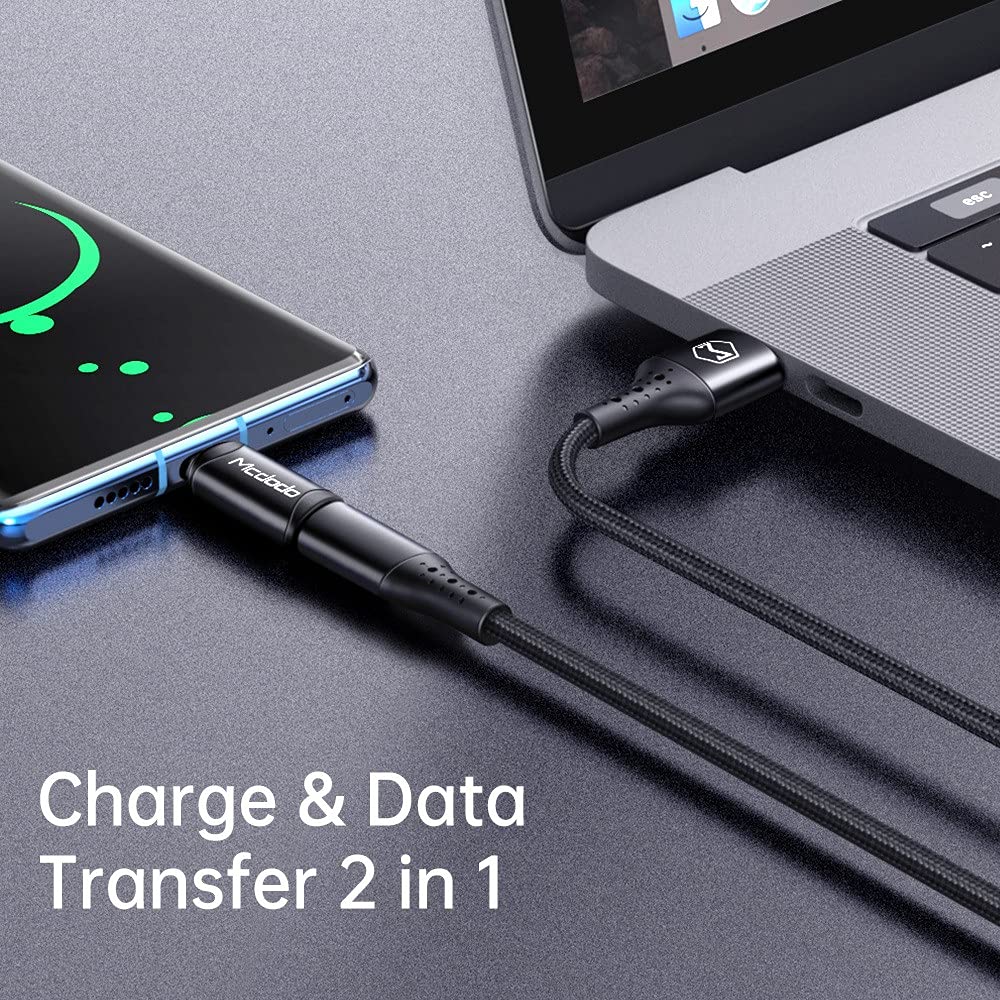
Image 4.1: Depicts the adapter facilitating both charging and data transfer. A smartphone is connected to a laptop via a cable and the Mcdodo OT-7700 adapter, illustrating its dual functionality.
5. Maintenance and Care
- Cleaning: Use a soft, dry cloth to clean the adapter. Avoid liquid cleaners or abrasive materials.
- Storage: Store the adapter in a cool, dry place away from direct sunlight and extreme temperatures.
- Handling: Avoid bending or twisting the adapter excessively. Do not apply undue force when connecting or disconnecting.
- Durability: The adapter is constructed from aluminum alloy for enhanced durability. However, it is not waterproof and should be protected from moisture.
6. Troubleshooting
| Problem | Possible Cause | Solution |
|---|---|---|
| Device not charging. | Loose connection, incompatible cable/charger, insufficient power from Type-C source. | Ensure all connections are secure. Try a different Lightning cable or Type-C charger. Verify the Type-C power source meets the device's requirements. |
| Data transfer not working. | Loose connection, incompatible cable, driver issues on computer. | Check all connections. Ensure the Lightning cable supports data transfer. Try connecting to a different USB-C port or computer. |
| Adapter feels hot during use. | Normal operation under heavy load, excessive current draw. | A slight warmth is normal. If it becomes excessively hot, disconnect immediately and check for faulty cables or devices. Ensure the current draw does not exceed 3A. |
7. Specifications
| Feature | Detail |
|---|---|
| Model Number | OT-7700 |
| Connector Type | Lightning (Female) to Type-C (Male) |
| Functionality | Charging and Data Synchronization |
| Material | Aluminum Alloy |
| Color | Black |
| Item Weight | 14 g |
| Max Current Support | 3A |

Image 7.1: Displays two Mcdodo OT-7700 adapters and highlights the "Support max 3A current" feature, indicating its charging capability.
8. Warranty and Support
For warranty information or technical support, please refer to the official Mcdodo website or contact your retailer. Keep your purchase receipt for warranty claims.