
1. Introduction
This manual provides detailed instructions for the Delton 10X Bluetooth Computer Headset. This wireless headset is designed for clear communication and extended use, featuring Bluetooth 5.0 connectivity, a noise-canceling microphone, and a USB dongle for versatile compatibility. Please read this manual thoroughly to ensure proper setup and operation of your device.

Image 1.1: The Delton 10X Bluetooth Computer Headset and its accompanying USB dongle. This image displays the headset's over-the-head design, single ear cup, adjustable microphone boom, and the compact USB dongle.
2. Package Contents
Verify that all items are present in your package:
- Delton 10X Bluetooth Headset
- USB Dongle
- Charging Cable
- User Manual (this document)
3. Product Features
The Delton 10X headset offers a range of features designed for optimal performance and user comfort:
- Bluetooth 5.0 Connectivity: Ensures stable and efficient wireless connection up to 30 feet.
- Noise-Canceling Microphone: Reduces background noise for clear voice transmission.
- 270° Rotatable Microphone: Allows for flexible positioning and use on either ear.
- Extended Battery Life: Up to 15 hours talk time, 18 hours play time, and 160 hours standby time.
- Quick Charging: Fully charges in approximately 1.5 hours.
- Adjustable Headband & Plush Ear Cushion: Provides comfort for prolonged wear.
- Ear Gripper T-Pad: Ensures secure fit during movement.
- Universal Compatibility: Works with smartphones, tablets, desktop PCs, laptops, and supports iOS and Windows platforms.

Image 3.1: A visual summary of the Delton 10X headset's key features, including 15 hours talk time, Bluetooth 5.0, adjustable headband, high fidelity sound, noise-canceling mic, rotatable mic, long battery backup, voice assistant support, and plush cushions.
3.1 Battery Performance
The Delton 10X headset is equipped with a long-lasting battery to support your daily communication needs.
- Talk Time: Up to 15 hours
- Play Time: Up to 18 hours
- Standby Time: Up to 160 hours
- Charging Time: Approximately 1.5 hours
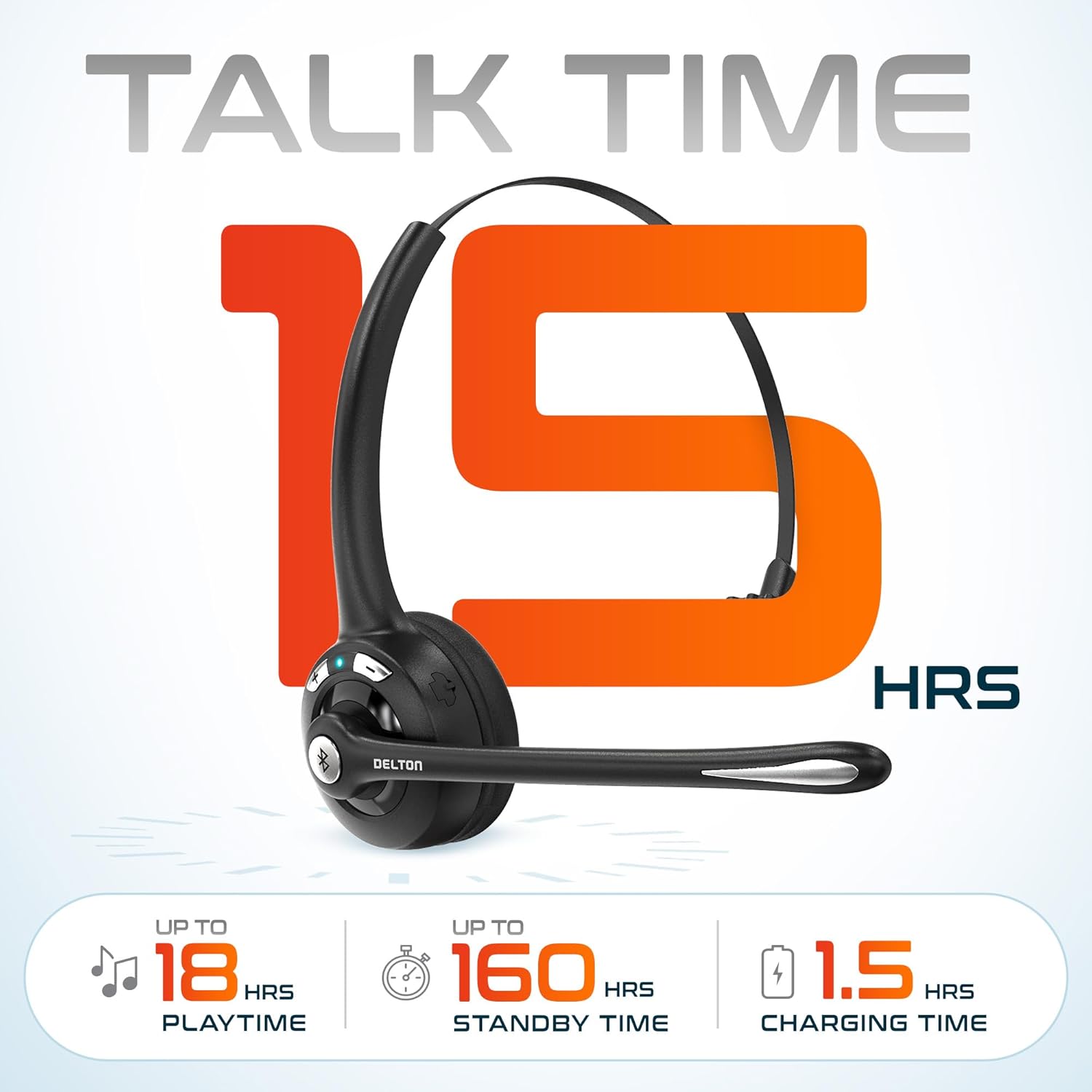
Image 3.2: An infographic detailing the battery performance of the Delton 10X headset, highlighting 15 hours of talk time, 18 hours of play time, 160 hours of standby time, and a 1.5-hour charging time.
3.2 Advanced Technology
The headset incorporates an advanced chipset for seamless connectivity and improved power efficiency.

Image 3.3: A close-up view of the headset's internal components, illustrating the advanced Bluetooth 5.0 chipset. This image emphasizes the technology that reduces outside noise, improves power efficiency, and provides seamless connectivity up to 30 feet.
4. Setup
4.1 Charging the Headset
- Connect the provided charging cable to the charging port on the headset.
- Plug the other end of the cable into a USB power source (e.g., computer USB port, wall adapter).
- The LED indicator will show charging status. A full charge takes approximately 1.5 hours.
4.2 Power On/Off
- To Power On: Press and hold the Multi-Function Button (MFB) until the LED indicator flashes blue.
- To Power Off: Press and hold the MFB until the LED indicator flashes red and then turns off.
4.3 Bluetooth Pairing (Direct)
To connect the headset directly to a Bluetooth-enabled device (e.g., smartphone, tablet):
- Ensure the headset is powered off.
- Press and hold the MFB for approximately 5-7 seconds until the LED indicator flashes red and blue alternately, indicating pairing mode.
- On your device, enable Bluetooth and search for available devices.
- Select "Delton 10X" from the list of found devices.
- Once connected, the LED indicator on the headset will flash blue slowly.
4.4 USB Dongle Connection
For computers without native Bluetooth or for a more stable connection, use the included USB dongle. The dongle provides instant auto-pairing.
- Plug the USB dongle into an available USB port on your computer. The dongle's LED will blink.
- Power on your Delton 10X headset.
- The headset and dongle will automatically pair. The dongle's LED will turn solid blue, and the headset's LED will flash blue slowly once connected.
- Ensure the Delton 10X is selected as the audio input and output device in your computer's sound settings.

Image 4.1: A visual representation of the USB dongle being inserted into a laptop's USB port. The image highlights the 'Auto-Pair USB Dongle' feature and 'Plug & Play' functionality, indicating no driver installation is required.
4.5 Compatibility
The Delton 10X headset is designed for broad compatibility:
- Devices: Smartphones, Tablets, Desktop PCs, Laptops.
- Operating Systems: iOS, Windows, Linux, Mac.
- Applications: MS Teams, Zoom, Google Meet, Slack, Skype.

Image 4.2: An illustration showcasing the wide compatibility of the Delton 10X headset with various devices, including phones, tablets, iOS & Windows laptops, and desktop computers/iMacs. This emphasizes its versatility across different platforms.
5. Operating Instructions
5.1 Headset Controls
The headset features intuitive controls for managing calls and audio playback:
- Multi-Function Button (MFB):
- Press once to Answer/End Call.
- Press and hold for 2 seconds to Redial.
- Press once to Play/Pause music.
- Volume Up (+) Button:
- Press once to increase volume.
- Press and hold for 2 seconds for Next Track.
- Volume Down (-) Button:
- Press once to decrease volume.
- Press and hold for 2 seconds for Previous Track.

Image 5.1: A detailed diagram of the Delton 10X headset's controls, showing the Volume Down (-), Volume Up (+), and Multi-Function Button (MFB) with their respective functions for call management, track control, and power.
5.2 Microphone Usage
The microphone is designed for clear voice pickup and can be adjusted for optimal positioning.
- Adjusting the Microphone: The microphone boom can rotate 270 degrees. Position the microphone approximately 1-2 inches from your mouth for best voice clarity.
- Noise Canceling: The integrated noise-canceling technology helps filter out ambient sounds, ensuring your voice is heard clearly by others.
5.3 Wearing the Headset
The Delton 10X headset is designed for comfort and can be worn on either ear.
- Adjustable Headband: Extend or retract the headband to fit your head size comfortably.
- Ear Gripper T-Pad: This feature helps secure the headset in place.
- Left or Right Ear: Rotate the microphone boom to position the ear cup on your preferred ear.

Image 5.2: An image illustrating the comfort and adjustability features of the Delton 10X headset. It shows the adjustable headband, the Ear Gripper T-Pad, the plush ear cushion, and the 270° rotation of the flexible microphone, demonstrating its usability on both left and right ears.
6. Maintenance
Proper maintenance ensures the longevity and optimal performance of your headset.
- Cleaning: Use a soft, dry cloth to clean the headset. For ear cushions, a slightly damp cloth can be used, but ensure they are completely dry before use. Avoid harsh chemicals or abrasive materials.
- Storage: Store the headset in a cool, dry place away from direct sunlight and extreme temperatures.
- Battery Care: To prolong battery life, avoid fully discharging the headset frequently. Charge it regularly, even if not in use for extended periods.
- Avoid Water: The headset is not water-resistant. Avoid exposure to liquids.
7. Troubleshooting
If you encounter issues with your Delton 10X headset, refer to the following common solutions:
| Problem | Possible Cause | Solution |
|---|---|---|
| Headset does not power on. | Low or no battery charge. | Charge the headset for at least 1.5 hours. |
| Cannot pair with device. | Headset not in pairing mode; Bluetooth off on device; device too far. | Ensure headset is in pairing mode (flashing red/blue). Turn on device Bluetooth. Move headset closer to device (within 30 feet). Try using the USB dongle. |
| Poor microphone audio quality (others cannot hear me clearly). | Microphone position; computer audio settings; environmental noise. | Adjust the microphone closer to your mouth (1-2 inches). Check your computer's sound settings to ensure the Delton 10X is selected as the input device and microphone volume is adequate. Ensure the noise-canceling mic is facing the correct direction. |
| No sound or low sound from headset. | Headset volume too low; device volume too low; incorrect audio output device. | Increase headset volume using the '+' button. Increase volume on your connected device. Verify that the Delton 10X is selected as the audio output device in your computer's sound settings. |
| Connection drops frequently. | Out of range; interference. | Ensure you are within 30 feet of the connected device or USB dongle. Minimize obstacles between the headset and device. |
8. Specifications
Detailed technical specifications for the Delton 10X Bluetooth Computer Headset:
| Feature | Specification |
|---|---|
| Model Name | 10X Monoaural Headset + Dongle |
| Connectivity Technology | Wireless (Bluetooth 5.0) |
| Bluetooth Range | Up to 30 feet |
| Noise Control | Sound Isolation (Noise-Canceling Mic) |
| Frequency Response | 20 Hz - 20,000 Hz |
| Battery Life (Talk Time) | Up to 15 Hours |
| Battery Life (Play Time) | Up to 18 Hours |
| Battery Life (Standby) | Up to 160 Hours |
| Charging Time | 1.5 Hours |
| Headphones Jack | USB (for charging) |
| Control Type | Call Control, Volume Control, Track Control |
| Item Weight | 1.5 ounces |
| Product Dimensions | 6 x 6 x 2 inches |
| Material | Plastic |
| Ear Placement | Over Ear (Monoaural) |
9. Warranty and Support
For warranty information or technical assistance, please contact Delton customer support. Details can typically be found on the official Delton website or through your purchase documentation. Please retain your proof of purchase for warranty claims.


