
1. Introduction
This manual provides comprehensive instructions for the proper use and care of your Pristar 12mm compatible fabric satin ribbons. These ribbons are designed for use with various Brother P-Touch label printers, offering a versatile solution for decorative labeling and crafting.
The ribbons are non-adhesive and made from satin material, providing a shiny and smooth finish. They are suitable for a variety of applications including gift wrapping, crafts, DIY projects, and decorative purposes. The unique design allows for printing golden words on colored bands, adding a special touch to your creations.
2. Compatibility
Pristar 12mm compatible fabric satin ribbons are designed to work with a wide range of Brother P-Touch label printers. Compatible models include, but are not limited to:
- PT-P300BT, P710BT, PT-900, PT-D200, PT-D210, PT-E100, PT-E110, PT-H100, PT-H100R, PT-H101, PT-H101C, PT-H105, PT-H107, PT-H107B, PT-H108, PT-H110, PT-H101GB, PT-H200, PT-H75, PT-D400, PT-D400VP, PT-D450, PT-E300, PT-H300, PT-D600, PT-D600VP, PT-E500, PT-E550W, PT-H500, PT-P700, PT-P750W, PT-P750WVP, PT-550, PT-D800W, PT-P900, PT-P900W, PT-P950NW, PT-D215e, PT-D210VP, PT-340, PT-E500VP, PT-550WVP
- GL-200, PT-1000, GL-100, GL-H100, GL-H105, PT-1005, PT-1010, PT-1080, PT-1090, PT-1230PC, PT-1260, PT-1280, PT-1290, PT-7100, PT-1830, PT-1950, PT-2030, PT-2100, PT-3600, PT-2420PC, PT-2430PC, PT-2450DX, PT-2460, PT-2470, PT-2480, PT-2500PC, PT-2700, PT-2730, PT-7500, PT-7600, PT-9200DX, PT-9200PC, PT-9400, PT-9500PC, PT-9600, PT-9700PC, PT-9800PCN, PT-18R, PT-1830VP
Always refer to your specific printer's manual for detailed instructions on tape installation.
3. Setup and Installation
3.1 Unpacking the Ribbon Cassette
Carefully remove the ribbon cassette from its packaging. Ensure the tape is not twisted or damaged during removal.
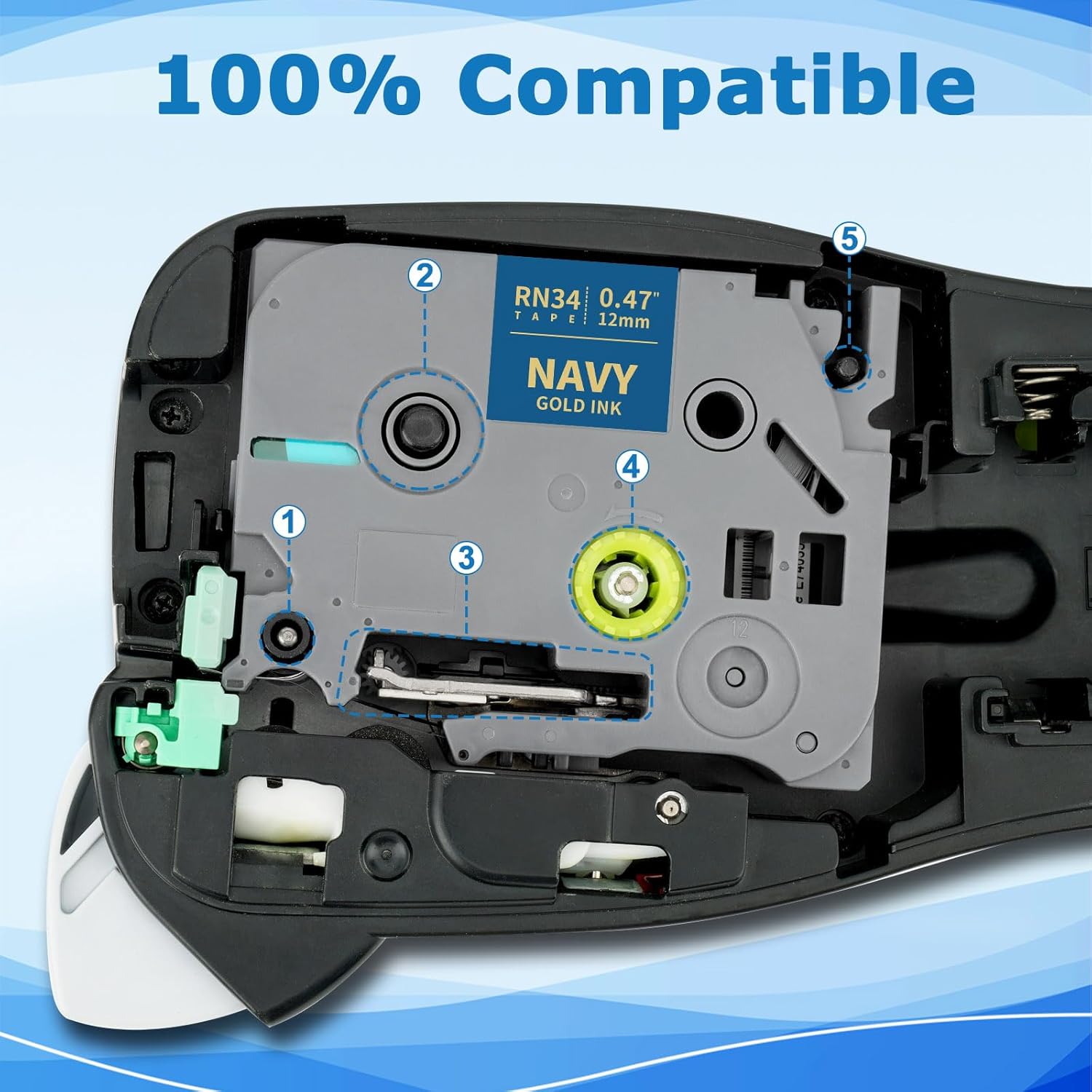
Image: Pristar 12mm Fabric Ribbon Cassette. This image shows the ribbon cassette in its packaging, ready to be opened.
3.2 Preparing the Cassette for Installation
Before inserting the cassette into your label printer, gently rotate the green gear on the cassette in the direction of the arrow to tighten the ribbon. This prevents the ribbon from slackening and ensures smooth printing.
Video: Molabel Compatible TZe231 Brother TZe-231 12 mm 0.47 laminated white. This video demonstrates how to prepare the label tape cassette by rotating the gear before insertion into the label printer.
3.3 Inserting the Cassette into the Printer
Open the cassette cover of your Brother P-Touch label printer. Insert the ribbon cassette firmly into the designated slot until it clicks into place. Close the cover securely.

Image: Inserting Ribbon Cassette into Printer. This image illustrates the correct way to insert the ribbon cassette into a compatible Brother P-Touch label printer.
4. Operating Instructions
4.1 Printing Labels
Once the cassette is installed, turn on your Brother P-Touch label printer. Use the printer's keyboard or connected software to type the desired text. Select your preferred font, size, and style settings. Press the print button to generate your label.
Video: Compatible with Brother TZe label tape. This video demonstrates the process of printing a label using a Brother P-Touch label printer and compatible tape.
4.2 Applying Fabric Ribbons
Pristar fabric ribbons are non-adhesive. They are designed for decorative purposes such as gift wrapping, crafting, or tying objects. For applications requiring attachment to fabric, such as clothing, an ironing method is required. Please refer to the "Fabric Ironing Method" section for detailed instructions.

Image: Printed Fabric Ribbon on Gift. This image shows a printed fabric ribbon used for decorative gift wrapping.
5. Fabric Ironing Method (for Textile Ribbons)
For permanent application of fabric ribbons to textiles, follow these steps:
- Prepare the Label: Print your desired text on the fabric ribbon.
- Position the Label: Place the printed label on the fabric with the lettered side facing up. The fabric ribbon is suitable for cotton, linen, and polyester materials.
- Cover with Cloth: Cover the label with a layer of cotton fabric (e.g., a thin cloth or handkerchief) to protect the label and the garment from direct heat. This prevents damage to the fabric or fading of the label at high temperatures.
- Ironing Process:
- Set your iron to a temperature between 150 °C and 180 °C (300 °F - 350 °F).
- First, iron the four corners of the label for a few seconds each to fix its position and prevent warping.
- After fixing the corners, press the entire label with a force of approximately 3kg to 5kg.
- Each ironing session should last 15 to 30 seconds. Repeat this process 3 to 5 times to ensure secure adhesion.
- Curing Time: After ironing, allow the label to set for 24 hours before washing the garment. This ensures maximum adhesion.
Video: Ironing labels onto fabric with the P12 label maker. This video demonstrates the step-by-step process of ironing fabric labels onto clothing for permanent attachment.
6. Maintenance and Care
To ensure the longevity of your printed fabric ribbons and the optimal performance of your label printer, follow these maintenance guidelines:
- Storage: Store unused ribbon cassettes in a cool, dry place away from direct sunlight and extreme temperatures.
- Cleaning: If the ribbon or printer head becomes dirty, gently wipe with a soft, lint-free cloth. Avoid using harsh chemicals.
- Handling: Handle ribbon cassettes carefully to prevent damage to the tape or internal mechanisms.
7. Troubleshooting
If you encounter issues while using your Pristar fabric ribbons, consider the following common solutions:
- Poor Print Quality:
- Ensure the ribbon cassette is correctly installed and the tape is taut (refer to Section 3.2).
- Clean the print head of your label printer according to its manufacturer's instructions.
- Check if the ribbon is expired or damaged.
- Ribbon Jams:
- Remove the cassette and check for any obstructions or twists in the ribbon.
- Reinsert the cassette, ensuring it clicks firmly into place.
- Label Not Adhering (Iron-on):
- Verify the iron temperature is within the recommended range (150 °C - 180 °C).
- Ensure sufficient pressure and duration during the ironing process (15-30 seconds, repeated 3-5 times).
- Confirm the fabric type is suitable (cotton, linen, polyester).
For further assistance, please contact Pristar customer support or refer to your Brother P-Touch printer's user manual.
8. Specifications
| Feature | Detail |
|---|---|
| Brand | Pristar |
| Model Numbers | TZe-R231, TZe-R234, TZe-RE34, TZe-RN34, TZe-RW34 |
| Tape Width | 12mm (0.47 inch) |
| Tape Length | 4m (13.1 feet) |
| Material | Satin Fabric |
| Adhesion Type | Non-adhesive (Iron-on for fabric application) |
| Colors Available | Black on White, Gold on White, Gold on Pink, Gold on Navy, Gold on Red |
| Compatibility | Brother P-Touch Label Printers (refer to Section 2 for full list) |
| Features | Non-adhesive, Satin material, Shiny and smooth finish, Suitable for various decorative and crafting uses. |

Image: Pristar Fabric Ribbon Specifications. This image visually details the width and length of the ribbon, along with its material.
9. Warranty and Support
Pristar products are manufactured to high quality standards. For any questions regarding product performance, compatibility, or troubleshooting not covered in this manual, please contact Pristar customer support.
Please retain your proof of purchase for any warranty claims. Specific warranty terms may vary by region and retailer.
For additional information and support, visit the official Pristar store on Amazon: Pristar Amazon Store.