
GLEDOPTO GL-MC-001PS1
GLEDOPTO ZigBee 3.0 USB RGBCCT LED Strip Light Kit Pro User Manual
Model: GL-MC-001PS1
1. Product Overview
The GLEDOPTO ZigBee 3.0 USB RGBCCT LED Strip Light Kit Pro is a versatile smart lighting solution designed to enhance your environment with customizable illumination. This kit includes a 2-meter RGBCCT LED strip and a compact ZigBee 3.0 controller, powered conveniently via USB. It offers a wide spectrum of colors, adjustable white light temperatures, and seamless integration with popular smart home systems like Philips Hue, Amazon Echo Plus, and SmartThings.
2. Package Contents
Please verify that all items listed below are included in your package:
- 1x 5V 2M Non-Waterproof LED Strip Light (RGBCCT)
- 1x RGB+CCT Mini Controller Pro (Model: GL-MC-001PS1)
- 3x Connectors
- 1x User Instruction Manual
- 1x Packaging Box
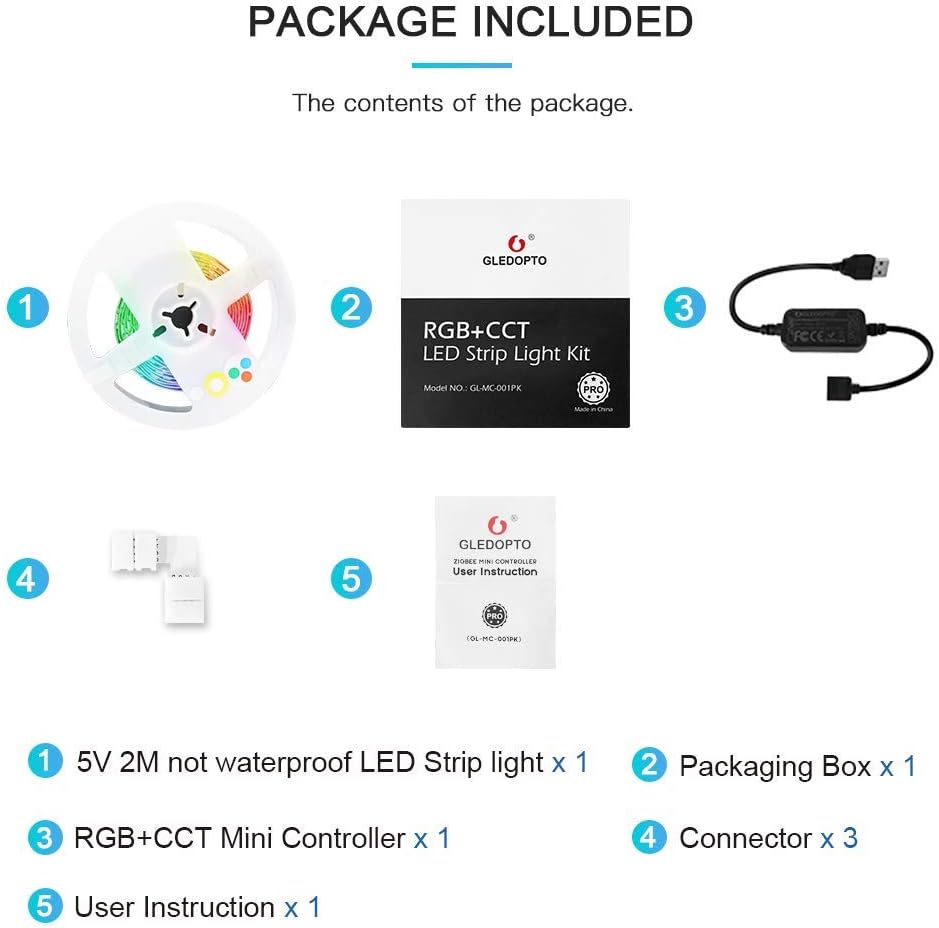
Figure 2.1: Package Contents. The image displays a coiled LED strip, a packaging box, the USB controller, three small connectors, and a user instruction booklet.
3. Features
- Extensive Color Options: Access to 16 million colors for personalized ambiance.
- Adjustable White Light: Color temperature range from 2000K (warm white) to 6500K (cool white).
- Dimmable Brightness: Adjust light intensity from 1% to 100%.
- Dual Protocol Support: Compatible with ZigBee 3.0 and 2.4G RF for flexible control.
- Improved Responsiveness: Optimized for reduced delay between controller and ZigBee hub.
- Mesh Functionality: Each Pro controller can act as a signal repeater, extending the control range when combined with other Pro lights.
- Multiple Control Methods: Supports smartphone app control, voice control (via compatible hubs), and RF remote control.

Figure 3.1: Key Features of the GLEDOPTO LED Strip Kit. This image highlights various control options and capabilities.

Figure 3.2: 16 Million Colors. The LED strip can display a vast range of colors to suit any mood or occasion.
4. Setup and Installation
4.1 Surface Preparation
Ensure the surface where the LED strip will be applied is clean, dry, and flat. Dust, grease, or moisture can compromise the adhesive's effectiveness.
4.2 Applying the LED Strip
- Carefully peel off the protective backing from the adhesive tape on the back of the LED strip.
- Press the strip firmly onto the desired surface, ensuring even contact along its entire length.
4.3 Cutting the LED Strip (Optional)
The LED strip can be cut to length at designated cut marks, usually indicated by a copper pad and a scissor icon. Ensure you cut only at these marked points to avoid damaging the circuit.
4.4 Connecting the Controller
- Connect the end of the LED strip to the output port of the GL-MC-001PS1 Mini Controller. Ensure the pins align correctly.
- Plug the USB connector of the controller into a 5V USB power source (e.g., TV USB port, USB wall adapter, power bank).
4.5 Pairing with a ZigBee Gateway
To enable smart control, pair your GLEDOPTO LED strip with a compatible ZigBee gateway (e.g., Philips Hue Bridge, SmartThings Hub, Amazon Echo Plus).
- Power on the LED strip.
- Put your ZigBee gateway into pairing/discovery mode (refer to your gateway's manual for specific instructions).
- The LED strip should automatically be discovered by the gateway. If not, you may need to power cycle the LED strip or initiate a reset on the controller (refer to the controller's specific reset procedure, often involving multiple power cycles).
- Once paired, you can control the light strip via your gateway's app or voice commands.

Figure 4.1: Adhesion and Cutting. The LED strip is suitable for clean, dry, flat surfaces and can be cut at marked intervals.
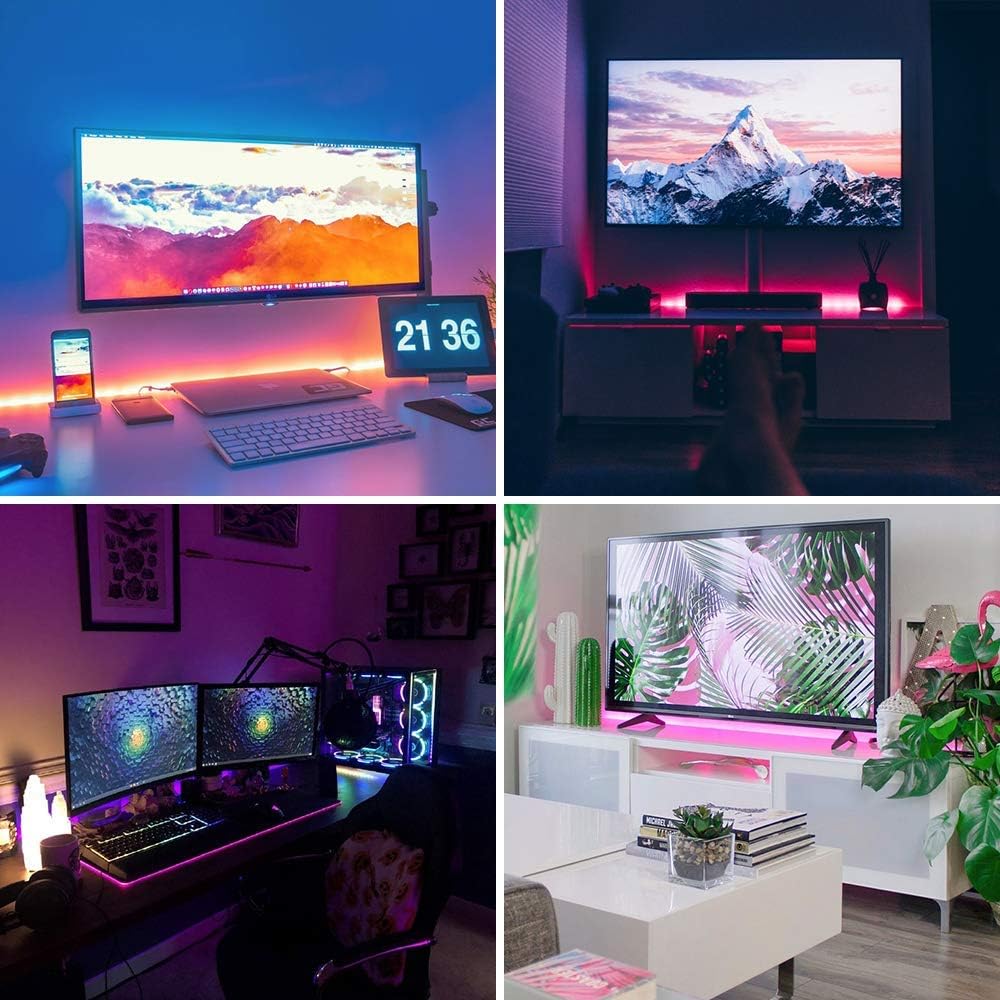
Figure 4.2: Installation Examples. The LED strip can be used to create ambient lighting behind TVs, monitors, and furniture.
5. Operating Instructions
Once installed and paired with your ZigBee gateway, you can control your GLEDOPTO LED strip using various methods:
5.1 Smartphone App Control
Use the dedicated app for your ZigBee gateway (e.g., Philips Hue app, SmartThings app) to:
- Turn the lights on or off.
- Select from 16 million colors.
- Adjust the white light temperature (from warm 2000K to cool 6500K).
- Dim or brighten the lights (1% to 100%).
- Set schedules, scenes, and automations.
5.2 Voice Control
If your ZigBee gateway is connected to a voice assistant (e.g., Amazon Alexa, Google Assistant), you can use voice commands. Examples include:
- "Alexa, turn on the TV lights."
- "Hey Google, set the desk light to blue."
- "Alexa, dim the bedroom lights to 50%."
5.3 RF Remote Control (Optional)
If you have a compatible GLEDOPTO 2.4G RF remote control (sold separately), you can pair it directly with the controller for local control without needing a gateway.
5.4 Mesh Network Functionality
Each GLEDOPTO Pro controller can act as a signal repeater within your ZigBee network. This means that if you have multiple Pro devices, they can extend the range and reliability of your smart lighting system, allowing for control over greater distances.
6. Maintenance
- Cleaning: To clean the LED strip or controller, gently wipe with a dry, soft cloth. Do not use liquid cleaners or abrasive materials.
- Water Exposure: This product has an IP20 rating, meaning it is not waterproof. Avoid exposure to water, high humidity, or damp environments.
- Ventilation: Ensure the controller and LED strip are not covered or placed in enclosed spaces that could lead to overheating.
- Connection Integrity: Periodically check that all connections (strip to controller, controller to USB) are secure.
7. Troubleshooting
- Light strip does not turn on:
- Check if the USB power source is active and providing 5V.
- Ensure all connections (LED strip to controller, controller to USB) are secure and correctly aligned.
- Try a different USB power source.
- Lights randomly turn on or off:
- This can sometimes indicate an unstable ZigBee network connection. Ensure the controller is within range of your gateway.
- Check for interference from other wireless devices.
- Ensure the power supply is stable and not fluctuating.
- Try resetting the controller and re-pairing it with your gateway.
- Not pairing with ZigBee gateway:
- Ensure your gateway is in pairing/discovery mode.
- Confirm the LED strip is powered on.
- Move the LED strip closer to the gateway during the pairing process.
- Perform a factory reset on the GLEDOPTO controller (typically by power cycling it 5 times rapidly, leaving it on for a few seconds each time, until it flashes).
- Brightness is lower than expected:
- Ensure your USB power source can provide sufficient current (e.g., 2A for optimal brightness).
- Check if the brightness setting in your app is at 100%.
- Connectors not working after cutting the strip:
- Ensure you cut precisely on the designated cut marks.
- Verify that the strip is inserted into the connector with correct polarity (matching + and RGB/CCT labels).
- Ensure all pins within the connector make firm contact with the copper pads on the LED strip.
8. Specifications
| Model Number | GL-MC-001PS1 |
| Input Voltage | DC 5V (USB Powered) |
| Power | 5 Watts |
| LED Strip Length | 2 Meters |
| Controller Dimensions (L x W x H) | 43mm x 22mm x 11mm |
| Color Type | RGBCCT (Red, Green, Blue, Cool White, Warm White) |
| Color Temperature | 2000K ~ 6500K |
| Operating Temperature | -20℃ to 60℃ |
| Connectivity Protocols | ZigBee 3.0, 2.4G RF |
| Control Methods | App, Voice, RF Remote |
| IP Rating | IP20 (Non-waterproof) |

Figure 8.1: Controller Dimensions. The compact size of the controller allows for discreet installation.
9. Customer Support
If you encounter any difficulties in using your GLEDOPTO ZigBee 3.0 USB RGBCCT LED Strip Light Kit Pro, or have any questions, please do not hesitate to contact GLEDOPTO customer service for assistance. We are committed to providing a satisfactory solution to any issues you may experience.
Ask a question about this manual
Ask about setup, troubleshooting, compatibility, parts, safety, or missing instructions. Manuals+ will review the question and use this page’s manual context to help answer it.