
1. Overview
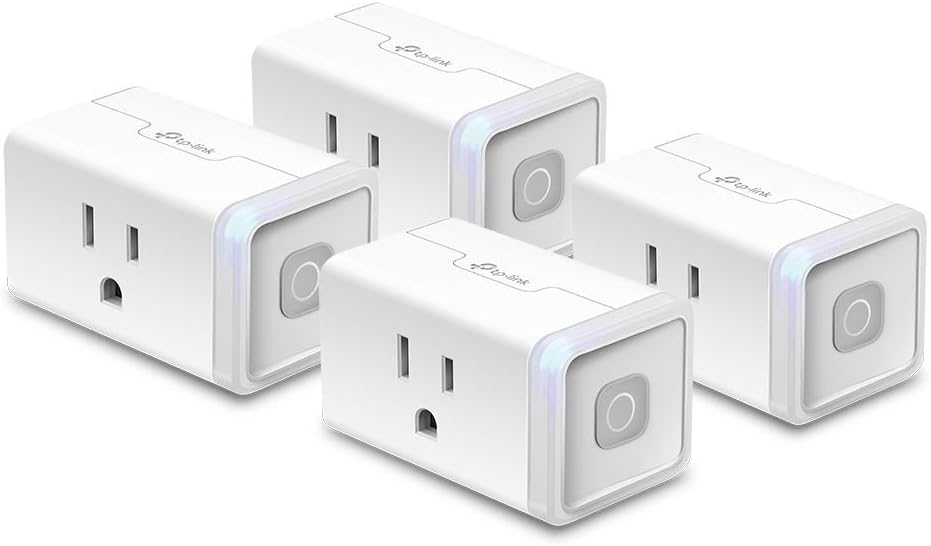
This manual provides detailed instructions for the Kasa Smart Plug (Model HS103P4) and the Kasa Smart Dimmer Switch (Model HS220). These devices are designed to integrate seamlessly into your smart home, offering convenient control and automation of your electrical appliances and lighting.
The Kasa Smart Plug allows you to turn connected devices on or off remotely, set schedules, and control them with your voice. The Kasa Smart Dimmer Switch provides dimming capabilities for your lights, along with remote control and scheduling options.

2. Product Features
2.1 Kasa Smart Plug (HS103P4)
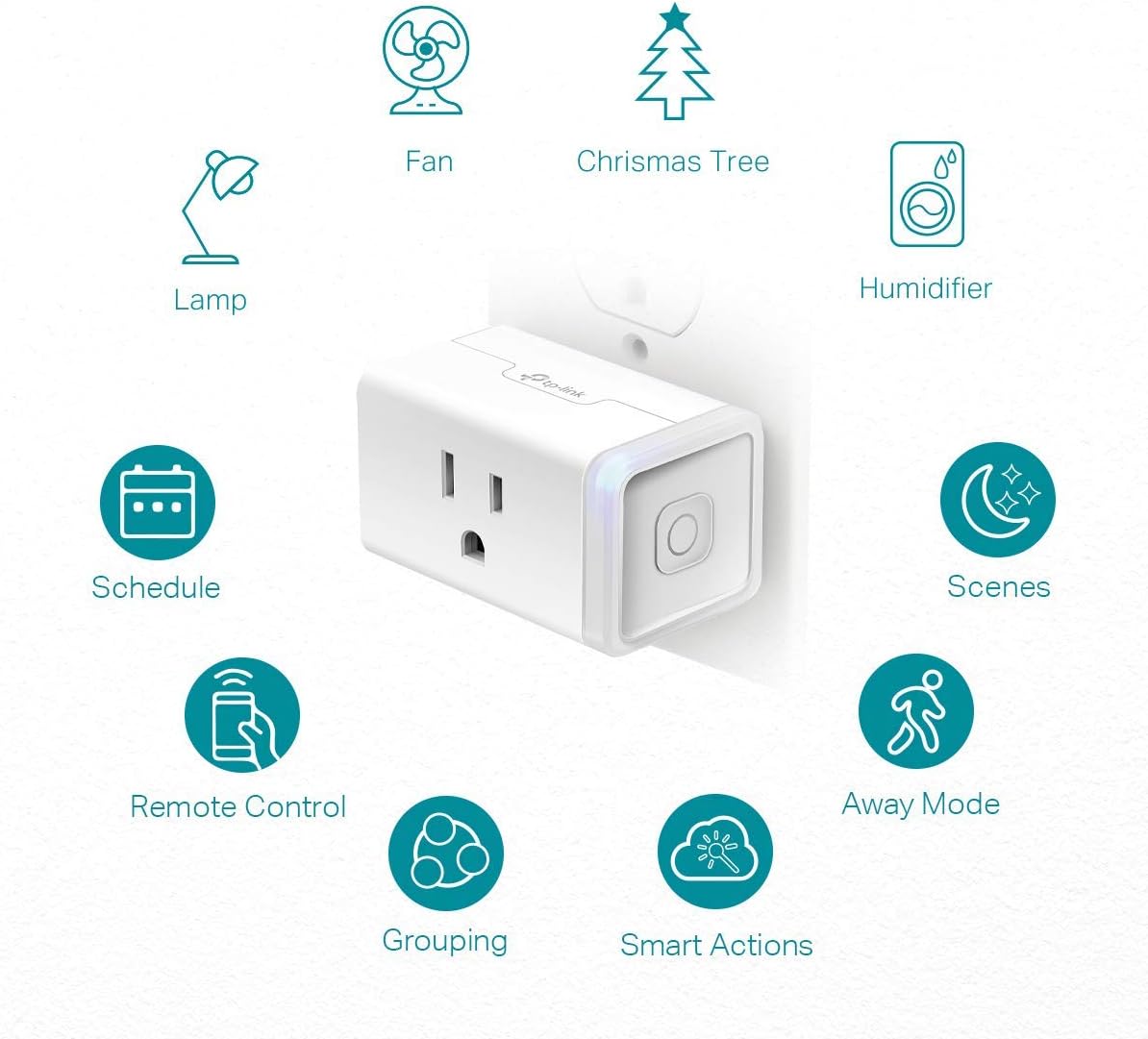
- Voice Control: Compatible with Amazon Alexa and Google Home Assistant for hands-free operation.
- Remote Control: Turn electronics on and off from anywhere using the Kasa app on your smartphone.
- Scheduling: Set timers or countdowns to automatically turn devices on and off.
- Easy Setup: Simple plug-in and app-guided setup process.

2.2 Kasa Smart Dimmer Switch (HS220)
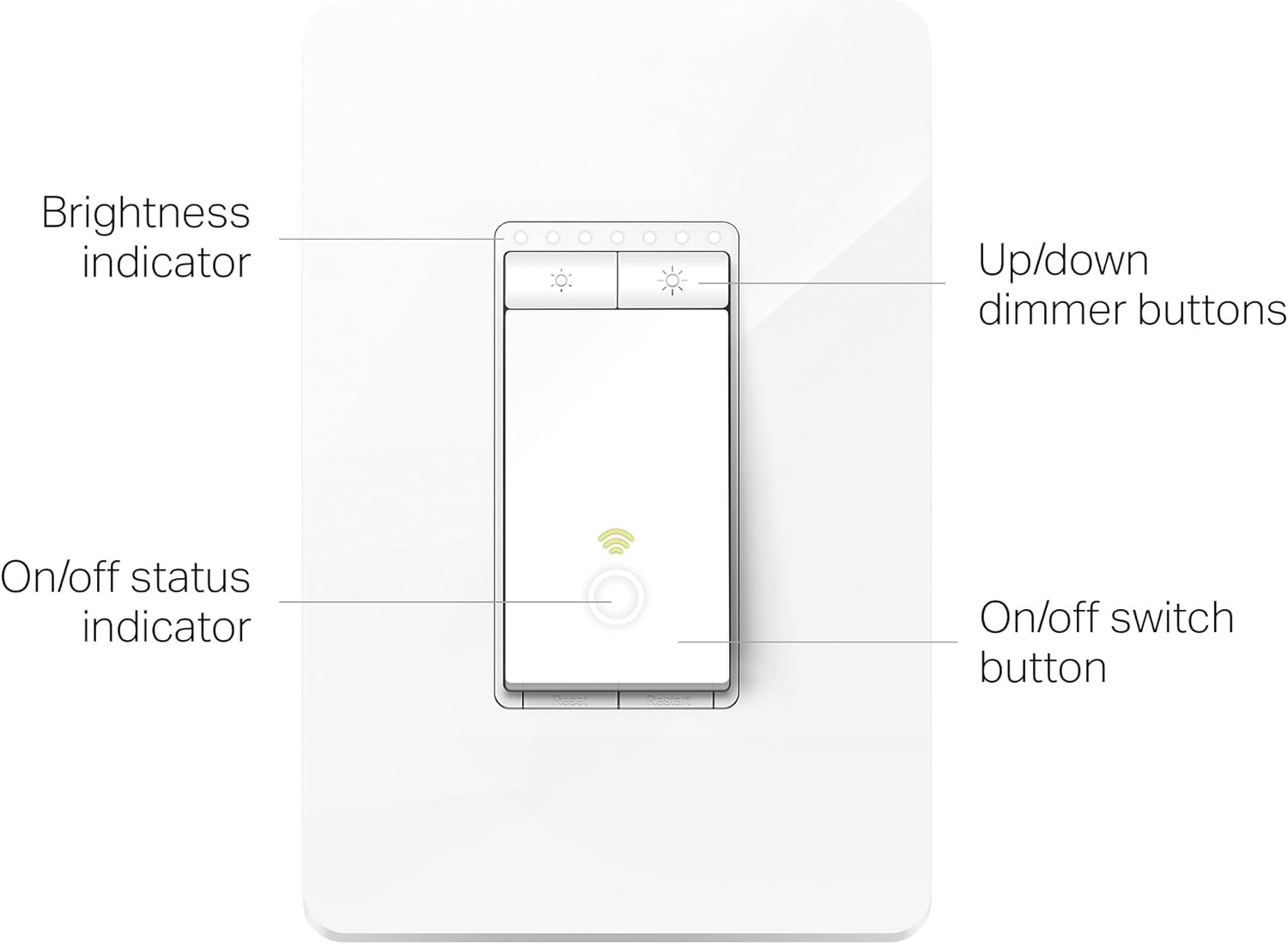
- Control from Anywhere: Manage your lights remotely via the Kasa app.
- Voice Control: Works with Amazon Alexa, Google Assistant, and Microsoft Cortana.
- Gentle Off: Tailor lighting to fade on or gently fade off.
- Scheduling: Automate lights to turn on/off based on your routine.

3. Setup
3.1 Kasa Smart Plug Setup (HS103P4)
- Plug In: Insert the Kasa Smart Plug into any standard wall outlet.
- Download Kasa App: Download the Kasa Smart app from the App Store or Google Play Store.
- Connect to Wi-Fi: Open the Kasa app and follow the on-screen instructions to connect your smart plug to your home 2.4GHz Wi-Fi network.
3.2 Kasa Smart Dimmer Switch Installation (HS220)
Important: Installation requires basic electrical knowledge. If you are unsure, consult a qualified electrician. A neutral wire is required for installation.
- Turn Off Power: Before installation, turn off the power at the circuit breaker for the switch you are replacing.
- Identify Wires: Identify the Line, Load, Neutral, and Ground wires in your wall box.
- Wire the Switch: Connect the Kasa Smart Dimmer Switch wires to the corresponding wires in your wall box using wire nuts. Ensure the neutral wire is connected.
- Secure and Restore Power: Carefully push the switch into the wall box, secure it with screws, and attach the wall plate. Restore power at the circuit breaker.
- Download Kasa App: Download the Kasa Smart app from the App Store or Google Play Store.
- Connect to Wi-Fi: Open the Kasa app and follow the on-screen instructions to connect your dimmer switch to your home 2.4GHz Wi-Fi network.

4. Operating Instructions
4.1 Remote Control via Kasa App
Once your devices are set up in the Kasa app, you can control them from anywhere with an internet connection. Simply open the app, select the device, and tap the power icon to turn it on or off. For the dimmer switch, use the brightness controls within the app.
4.2 Voice Control
Integrate your Kasa devices with Amazon Alexa, Google Assistant, or Microsoft Cortana for voice-activated control. Follow the instructions within the Kasa app or your smart assistant's app to link your accounts. Once linked, you can use commands like:
- "Alexa, turn on the living room lamp."
- "Hey Google, dim the kitchen lights to 50%."
4.3 Scheduling and Automation
The Kasa app allows for advanced scheduling and automation:
- Schedules: Set specific times for devices to turn on or off daily or on selected days of the week.
- Timers: Set a countdown timer for a device to turn off after a certain duration.
- Away Mode: Randomly turn lights on and off to make it appear someone is home, enhancing security.
- Smart Actions: Create custom automations based on various triggers, such as sunrise/sunset, or your phone's geolocation (e.g., lights turn on when you arrive home).
5. Maintenance
5.1 Cleaning
To clean your Kasa Smart Plug or Dimmer Switch, ensure the device is unplugged or the power is off at the circuit breaker. Wipe the surface with a soft, dry cloth. Do not use liquid cleaners or abrasive materials.
5.2 Firmware Updates
Periodically check the Kasa app for available firmware updates. Keeping your devices updated ensures optimal performance, security, and access to new features. Follow the in-app prompts to perform updates.
6. Troubleshooting
6.1 Connectivity Issues
- Wi-Fi Range: Ensure the device is within range of your 2.4GHz Wi-Fi router. Obstacles like thick walls can weaken the signal.
- Router Settings: Kasa devices require a 2.4GHz Wi-Fi network. If you have a dual-band router, ensure your phone is connected to the 2.4GHz network during setup.
- Router Reboot: Try restarting your Wi-Fi router and then the Kasa device.
6.2 Device Unresponsive
- Power Cycle: Unplug the smart plug (or turn off/on the circuit breaker for the dimmer switch) for 10 seconds, then plug it back in/restore power.
- Check App Status: Verify the device status in the Kasa app. If it shows offline, try reconnecting it.
6.3 Dimmer Switch Not Dimming
- Bulb Compatibility: Ensure your light bulbs are dimmable LED or incandescent bulbs. Non-dimmable bulbs may flicker or not dim properly.
- Minimum/Maximum Load: Check the specifications for the dimmer switch's supported wattage range.
7. Specifications
| Attribute | Value |
|---|---|
| Brand | Kasa Smart |
| Operating Voltage | 120 Volts |
| Wattage | 1800 Watts (Max) |
| Connectivity Protocol | Wi-Fi (2.4GHz) |
| Control Method | App, Remote, Voice |
| Controller Type | IFTTT, Google Assistant, Amazon Alexa, iOS, Android |
| Contact Type | Normally Open |
| Circuit Type | 1-way |
| Material | Copper (Contact Material) |
| International Protection Rating | IP00 |
| First Available Date | September 28, 2020 |
8. Safety Information
Please read and follow all safety instructions to prevent injury or damage:
- Do not use the device outdoors or in damp conditions.
- Do not exceed the maximum load ratings specified for the device.
- Ensure proper grounding for the dimmer switch installation.
- Keep out of reach of children.
- Disconnect power before cleaning or performing any maintenance.
9. Warranty and Support
Specific warranty information for this product was not provided in the available data. For detailed warranty terms and conditions, please refer to the product packaging or the official Kasa Smart website.
For technical support, FAQs, and additional resources, please visit the official Kasa Smart support page or contact their customer service directly.
Kasa Smart Official Website: www.tp-link.com/us/kasa-smart/


