
Morecam J1
Morecam Wireless Video Doorbell Camera User Manual
Model: J1 | Brand: Morecam
1. Introduction
Thank you for choosing the Morecam Wireless Video Doorbell Camera. This manual provides detailed instructions for the installation, operation, maintenance, and troubleshooting of your new doorbell system. This device offers 2K Full HD video, infrared night vision, two-way audio communication, and motion detection, ensuring enhanced security and convenience for your home.
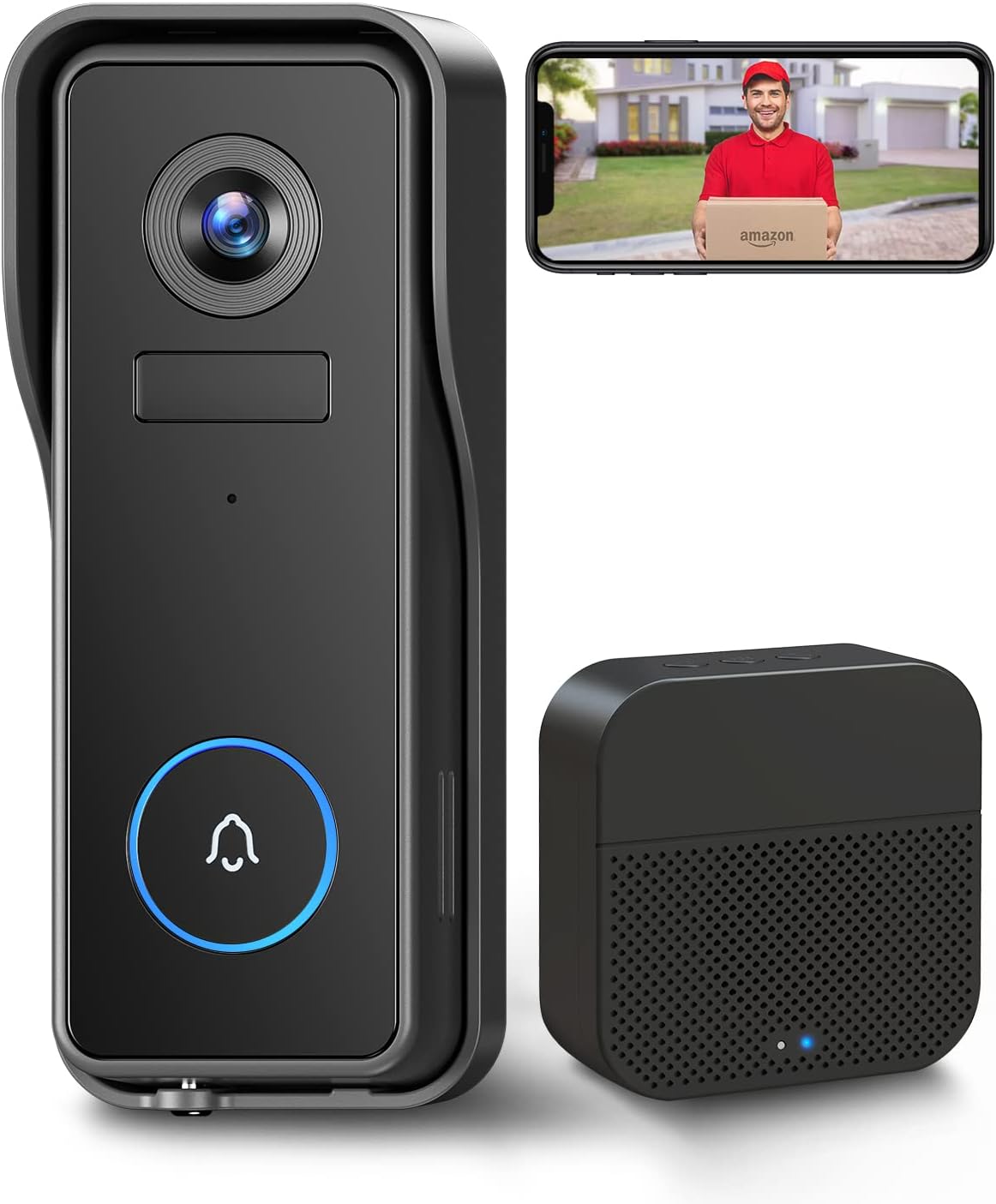
Image: The Morecam Wireless Video Doorbell Camera, its accompanying wireless chime, and a smartphone displaying a live view of a delivery person at the door.
2. What's in the Box
Please verify that all components are present before beginning installation:
- 1 x Wireless Video Doorbell
- 1 x Wireless Indoor Chime
- 1 x Wall Mount Bracket
- 1 x USB Cable
- 1 x User Guide
- 1 x Screw Kit (for mounting)
3. Setup and Installation
3.1 Charging the Doorbell
Before initial use, fully charge the doorbell camera using the provided USB cable. A full charge can last approximately 90 days, depending on usage.

Image: The Morecam Wireless Video Doorbell Camera in its mounting bracket, connected to a charging cable, with an overlay indicating '90 Days From 1 Charge' and a battery icon.
3.2 App Download and Account Creation
- Download the CloudEdge App from Google Play Store (for Android) or Apple App Store (for iOS).
- Open the app and follow the on-screen instructions to create a new account or log in if you already have one.
3.3 Pairing the Doorbell and Chime
- Ensure your doorbell camera is powered on and in pairing mode (refer to the doorbell's LED indicator for status).
- In the CloudEdge App, tap the '+' icon to add a new device and select 'Video Doorbell'.
- Follow the app's instructions to connect the doorbell to your 2.4GHz Wi-Fi network.
- Plug the wireless indoor chime into a power outlet. Press the pairing button on the chime.
- Once successfully paired, the chime will ring when the doorbell button is pressed.
3.4 Mounting the Doorbell
The Morecam doorbell is 100% wireless, allowing for flexible installation without the need for drilling or complex wiring. Choose your desired location, ensuring good Wi-Fi signal strength.
- Use the provided wall mount bracket and screw kit to securely attach the doorbell to your desired surface.
- Alternatively, for temporary or non-permanent installations, the doorbell can be mounted using strong adhesive tape (not included, but often pre-attached on some models).
4. Operation
4.1 Live View
Open the CloudEdge App to view live video from your doorbell camera at any time. The app provides a real-time feed of your doorstep.
4.2 Motion Detection and Alerts
The built-in PIR (Passive Infrared) sensor detects motion within its field of view. When motion is detected, you will receive instant notifications on your mobile device.
- Adjust motion detection sensitivity settings within the CloudEdge App to minimize false alerts.

Image: The Morecam Wireless Video Doorbell Camera mounted on a wall, detecting a person with a flashlight, while a smartphone displays an instant notification of an alarm message.
4.3 Two-Way Audio Communication
The doorbell features a built-in microphone and speaker, enabling clear two-way audio communication with visitors from your smartphone.
- When a visitor presses the doorbell or motion is detected, you can answer the call through the app to speak with them.
- You can also select pre-recorded voice messages for quick replies when you are unable to speak directly.

Image: A person holding a smartphone, interacting with the Morecam doorbell's two-way audio and video call feature, showing chat bubbles with conversation.
4.4 Night Vision
Equipped with IR lights, the doorbell automatically switches to night vision mode in low-light conditions, providing clear visibility up to 32 feet even in complete darkness.

Image: A split image demonstrating the Morecam Wireless Video Doorbell Camera's capabilities: the top half shows a clear 2K Full HD daytime view, and the bottom half shows a clear IR Night Vision view in monochrome.
4.5 Local Storage and Family Sharing
The doorbell supports local storage via a Micro SD card (up to 128GB, 32GB card included with some models) to record all motion events without a monthly subscription fee. Video files are recorded in a loop, overwriting the oldest footage.
- You can share access to the doorbell's live feed and recordings with up to 5 family members through the CloudEdge App.

Image: The Morecam Wireless Video Doorbell Camera positioned above representations of cloud storage (7-day free trial) and local storage (requiring a micro SD card), with a 32GB micro SD card shown.
5. Maintenance
5.1 Battery Charging
Recharge the doorbell battery when the low battery indicator appears in the app or on the device. Use the provided USB cable and a standard 5V/1A USB power adapter (not included) for charging.
5.2 Cleaning
Periodically clean the doorbell camera lens and body with a soft, dry cloth to ensure optimal video clarity and performance. Avoid using harsh chemicals or abrasive materials.
6. Troubleshooting
6.1 Doorbell Not Connecting to Wi-Fi
- Ensure your Wi-Fi network is 2.4GHz. The doorbell does not support 5GHz Wi-Fi.
- Check your Wi-Fi password for accuracy.
- Move the doorbell closer to your Wi-Fi router during setup to ensure a strong signal.
- Restart your router and the doorbell.
6.2 No Motion Detection Alerts
- Verify that motion detection is enabled in the CloudEdge App settings.
- Adjust the motion detection sensitivity.
- Ensure the doorbell's view is not obstructed.
- Check the battery level; low battery can affect performance.
6.3 Poor Video Quality or Offline Status
- Check your Wi-Fi signal strength at the doorbell's location. A weak signal can cause buffering or disconnections.
- Ensure the doorbell lens is clean and free from dirt or smudges.
- Restart the doorbell and check for app updates.
6.4 Chime Not Ringing
- Ensure the chime is plugged into a working power outlet.
- Re-pair the chime with the doorbell following the instructions in Section 3.3.
- Check the chime's volume settings.
7. Specifications
| Feature | Specification |
|---|---|
| Model Number | J1 |
| Video Resolution | 2K / 3MP Full HD (Upgraded from 1080P) |
| Viewing Angle | 166 Degrees |
| Night Vision Range | Up to 32 Feet (Infrared) |
| Battery Capacity | 4700mAh (Lithium Polymer) |
| Battery Life | Approx. 90 days per charge |
| Connectivity | 2.4GHz Wi-Fi |
| Storage | Micro SD Card (up to 128GB), Cloud Storage (optional) |
| Special Features | Motion Sensor (PIR), 2-Way Audio, Night Vision, Local Recording |
| Dimensions (L x W x H) | 5.99 x 3.99 x 13.51 cm (approx. 2.36 x 1.57 x 5.32 inches) |
| Weight | 557.92 g (approx. 1.23 lbs) |
8. Warranty and Support
8.1 Warranty Information
The Morecam Wireless Video Doorbell Camera comes with a 24-month warranty from the date of purchase, covering manufacturing defects and malfunctions under normal use.
8.2 Technical Support
Morecam provides lifetime technical support for this product. If you encounter any issues or have questions not covered in this manual, please contact Morecam customer support through the contact information provided on the product packaging or the official Morecam website.
Related documentsJ1


Ask a question about this manual
Ask about setup, troubleshooting, compatibility, parts, safety, or missing instructions. Manuals+ will review the question and use this page’s manual context to help answer it.