
Introduction
This manual provides comprehensive instructions for the setup, operation, and maintenance of your GMKtec 14-inch 4K Portable Touchscreen Monitor. Please read this manual thoroughly before using the product to ensure proper functionality and to prevent damage.

Image: The GMKtec 14-inch 4K Portable Touchscreen Monitor showcasing its vibrant display and key features.
What's in the Box
Verify that all items listed below are included in your package:
- GMKtec 14-inch 4K Portable Touchscreen Monitor
- 2 x USB Type-C Cables
- 1 x Standard HDMI to Mini HDMI Cable
- 1 x USB Type-A to Type-C Cable
- 1 x Power Adapter
- User Manual

Image: All accessories included with the GMKtec 14-inch 4K Portable Touchscreen Monitor.
Setup
Monitor Ports Overview

Image: Detailed view of the monitor's input/output ports.
Connecting to a Smartphone (USB Type-C)
For compatible smartphones, a single USB Type-C cable can transmit video, audio, and power. Ensure your smartphone's USB Type-C port supports DisplayPort Alt Mode.
- Connect one end of the USB Type-C cable to your smartphone.
- Connect the other end of the USB Type-C cable to one of the monitor's USB Type-C ports.
- If the phone's battery is low or the monitor requires additional power, connect the included power adapter to the monitor's second USB Type-C port.

Image: Connecting a smartphone to the monitor using a single Type-C cable.
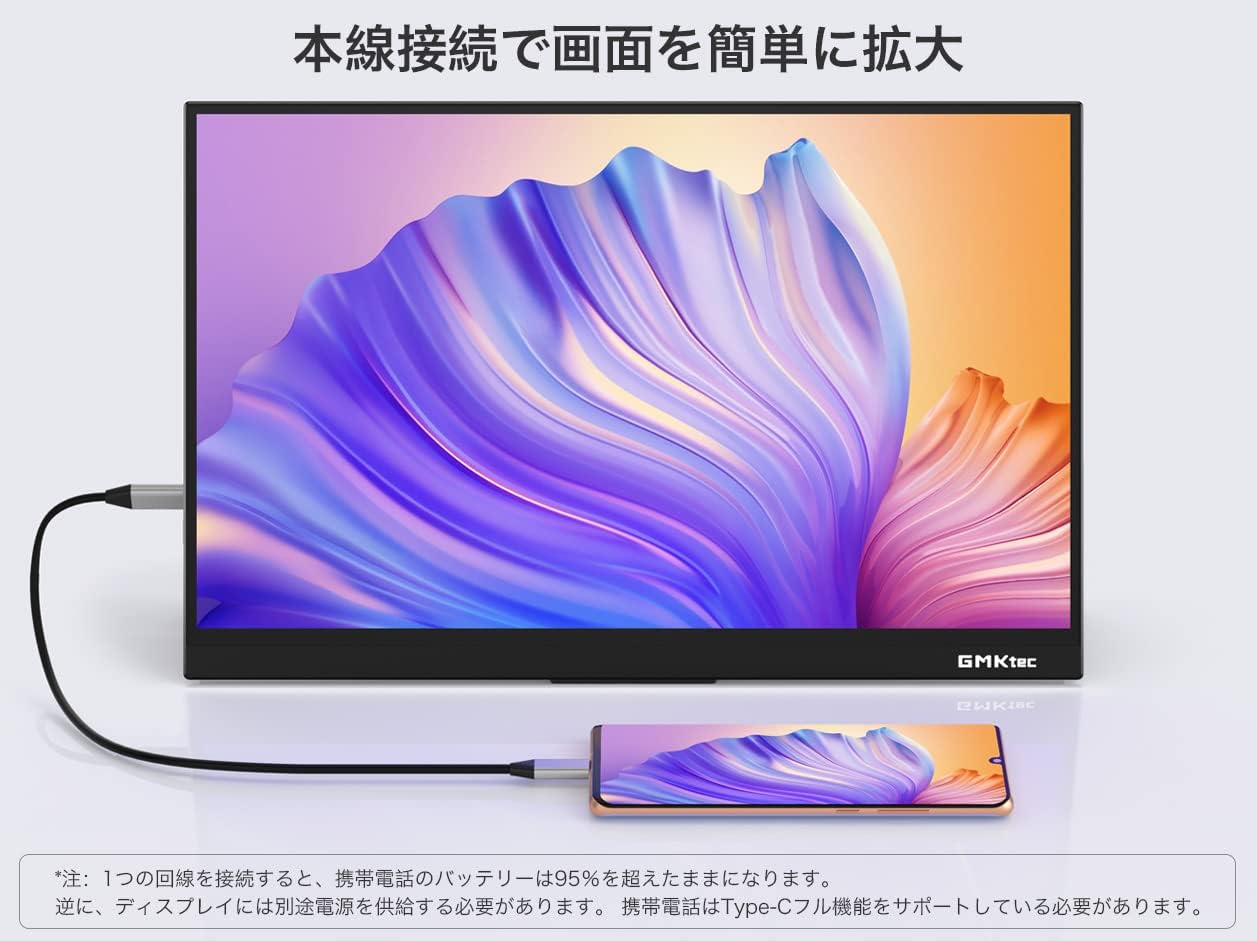
Image: Example of a smartphone connected to the monitor, extending the display.
Connecting to a Laptop (USB Type-C)
For laptops with a full-featured USB Type-C port (supporting DisplayPort Alt Mode and Power Delivery), a single cable can provide video, audio, and power.
- Connect one end of the USB Type-C cable to your laptop's full-featured USB Type-C port.
- Connect the other end of the USB Type-C cable to one of the monitor's USB Type-C ports.
- If the laptop cannot provide sufficient power, connect the included power adapter to the monitor's second USB Type-C port.

Image: Connecting a laptop to the monitor using a single Type-C cable.
Connecting to a PC or Gaming Console (Mini HDMI)
Use the Mini HDMI port for devices that do not support USB Type-C video output, such as desktop PCs, gaming consoles (PS5, Xbox, Nintendo Switch), or Raspberry Pi.
- Connect one end of the Standard HDMI to Mini HDMI cable to your device's HDMI output port.
- Connect the Mini HDMI end of the cable to the monitor's Mini HDMI port.
- Connect the included power adapter to one of the monitor's USB Type-C ports to provide power.
- For touch functionality with a PC, connect the USB Type-A to Type-C cable from your PC's USB-A port to the monitor's USB Type-C port.

Image: Connecting a Nintendo Switch to the monitor via HDMI (touch function not available for Switch).
Operating Instructions
Power On/Off
Press the power button located on the side of the monitor to turn it on or off.
On-Screen Display (OSD) Menu
The monitor features an intuitive OSD menu accessible via touch controls. Use the touch interface to navigate and adjust settings such as brightness, contrast, color temperature, and input source.
Display Modes
The monitor supports various display modes, including duplicate, extend, and second screen only, depending on your connected device's capabilities. Adjust these settings from your connected device's display settings.

Image: Key display features of the monitor.

Image: Demonstrating the monitor's color accuracy and 100% sRGB coverage.
Maintenance and Care
- Clean the screen with a soft, lint-free cloth. Avoid abrasive cleaners or solvents.
- Do not expose the monitor to extreme temperatures or humidity.
- Avoid placing heavy objects on the monitor.
- When not in use, store the monitor in a protective case to prevent scratches.
Troubleshooting
No Signal / Black Screen
- Ensure all cables are securely connected to both the monitor and the source device.
- Verify that the source device is powered on and outputting a signal.
- If using USB Type-C, confirm that your device's port supports DisplayPort Alt Mode.
- Try connecting the monitor to a different power source or using the included power adapter.
Touchscreen Not Responding
- For PC connections, ensure the USB Type-A to Type-C cable is connected for touch data.
- Verify that your operating system supports touchscreen input for external displays.
- Restart both the monitor and the connected device.
Image Flickering or Distortion
- Ensure the power adapter is connected and providing sufficient power to the monitor.
- Try a different cable or port.
- Reduce the display resolution or refresh rate on your source device.
Specifications
| Feature | Specification |
|---|---|
| Brand | GMKtec |
| Model | 14-inch 4K Touchscreen |
| Screen Size | 14 inches |
| Resolution | 3840 x 2160 pixels (4K UHD) |
| Aspect Ratio | 16:9 |
| Screen Surface | Glossy |
| Dimensions (W x H x D) | 32 x 20.7 x 1.3 cm |
| Weight | 1.56 kg (approx. 640g for monitor only) |
| HDMI Ports | 1 (Mini HDMI) |
| USB Type-C Ports | 2 |
| Operating System | Non-OS |
Warranty and Support
GMKtec provides technical support and a 12-month warranty from the date of purchase for quality-related issues. For technical support, please contact support@gmktec.com. Our team aims to respond within 24 business hours.
For Amazon-related inquiries, please navigate to your Amazon account, access your order history, select the relevant order, and click the "Problem with Order" button.
