
1. Introduction
This manual provides detailed instructions for the installation, operation, and maintenance of your Tapo TC60 Indoor Security Wi-Fi Camera. Please read this guide thoroughly before using the device to ensure proper functionality and safety. The Tapo TC60 is designed for indoor monitoring, offering features such as 1080p Full HD video, advanced night vision, two-way audio, and smart detection capabilities.
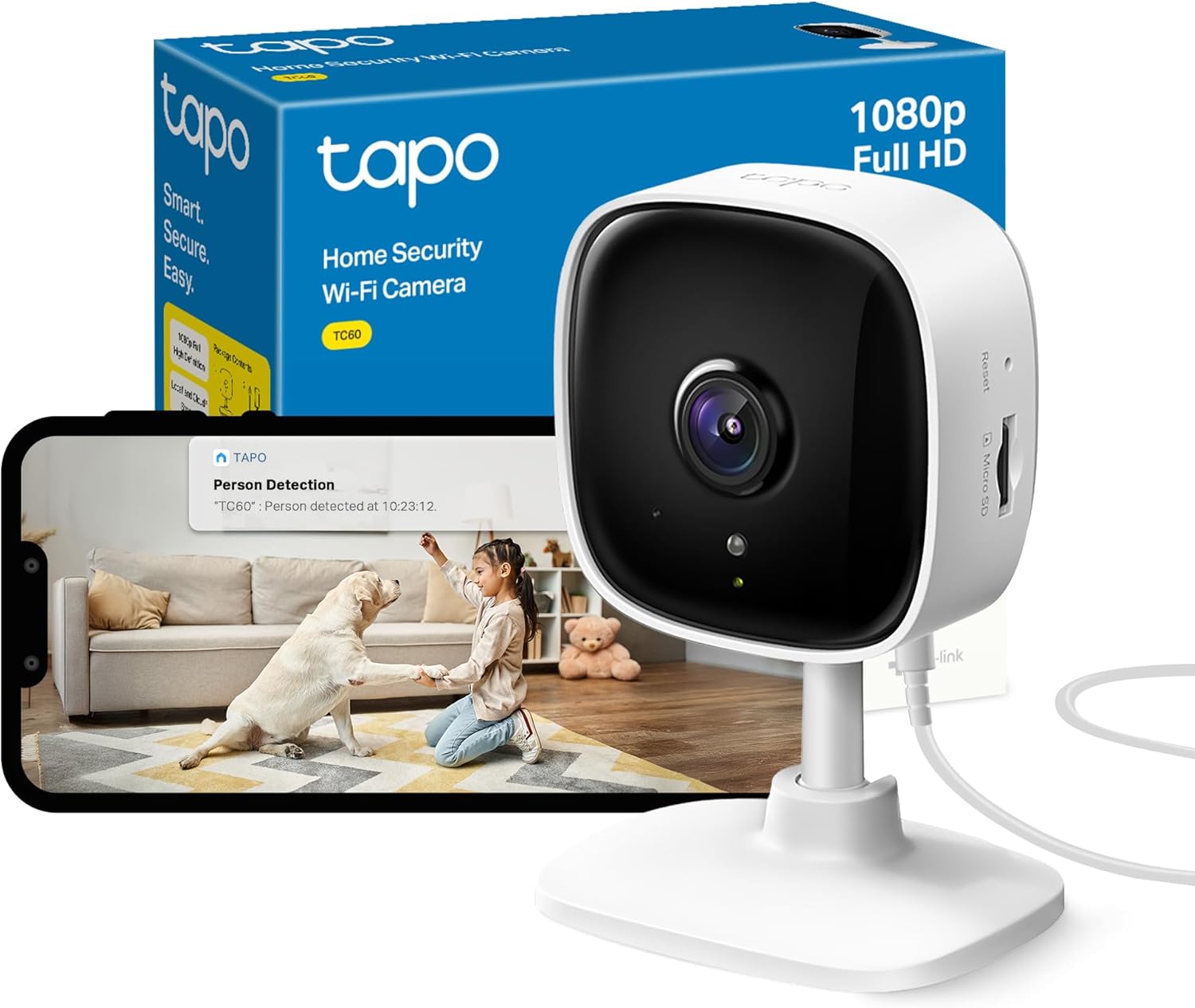
Image 1.1: Tapo TC60 camera, packaging, and app view.
2. What's in the Box
Verify that all components are present in your package:
- Tapo TC60 Camera
- Power Adapter
- Quick Start Guide
- Camera Base
- Mounting Screws
- Mounting Template
3. Product Overview
The Tapo TC60 camera features a compact design with essential components for effective indoor surveillance.

Image 3.1: Front and side view of the Tapo TC60 camera.
Key Components:
- Camera Lens: Captures 1080p Full HD video.
- Status LED: Indicates the camera's current operational status.
- Micro SD Card Slot: Supports local storage up to 512GB (Micro SD card not included).
- Reset Button: Used to reset the camera to factory settings.
- Power Port: Connects to the included power adapter.
- Microphone & Speaker: Enables two-way audio communication.
4. Setup Guide
Follow these steps to set up your Tapo TC60 camera:
- Download the Tapo App: Search for "Tapo" in the App Store or Google Play Store and download the application.
- Create an Account: Open the Tapo app and follow the on-screen instructions to create a Tapo ID.
- Power On the Camera: Plug the camera into a power outlet using the provided power adapter. Wait for the LED to blink red and green.
- Add Your Camera: In the Tapo app, tap the "+" icon in the top right corner, select your camera model (TC60), and follow the app's instructions to connect it to your Wi-Fi network.
- Mount the Camera (Optional): Use the camera base, mounting screws, and template to securely mount the camera on a wall or ceiling if desired. Ensure the camera is positioned to cover the desired monitoring area.
5. Operating Instructions
5.1 Live View and Recording
Once connected, you can access the live feed from your camera through the Tapo app. The camera records in 1080p Full HD resolution.

Image 5.1: 1080p enhanced viewing on a smartphone.
5.2 Two-Way Audio
The built-in microphone and speaker allow for two-way communication. Tap the microphone icon in the live view to speak through the camera, and listen to audio from the camera's environment.
Image 5.2: Two-way audio functionality.
5.3 Advanced Night Vision
The camera is equipped with 850nm infrared night vision, providing clear video up to 30 feet (9 meters) in low-light conditions.
5.4 Motion and Person Detection
The Tapo TC60 can detect motion and identify persons. You will receive instant notifications on your mobile device when activity is detected. Customizable activity zones can be set within the app to focus detection on specific areas.

Image 5.3: Motion detection with customizable activity zones.
5.5 Baby Crying Detection
The camera includes a baby crying detection feature, which can alert you when a baby's cry is detected, making it suitable for use as a baby monitor.

Image 5.4: Baby crying detection with advanced night vision.
6. Storage Options
The Tapo TC60 offers flexible storage solutions for your recorded footage.
- Local Storage: The camera supports a Micro SD card up to 512GB for continuous recording or event-triggered recordings. The Micro SD card is not included and must be purchased separately.
- Cloud Storage (Tapo Care): An optional cloud storage service, Tapo Care, is available for additional features and secure off-site storage. A 30-day free trial may be offered.

Image 6.1: Local and cloud storage choices.
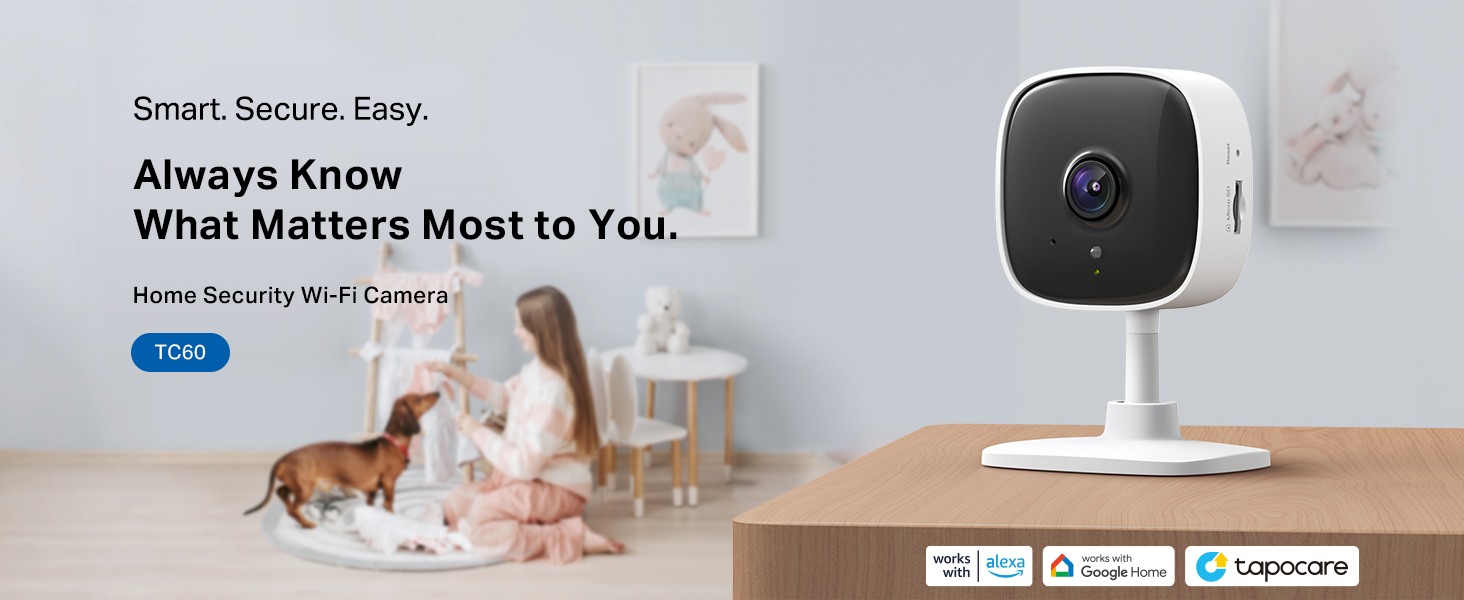
Image 6.2: No monthly subscription required for local storage.
7. Smart Home Integration
The Tapo TC60 camera is compatible with popular smart home platforms:
- Amazon Alexa: Integrate with Amazon Alexa-enabled devices to view the live feed on compatible screens (e.g., Echo Show) using voice commands.
- Google Assistant: Compatible with Google Assistant for voice control and viewing on Google Home devices.
- RTSP Protocol: Supports RTSP protocol for integration with other storage systems or network video recorders (NVRs).
8. Privacy Features
The Tapo TC60 includes features to protect your privacy:
- Privacy Zone: Set customizable block zones within the camera's field of view to prevent certain areas from being recorded or monitored.

Image 8.1: Privacy zone feature in the Tapo app.
9. Maintenance
To ensure optimal performance and longevity of your Tapo TC60 camera:
- Cleaning: Gently wipe the camera lens and body with a soft, dry cloth. Avoid using harsh chemicals or abrasive materials.
- Firmware Updates: Regularly check for and install firmware updates through the Tapo app to ensure your camera has the latest features and security enhancements.
- Placement: Ensure the camera is placed in a stable location, away from direct sunlight, heat sources, and excessive moisture.
10. Troubleshooting
10.1 Connectivity Issues
- Camera Not Connecting to Wi-Fi: Ensure your Wi-Fi network is 2.4 GHz, as the TC60 supports 2.4 GHz Wi-Fi only. Check your Wi-Fi password and signal strength. Try moving the camera closer to your router.
- Live Stream Stops Automatically: When viewing the live feed through Google Assistant (e.g., Chromecast/Google Hub), the stream may stop after 10 minutes due to network traffic considerations. You can ask Google to show the camera again to resume.
- Cannot View Live Streams on Google Home App: Live view is not fully supported in the Google Home app for all cameras. This is a limitation on Google's side.
10.2 Recording Problems
- Micro SD Card Not Recording: Ensure the Micro SD card is correctly inserted and formatted within the Tapo app. Check if the card is full or corrupted. The camera supports up to 512GB.
10.3 Resetting the Camera
If you encounter persistent issues, you can reset the camera to its factory default settings. Locate the reset button on the camera and press and hold it for approximately 5 seconds until the LED blinks red.
11. Specifications
| Feature | Specification |
|---|---|
| Model | TC60 |
| Indoor/Outdoor Usage | Indoor |
| Video Capture Resolution | 1080p Full HD (1920 x 1080 px) |
| Connectivity Protocol | Wi-Fi (2.4 GHz) |
| Night-Vision Range | Up to 30 Feet (9 meters) |
| Storage Options | Micro SD card (up to 512GB), Tapo Care Cloud Storage |
| Two-Way Audio | Yes |
| Smart Home Compatibility | Amazon Alexa, Google Assistant |
| Power Source | Corded Electric (5 watts) |
| Dimensions (L x W x H) | 6.8 x 5.5 x 9.9 cm |
| Weight | 70 g |
12. Warranty and Support
For warranty information and technical support, please refer to the official Tapo website or contact Tapo customer service. Keep your purchase receipt for warranty claims.
Online Resources:
- Visit the Tapo Official Website for product updates, FAQs, and support.
- Access the Tapo Store on Amazon for additional product information.


