
1. Product Overview
The 4URPC DSC05 USB C Dual Monitor Docking Station is a versatile and compact solution designed to expand the connectivity and display capabilities of your Windows or ChromeOS laptop. This plug-and-play docking station allows for seamless integration of multiple peripherals and external monitors, enhancing productivity and workspace organization.
It features dual HDMI ports, a VGA port, multiple USB 3.0 and USB 2.0 ports, a USB-C data port, Gigabit Ethernet, SD/TF card slots, and a 3.5mm audio/microphone jack. The docking station includes a 65W power adapter to ensure stable power delivery to your laptop and connected devices.
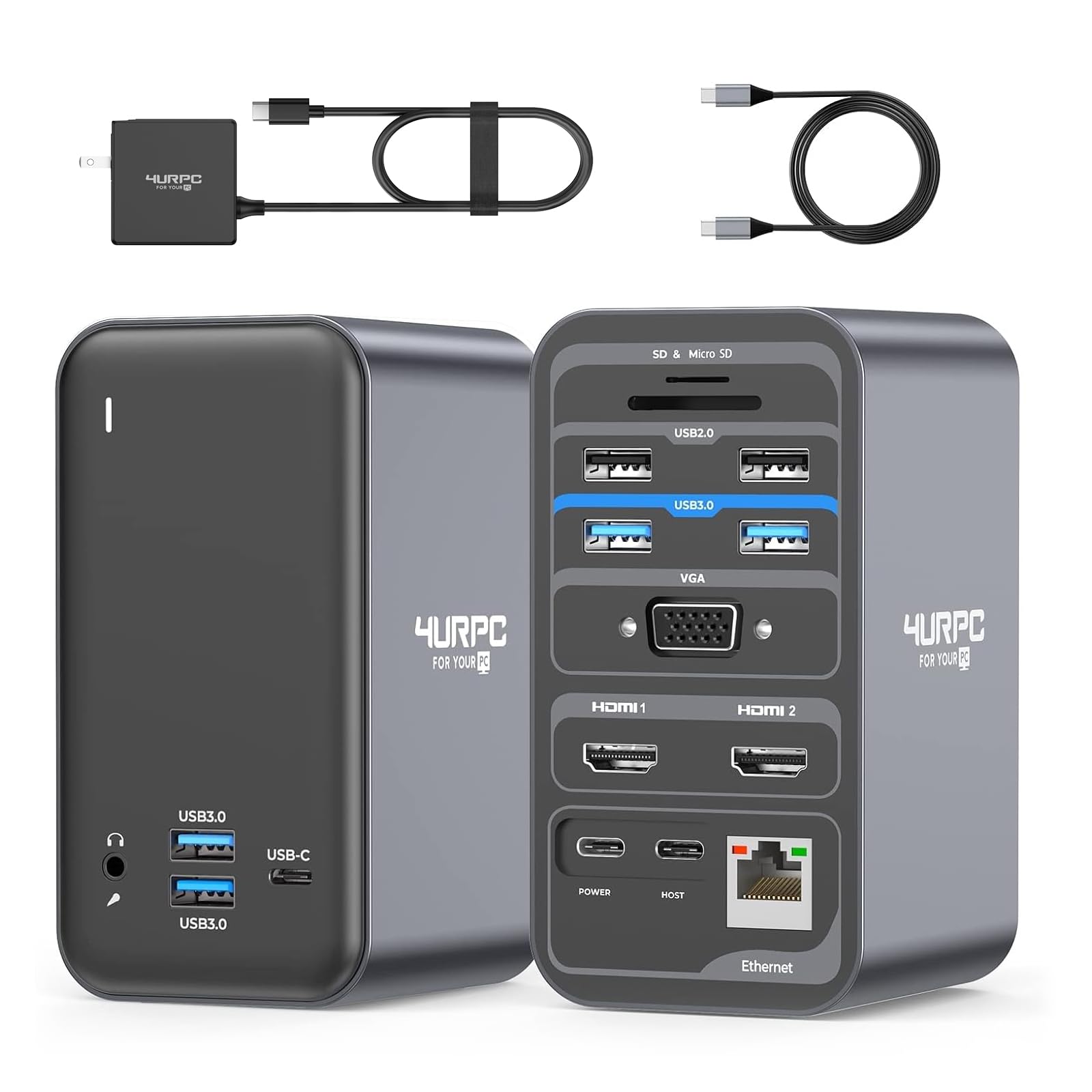
Image: The 4URPC DSC05 USB C Dual Monitor Docking Station in a typical setup, extending a laptop display to two external monitors.
2. What's in the Box
Upon unboxing your 4URPC DSC05 Dual Monitor Docking Station, you should find the following items:
- 1 x 4URPC DSC05 USB C Docking Station
- 1 x 65W Power Adapter
- 1 x 3.3ft USB C Cable
- 1 x User Guide (this manual)

Image: The contents of the product packaging, showing the docking station and its accessories.
3. Product Features and Port Layout
The DSC05 docking station offers a comprehensive array of ports to meet diverse connectivity needs:
- Display Outputs: 2 x HDMI (up to 4K@30Hz for HDMI 2, 4K@60Hz for HDMI 1), 1 x VGA (up to 1080P)
- USB Ports: 4 x USB 3.0 (5Gbps), 2 x USB 2.0 (480Mbps, optimized for wireless peripherals), 1 x Front USB-C (data transfer only, 5Gbps)
- Network: 1 x Gigabit Ethernet (RJ-45, 10/100/1000Mbps)
- Card Readers: 1 x SD Card Slot, 1 x Micro SD Card Slot
- Audio: 1 x 3.5mm Audio/Microphone Jack
- Power: 1 x USB-C Host Port (for laptop connection), 1 x USB-C Power Port (for 65W power adapter)

Image: Front and rear views of the docking station with all ports clearly labeled.
4. Setup Guide
Follow these steps to set up your 4URPC DSC05 Dual Monitor Docking Station:
- Connect Power: Plug the included 65W power adapter into the 'POWER' USB-C port on the docking station, then connect the adapter to a wall outlet.
- Connect to Laptop: Use the provided USB-C cable to connect your laptop's full-featured USB-C/Thunderbolt port to the 'HOST' USB-C port on the docking station. Ensure your laptop's USB-C port supports Power Delivery, DisplayPort Alt Mode, and data transfer.
- Connect Monitors:
- For dual HDMI monitors, connect your monitors to the HDMI 1 and HDMI 2 ports using HDMI cables.
- For a VGA monitor, connect it to the VGA port using a VGA cable.
- For a triple display setup (laptop screen + 2 external monitors), connect two external monitors via HDMI and VGA.
- Connect Peripherals: Plug in your USB devices (keyboard, mouse, external drives, webcam, printer) into the available USB 3.0 and USB 2.0 ports. Insert SD/TF cards if needed.
- Connect Ethernet: For a stable wired network connection, connect an Ethernet cable from your router/modem to the RJ-45 Gigabit Ethernet port on the docking station.
- Audio Connection: Connect headphones or speakers to the 3.5mm audio jack if desired.
Your laptop should automatically detect the docking station and connected displays. You may need to adjust display settings in your operating system (Windows or ChromeOS) to configure extended or mirrored displays.

Image: A visual representation of the docking station connected to a laptop and external displays.
5. Operating Instructions: Display Modes (Windows)
The 4URPC DSC05 docking station supports various display configurations for Windows and ChromeOS. Below are common Windows display modes:
5.1. Extend Mode (Single External Monitor)
Connect one external monitor via HDMI 1 (for 4K@60Hz) or HDMI 2 (for 4K@30Hz). Your laptop display and the external monitor will show different content, extending your workspace.
5.2. Extend Mode (Dual External Monitors)
Connect two external monitors using HDMI 1 and HDMI 2. Both external monitors will display different content, and your laptop screen can also display separate content, creating a triple display setup. In this configuration, dual monitors can reach 1080P resolution.
5.3. Extend Mode (Triple External Monitors - Clamshell Mode)
Connect three external monitors using HDMI 1, HDMI 2, and VGA. Your laptop lid can be closed (clamshell mode), and all three external monitors will display different content. This mode is ideal for maximizing screen real estate. Note that HDMI 2 and VGA will mirror each other in this setup.

Image: Visual guide for configuring single, dual, and triple monitor setups on Windows.
5.4. Mirror Mode
To duplicate your laptop's display on one or more external monitors, select 'Duplicate these displays' in your operating system's display settings.
Adjusting Display Settings (Windows):
- Right-click on your desktop and select 'Display settings'.
- Identify your displays (1, 2, 3, etc.).
- Select a display and choose its orientation, resolution, and refresh rate.
- Under 'Multiple displays', choose 'Extend these displays' or 'Duplicate these displays' as needed.
Note: The front USB-C port supports data transfer only, not video display.
Video: An official product video demonstrating the 4URPC USB C Docking Station Dual Monitor for Dell, HP, Lenovo, and Surface laptops, showcasing its multi-display capabilities.
6. Compatibility
This 4URPC docking station is designed for laptops with a full-featured USB-C, USB4, or Thunderbolt 3/4 port running Windows 10/11 & ChromeOS 100 or newer. It is NOT compatible with macOS.
Compatible devices include, but are not limited to:
- HP ProBook / EliteBook / Spectre x360 series
- Dell XPS / Latitude / Inspiron series
- Lenovo ThinkPad / IdeaPad / Yoga series
- Microsoft Surface Pro / Go / Book / Laptop models
- LG Gram
To ensure full compatibility, verify that the USB-C port on your laptop has a DisplayPort (DP) or Thunderbolt icon next to it. If you are unsure about your laptop's compatibility, please contact 4URPC support directly.

Image: A laptop connected to the docking station, demonstrating multi-monitor functionality.
7. Specifications
| Brand | 4URPC |
| Model | DSC05 |
| Hardware Interface | 3.5mm Audio, HDMI, USB 2.0, USB 3.0, VGA, Ethernet, SD/TF |
| Total USB Ports | 7 (4x USB 3.0, 2x USB 2.0, 1x USB-C Data) |
| Total HDMI Ports | 2 |
| VGA Port | 1 |
| Ethernet | Gigabit (10/100/1000Mbps) |
| Power Delivery | 65W (via included adapter) |
| Product Dimensions | 3.1"L x 2.8"W x 5"H (79mm x 71mm x 127mm) |
| Item Weight | 17.6 Ounces (499g) |
| Compatible OS | Windows 10/11, ChromeOS 100 or newer |
8. Troubleshooting
- No Display on External Monitor:
- Ensure your laptop's USB-C port supports DisplayPort Alt Mode.
- Check all cable connections (USB-C to laptop, HDMI/VGA to monitors).
- Verify that the monitors are powered on and set to the correct input source.
- Update your laptop's graphics drivers.
- Try connecting one monitor at a time to isolate the issue.
- USB Devices Not Working:
- Ensure the docking station is properly powered.
- Try connecting the USB device directly to your laptop to confirm functionality.
- Reconnect the USB device to a different port on the docking station.
- No Internet Connection via Ethernet:
- Check the Ethernet cable connection to both the docking station and your router/modem.
- Verify that your network settings on the laptop are configured for a wired connection.
- Restart your router/modem and laptop.
- Laptop Not Charging:
- Ensure the 65W power adapter is securely connected to the docking station's 'POWER' port and a working wall outlet.
- Confirm your laptop's USB-C port supports Power Delivery.
- Some laptops require higher wattage than 65W; if charging is slow, consider using your laptop's original charger directly.
9. Maintenance
To ensure the longevity and optimal performance of your 4URPC DSC05 Dual Monitor Docking Station, follow these maintenance guidelines:
- Cleaning: Use a soft, dry cloth to clean the exterior of the docking station. Avoid liquid cleaners or abrasive materials.
- Ventilation: Ensure the docking station is placed in a well-ventilated area to prevent overheating. Do not block any ventilation openings.
- Cable Management: Keep cables organized and untangled to prevent damage to ports and cables.
- Storage: When not in use for extended periods, store the docking station in a cool, dry place away from direct sunlight and extreme temperatures.
10. Warranty and Support
The 4URPC DSC05 Dual Monitor Docking Station comes with a 2-year defect coverage. This warranty ensures that your product is free from defects in materials and workmanship under normal use.
For any inquiries, technical assistance, or warranty claims, please do not hesitate to reach out to our dedicated support team. We are committed to helping resolve issues and ensuring a positive user experience.
Contact Support: Refer to the contact information provided in your product packaging or visit the official 4URPC website for support details.