
MSI VIGOR GK50 ELITE LL
MSI Vigor GK50 Elite LL Mechanical Gaming Keyboard User Manual
Model: VIGOR GK50 ELITE LL
Brand: MSI
1. Introduction
The MSI Vigor GK50 Elite LL is a high-performance mechanical gaming keyboard designed for an optimal gaming and typing experience. It features Kailh Blue mechanical switches, stunning per-key RGB lighting with various effects, and fully programmable keys with N-key rollover. This manual provides comprehensive instructions for setting up, operating, maintaining, and troubleshooting your keyboard.
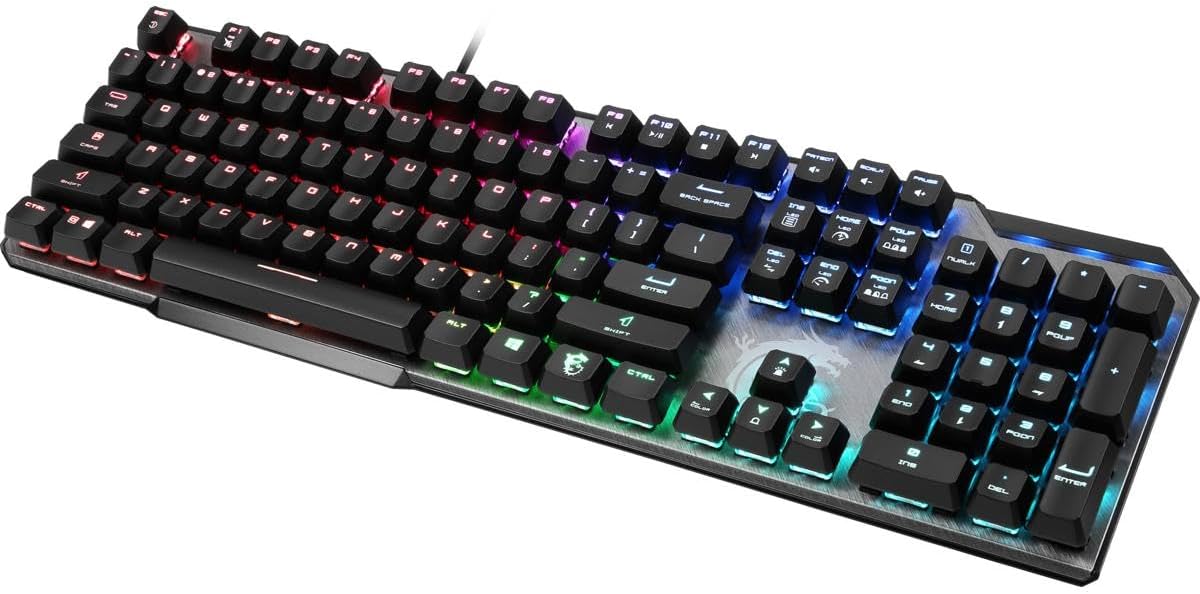
An angled view of the MSI Vigor GK50 Elite LL Mechanical Gaming Keyboard, showcasing its full layout and vibrant RGB backlighting.
2. Package Contents
Please verify that all items are present in your package:
- MSI Vigor GK50 Elite LL Mechanical Gaming Keyboard
- Integrated USB Cable
- Keycap Puller
- User Manual / Quick Start Guide

The MSI Vigor GK50 Elite LL keyboard displayed alongside its product box, providing a sense of scale and packaging design.
3. Key Features
- Superior Luxury Build: Brushed aluminum top plate with a durable bottom plate, integrated cable routing, and a gold-plated USB connector.
- Kailh Blue Switches: Crisp, clicky mechanical switches with IP56 waterproof/dustproof rating, 50g actuation force, and 1.9mm actuation point.
- 104 Keys with Octagonal Shaped Keycaps: Full-sized layout providing ample space for comfortable typing and gaming.
- Brilliant Per-Key RGB Lighting: Over 16 million customizable colors and various lighting effects accessible via standalone keys or MSI Mystic Light software.
- N-Key Rollover: Ensures every keystroke is registered accurately, even during intense gaming sessions.
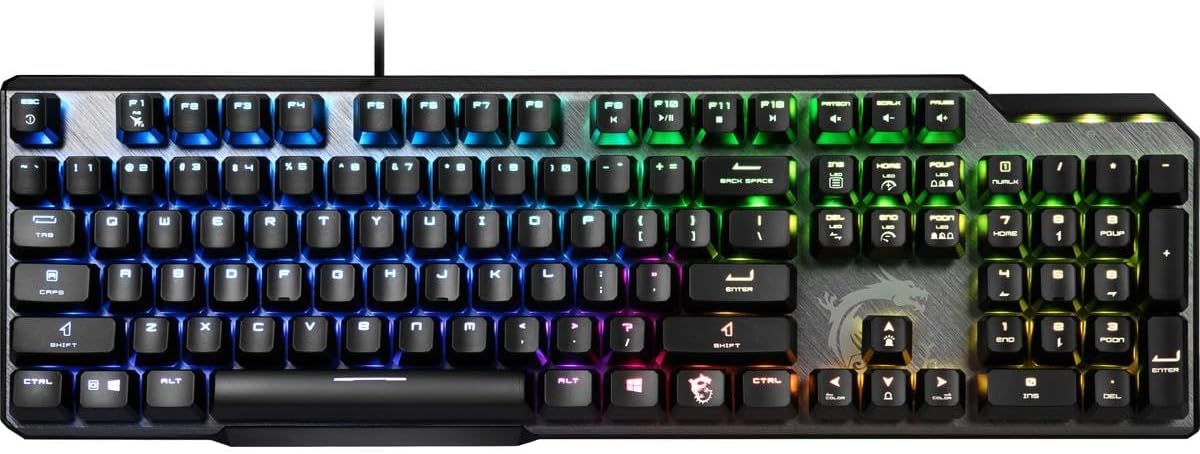
A direct top-down view of the MSI Vigor GK50 Elite LL keyboard, highlighting the full 104-key layout and per-key RGB illumination.
4. Setup Guide
4.1 Connecting the Keyboard
To connect your MSI Vigor GK50 Elite LL keyboard, simply plug the integrated USB 2.0 cable into an available USB port on your computer. The keyboard is plug-and-play and should be automatically recognized by your operating system (Windows 10 or later recommended).
4.2 Software Installation (Optional)
For advanced customization of RGB lighting effects, key assignments, and other settings, download and install the MSI Dragon Center or MSI Mystic Light software from the official MSI website. This software allows you to fine-tune your keyboard to your preferences.
5. Operating Instructions
5.1 Basic Keyboard Functions
The MSI Vigor GK50 Elite LL functions as a standard 104-key keyboard for all general typing and computing tasks. Its Kailh Blue mechanical switches provide a tactile and audible click for satisfying feedback with each keystroke.
5.2 RGB Lighting Control
The keyboard features per-key RGB lighting with various built-in effects. You can control these effects directly from the keyboard using the function (Fn) key combinations:
- Fn + Ins: Cycle through lighting modes (e.g., Overlap, Steady, Breach, Wave, Radar, Whirlpool, Ripple, Reactive, Off).
- Fn + Del: Adjust lighting direction.
- Fn + Home: Adjust lighting speed.
- Fn + End: Adjust lighting brightness.
- Fn + Page Up: Change lighting colors.
- Fn + Page Down: Return to default lighting settings.
For more advanced customization and synchronization with other MSI Mystic Light compatible devices, use the MSI Dragon Center software.

A close-up shot focusing on the vibrant RGB lighting of the navigation and arrow keys, highlighting the octagonal keycap design.
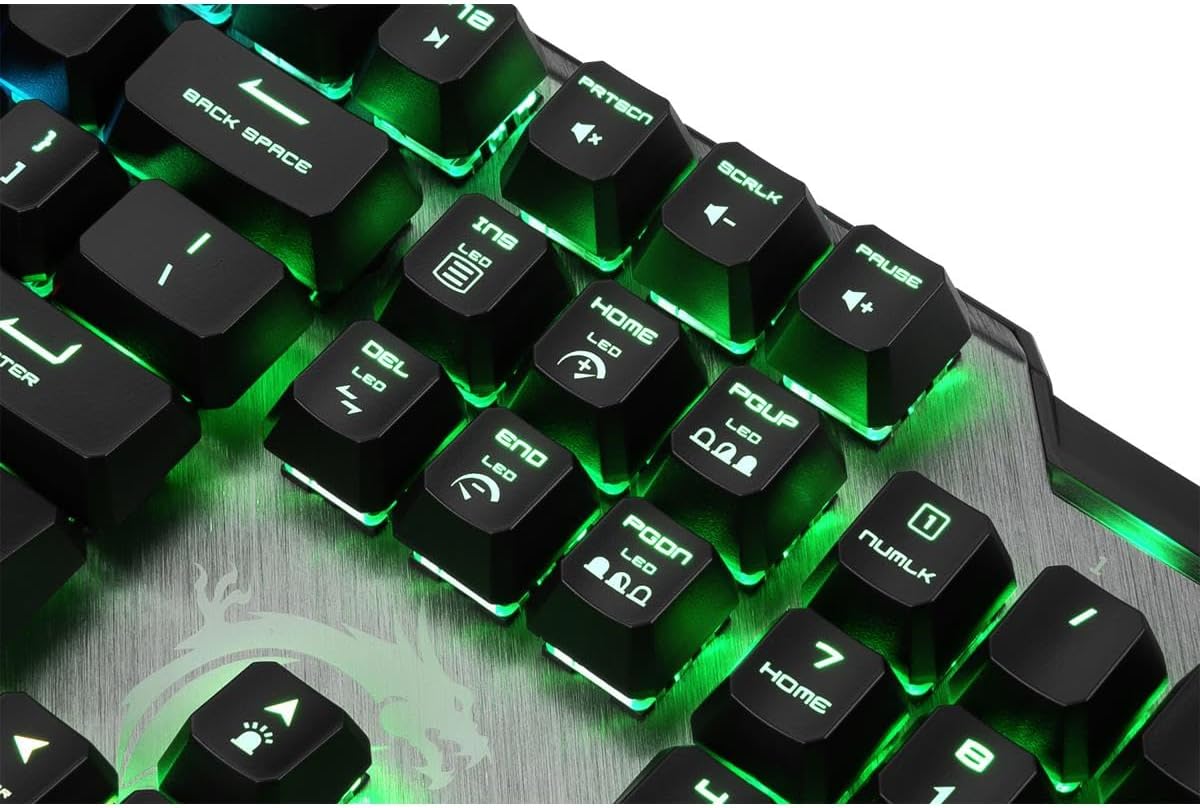
A detailed view of the function and media keys on the top right, showcasing the per-key RGB illumination and key legends.
5.3 Multimedia and Function Keys
The keyboard includes dedicated function keys for multimedia control and other shortcuts:
- Fn + F9: Windows Lock/Unlock
- Fn + F10: Previous Track
- Fn + F11: Play/Pause Track
- Fn + F12: Stop Track
- Fn + Print Screen: Volume Up
- Fn + Scroll Lock: Volume Down
- Fn + Pause Break: Mute
6. Maintenance
6.1 Cleaning the Keyboard
To maintain the performance and appearance of your keyboard, regularly clean it using a soft, dry cloth. For deeper cleaning, you can use a can of compressed air to remove dust and debris from between the keycaps. Avoid using harsh chemicals or abrasive materials.
6.2 Keycap Removal and Installation
The MSI Vigor GK50 Elite LL comes with a keycap puller to facilitate easy removal and cleaning of individual keycaps. Gently attach the keycap puller to the keycap and pull upwards. To reinstall, align the keycap with the switch stem and press down firmly until it clicks into place. Exercise caution to avoid damaging the switches.

A detailed view of the keyboard's underside, showing the integrated cable routing channels for organized desk setup.
7. Troubleshooting
| Issue | Possible Solution |
|---|---|
| Keyboard not responding | Ensure the USB cable is securely connected to both the keyboard and the computer. Try plugging the keyboard into a different USB port. Restart your computer. |
| RGB lighting not working or incorrect | Check the Fn key combinations for lighting control (Fn + Ins, Del, Home, End, Page Up, Page Down). Ensure MSI Dragon Center/Mystic Light software is installed and updated, and check its settings. |
| Keys not registering or ghosting | Verify N-Key Rollover is active (it should be by default). Ensure no debris is lodged under the keycaps. Reinstall any loose keycaps. Update keyboard drivers if available (though usually plug-and-play). |
| Keyboard is wet or exposed to dust | Unplug immediately. Allow to dry completely before reconnecting. The Kailh Blue switches are IP56 rated for water and dust resistance, offering protection against spills and dust ingress. |
8. Technical Specifications
| Brand | MSI |
| Model Number | VIGOR GK50 ELITE LL |
| Switch Type | Kailh Blue Mechanical Switches |
| Key Rollover | N-Key Rollover |
| Backlighting | Per-Key RGB Mystic Light |
| Connectivity | USB 2.0 (Wired) |
| Layout | Full-Sized (104 Keys) |
| Material | Brushed Aluminum Top Plate |
| Dimensions (LxWxH) | 18.26 x 7.4 x 1.92 inches |
| Weight | 2.5 pounds |
| Operating System Compatibility | Windows 10 |
| Special Features | IP56 Waterproof/Dustproof, Ergonomic Keycaps |
9. Warranty and Support
For warranty information, technical support, and the latest drivers or software updates, please visit the official MSI website or refer to the warranty card included with your product.
You can also download the full User Manual (PDF) for detailed information: Download User Manual (PDF)
Ask a question about this manual
Ask about setup, troubleshooting, compatibility, parts, safety, or missing instructions. Manuals+ will review the question and use this page’s manual context to help answer it.