
1. Product Overview
The Amcrest 5MP Outdoor PoE Bullet IP Security Camera (Model: IP5M-B1186EW-28MM) is designed for robust outdoor surveillance, offering high-resolution video and advanced AI features. This camera provides clear 5-megapixel (2592 x 1944p) video, enhanced low-light performance, and a wide 132° viewing angle. It supports Power over Ethernet (PoE) for simplified installation and is built with an IP67 weatherproof housing for durability in various environmental conditions. Key features include human and vehicle detection, tripwire, intrusion detection, a built-in microphone, and flexible storage options.
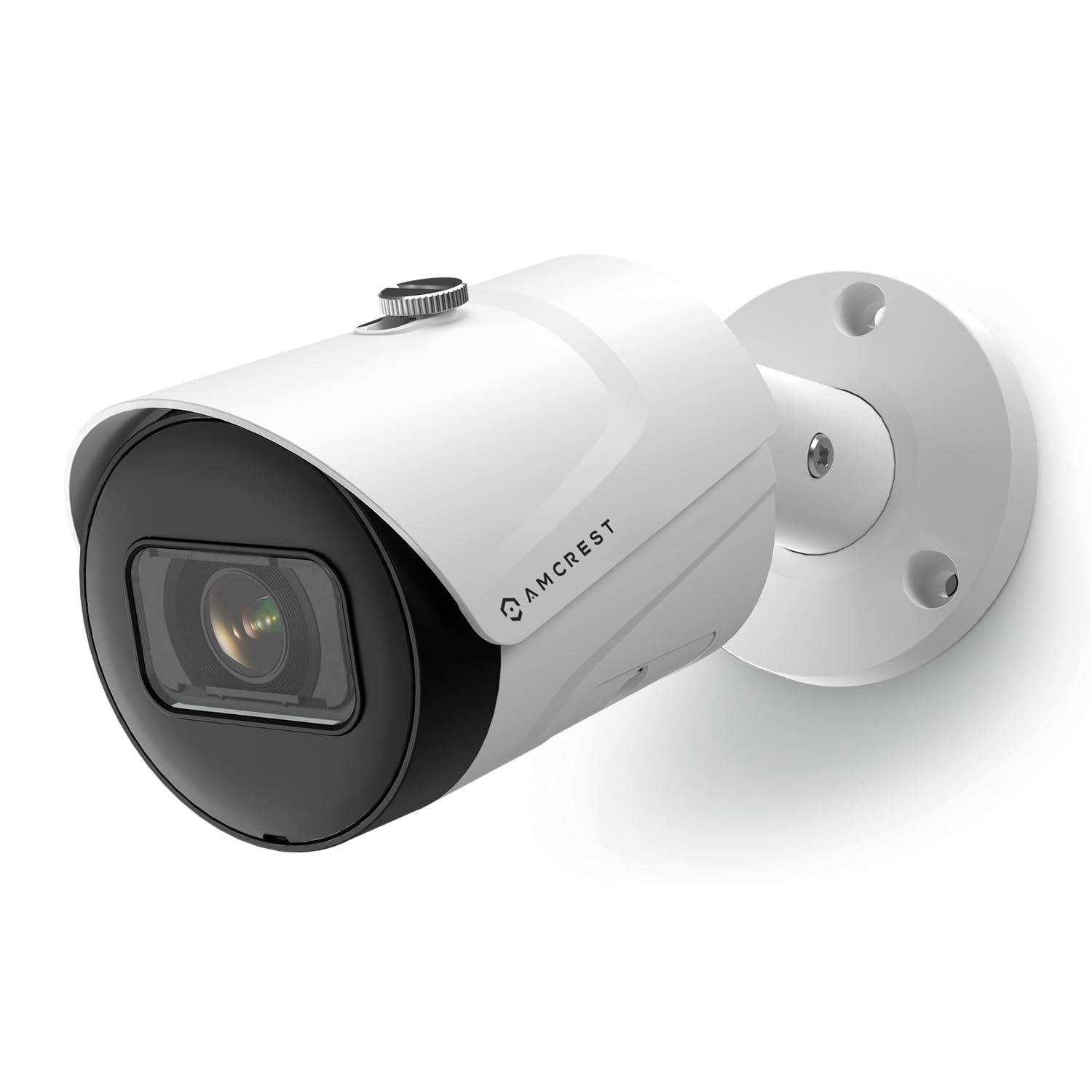
Figure 1: Amcrest 5MP Outdoor PoE Bullet IP Security Camera.
2. What's in the Box
- Amcrest 5MP Outdoor PoE Bullet IP Security Camera (Model: IP5M-B1186EW-28MM)
- Quick Start Guide
- Mounting Hardware (screws, anchors)
- Waterproof Ethernet Connector
- Backup Power Cable (for optional use)
Video 1: Official Amcrest video demonstrating the product and its features, including unboxing and setup overview. This video highlights the camera's design and ease of use.
3. Key Features
- AI Features: Human and Vehicle Detection, IVS (Tripwire, Intrusion Detection) to minimize false alerts.
- High Resolution: Stunning 5-Megapixel (2592 x 1944p) video at 20fps for clear imaging.
- Wide Viewing Angle: Super-wide 132° viewing angle to cover larger areas.
- Power over Ethernet (PoE): Simplifies installation by providing power and data through a single Ethernet cable. PoE injector or switch required (not included).
- Weatherproof Design: Heavy-duty metal IP67 housing for outdoor use, resistant to rain and harsh weather.
- Night Vision: Built-in IR LED and low lux image sensor provide night vision up to 98.4 feet.
- Built-in Microphone: Captures audio for comprehensive surveillance.
- Flexible Storage: Supports MicroSD (up to 256GB), local PC, NAS, FTP, Amcrest Cloud remote video storage, and Amcrest NVRs.
- H.264 Compression: Efficient video compression for optimal storage and bandwidth usage.
- Compatibility: Works with Amcrest View Pro 2 app, Amcrest Orion Surveillance software, Blue Iris Professional, and Alexa through AmcrestCloud.
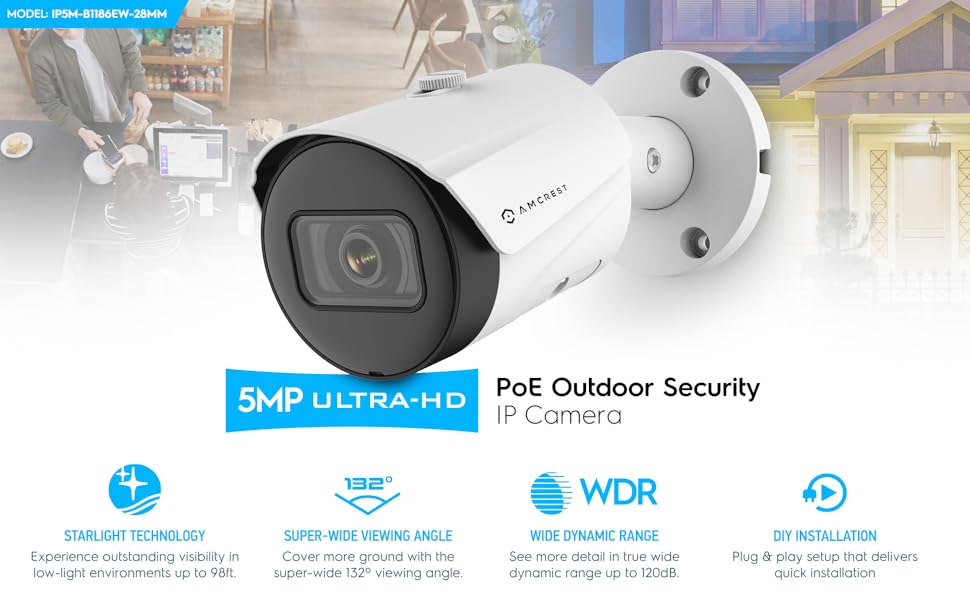
Figure 2: Overview of Amcrest 5MP UltraHD PoE Outdoor Security Camera features, including 98ft night vision, WDR, and 132° viewing angle.
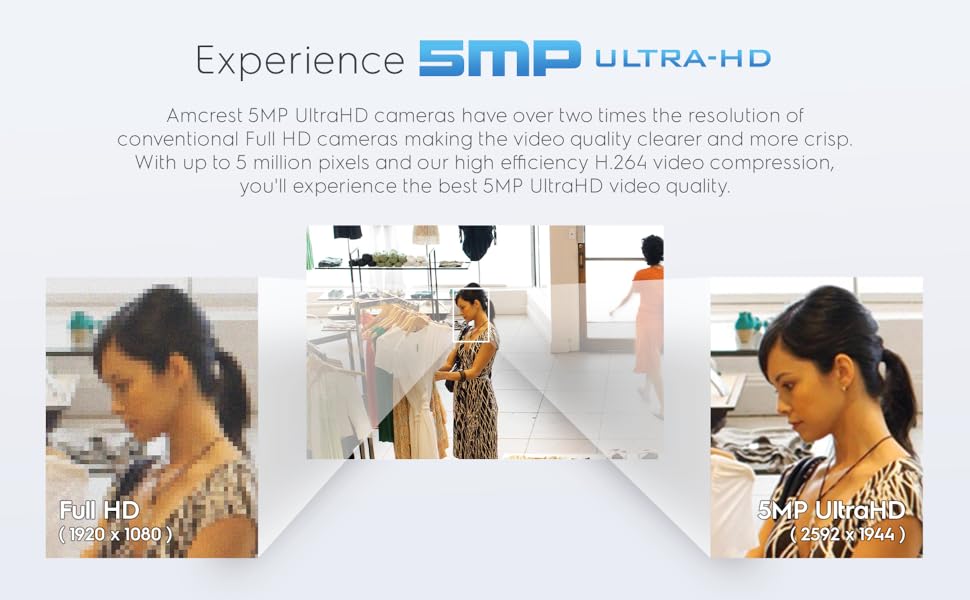
Figure 3: Visual comparison demonstrating the clarity of 5MP UltraHD resolution versus lower resolutions.
4. Setup and Installation
Before installation, ensure you have a PoE injector or switch. The camera is designed for straightforward setup.
4.1 Physical Installation
- Mounting Location: Choose a suitable outdoor location for optimal viewing, ensuring it is within reach of your Ethernet cable. The camera's adjustable mount allows for flexible positioning.
- Secure Mounting: Use the provided screws and anchors to securely attach the camera's base to a wall or ceiling. The base includes waterproof pads to protect against moisture when mounted.
- Cable Connection: Connect an Ethernet cable from your PoE injector/switch to the camera's Ethernet port. Utilize the included waterproof Ethernet connector to ensure a sealed connection, protecting against environmental elements.
- Optional Power: If not using PoE, connect a 12V power adapter (not included) to the camera's power input.

Figure 4: The Amcrest camera with its adjustable mounting bracket, designed for secure outdoor installation.
4.2 Network Configuration
- Initial Connection: Once powered via PoE, the camera should automatically acquire an IP address from your network.
- Amcrest View Pro 2 App: Download the Amcrest View Pro 2 app from your device's app store. Follow the in-app instructions to add your camera by scanning the QR code on the camera or manually entering its details.
- Web Interface: For advanced settings, access the camera's web interface via a web browser on a computer connected to the same network. Refer to the Quick Start Guide for default login credentials and instructions on finding the camera's IP address. It is highly recommended to change the default password immediately for security.
5. Operating the Camera
The Amcrest 5MP camera offers various operational modes and features accessible through the Amcrest View Pro 2 app or compatible surveillance software.
5.1 Live View and Playback
- Access live video streams from your camera via the Amcrest View Pro 2 app on your smartphone or tablet.
- Review recorded footage stored on a MicroSD card, NVR, NAS, or Amcrest Cloud through the app's playback function.

Figure 5: The Amcrest View Pro 2 mobile application interface, showing live view and playback options.
5.2 Motion Detection and Alerts
- Configure motion detection zones and sensitivity settings within the app or web interface to customize alert triggers.
- Receive email or phone alerts when human or vehicle detection, tripwire, or intrusion events are triggered.
- The AI features help reduce false alarms from environmental factors like leaves or animals.
Figure 6: Illustration of smart motion detection capabilities, including human and vehicle filtering to prevent false alerts.
5.3 Recording and Storage
- Record continuously, on schedule, or based on motion detection events.
- Utilize a MicroSD card (up to 256GB, not included) for local storage.
- Integrate with Amcrest NVRs, QNAP NAS, or FTP servers for centralized recording.
- Consider the optional Amcrest Cloud subscription service for secure off-site video backup.
6. Maintenance
Regular maintenance ensures optimal performance and longevity of your Amcrest camera.
- Cleaning: Periodically wipe the camera lens and housing with a soft, damp cloth to remove dust, dirt, or water spots. Avoid abrasive cleaners.
- Firmware Updates: Ensure your camera's firmware is up-to-date. Amcrest regularly releases updates to improve performance, add features, and enhance security. Check the Amcrest website for the latest firmware.
- Connection Check: Periodically inspect the Ethernet cable and connections for any signs of wear or damage, especially the waterproof connector.
Figure 7: The camera's IP67 weatherproof housing ensures durability against outdoor elements, reducing maintenance needs.
7. Troubleshooting
If you encounter issues with your camera, refer to the following common solutions:
- No Video/Offline:
- Verify the Ethernet cable is securely connected at both ends (camera and PoE injector/switch/NVR).
- Ensure the PoE injector/switch is powered on and functioning correctly.
- If using a separate power adapter, confirm it is connected and providing power.
- Check your network connection and router settings.
- Poor Image Quality:
- Clean the camera lens to remove any smudges or dirt.
- Ensure there are no obstructions in the camera's field of view.
- Check network bandwidth; insufficient bandwidth can affect streaming quality.
- Excessive Motion Alerts:
- Adjust motion detection sensitivity settings in the Amcrest View Pro 2 app or web interface.
- Refine motion detection zones to exclude areas with frequent irrelevant movement (e.g., trees swaying).
- Utilize the human and vehicle detection filters to reduce alerts from non-human/vehicle sources.
- Cannot Access Camera:
- Confirm the camera's IP address and ensure your device is on the same network.
- Reset the camera to factory defaults (refer to the Quick Start Guide for instructions) if you've forgotten login credentials or network settings.
For further assistance, please contact Amcrest Customer Support.
8. Specifications
| Feature | Detail |
|---|---|
| Model Number | IP5M-B1186EW-28MM |
| Resolution | 5-Megapixel (2592 x 1944p) |
| Viewing Angle | 132 Degrees |
| Connectivity | Wired (Power Over Ethernet) |
| Weatherproof Rating | IP67 |
| Night Vision Range | Up to 98 Feet |
| Special Features | AI Human & Vehicle Detection, Tripwire, Intrusion, Built-in Mic |
| Storage Options | MicroSD (up to 256GB), NVR, NAS, FTP, Amcrest Cloud |
| Material | Metal Housing |
| Dimensions | 6.5 x 2.76 x 2.76 inches |
| Weight | 1.28 Pounds |
9. Warranty and Support
Amcrest provides a 1-Year US Warranty for this product. Additionally, customers receive Lifetime Support directly from Amcrest. For technical assistance, troubleshooting, or warranty claims, please visit the official Amcrest support website or contact their customer service team.
Amcrest cameras feature secure SSL/HTTPS connections, FCC and CE certificates, and receive regular firmware updates to ensure safety and reliability.


