
Trust 23812
Trust Ozaa Rechargeable Wireless Mouse User Manual
Model: 23812
Introduction
This user manual provides comprehensive instructions for the setup, operation, maintenance, and troubleshooting of your Trust Ozaa Rechargeable Wireless Mouse. Please read this manual carefully before using the product to ensure optimal performance and longevity.

Image: The Trust Ozaa Rechargeable Wireless Mouse shown with its USB receiver and micro-USB charging cable. This image illustrates the main components included with the mouse.
Package Contents
Verify that all items are present in the package:
- Trust Ozaa Rechargeable Wireless Mouse
- USB Receiver
- Micro-USB Charging Cable
- Instructions for Use (this manual)

Image: The retail packaging for the Trust Ozaa Rechargeable Wireless Mouse, highlighting its key features such as 10m wireless range, comfortable design, and silent click buttons.
Setup
- Charge the Mouse: Before first use, connect the supplied micro-USB charging cable to the mouse's charging port and to a USB power source (e.g., computer USB port, USB wall adapter). The charging indicator light will illuminate. Allow the mouse to fully charge.
- Insert USB Receiver: Locate the USB receiver, typically stored in a compartment on the underside of the mouse. Remove it and plug it into an available USB-A port on your computer (PC or Mac).
- Power On: Turn on the mouse using the on/off switch located on the underside.
- Automatic Connection: The mouse should automatically connect to your computer. No additional drivers are typically required for basic functionality (Plug and Play).

Image: A user operating the Trust Ozaa mouse wirelessly next to a laptop, demonstrating its plug-and-play functionality and 10-meter wireless range.
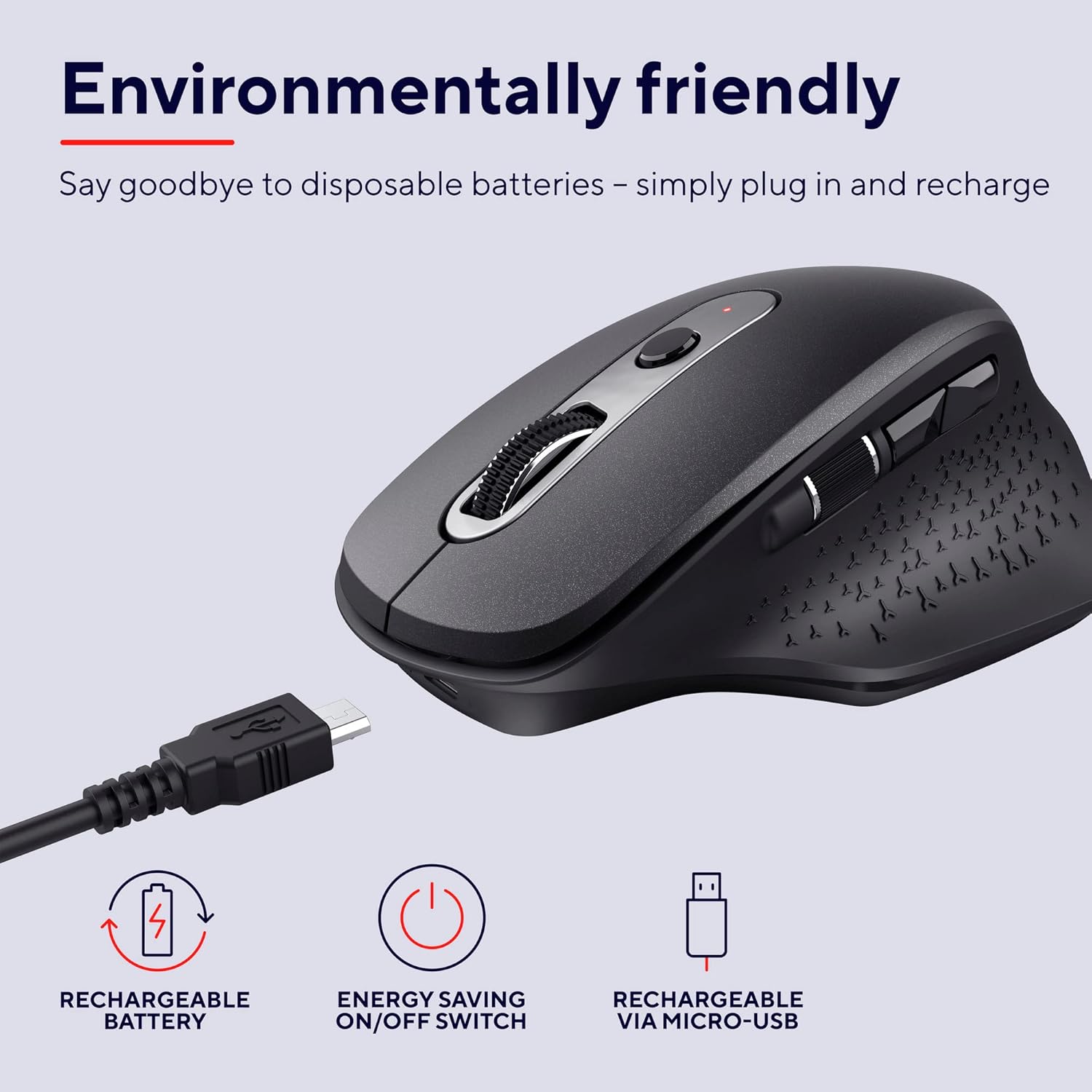
Image: The Trust Ozaa mouse being charged via its micro-USB cable, highlighting its rechargeable battery and energy-saving features.
Operating Instructions
Button Functions
- Left Click Button: Standard primary click. Designed for silent operation.
- Right Click Button: Standard secondary click. Designed for silent operation.
- Scroll Wheel (Middle Button): Scroll vertically through documents and web pages. Press down for middle-click functionality.
- DPI Adjustment Button: Located behind the scroll wheel. Press to cycle through different cursor speeds (DPI settings: 800, 1200, 1600, 2400 DPI).
- Side Scroll Wheel: Located on the left side. Allows for horizontal scrolling.
- Forward/Backward Buttons: Located above the side scroll wheel. Used for navigating forward and backward in web browsers or file explorers.

Image: An overhead view of the Trust Ozaa mouse, visually indicating the DPI adjustment, silent buttons, and convenient side scroll wheel.
DPI Adjustment
The mouse features an adjustable cursor speed (DPI) ranging from 800 to 2400 DPI. To change the DPI, press the dedicated DPI button located behind the main scroll wheel. Each press will cycle through the available settings, allowing you to select the sensitivity that best suits your task or preference.
Energy Saving
To conserve battery life, the mouse is equipped with an on/off switch on its underside. It also features an automatic sleep mode that activates after a period of inactivity. To wake the mouse, simply move it or click any button.
Maintenance
- Cleaning: Use a soft, dry cloth to clean the mouse. For stubborn dirt, a slightly damp cloth can be used, but ensure no moisture enters the internal components. Do not use harsh chemicals or abrasive cleaners.
- Charging: Recharge the mouse when the battery indicator light signals low power or when performance degrades. Use only the provided charging cable or a compatible micro-USB cable.
- Storage: When not in use for extended periods, turn off the mouse to preserve battery life. Store it in a cool, dry place.
Troubleshooting
| Problem | Possible Cause | Solution |
|---|---|---|
| Mouse not responding. |
|
|
| Cursor movement is erratic or jumpy. |
|
|
| Buttons not working. |
|
|
Specifications
| Brand | Trust |
| Model Number | 23812 |
| Connectivity Technology | Radio Frequency (Wireless) |
| Wireless Range | Up to 10 meters |
| DPI Settings | 800, 1200, 1600, 2400 DPI (Adjustable) |
| Number of Buttons | 6 (Left, Right, Scroll Wheel Click, DPI, Forward, Backward) + Side Scroll Wheel |
| Main Buttons | Silent Left and Right Buttons |
| Power Source | Rechargeable Battery (1 AAA battery included, contained in equipment) |
| Charging Port | Micro-USB |
| Product Dimensions (L x W x H) | 7.7 x 11.8 x 4.6 cm |
| Item Weight | 122 g |
| Hardware Platform Compatibility | PC, Mac |
| Operating System Compatibility | Chrome OS, Windows, Mac OS |
| Special Features | Wireless, Rechargeable, Quiet, Ergonomic Design, Energy-saving On/Off Switch |
Warranty and Support
For warranty information and technical support, please refer to the official Trust website or contact their customer service directly. Keep your proof of purchase for warranty claims.
Trust Official Website: www.trust.com
No official product videos from the seller were available for inclusion in this manual.
Related documents23812


Ask a question about this manual
Ask about setup, troubleshooting, compatibility, parts, safety, or missing instructions. Manuals+ will review the question and use this page’s manual context to help answer it.