1. Product Overview
The SEMAITU TH003 is a single DIN multimedia car stereo designed to enhance your in-car audio experience. It features Bluetooth connectivity for hands-free calling and audio streaming, USB and SD card support for MP3, WMA, and WAV formats, an AUX input, and an FM radio receiver. The unit also supports mobile app control for convenient operation.

Figure 1.1: Front view of the SEMAITU TH003 car stereo unit.
2. Package Contents
Verify that all items are present in your package:
- SEMAITU TH003 Car Stereo Unit
- Remote Control (with steering wheel bracket)
- Wiring Harness
- Mounting Brackets (2x)
- User Manual (this document)

Figure 2.1: Included components in the SEMAITU TH003 package.
3. Controls and Functions (Front Panel)
Familiarize yourself with the buttons and controls on the front panel of your car stereo:

Figure 3.1: Labeled diagram of the front panel controls.
- POWER/MODE/HAND & UP (ⓘ/MODE/☎/▲)
- Press to turn the unit on/off. Short press to cycle through modes (FM, BT, USB, SD, AUX). Long press to answer/end calls. Up arrow for navigation.
- VOL+/- (Volume Knob)
- Rotate to adjust volume. Press to access EQ settings.
- CLK (Clock)
- Press to display the current time. Long press to set the time.
- MUTE
- Press to mute or unmute audio output.
- BAND/APS/ANSWER (BAND/APS/☎)
- In FM mode, press to select radio bands (FM1, FM2, FM3). Long press for Automatic Preset Store. In Bluetooth mode, press to answer incoming calls.
- PREVIOUS (◀◀)
- Short press to go to the previous track/station. Long press for fast rewind.
- NEXT (▶▶)
- Short press to go to the next track/station. Long press for fast forward.
- PLAY/PAUSE (▶‖)
- Press to play or pause media playback.
- 1/▶‖ (Preset 1)
- In FM mode, short press to select preset station 1. Long press to save current station to preset 1.
- 2/INT (Preset 2)
- In FM mode, short press to select preset station 2. Long press to save current station to preset 2. In media playback, short press for Intro Play (plays first few seconds of each track).
- 3/RPT (Preset 3)
- In FM mode, short press to select preset station 3. Long press to save current station to preset 3. In media playback, short press for Repeat (repeat current track, folder, or all).
- 4/RDM (Preset 4)
- In FM mode, short press to select preset station 4. Long press to save current station to preset 4. In media playback, short press for Random Play (shuffle).
- 5/-10 (Preset 5)
- In FM mode, short press to select preset station 5. Long press to save current station to preset 5. In media playback, short press to jump back 10 tracks.
- 6/+10 (Preset 6)
- In FM mode, short press to select preset station 6. Long press to save current station to preset 6. In media playback, short press to jump forward 10 tracks.
- USB Port (Top)
- For USB media playback.
- USB Port (Bottom)
- For USB charging.
- SD Card Slot (TF)
- For SD card media playback.
- MIC
- Built-in microphone for hands-free calling.
- AUX IN
- 3.5mm auxiliary input for external audio devices.
4. Rear Panel Connections
The rear panel provides all necessary connections for power, speakers, and antenna. Refer to the diagram for proper wiring.
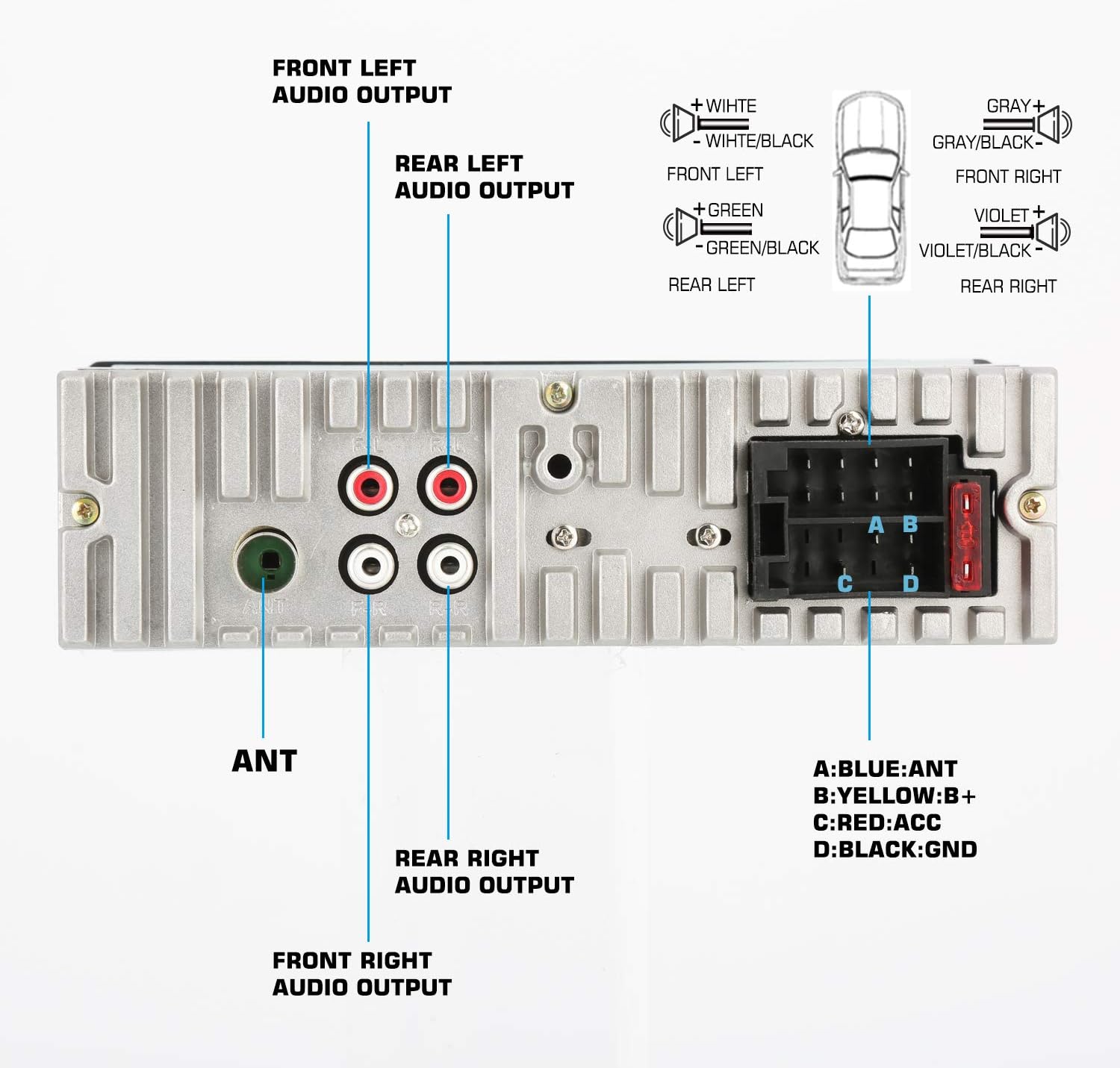
Figure 4.1: Labeled diagram of the rear panel connections.
4.1. Wiring Harness
| Pin | Color | Function |
|---|---|---|
| A | Blue | ANT (Antenna Power) |
| B | Yellow | B+ (Constant 12V Power) |
| C | Red | ACC (Accessory Power) |
| D | Black | GND (Ground) |
4.2. Audio Outputs
- Front Left Audio Output: White/Black (Negative), White (Positive)
- Rear Left Audio Output: Green/Black (Negative), Green (Positive)
- Front Right Audio Output: Gray/Black (Negative), Gray (Positive)
- Rear Right Audio Output: Violet/Black (Negative), Violet (Positive)
5. Setup
5.1. Installation
The SEMAITU TH003 is designed for single DIN vehicle openings. Ensure your vehicle's dashboard has a compatible slot. Professional installation is recommended to ensure correct wiring and avoid damage to your vehicle's electrical system.

Figure 5.1: Example of the car stereo installed in a vehicle dashboard.
5.2. Remote Control Mounting
The included remote control can be mounted to your steering wheel for convenient access. To attach the remote to the steering wheel:
- Carefully slide the remote control unit off its mounting bracket. The remote slides off the bracket, revealing two screw holes underneath.
- Use the provided screws to secure the bracket to a suitable position on your steering wheel. The bracket features a Velcro strap for initial positioning and securing.
- Once the bracket is securely attached, slide the remote control unit back onto the bracket until it clicks into place.
6. Operating Instructions
6.1. Power On/Off
Press the ⓘ/MODE button to turn the unit on. Long press the same button to turn it off.
6.2. Bluetooth Connectivity
The TH003 features upgraded Bluetooth for seamless pairing with most devices. The device name for Bluetooth pairing is typically "CAR BT".
- Ensure Bluetooth is enabled on your mobile device.
- On your mobile device, search for available Bluetooth devices and select "CAR BT".
- Once paired, the unit will display "BT ON" or a similar indicator.
- You can now stream audio or make/receive hands-free calls through the car stereo.
6.3. Mobile App Control
Control your car stereo conveniently using the "SmartBT iPlug" mobile application.

Figure 6.1: Instructions for downloading the SmartBT iPlug app.
- Download the "SmartBT iPlug" app from the Apple App Store or Google Play Store. Alternatively, scan the QR code provided in the product documentation or visit http://www.szanghuidz.com/download.html for direct download.
- Ensure your phone is connected to the car stereo via Bluetooth.
- Open the "SmartBT iPlug" app. It will automatically connect to the car stereo.
- Use the app to control various functions such as radio tuning, media playback (BT, SD, AUX), and equalizer settings.
Video 6.1: Demonstration of app control with the TH3012 Car Stereo (similar to TH003).
6.4. Radio (FM) Operation
The unit supports FM radio reception (87.5-108.0 MHz).

Figure 6.2: FM radio display showing frequency.
- Press the MODE button to select FM mode.
- Use the ◀◀ and ▶▶ buttons to manually tune to stations.
- Long press ◀◀ or ▶▶ to automatically scan for the next strong station.
- Press the BAND button to switch between FM1, FM2, and FM3 bands.
- To save a station, tune to the desired frequency, then long press one of the preset buttons (1-6).
- To recall a saved station, short press the corresponding preset button (1-6).
6.5. USB/SD/AUX Playback
The TH003 supports various media sources.

Figure 6.3: AUX input connection for external audio devices.
- USB/SD: Insert a USB drive into the top USB port or an SD card into the TF slot. The unit will automatically switch to USB/SD mode and begin playback of supported MP3, WMA, or WAV files.
- AUX Input: Connect an external audio device (e.g., MP3 player, smartphone) to the 3.5mm AUX IN port on the front panel using an audio cable. Press the MODE button to select AUX mode.
- Break-Point Memory: The unit features a break-point memory function, which resumes playback from where it left off when the unit was last turned off.
6.6. Equalizer (EQ)
Customize your audio output by adjusting the equalizer settings. Press the VOL knob to cycle through preset EQ modes (e.g., POP, ROCK, CLASS, JAZZ) or access custom settings if available through the mobile app.
6.7. Clock Function
Press the CLK button to display the current time. To set the time, long press the CLK button, then use the volume knob or arrow buttons to adjust the hours and minutes. Press CLK again to confirm.
7. Maintenance
- Cleaning: Use a soft, dry cloth to clean the unit's front panel. Do not use abrasive cleaners or solvents.
- Temperature: Avoid exposing the unit to extreme temperatures or direct sunlight for prolonged periods.
- Moisture: Keep the unit dry. Moisture can damage internal components.
8. Troubleshooting
| Problem | Possible Cause | Solution |
|---|---|---|
| No power | Incorrect wiring; Blown fuse | Check power connections (B+, ACC, GND). Verify vehicle fuse and unit's fuse. |
| No sound | Volume too low; Mute activated; Incorrect speaker wiring | Increase volume. Press MUTE button. Check speaker connections. |
| Bluetooth not connecting | Bluetooth not enabled; Device not in pairing mode; Interference | Ensure Bluetooth is on for both devices. Restart both devices. Try pairing in a different location. |
| Remote control not working | Battery depleted; Obstruction; Incorrect pairing (if applicable) | Replace remote battery. Ensure clear line of sight to the unit's IR receiver. |
| Poor radio reception | Antenna not connected; Weak signal area | Ensure antenna is securely connected. Try tuning to stronger stations or move to an area with better signal. |
9. Specifications
- Model Number: TH003
- Package Dimensions: 10.55 x 8.43 x 3.62 inches
- Item Weight: 1.15 pounds
- Connectivity Technology: Auxiliary, Bluetooth, USB
- Controller Type: Android (via app)
- Special Feature: Equalizer
- Compatible Devices: Smartphone, Speaker
- Total HDMI Ports: 2 (Note: This specification might be an error in the source data as typical car stereos of this type do not have HDMI ports. Please verify with product packaging.)
- Connector Type: 3.5mm Jack, USB
- Audio Output Mode: Stereo
- Surround Sound Channel Configuration: 2.0
- Video Encoding: WMV (for supported media playback)
10. Warranty and Support
Every SEMAITU car stereo is backed by superior quality and undergoes strict quality inspection. The product includes a Lifetime Warranty.
If you encounter any problems with your SEMAITU TH003 car audio system, please contact the seller or manufacturer's customer service team for assistance. They are committed to providing prompt support and ensuring 100% customer satisfaction.


