
CADEL 4D14513032
CADEL Control Panel User Manual
Model: 4D14513032
Introduction
This manual provides essential information for the proper installation, operation, and maintenance of your original CADEL Control Panel, model 4D14513032, designed specifically for CADEL pellet stoves. Please read this manual thoroughly before attempting any installation or operation to ensure safe and efficient use of the product.
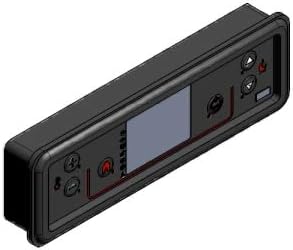
An angled view of the CADEL original control panel, featuring a dark grey casing, a central display screen, and various control buttons on either side. This panel is designed for seamless integration with CADEL pellet stoves.
Setup and Installation
The CADEL Control Panel 4D14513032 is an original replacement part. Installation should ideally be performed by a qualified technician to ensure correct wiring and functionality, and to maintain the warranty of your pellet stove.
Safety Precautions:
- Always disconnect the pellet stove from the main power supply before beginning any installation or maintenance work.
- Ensure all connections are secure and correctly matched to prevent electrical hazards or damage to the control panel and stove.
- Refer to your specific pellet stove's manual for detailed wiring diagrams and compatibility information.
Installation Steps (General):
- Power Disconnection: Turn off and unplug the pellet stove from the electrical outlet.
- Access Panel: Locate and carefully remove the existing control panel or access panel on your pellet stove.
- Disconnect Old Panel: Gently disconnect all wiring harnesses and connectors from the old control panel. Note the position of each connector if not clearly labeled.
- Install New Panel: Connect the wiring harnesses from the pellet stove to the new CADEL Control Panel 4D14513032. Ensure each connector clicks securely into place.
- Secure Panel: Mount the new control panel into its designated slot, ensuring it is flush and secure.
- Power Reconnection: Once installation is complete and all connections are verified, plug the pellet stove back into the power supply.
- Initial Test: Power on the stove and verify that the control panel display illuminates and responds to inputs.
Operating Instructions
The CADEL Control Panel provides intuitive control over your pellet stove's functions. While specific operations may vary slightly depending on your stove model, the general functions are as follows:
Panel Layout:
- Display Screen: Shows current status, temperature, error codes, and menu options.
- Power Button: Used to turn the stove ON/OFF.
- Menu/Select Button: Navigates through menus and confirms selections.
- Up/Down Arrows: Adjust settings (e.g., temperature, fan speed) or navigate menu options.
- Flame/Mode Button: Cycles through operating modes (e.g., manual, automatic, eco).
Basic Operation:
- Turning On: Press the Power button. The stove will initiate its start-up sequence.
- Adjusting Temperature: Use the Up/Down arrows to set the desired room temperature.
- Changing Mode: Press the Flame/Mode button to cycle through available operating modes. Refer to your stove's manual for detailed descriptions of each mode.
- Accessing Menus: Press the Menu/Select button to enter the main menu. Use Up/Down arrows to navigate and Menu/Select to confirm.
- Turning Off: Press and hold the Power button until the stove begins its shutdown cycle. Do not unplug the stove until the shutdown cycle is complete.
Maintenance
Regular maintenance of your control panel ensures its longevity and reliable performance. Keep the panel clean and free from dust and debris.
- Cleaning: Use a soft, dry cloth to wipe the surface of the control panel. For stubborn marks, slightly dampen the cloth with water. Avoid abrasive cleaners, solvents, or excessive moisture, as these can damage the display or buttons.
- Inspection: Periodically check the connections behind the panel (if accessible and safe to do so with power disconnected) to ensure they remain secure.
- Environmental Conditions: Ensure the control panel is not exposed to extreme temperatures, direct sunlight for prolonged periods, or high humidity, which can affect its electronic components.
Troubleshooting
If you encounter issues with your CADEL Control Panel, refer to the following common problems and solutions. For more complex issues, consult a qualified technician or CADEL customer support.
| Problem | Possible Cause | Solution |
|---|---|---|
| Panel does not power on. | No power to the stove; loose connection; faulty panel. | Check stove's power supply and circuit breaker. Verify all panel connections are secure. If issues persist, professional inspection may be required. |
| Buttons are unresponsive. | Software glitch; physical damage; debris under buttons. | Try restarting the stove (power cycle). Clean the panel surface. If buttons are physically stuck or damaged, replacement may be necessary. |
| Display is blank or flickering. | Loose display cable; internal component failure. | Ensure the panel is securely seated. This often indicates an internal issue requiring professional repair or replacement. |
| Error code displayed. | Specific stove malfunction. | Refer to your specific CADEL pellet stove's user manual for a list of error codes and their corresponding troubleshooting steps. |
Specifications
- Brand: CADEL
- Model Number: 4D14513032
- Product Type: Original Control Panel for Pellet Stoves
- ASIN: B08JQN7J45
- First Available Date: September 22, 2020
- Compatibility: Designed for specific CADEL pellet stove models (refer to your stove's documentation for verification).
Warranty and Support
As an original CADEL component, this control panel is covered by CADEL's standard warranty policy. For specific warranty terms and conditions, please refer to the documentation provided with your original pellet stove or visit the official CADEL website.
For technical support, spare parts, or service inquiries, please contact CADEL customer service or an authorized CADEL service center. When contacting support, please have your pellet stove's model and serial number, along with the control panel's model number (4D14513032), ready.
You can often find support contact information on the official CADEL website or through your original point of purchase.
Related documents4D14513032


Ask a question about this manual
Ask about setup, troubleshooting, compatibility, parts, safety, or missing instructions. Manuals+ will review the question and use this page’s manual context to help answer it.