
ABSOSO CA71BT
ABSOSO Double Din Car Stereo System User Manual
Model: CA71BT
1. Introduction
This user manual provides comprehensive instructions for the installation, operation, and maintenance of your ABSOSO Double Din Car Stereo System. This 7-inch HD touchscreen MP5 car player features Bluetooth connectivity, PhoneLink compatibility (CarPlay/Android Auto), support for rear and front view cameras, AM/FM radio, and various media input options including USB, SD, and AUX. Please read this manual thoroughly before using the product to ensure proper functionality and safety.
2. Important Safety Information
Always observe the following safety precautions to prevent injury or damage to the unit:
- Professional Installation Recommended: Due to the complexity of car electrical systems, professional installation is highly recommended. Incorrect wiring can cause damage to the unit or vehicle.
- Power Supply: Ensure the unit is connected to a 12V DC power supply with negative grounding.
- Avoid Water and Moisture: Do not expose the unit to water or excessive moisture.
- Temperature: Operate the unit within the specified temperature range.
- Driving Safety: Do not operate the unit in a way that distracts you from driving. Always prioritize road safety.
- Screen Cleaning: Use a soft, dry cloth to clean the touchscreen. Avoid abrasive cleaners.
- Ventilation: Ensure adequate ventilation around the unit to prevent overheating.
3. What's Included
Verify that all components listed below are present in your package:
- 1 x 7-inch Double Din Bluetooth CarPlay Radio
- 1 x Backup Camera
- 1 x Backup Camera Cable
- 1 x IR Remote Control
- 1 x Steering Wheel Control Remote
- 1 x Wires Harness
- 1 x Mounting Kits
- 1 x User Manual (this document)

Figure 3.1: All components included in the ABSOSO Double Din Car Stereo System package. This image displays the main head unit, backup camera, two remote controls (IR and steering wheel), wiring harnesses, mounting brackets, and the user manual.
4. Setup & Installation
4.1. Pre-Installation Checks
- Ensure your vehicle has a double din opening (approximately 7 x 4 inches).
- Disconnect the vehicle's negative battery terminal before starting installation to prevent electrical shorts.
- Gather necessary tools: wire strippers, crimpers, electrical tape, screwdrivers.
4.2. Wiring Diagram and Dimensions
Refer to the following diagrams for proper wiring connections and unit dimensions. Incorrect wiring can damage the unit or vehicle's electrical system.
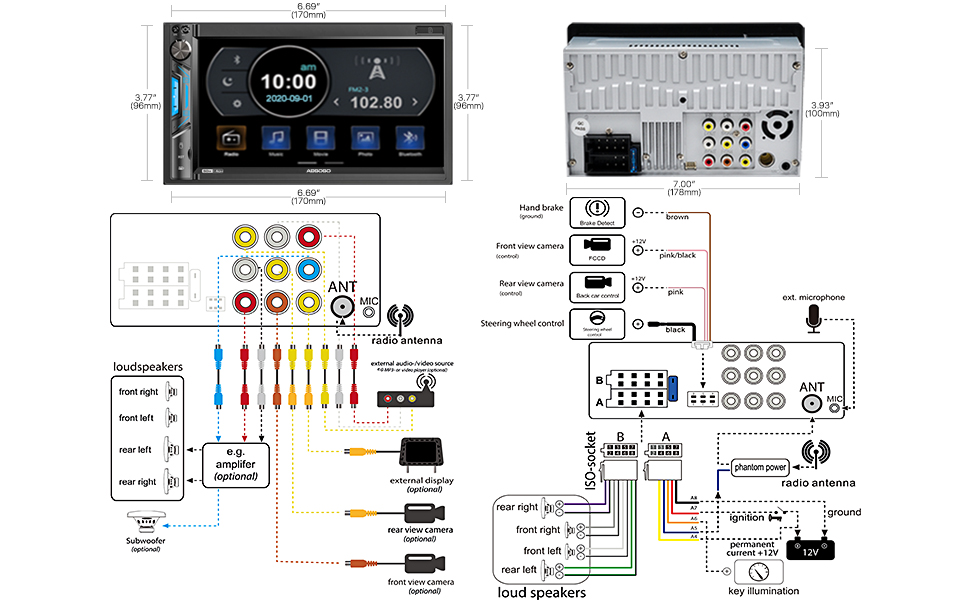
Figure 4.1: Detailed wiring diagram and physical dimensions of the ABSOSO Double Din Car Stereo. This diagram illustrates connections for power, speakers, camera inputs, steering wheel controls, and auxiliary inputs/outputs. Dimensions are provided in both inches and millimeters for precise fitting.
- Power Connections:
- Yellow wire: Constant 12V (Battery)
- Red wire: ACC (Ignition Switched 12V)
- Black wire: Ground
- Speaker Connections: Connect speaker wires according to the diagram, ensuring correct polarity for each speaker (Front Left, Front Right, Rear Left, Rear Right).
- Camera Input: Connect the backup camera to the "Rear View Camera Input" (usually a yellow RCA jack). The reverse trigger wire (often pink/brown) should be connected to the vehicle's reverse light circuit.
- Steering Wheel Control: Connect the steering wheel control wires (Key1, Key2) to your vehicle's steering wheel control interface, if applicable.
- Antenna: Connect the vehicle's radio antenna to the unit's antenna input.
4.3. Mounting the Unit
Once wiring is complete, carefully slide the unit into the double din opening in your dashboard. Secure it using the provided mounting brackets and screws. Ensure the unit is firmly seated and does not obstruct any vehicle controls.
5. Operating Instructions
5.1. Basic Controls and Interface

Figure 5.1: The main interface of the ABSOSO Double Din Car Stereo, showing the 7-inch HD touchscreen with various application icons, physical buttons, and a rotary knob. This image also displays the included remote controls and backup camera.
- Power Button/Volume Knob: Press to turn on/off. Rotate to adjust volume.
- Home Button: Returns to the main menu.
- Settings Icon: Access system settings (audio, display, general).
- Touchscreen: Navigate menus and select options by touching the screen.
- Multicolor Buttons: The unit features 7 customizable multicolor buttons for enhanced aesthetics.
5.2. Bluetooth Connectivity
The built-in Bluetooth allows for hands-free calling and wireless audio streaming.

Figure 5.2: Illustration of the Bluetooth features, including hands-free calling with a dial pad, music streaming interface, and voice navigation prompts displayed on the stereo screen.
- On the stereo, go to the Bluetooth menu.
- Enable Bluetooth on your mobile device and search for available devices.
- Select "ABSOSO" (or similar name) from the list on your phone.
- Confirm the pairing code if prompted.
- Once connected, you can make/receive calls and stream audio wirelessly.
5.3. PhoneLink (CarPlay / Android Auto / MirrorLink)
Connect your smartphone for integrated navigation, music, and other apps. Note: Only compatible with Android 11.0 or below, and iPhone XR, iPhone 8 Plus or below via original charging cable. This unit is not a GPS unit itself.

Figure 5.3: Displays the CarPlay, Android Auto, and MirrorLink interfaces on the stereo screen, showing navigation, music playback, and voice assistant interaction (Siri, Google Assistant). A user is shown interacting with the system while driving.
- Connect your smartphone to the unit's USB port using a high-quality USB cable (preferably the original charging cable for iPhones).
- The unit should automatically detect and launch CarPlay or Android Auto.
- Follow any on-screen prompts on both the stereo and your phone to complete the connection.
- For MirrorLink, ensure your phone supports the feature and follow the specific instructions provided by your phone manufacturer.
5.4. Media Playback (USB/SD/AUX)
Enjoy your favorite audio and video files from various sources.
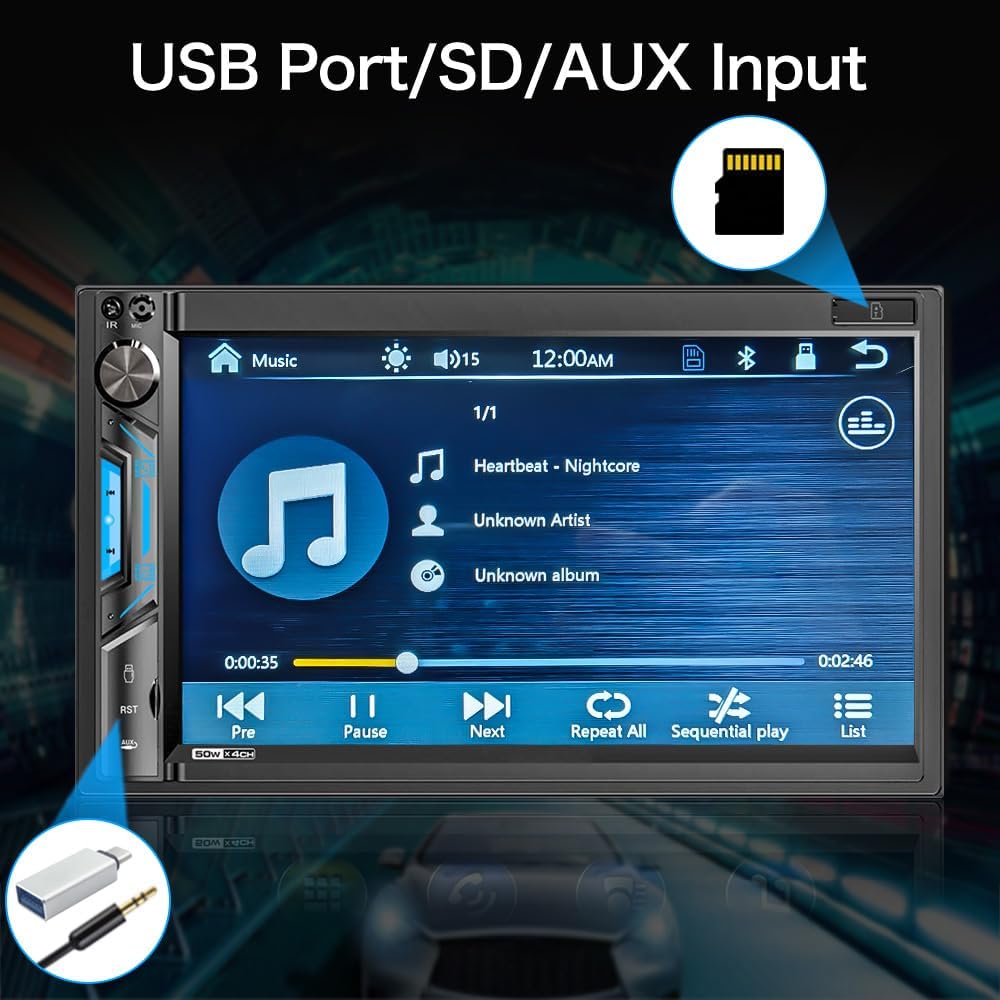
Figure 5.4: Close-up view of the stereo screen showing a music playback interface, with visual cues pointing to the USB port and SD card slot. This highlights the unit's capability to play media from external storage.
- USB: Insert a USB drive into the USB port. The unit will automatically detect and display playable media files.
- SD Card: Insert an SD card into the SD card slot. The unit will access media files stored on the card.
- AUX Input: Connect an external audio device (e.g., MP3 player) to the 3.5mm AUX input jack using an audio cable. Select "AUX" as the source on the stereo.
- Supported Formats:
- Audio: MP3, WMA, AVI, MKV, MP4, WMV, RMVB, MPEG
- Video: RM, RMVB, DVD(VOB), VCD(DAT), MP1, MP2, DIVX, XVID, MP4, H263, H264, FLV, 3GP, SWF, AVI, ASF, MJPEG
5.5. AM/FM Radio
Tune into your favorite radio stations.

Figure 5.5: The AM/FM radio interface on the stereo screen, showing frequency display, station presets, and tuning controls. The image emphasizes the unit's ability to support both AM and FM bands with 30 total station presets.
- Select the "Radio" icon from the main menu.
- Use the on-screen controls to scan for stations, manually tune, or select from preset stations.
- The unit supports 30 total station presets.
5.6. Rear and Front View Camera
The unit supports automatic display of camera feeds when reversing or manually selecting the front camera.

Figure 5.6: Depicts the stereo screen displaying a rear view camera feed, showing parking lines and a clear view behind the vehicle. An image of a car with a backup camera is also shown, illustrating the camera's function.
- When the vehicle is shifted into reverse, the unit will automatically display the rear camera feed.
- Ensure the backup camera is properly installed and connected to the "Rear View Camera Input" and the reverse trigger wire.
- If a front camera is installed, it can typically be accessed through a dedicated icon on the main menu or settings.
5.7. Steering Wheel Control (SWC)
Program your vehicle's steering wheel controls to operate the stereo.
- Go to the "Settings" menu on the stereo.
- Navigate to "Steering Wheel Control" or "SWC Learning".
- Follow the on-screen instructions to assign functions (e.g., volume up/down, track next/previous) to your steering wheel buttons.
- Press and hold each button on your steering wheel while selecting the corresponding function on the stereo's screen to program it.
6. Maintenance
- Cleaning the Screen: Use a soft, lint-free cloth to gently wipe the touchscreen. For stubborn smudges, slightly dampen the cloth with water or a screen-safe cleaner. Do not spray cleaner directly onto the screen.
- General Cleaning: Use a dry, soft cloth to wipe the unit's body. Avoid using harsh chemicals or abrasive materials.
- Software Updates: Check the ABSOSO official website periodically for any available firmware updates to ensure optimal performance and compatibility.
7. Troubleshooting
If you encounter issues with your stereo, refer to the following common problems and solutions:
| Problem | Possible Cause | Solution |
|---|---|---|
| No Power | Incorrect wiring; Blown fuse; Loose connection. | Check power (Yellow, Red, Black) wires. Verify fuse. Ensure all connections are secure. |
| No Sound | Incorrect speaker wiring; Volume too low; Mute enabled; Incorrect audio source. | Check speaker connections and polarity. Increase volume. Disable mute. Select correct audio source. |
| Bluetooth Not Connecting | Bluetooth not enabled on device; Device not in pairing mode; Interference. | Ensure Bluetooth is on and discoverable. Restart both devices. Clear previous pairings. |
| CarPlay/Android Auto Not Working | Incorrect USB cable; Phone OS version incompatible; App issues. | Use original USB cable. Check phone OS compatibility (Android 11.0 or below, iPhone XR/8 Plus or below). Restart phone and stereo. |
| Rear Camera Not Displaying | Camera not powered; Incorrect video input; Reverse trigger wire not connected. | Check camera power supply. Verify RCA video connection. Ensure reverse trigger wire is connected to reverse light. |
| Poor Radio Reception | Antenna not connected; Weak signal area; Damaged antenna. | Ensure antenna is securely connected. Try tuning in a different location. Inspect antenna for damage. |
If the problem persists after attempting these solutions, please contact ABSOSO customer support for assistance.
8. Specifications
| Feature | Detail |
|---|---|
| Model Number | CA71BT |
| Screen Size | 7 Inch HD Touchscreen |
| Display Resolution | 1080P Video Playback Support |
| Connectivity | Bluetooth, PhoneLink (CarPlay/Android Auto/MirrorLink), USB, SD, AUX |
| Bluetooth Version | Built-in Bluetooth for hands-free calling and audio streaming |
| PhoneLink Compatibility | Android 11.0 or below, iPhone XR, iPhone 8 Plus or below (via original charging cable) |
| Camera Support | Rear and Front View Camera Input (Waterproof HD rear camera included) |
| Radio Tuner | AM/FM Radio with 30 Presets |
| Audio Formats Supported | MP3, WMA, AVI, MKV, MP4, WMV, RMVB, MPEG |
| Video Formats Supported | RM, RMVB, DVD(VOB), VCD(DAT), MP1, MP2, DIVX, XVID, MP4, H263, H264, FLV, 3GP, SWF, AVI, ASF, MJPEG |
| Power Output | 200 Watts (Peak) |
| Pre-amp Outputs | Yes |
| Subwoofer Outputs | Yes |
| Steering Wheel Control | Supported |
| Dimensions (Product) | 7 x 3 x 4 inches |
| Weight | 2.56 pounds |
| Power Supply | 12V DC (Negative Ground) |
9. Warranty & Support
ABSOSO is committed to providing excellent customer service. Your ABSOSO Bluetooth car stereo comes with professional technical support.
- Customer Service: For any questions, issues, or technical assistance, please contact ABSOSO customer service.
- User Manual & FAQ: This professional user manual and a comprehensive FAQ section are available to assist you.
- 24-Hour Technical Support: 24-hour technical support is available before and after sales for purchases made through Amazon.com.
- Warranty Information: Please refer to your purchase documentation or contact customer support for specific warranty terms and conditions.
For the most up-to-date support information, please visit the official ABSOSO store on Amazon or contact them directly.
ABSOSO Store Link: Visit the ABSOSO Store on Amazon
Ask a question about this manual
Ask about setup, troubleshooting, compatibility, parts, safety, or missing instructions. Manuals+ will review the question and use this page’s manual context to help answer it.