
TP-Link TL-SF1009P
TP-Link 9-Port Fast Ethernet PoE+ Switch User Manual
Model: TL-SF1009P
Brand: TP-Link
1. Introduction
The TP-Link TL-SF1009P is a 9-Port 10/100Mbps Desktop Switch with 8-Port PoE+. This unmanaged switch is designed to expand your network capacity and provide power to PoE-compatible devices through Ethernet cables, simplifying network deployment without the need for separate power outlets for devices like IP cameras, IP phones, and wireless access points.
2. Key Features
- Power Over Ethernet: 8 PoE+ (802.3at/af) ports providing up to 30W per port, with a total PoE budget of 65W.
- Plug and Play: Easy setup with no software installation or configuration needed.
- Extend Mode: Up to 250m data and power PoE transmission range under Extend Mode, ideal for surveillance systems (speed will be downgraded to 10 Mbps).
- Priority Mode: Supports Priority mode for ports 1-2, guaranteeing high quality of video or voice data transmission.
- Isolation Mode: Supports Isolation Mode to isolate broadcast storm, improving LAN security and data transmission.
- Durable Metal Casing: Sturdy metal design with shielded ports for enhanced protection.
3. What's in the Box
- TL-SF1009P 9-Port Fast Ethernet PoE+ Switch
- Power Adapter
- Installation Guide
4. Setup Guide
The TL-SF1009P switch is designed for simple plug-and-play operation. No complex configuration is required.
- Connect to Power: Plug the provided power adapter into the switch's power port and then into a standard electrical outlet. The power LED on the switch should illuminate.
- Connect to Network: Connect your router or main network device to the Uplink port (non-PoE port) on the switch using an Ethernet cable.
- Connect Devices: Connect your PoE-compatible devices (e.g., IP cameras, IP phones, wireless access points) to any of the 8 PoE+ ports (ports 1-8) using Ethernet cables. For non-PoE devices, you can also connect them to any of the 9 ports.
- Verify Connection: Once connected, the corresponding LED indicators for each active port should light up, indicating a successful connection.

Figure 4.1: Easy Setup Steps
5. Operating Modes
The TL-SF1009P switch offers specialized operating modes to optimize network performance for specific applications.
5.1. Extend Mode
When enabled, Extend Mode allows for PoE power and data transmission over distances up to 250 meters (820 feet). This mode is particularly useful for surveillance systems where cameras may be located far from the central switch. Note that enabling Extend Mode will reduce the port speed to 10 Mbps.
5.2. Priority Mode
Priority Mode ensures that data from specific ports receives preferential treatment, guaranteeing high quality for sensitive applications like video streaming or voice over IP (VoIP). On the TL-SF1009P, ports 1 and 2 support Priority Mode.
5.3. Isolation Mode
Isolation Mode enhances network security by isolating data traffic between specific ports. This prevents broadcast storms and can improve overall LAN security and data transmission efficiency by preventing connected devices from communicating directly with each other, forcing all traffic through the Uplink port.
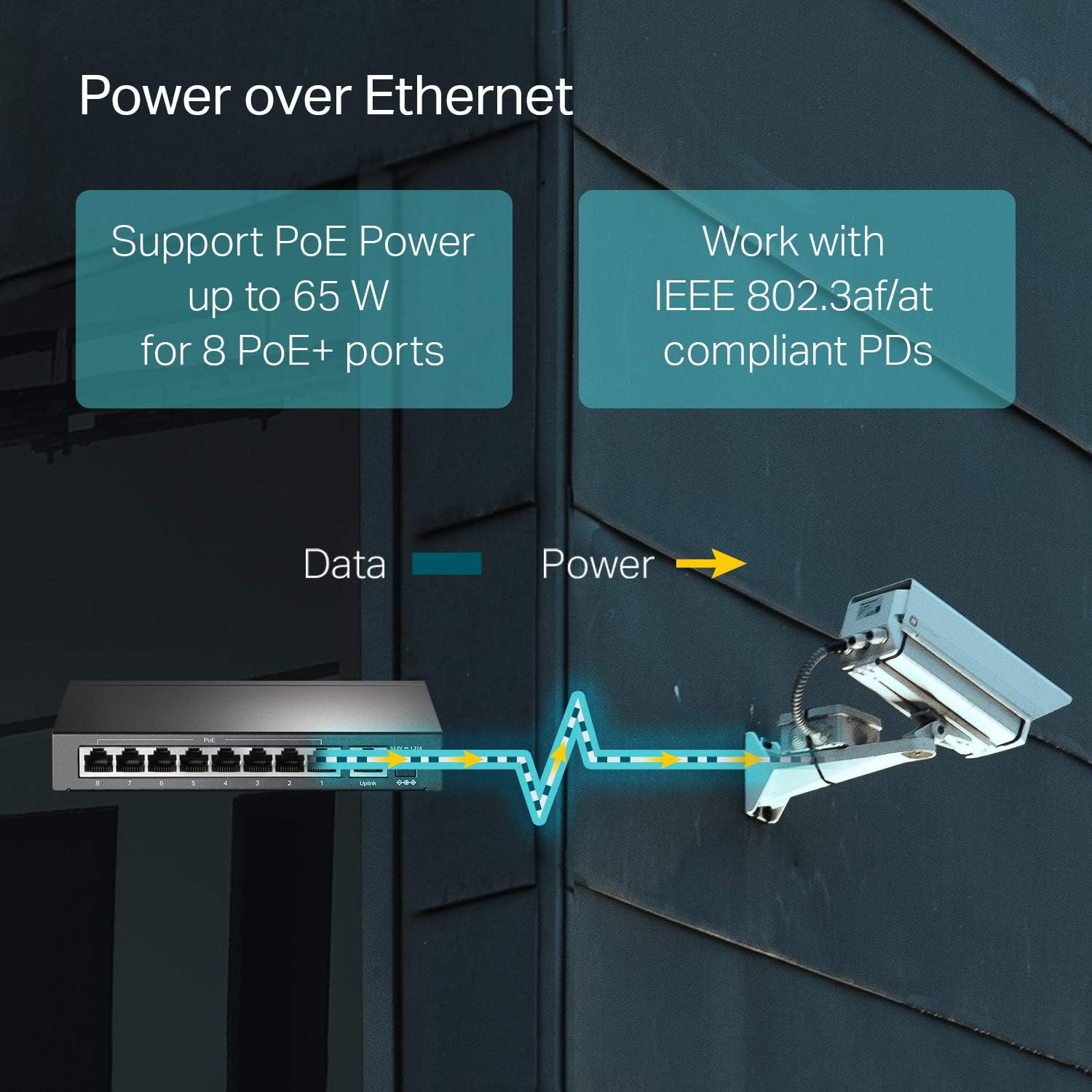
Figure 5.1: Power over Ethernet (PoE) Functionality

Figure 5.2: Powering Omada EAPs with PoE+
6. Multiple Application Scenarios
The TL-SF1009P switch is versatile and can be deployed in various environments to enhance network connectivity and power delivery.
- Surveillance Systems: Ideal for powering IP cameras, especially with Extend Mode for longer cable runs.
- Conference Calls: Ensures stable and high-quality voice data transmission for IP phones using Priority Mode.
- WiFi Coverage Expansion: Provides power and data to Omada EAPs (Enterprise Access Points) for extending wireless network coverage.

Figure 6.1: Common Application Scenarios
7. Specifications
| Feature | Detail |
|---|---|
| Model Number | TL-SF1009P |
| Number of Ports | 9 (8 PoE+ ports, 1 Uplink port) |
| PoE+ Standard | 802.3at/af |
| Max Power Per Port | 30W |
| Total PoE Budget | 65W |
| Data Transfer Rate | 10/100Mbps Fast Ethernet |
| Switch Type | Unmanaged Desktop Switch |
| Case Material | Metal |
| Product Dimensions | 6.73 x 3.86 x 1.06 inches |
| Item Weight | 12.7 ounces (0.36 Kilograms) |
| Voltage | 48 Volts (DC) |

Figure 7.1: TL-SF1009P Front View
8. Maintenance
To ensure optimal performance and longevity of your TP-Link TL-SF1009P switch, follow these maintenance guidelines:
- Placement: Place the switch in a cool, dry, and well-ventilated area away from direct sunlight, heat sources, and excessive moisture.
- Cleaning: Use a soft, dry cloth to clean the exterior of the switch. Do not use liquid or aerosol cleaners.
- Cable Management: Ensure Ethernet cables are properly routed and not excessively bent or kinked to prevent signal degradation.
- Power Supply: Use only the original power adapter provided with the device.
- Firmware Updates: While this is an unmanaged switch and typically does not require firmware updates, regularly check the TP-Link official website for any potential updates or important notices.
9. Troubleshooting
If you encounter issues with your TL-SF1009P switch, try the following troubleshooting steps:
- No Power: Ensure the power adapter is securely connected to both the switch and a working power outlet. Check if the power LED on the switch is illuminated.
- No Link/Activity on Port: Verify that the Ethernet cable is securely connected to both the switch port and the connected device. Try a different Ethernet cable or port. Ensure the connected device is powered on and functioning correctly.
- PoE Device Not Powering On: Confirm that the connected device is PoE-compatible (802.3at/af). Check the PoE budget (65W total) to ensure it's not exceeded by the combined power draw of all connected PoE devices. Try connecting the device to a different PoE port.
- Slow Network Speed: If using Extend Mode, remember that port speed is reduced to 10 Mbps. If not in Extend Mode, check for faulty cables or excessive network traffic.
- Intermittent Connection: Check for loose cable connections. Ensure the switch is not overheating and is placed in a well-ventilated area.
- Reset: If issues persist, disconnect the power adapter from the switch for a few seconds, then reconnect it to perform a soft reset.
10. Warranty and Support
The TP-Link TL-SF1009P is backed by an industry-leading 3-year warranty. For technical assistance, please contact TP-Link customer support. Free technical support is available from 6 AM to 6 PM PST, Monday to Friday.
For the official User Manual (PDF) and additional support resources, please visit the TP-Link Support Website.
11. Important Safety Information
WARNING: This product contains chemicals known to the State of California to cause cancer and birth defects or other reproductive harm.
Related documentsTL-SF1009P


Ask a question about this manual
Ask about setup, troubleshooting, compatibility, parts, safety, or missing instructions. Manuals+ will review the question and use this page’s manual context to help answer it.