
1. Introduction and Overview
Thank you for choosing the DRONEEYE 4DF6 Drone. This user manual provides essential information for operating and maintaining your drone. The 4DF6 is a versatile and easy-to-control quadcopter, perfect for beginners and experienced users alike, featuring a 1080P HD camera for capturing stunning aerial photos and videos.
Its foldable design makes it highly portable, and intelligent flight modes such as Altitude Hold, Headless Mode, and Waypoint Fly ensure a stable and enjoyable flight experience. With dual cameras and FPV real-time transmission, you can explore the world from a new perspective.

Figure 1: DRONEEYE 4DF6 Drone with its accessories, including the remote control, two batteries, and a compact carrying case.
2. Package Contents
Please verify that all items listed below are included in your package:
- 1x DRONEEYE 4DF6 Drone
- 1x Transmitter (Remote Control)
- 2x 1200mAh Drone Batteries
- 1x USB Charging Cable
- 4x Spare Propellers
- 1x User Manual (this document)
- 1x Carrying Case
3. Product Features
The DRONEEYE 4DF6 Drone is equipped with a range of features designed for an optimal flying and photography experience:
- 1080P HD Camera & FPV: Capture high-definition photos and videos with the 1080P camera. Experience real-time first-person view (FPV) directly on your smartphone via Wi-Fi transmission. Both front and bottom cameras are available for diverse perspectives.
- Easy Control for Beginners: Features like "One Key Start/Landing" allow for automatic takeoff and landing. Altitude Hold maintains the drone at a set height, simplifying photo and video capture. Headless Mode and three-speed modes cater to all skill levels.
- Multifunctional & Fun Flight: Perform exciting 360° flips and circle flights. Utilize Waypoint Fly to define a precise flight path on the app map. Control options include remote, app, voice, and even "Throw to Go" for quick launches.
- Intelligent Voice & Gesture Control: Command your drone with simple voice commands like "Fly" or "Land". Use hand gestures (V sign for photo, Palm for video) for convenient hands-free capture.
- Extended Flight Time: Two included 1200mAh Li-po modular batteries provide approximately 24-27 minutes of total flight time (15-18 minutes per battery).
- Safe Design & Intelligent Alert: Equipped with protective propeller guards for safe flight. Made from high-quality ABS material for durability. Features a low battery power alarm and emergency stop function to prevent loss.

Figure 2: Detailed view of the 1080P FPV camera, highlighting its adjustable angle for wide-range high-definition capture.

Figure 3: Illustration of intelligent flight features including One Key Start/Land, Headless Mode, and Orbit Flight.

Figure 4: Demonstrates the Waypoint Fly feature, allowing users to set a custom flight path for the drone.

Figure 5: Shows the drone performing a 3D flip, highlighting its agile flight capabilities and gravity control.
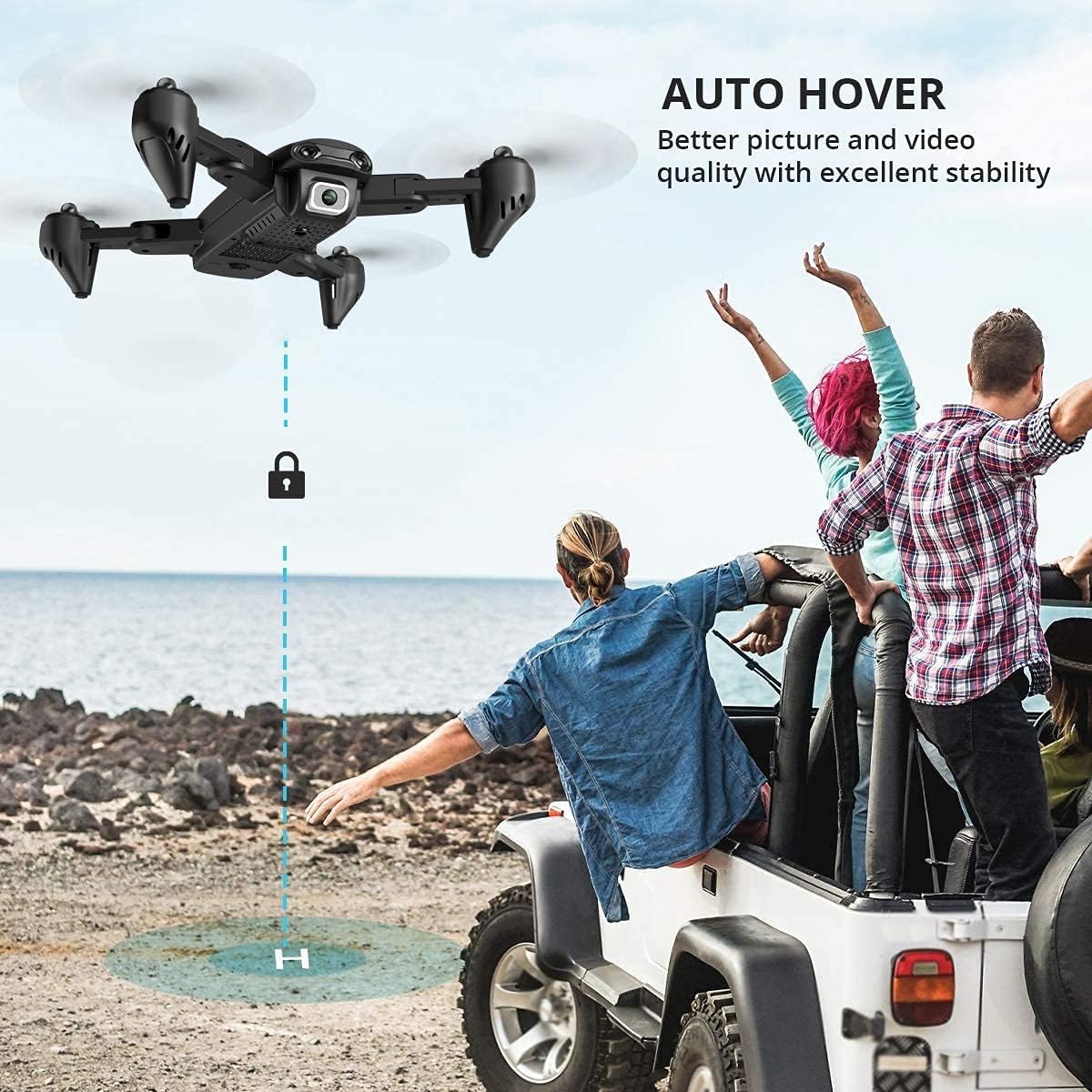
Figure 6: The drone demonstrating its Auto Hover capability, ensuring stable picture and video quality.
Product Video Overview
Video 1: An official product video showcasing the DRONEEYE 4DF6 Drone's features, including real-time transmission, adjustable camera, optical flow positioning, HD aerial photography, dual camera switching, waypoint flight, gesture video, circle fly, and gesture photo.
4. Setup Guide
4.1 Battery Charging
- Remove the drone battery from the drone.
- Connect the USB charging cable to the battery.
- Plug the USB cable into a 5V/2A USB adapter (not included) or a computer USB port.
- The charging indicator on the cable will show charging status (refer to cable's specific indicator behavior). Charging takes approximately 90 minutes per battery.
- Once fully charged, disconnect the battery.
4.2 Remote Control Setup
- Insert 3x AAA batteries (not included) into the remote control, ensuring correct polarity.
- Ensure the drone battery is fully charged and inserted into the drone.
- Place the drone on a flat, level surface.
- Turn on the drone, then turn on the remote control. The drone's indicator lights will flash.
- Push the left joystick up then down to pair the drone with the remote. The drone lights will become solid, indicating successful pairing.
4.3 App Installation and Connection (4DRC App)
- Download the "4DRC" app from your smartphone's app store (compatible with iOS 7.0+ / Android 4.4+).
- Turn on the drone.
- Go to your phone's Wi-Fi settings and connect to the drone's Wi-Fi network (usually named "4DRC-XXXXXX").
- Open the 4DRC app. You should see the live FPV feed from the drone's camera.
5. Operating Instructions
5.1 Basic Flight Controls
- One Key Start/Landing: Press the dedicated button on the remote or in the app to automatically take off or land the drone.
- Altitude Hold: The drone will automatically maintain its current altitude, making it easier to control and capture stable footage.
- Headless Mode: In this mode, the drone's orientation is relative to the pilot, regardless of the drone's actual front direction. This simplifies control for beginners. Activate/deactivate via the remote or app.
- Speed Adjustment: Cycle through 3-speed modes (low, medium, high) using the speed button on the remote to match your skill level and flying environment.
5.2 Advanced Flight Functions
- 360° Flips: While flying, press the 3D flip button and move the right joystick in the desired direction to perform an acrobatic flip. Ensure sufficient altitude.
- Circle Fly: Activate this feature via the app, and the drone will fly in a circular path around a central point.
- Waypoint Fly: In the 4DRC app, tap on the map to draw a desired flight path. The drone will then automatically follow this route.
- Gesture Control:
- "V" Sign (Photo): Face the drone's camera and make a "V" sign with your fingers within 2-3 meters. The drone will automatically take a photo.
- "Palm" Gesture (Video): Face the drone's camera and show your open palm within 2-3 meters. The drone will start recording video.
- Voice Control: Use simple voice commands through the 4DRC app such as "Fly", "Land", "Forward", "Backward", "Left", and "Right" to control the drone.
5.3 Photo and Video Capture
- Taking Photos: Press the photo button on the remote or tap the camera icon in the app. Photos are saved directly to your smartphone.
- Recording Videos: Press the video button on the remote or tap the video icon in the app to start/stop recording. Videos are saved directly to your smartphone.
- FPV Real-time Transmission: The live video feed from the drone's camera is transmitted to your smartphone, allowing for immersive flight and precise framing of shots.

Figure 7: Demonstrates the FPV real-time transmission feature, allowing users to share incredible views directly to social media.
6. Maintenance
- Cleaning: Use a soft, dry cloth to clean the drone body and camera lens. Avoid using harsh chemicals or solvents.
- Battery Care:
- Always use the original charging cable.
- Do not overcharge or over-discharge batteries.
- Store batteries in a cool, dry place away from direct sunlight and extreme temperatures.
- If not used for extended periods, charge batteries to about 50% every 3 months.
- Propeller Inspection: Regularly check propellers for any damage (cracks, bends). Replace damaged propellers immediately using the spare ones provided. Ensure propellers are installed correctly (A and B types).
- Storage: When not in use, fold the drone and store it in its carrying case to protect it from dust and damage.
7. Troubleshooting
| Problem | Possible Cause | Solution |
|---|---|---|
| Drone does not respond to remote. | Low battery in drone or remote; Not paired correctly. | Charge drone battery, replace remote batteries. Re-pair drone and remote. |
| Drone drifts during flight. | Not calibrated; Uneven surface at takeoff. | Perform gyroscope calibration on a flat surface. |
| FPV feed is choppy or disconnected. | Weak Wi-Fi signal; Too far from drone; Interference. | Ensure strong Wi-Fi connection. Fly closer to the drone. Avoid areas with strong Wi-Fi interference. |
| Drone does not take off. | Low battery; Propellers blocked; Not paired. | Charge battery. Check for obstructions. Ensure proper pairing. |
| Drone lost or flew away. | Out of range; Strong wind; Low battery. | Always fly within visual range and control range. Avoid windy conditions. Utilize the "Low Battery Power Alarm" and "Emergency Stop" features. |
8. Specifications
| Attribute | Detail |
|---|---|
| Brand | DRONEEYE |
| Model Name | F6-Wifi |
| Color | Black |
| Material | ABS |
| Product Dimensions | 11.5"L x 11.5"W x 2"H |
| Item Weight | 100 Grams (3.53 ounces) |
| Video Capture Resolution | 1080p (1920x1080 pixels) |
| Optical Sensor Technology | CMOS |
| Connectivity Technology | Wi-Fi |
| Control Type | Remote Control, App Control, Voice Control, Gesture Control |
| Battery Type | 3.7V 1200mAh Li-po Modular Battery (2 included) |
| Playing Time | 15-18 minutes per battery (approx. 24-27 minutes total) |
| Charging Time | Approx. 90 minutes per battery |
| Skill Level | Beginner |
| Recommended Age | 14 years and up |
9. Warranty and Support
DRONEEYE products are manufactured to the highest quality standards. For warranty information, technical support, or any inquiries regarding your DRONEEYE 4DF6 Drone, please refer to the contact details provided on the product packaging or visit the official DRONEEYE website. Please retain your proof of purchase for warranty claims.
For further assistance, you may also visit the DRONEEYE Store on Amazon.